?unique=c585dc1)







































Community
Enterprise
Odoo.sh
Image Upload Editor
The module provides a smooth in-app editing experience with features such as live text color selection, configurable text box width, undo/redo functionality, and real-time image preview editing. All annotations are performed within the same FileViewer window, making communication and collaboration faster and more efficient.

Explore This Module

Overview
The Image Upload Editor module allows users to annotate and edit image attachments directly inside Odoo’s FileViewer while composing messages, emails, or chatter notes. Users can add shapes, arrows, text, highlights, and use undo/redo functionality without leaving Odoo. The module provides a smooth and user-friendly editing experience and can be enabled or disabled company-wise from General Settings.

Features
Available in Odoo 19.0 Community and Enterprise.

Annotate images directly inside Odoo FileViewer while composing messages or chatter notes.

Add arrows, rectangles, circles, and other shapes to highlight important details on images.

Insert custom text with live color selection and configurable text box width.

Easily revert or reapply editing actions for a smooth and flexible editing experience.

Edit and preview images inside the same FileViewer window without external tools.

Enable or disable the image editor feature company-wise from General Settings.

Screenshots
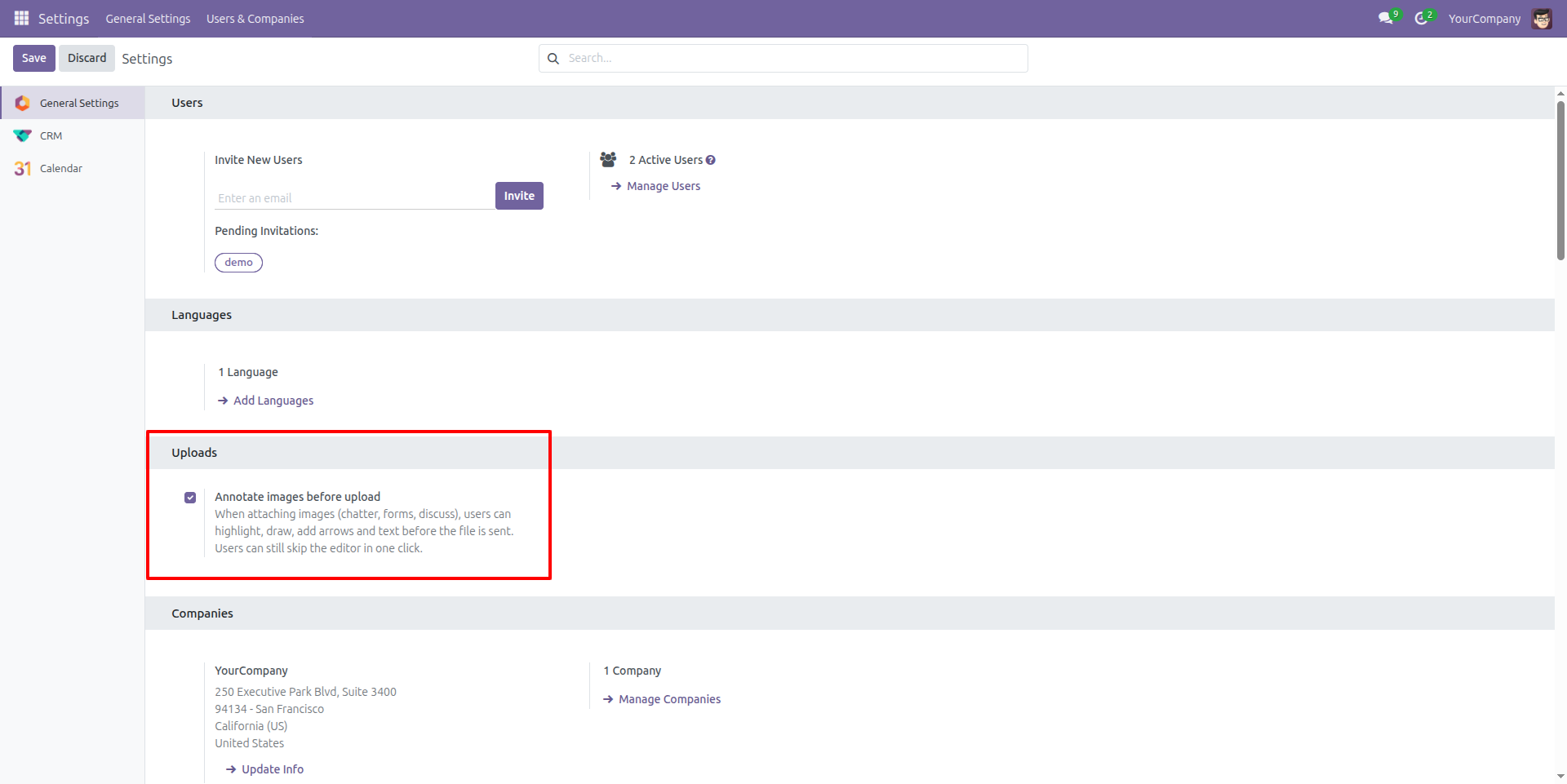
Annotate Images Before Upload - Configuration
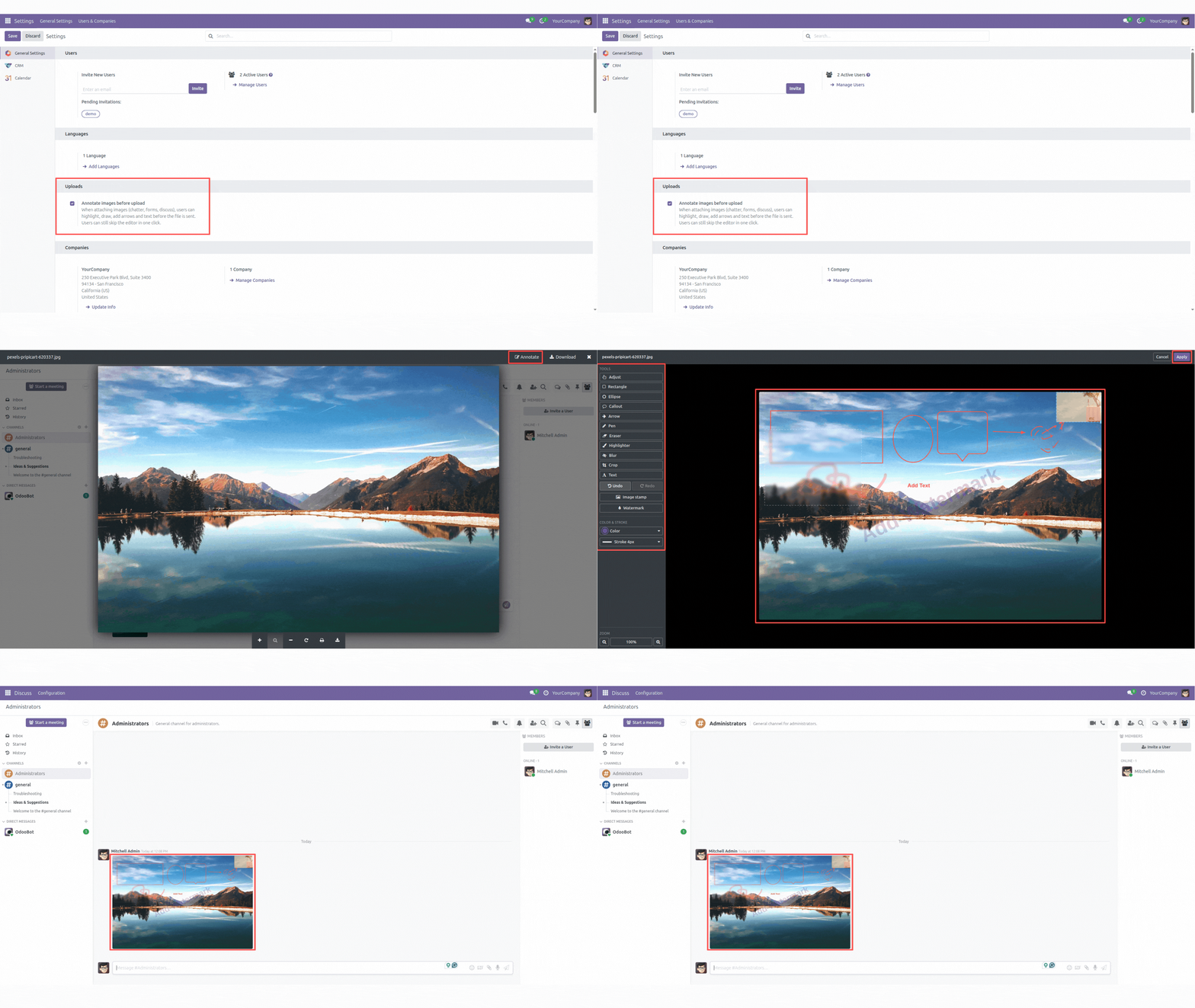
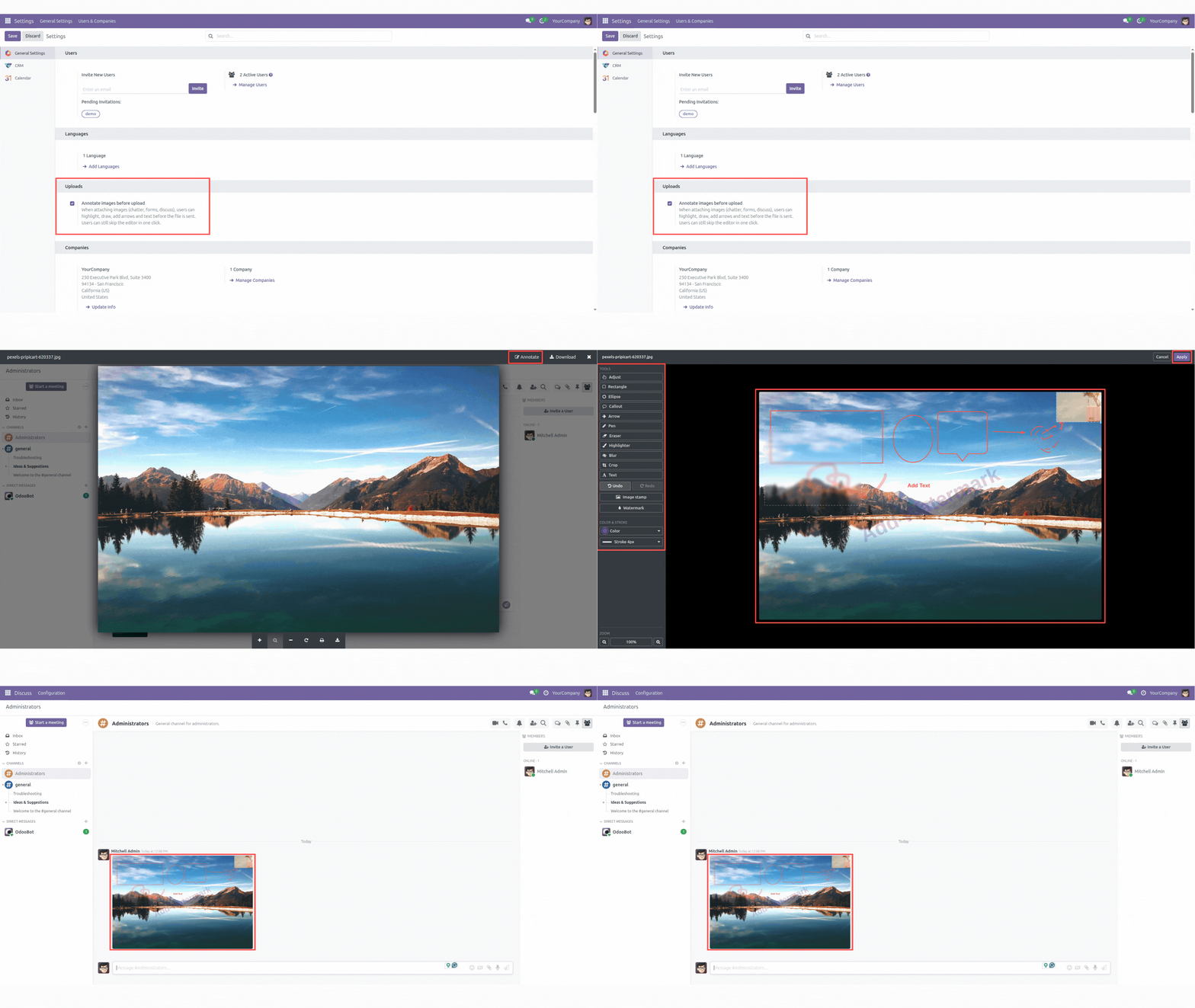
Enable the image annotation feature from General Settings under the Uploads section. When enabled, users can highlight, draw, add arrows and text on images before sending via chatter, forms, or Discuss.
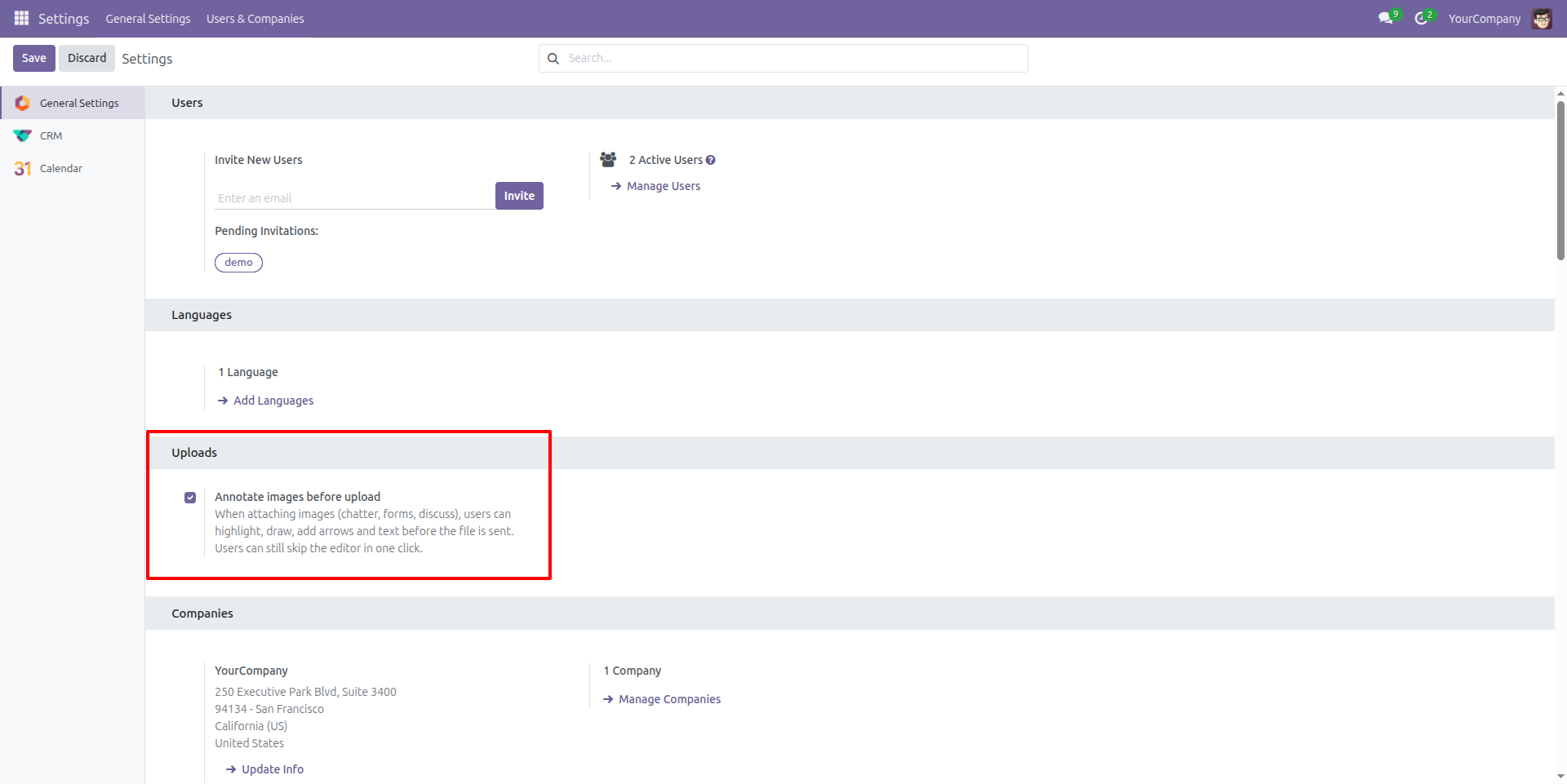
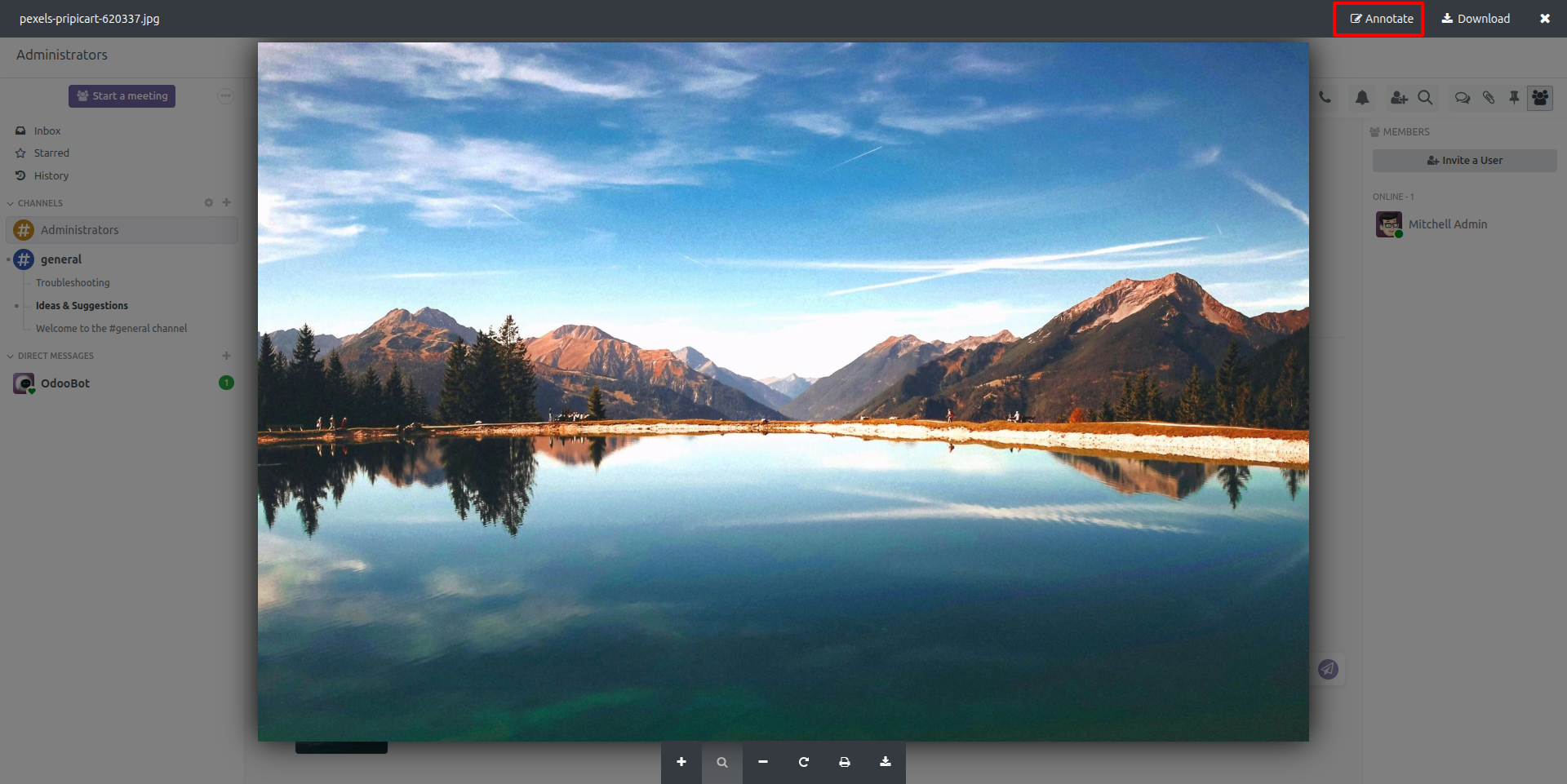
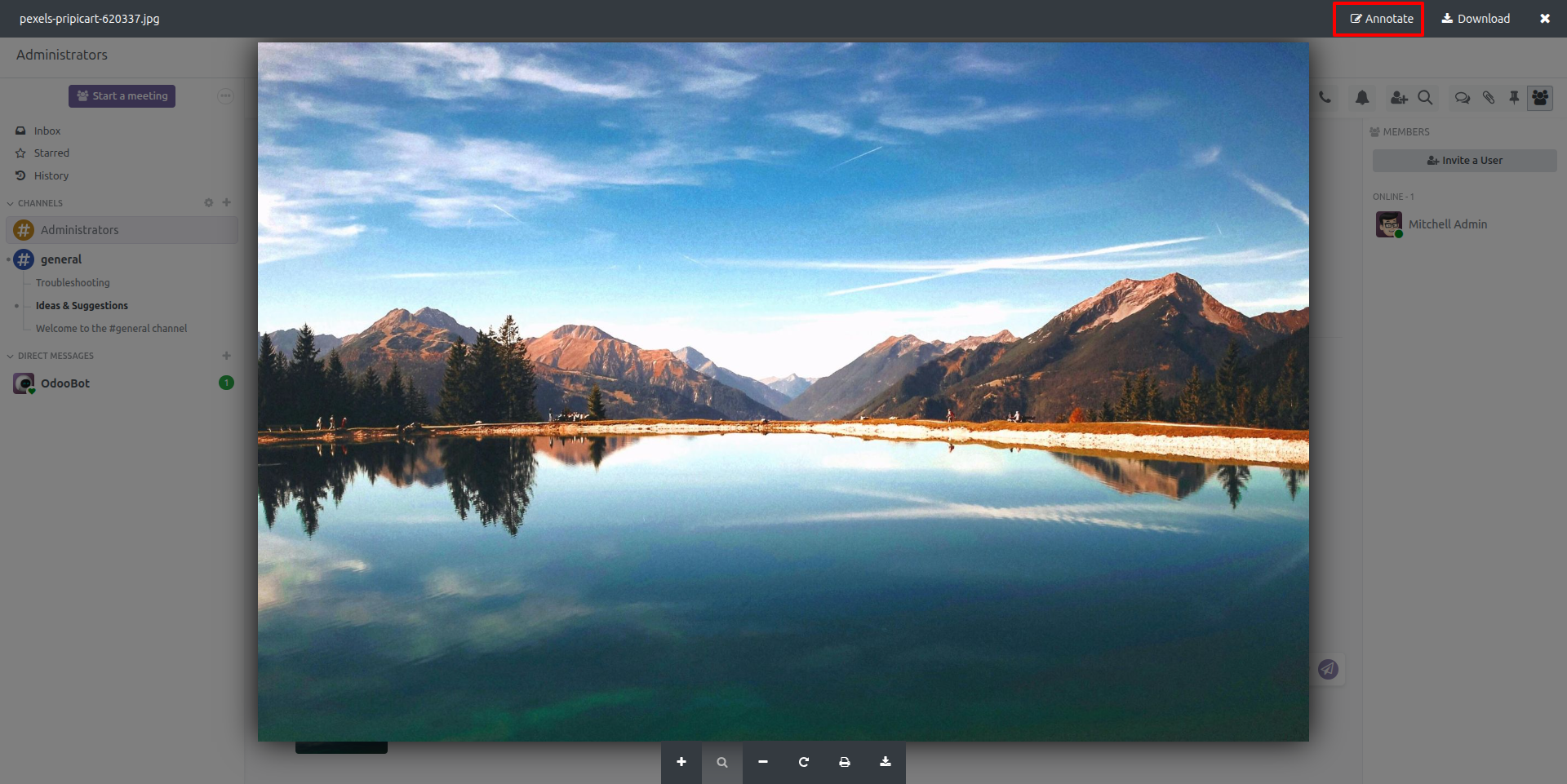
Image Annotation Button in FileViewer
Click on any image attachment in the Discuss or Chatter to open the FileViewer. The annotation button appears in the top-right corner, allowing users to open the annotation editor for that image.
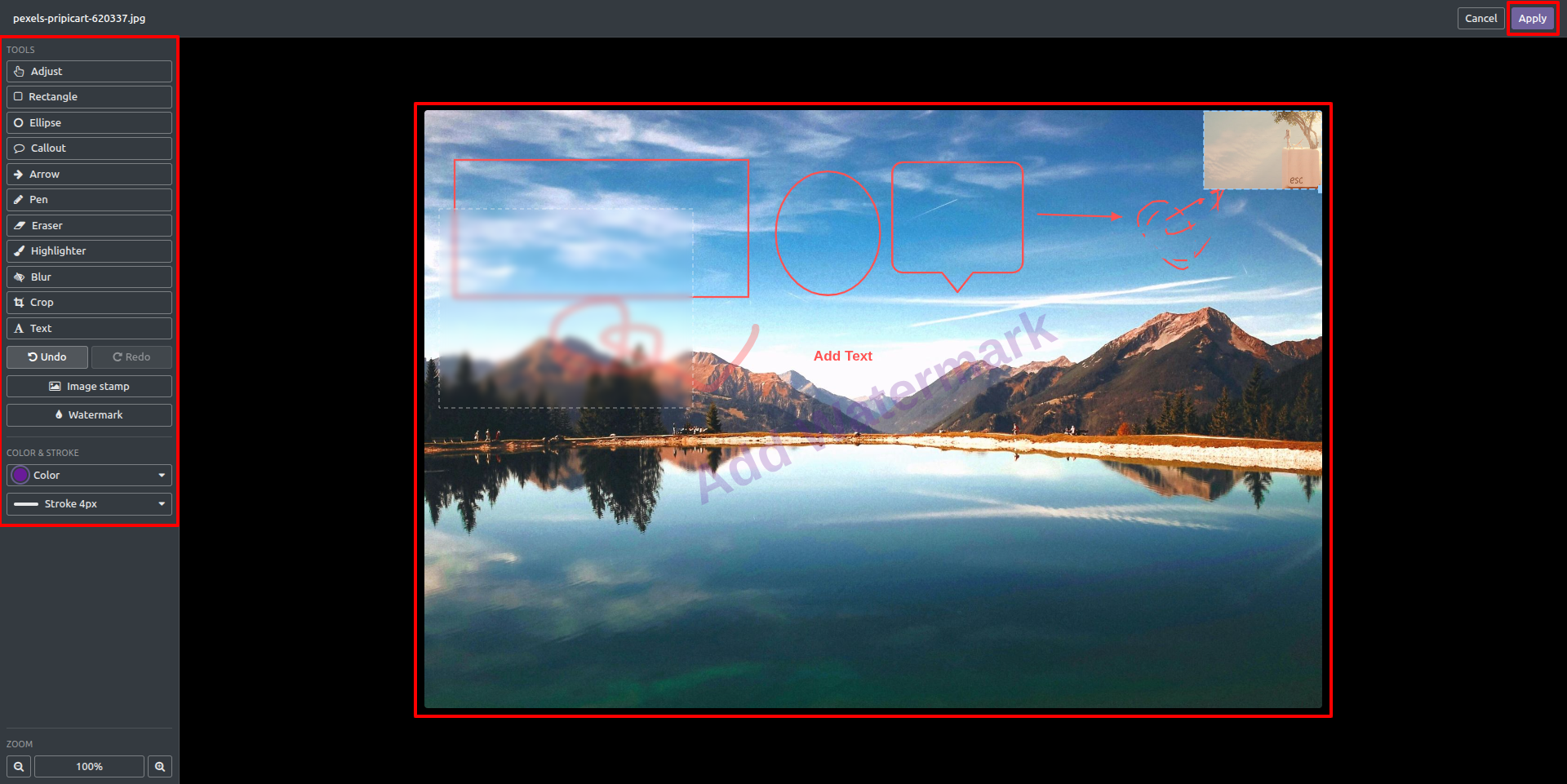
Full Annotation Editor with Drawing Tools
The annotation editor provides a complete set of tools including Rectangle, Ellipse, Callout, Arrow, Pen, Eraser, Highlighter, Blur, Crop, Text, Image Stamp, and Watermark. Color picker and stroke width controls are available in the left panel. Click Apply to save or Cancel to discard changes.
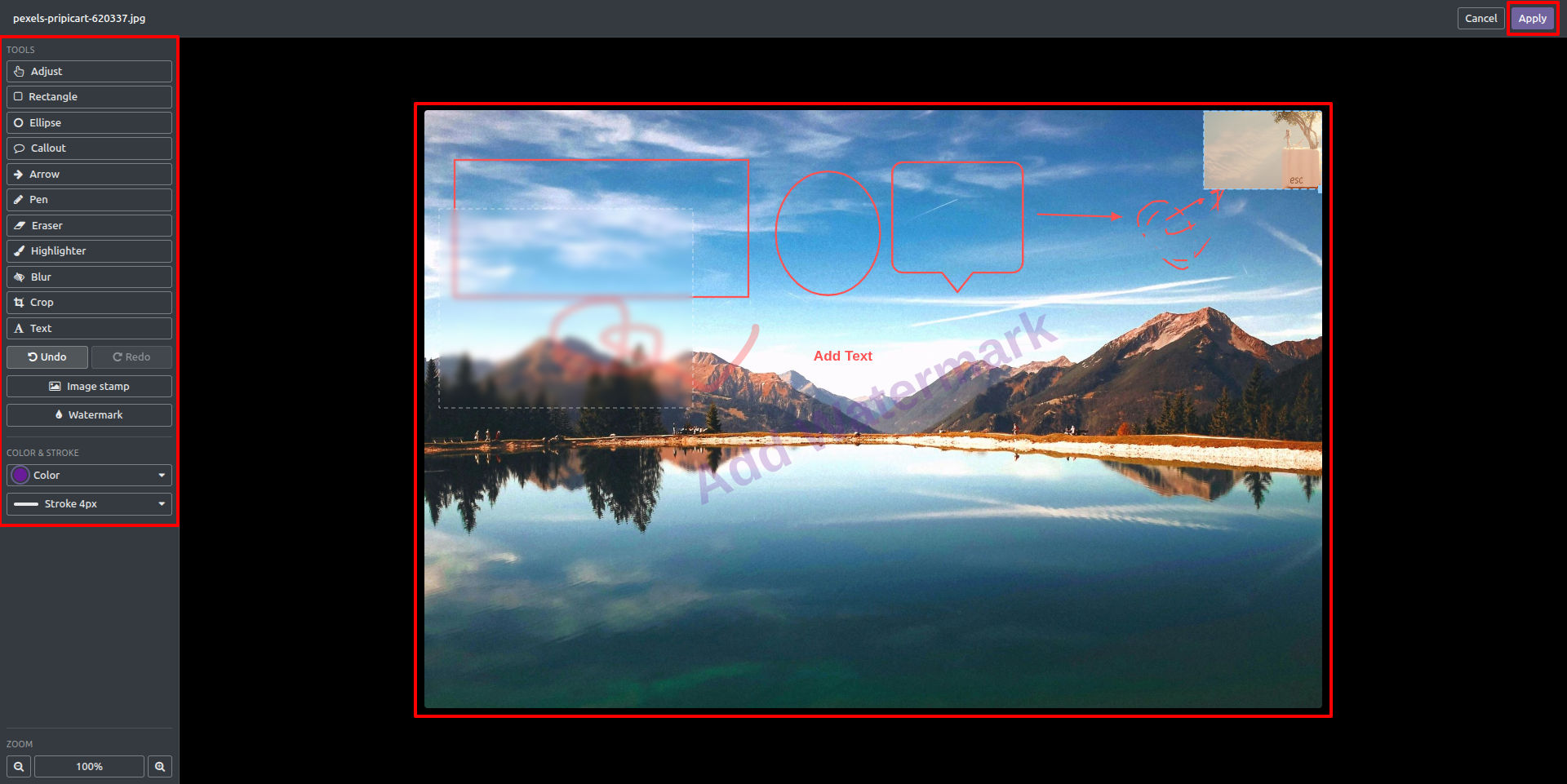
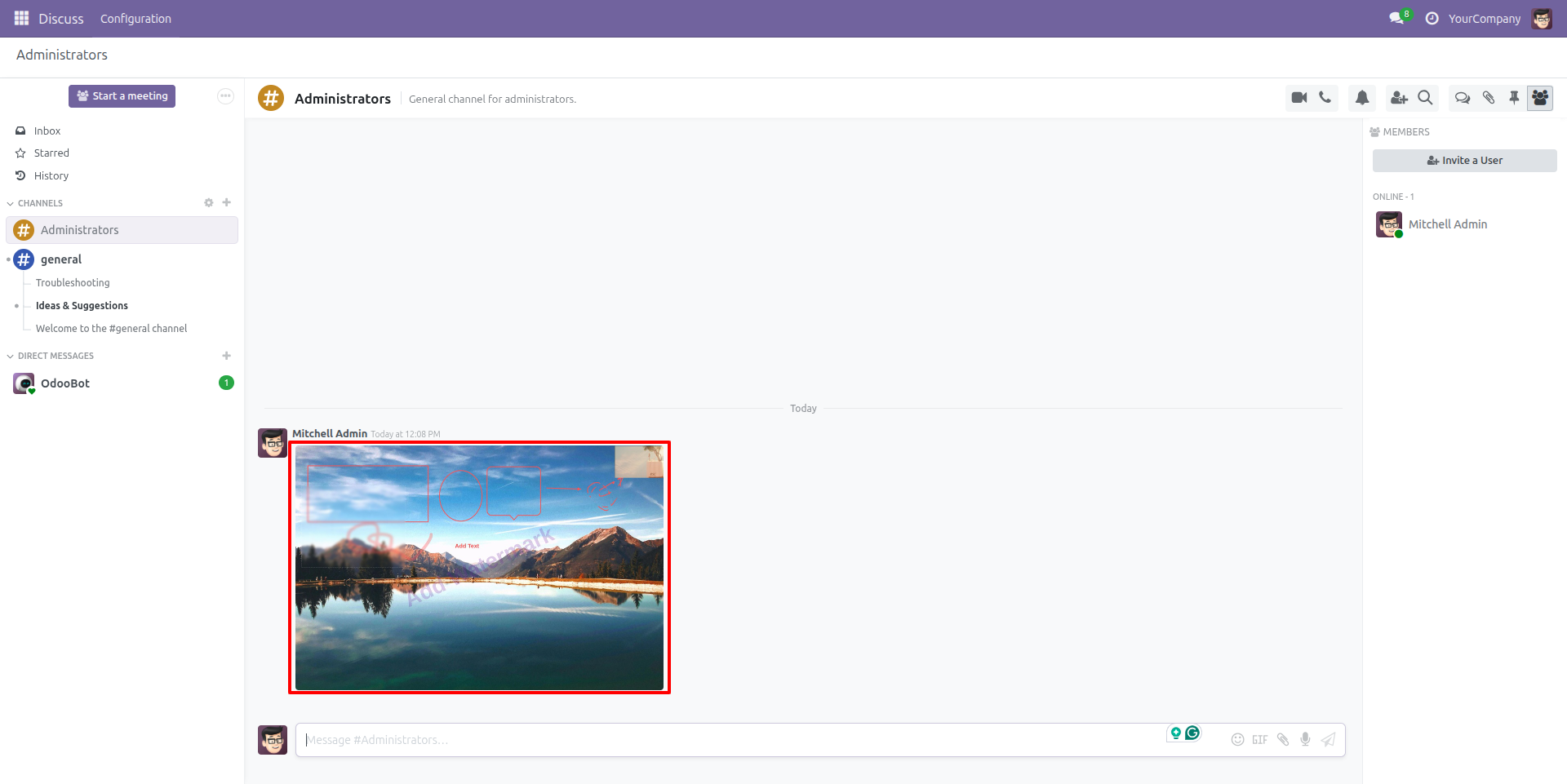
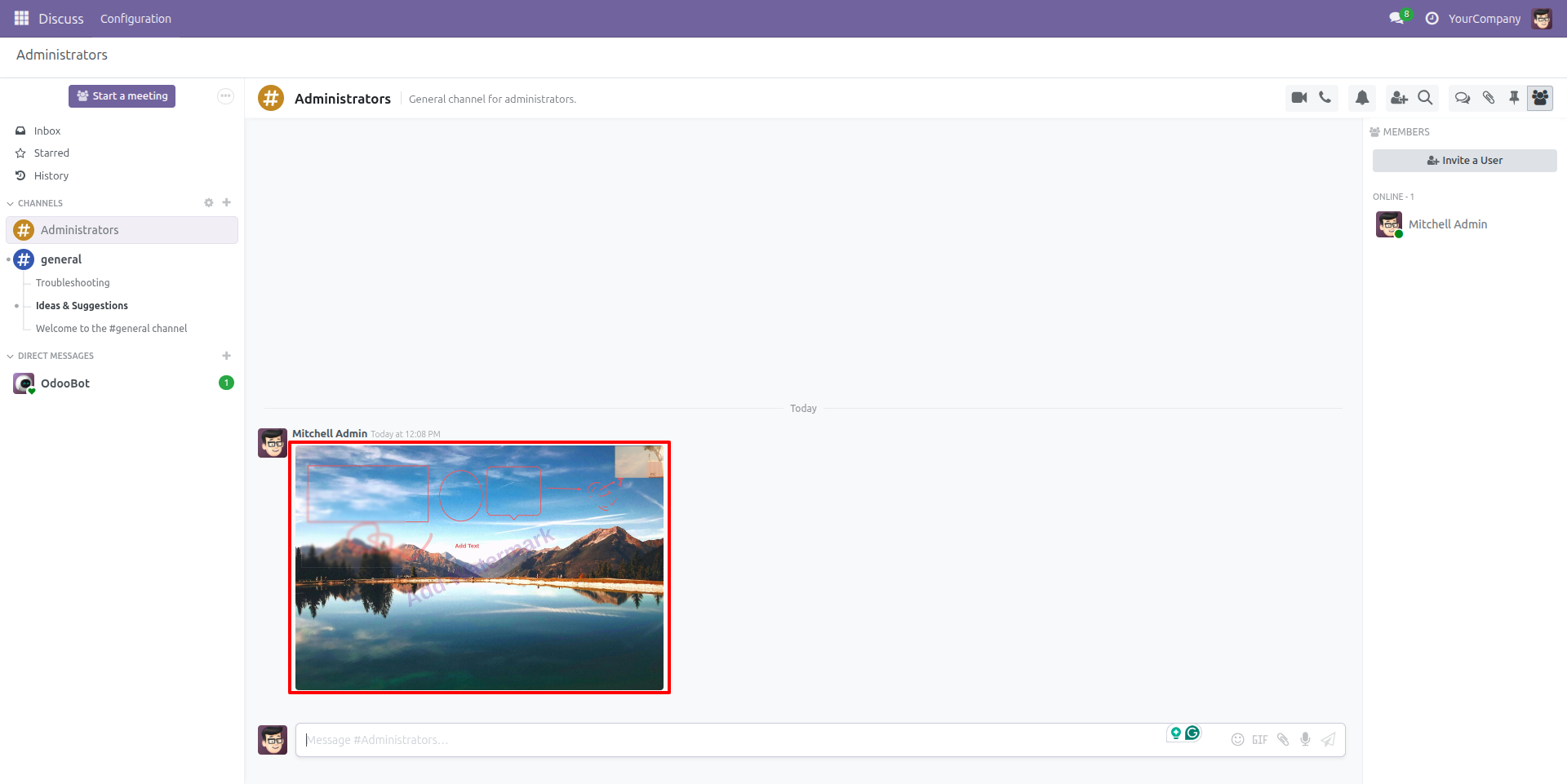
Annotated Image Saved and Displayed in Discuss
After clicking Apply, the annotated image is saved and displayed directly in the Discuss channel. All drawings, shapes, text, watermark, and image stamps are permanently merged into the image and visible to all channel members.

Our Services

Our Industries

Support



Technical Information
kx_image_upload_editor
web
mail
base_setup
Supported Versions
18.0.1.0
FREE
19.0.1.0
FREE