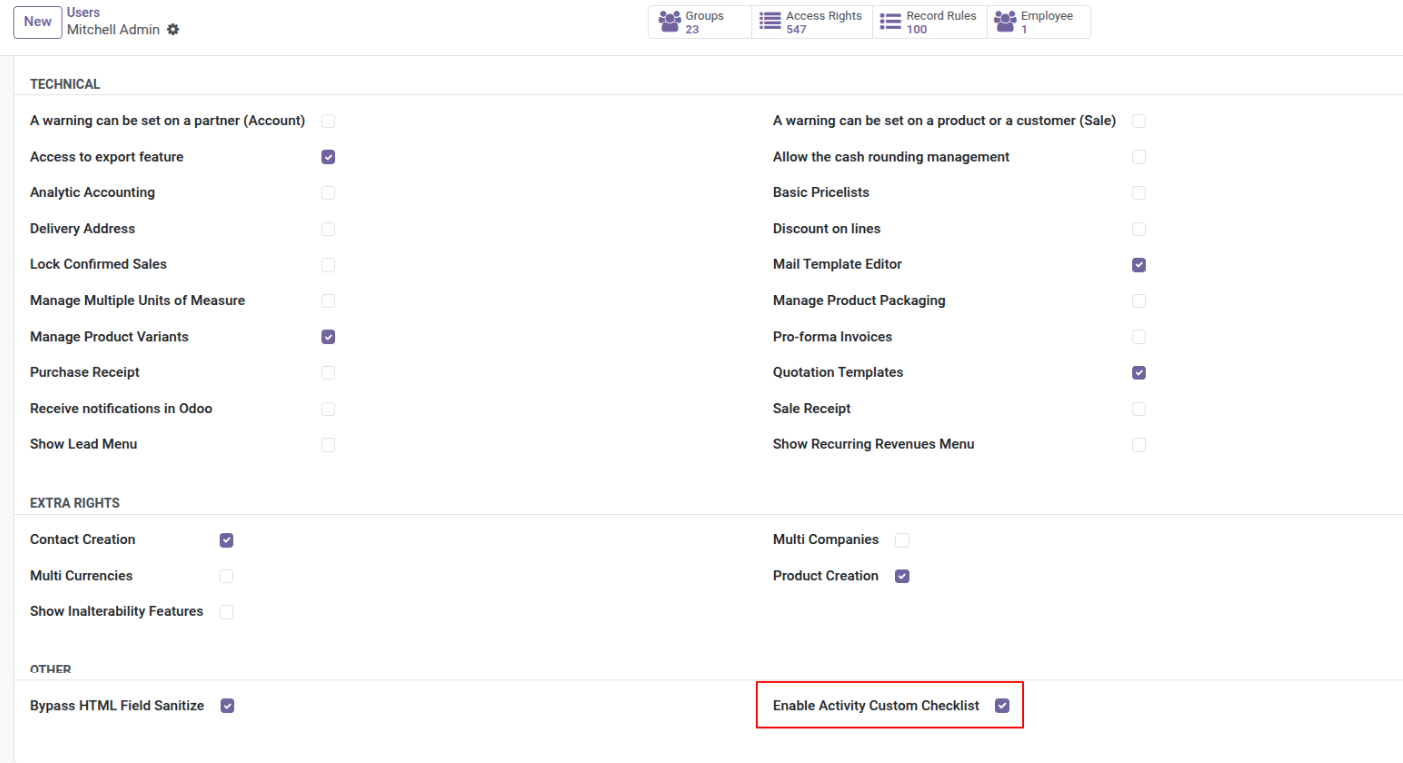
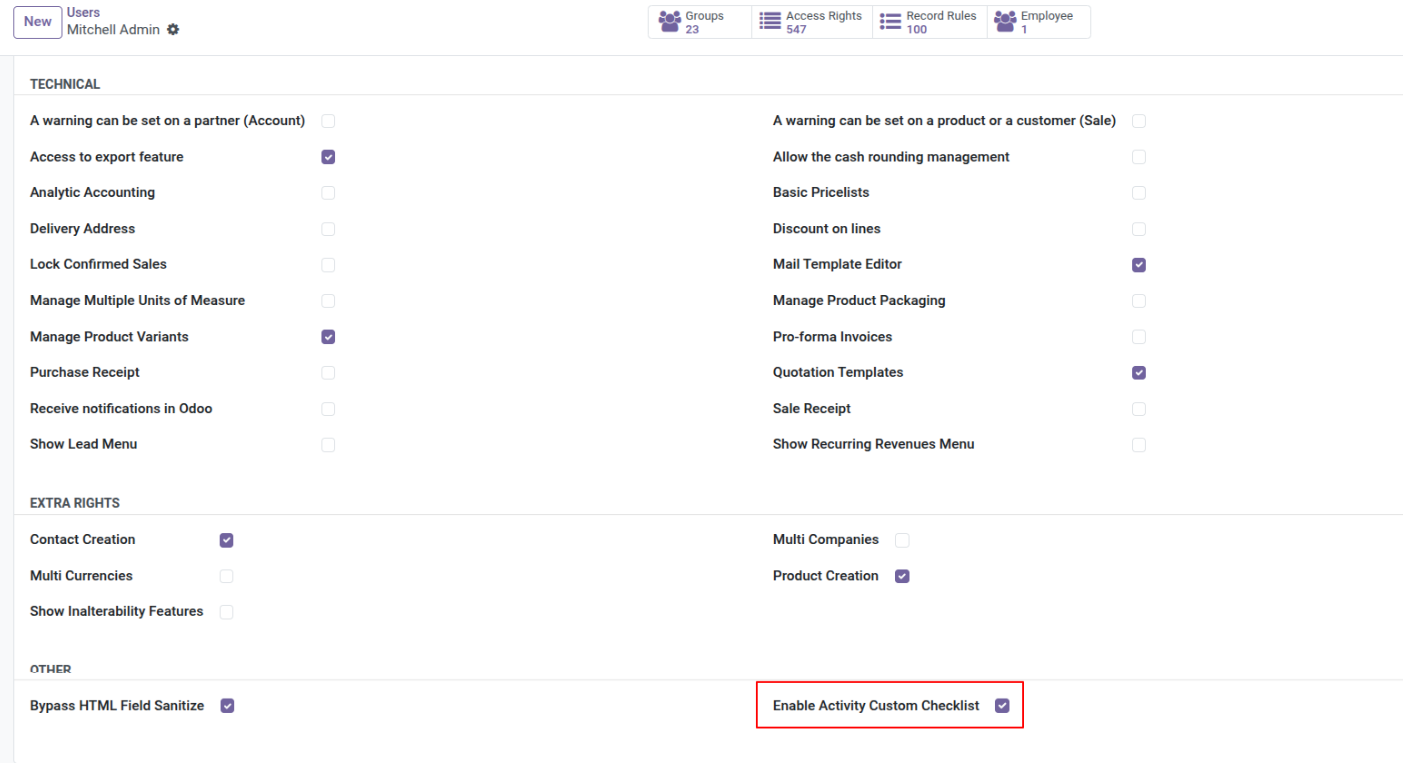
Enable 'Activity Custom Checklist'.
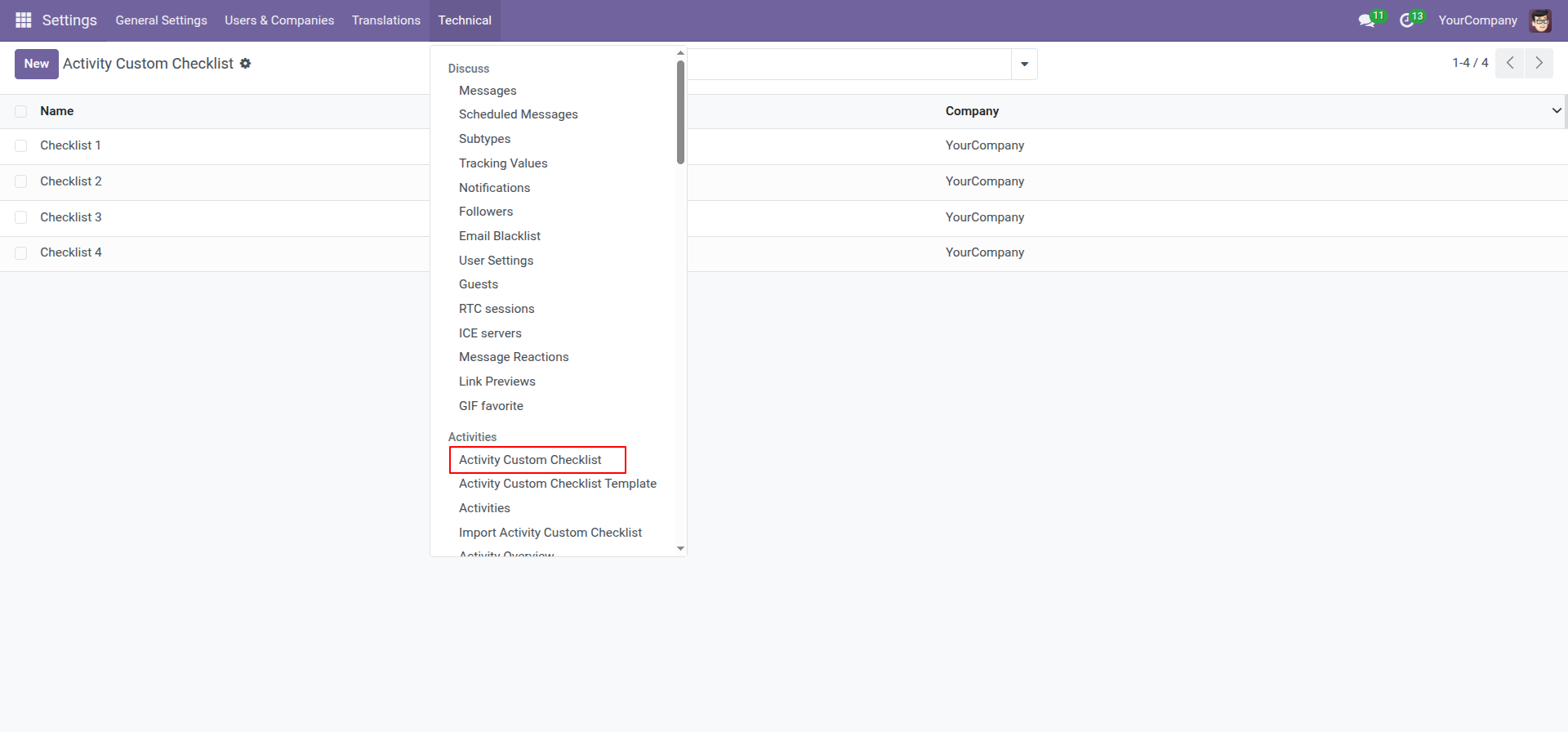
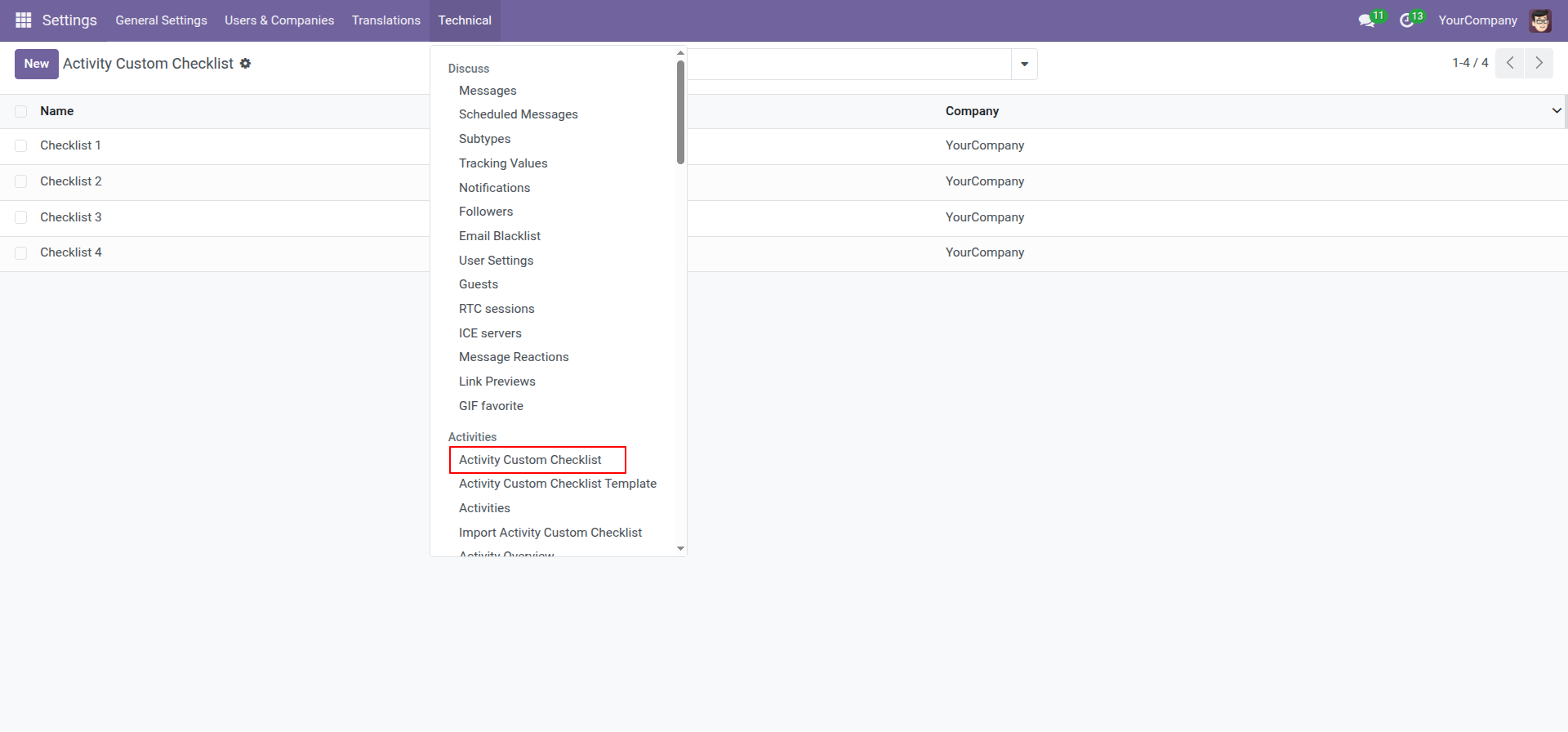
Go to the setting and open the technical menu. From there, Click on the option labeled 'Activity Custom Checklist'.
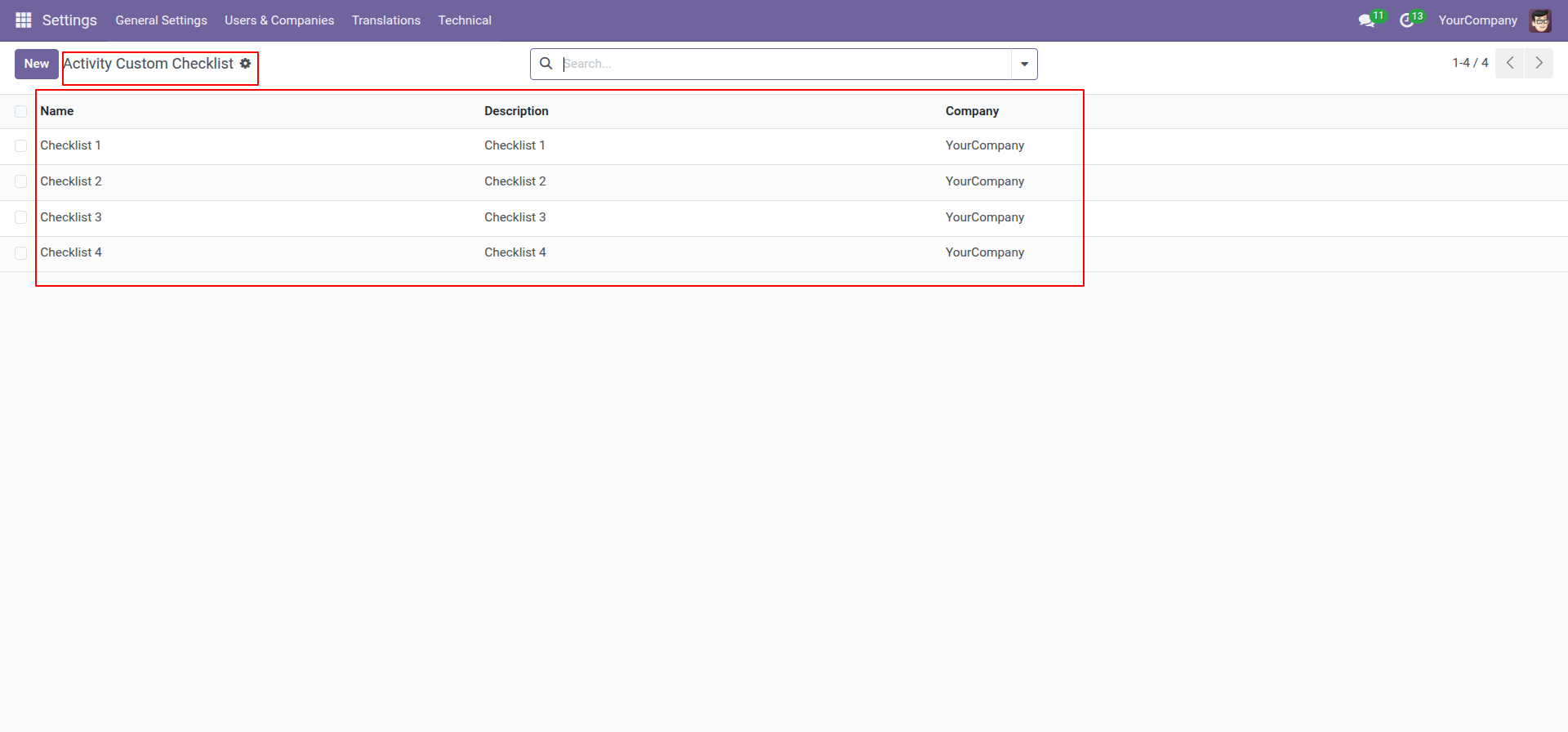
Form view of the activity custom checklist.
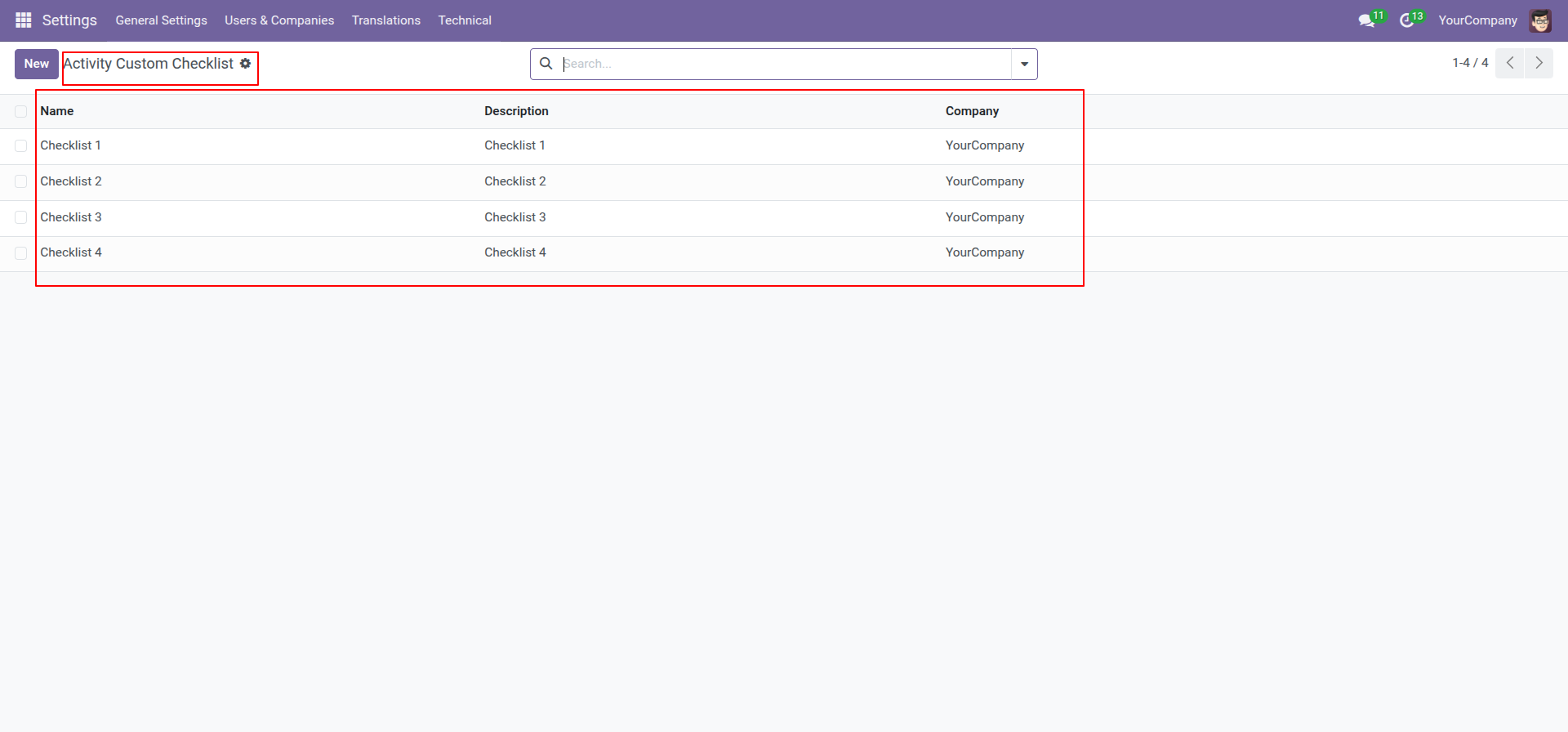
The list view of the activity custom checklist looks like this.
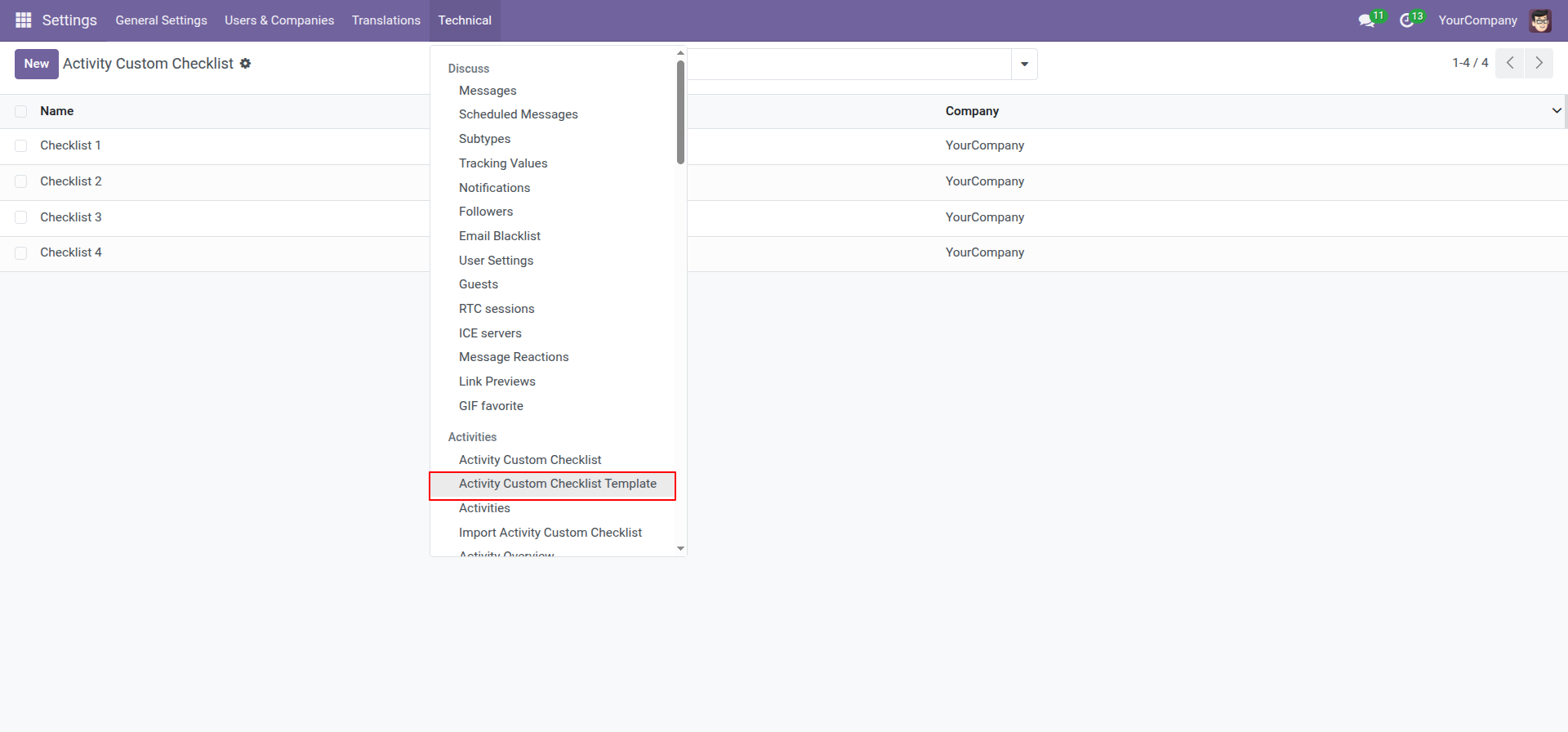
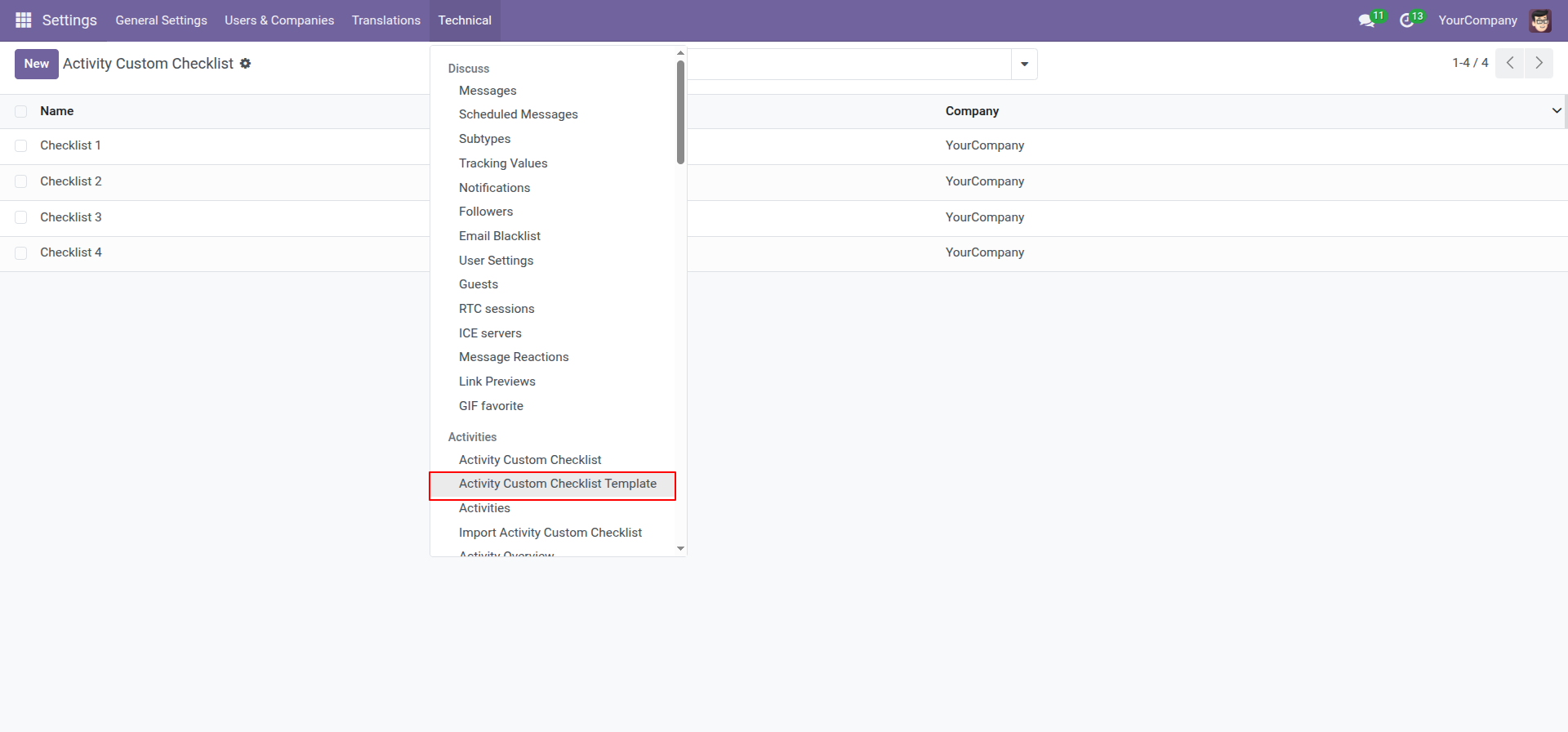
Go to the setting and open the technical menu. From there, Click on the option labeled 'Activity Custom Checklist Template'.
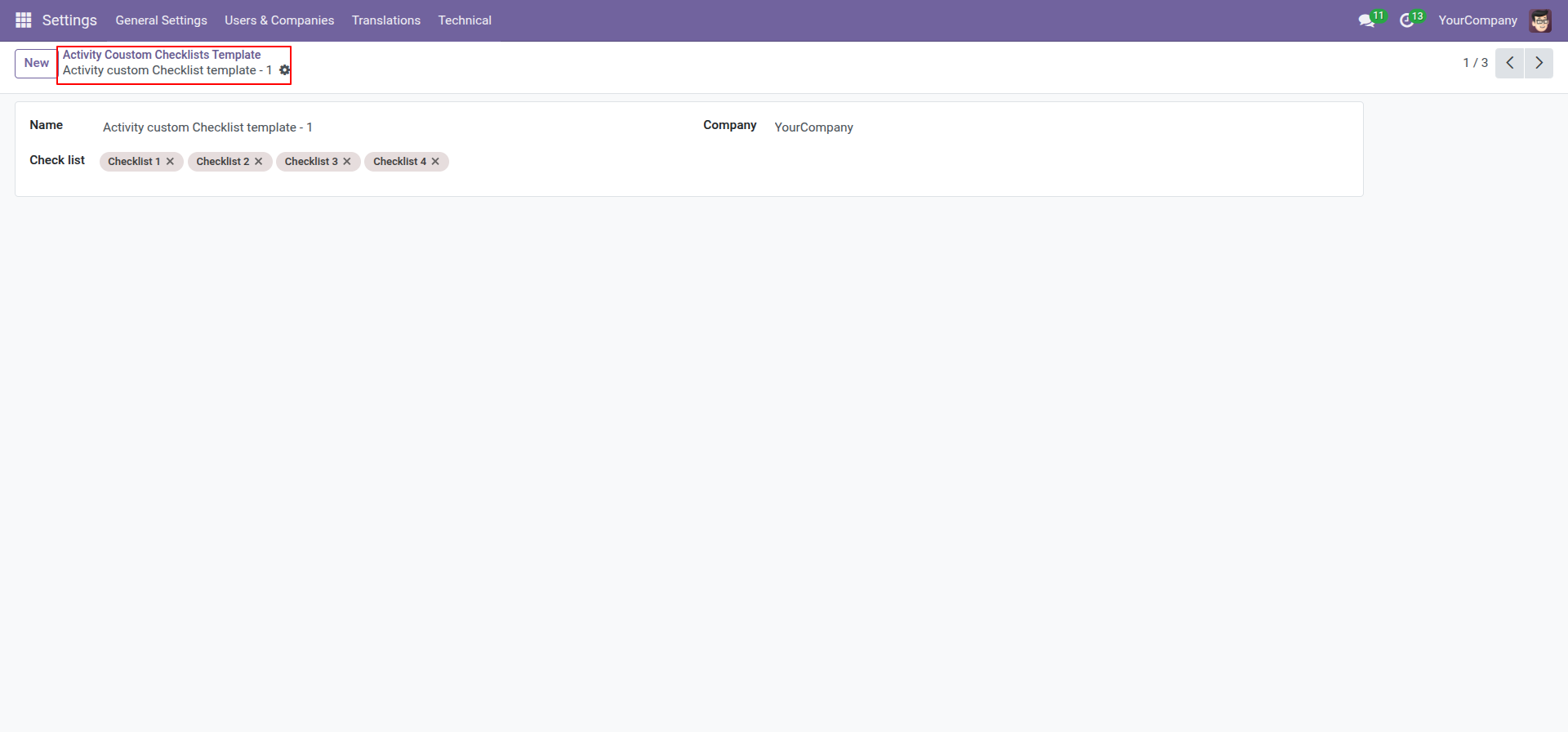
Form view of the activity custom checklist template.
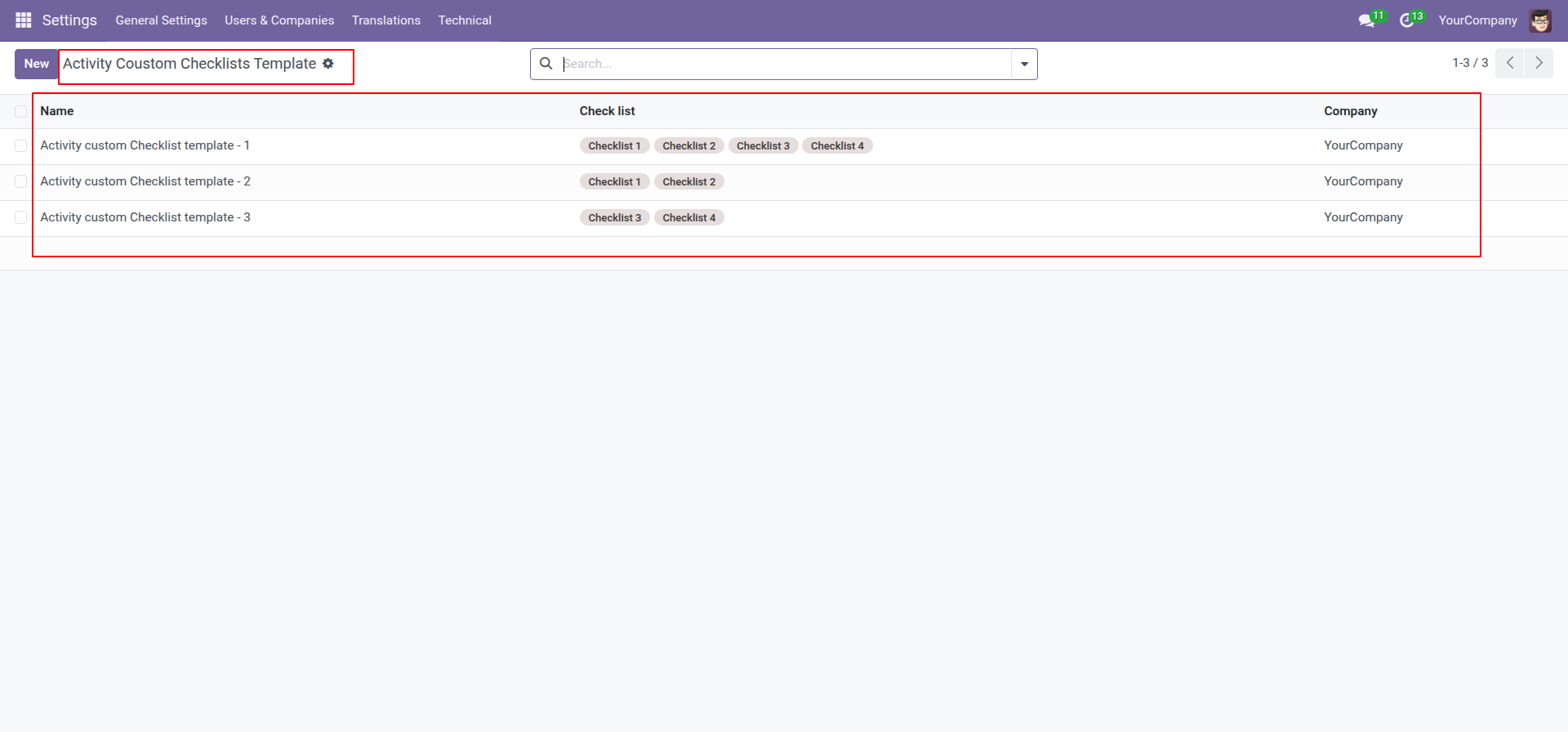
The list view of the activity custom checklist template looks like this.
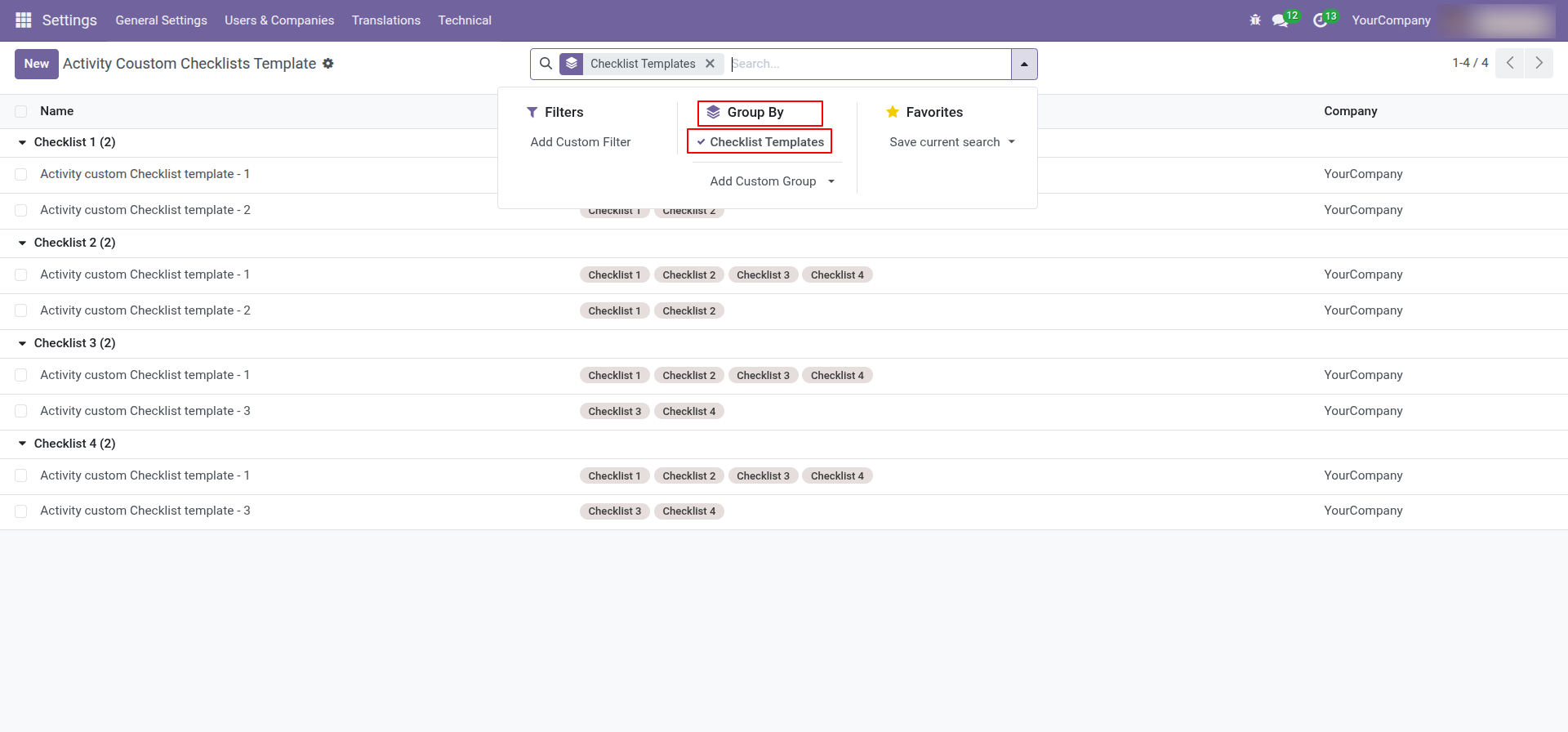
You can group by checklist templates.
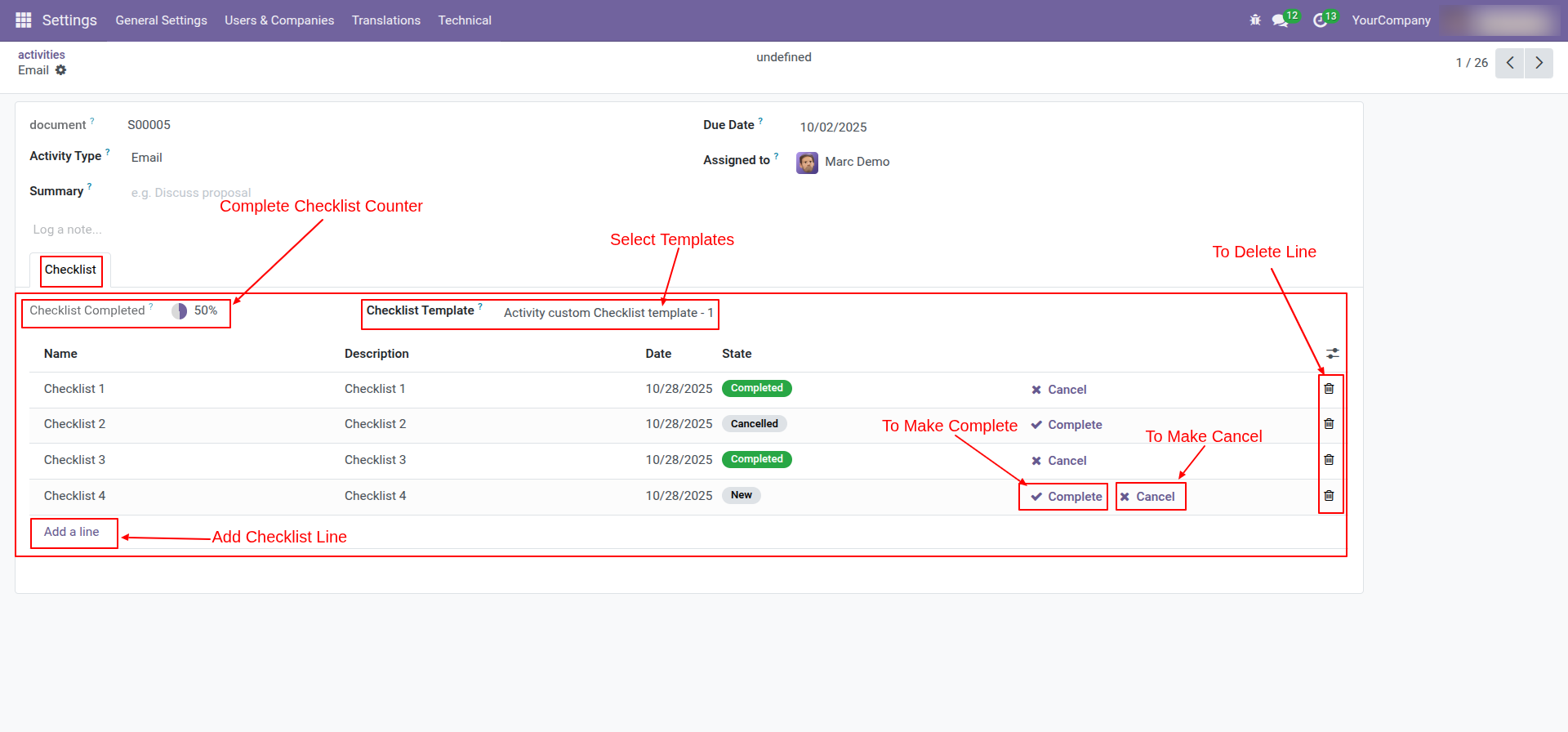
After accessing the "Activity Custom Checklist", you can fill out the checklist by selecting the checklist template. After selecting a template, a new record will be added with the checklist's default states: "New", "Completed", and "Cancelled". Click on Complete Icon To Complete Checklist & Cancel Icon to Cancel Checklist.
Go to the setting and open the technical menu. From there, Click on the option labeled 'Activities'.
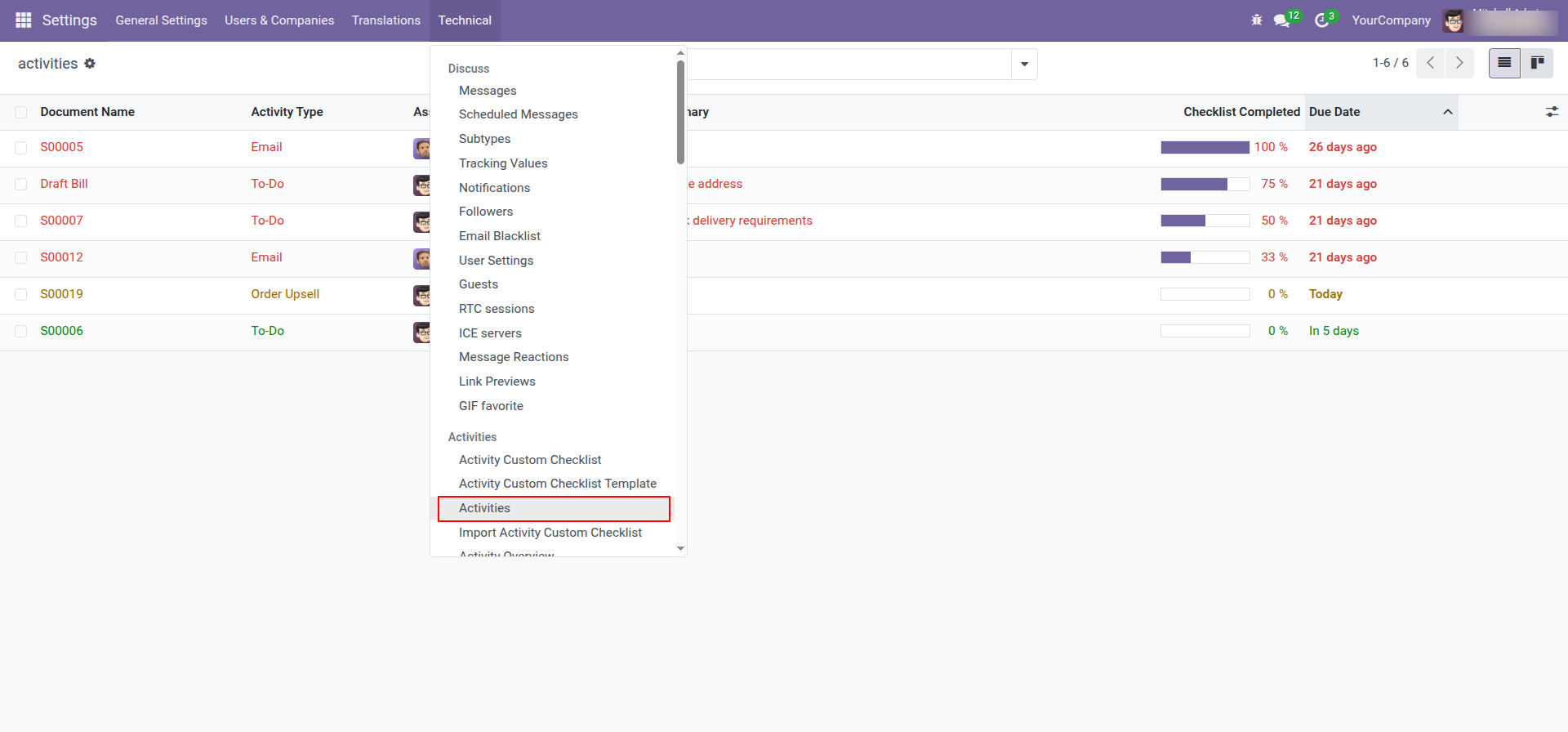
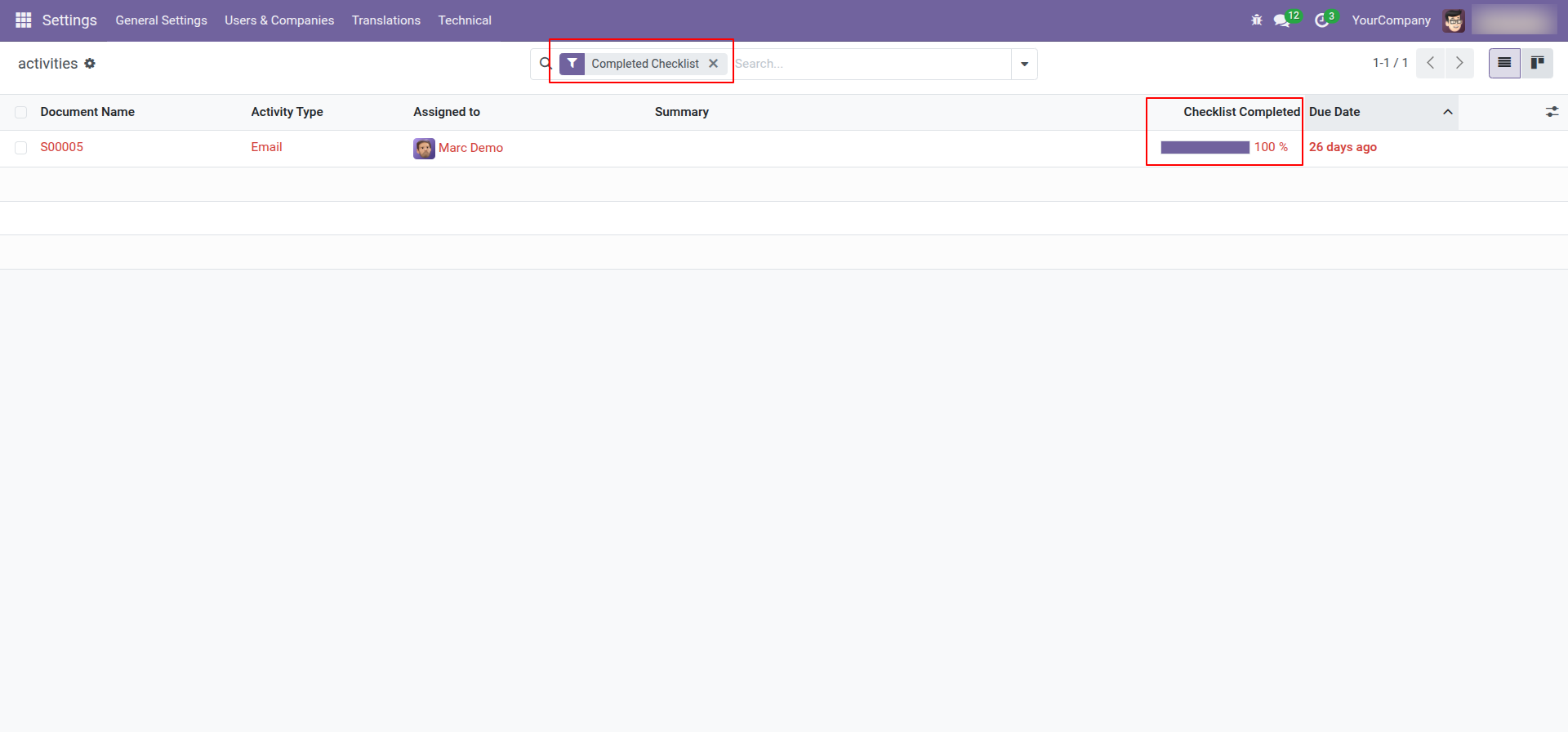
You can see the completed percentage of the checklist in the list view of the activities. You can filter checklists by 'Complete Checklist'.
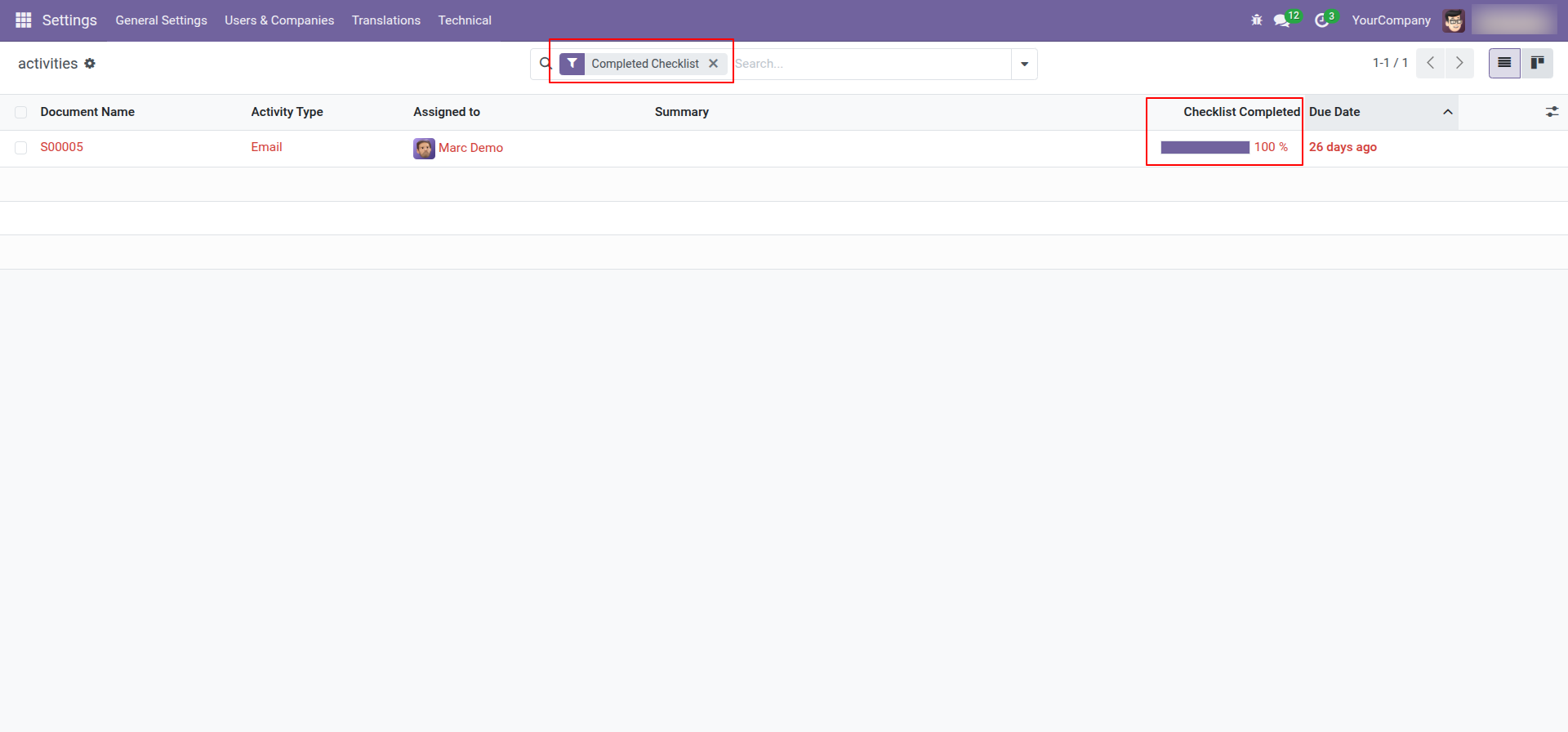
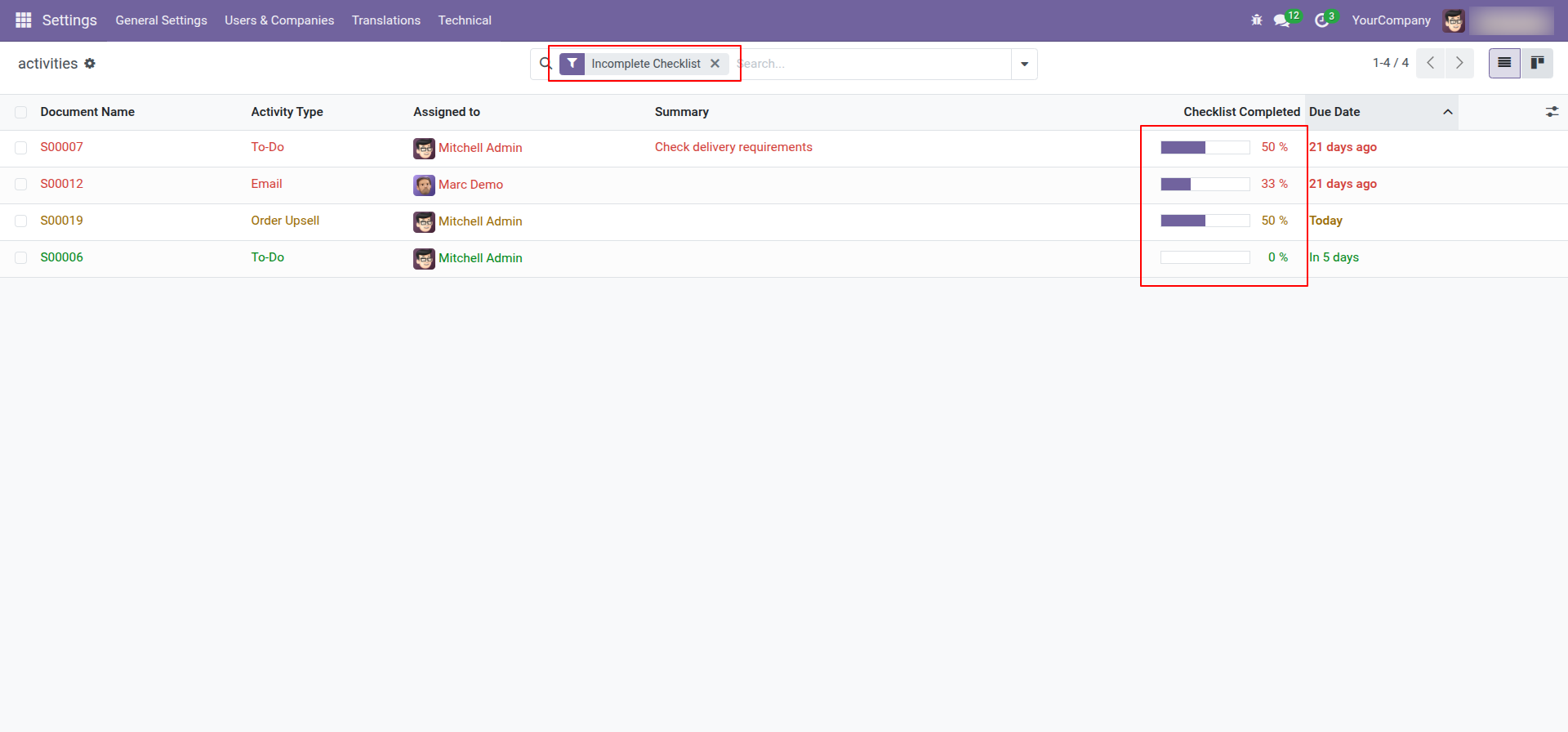
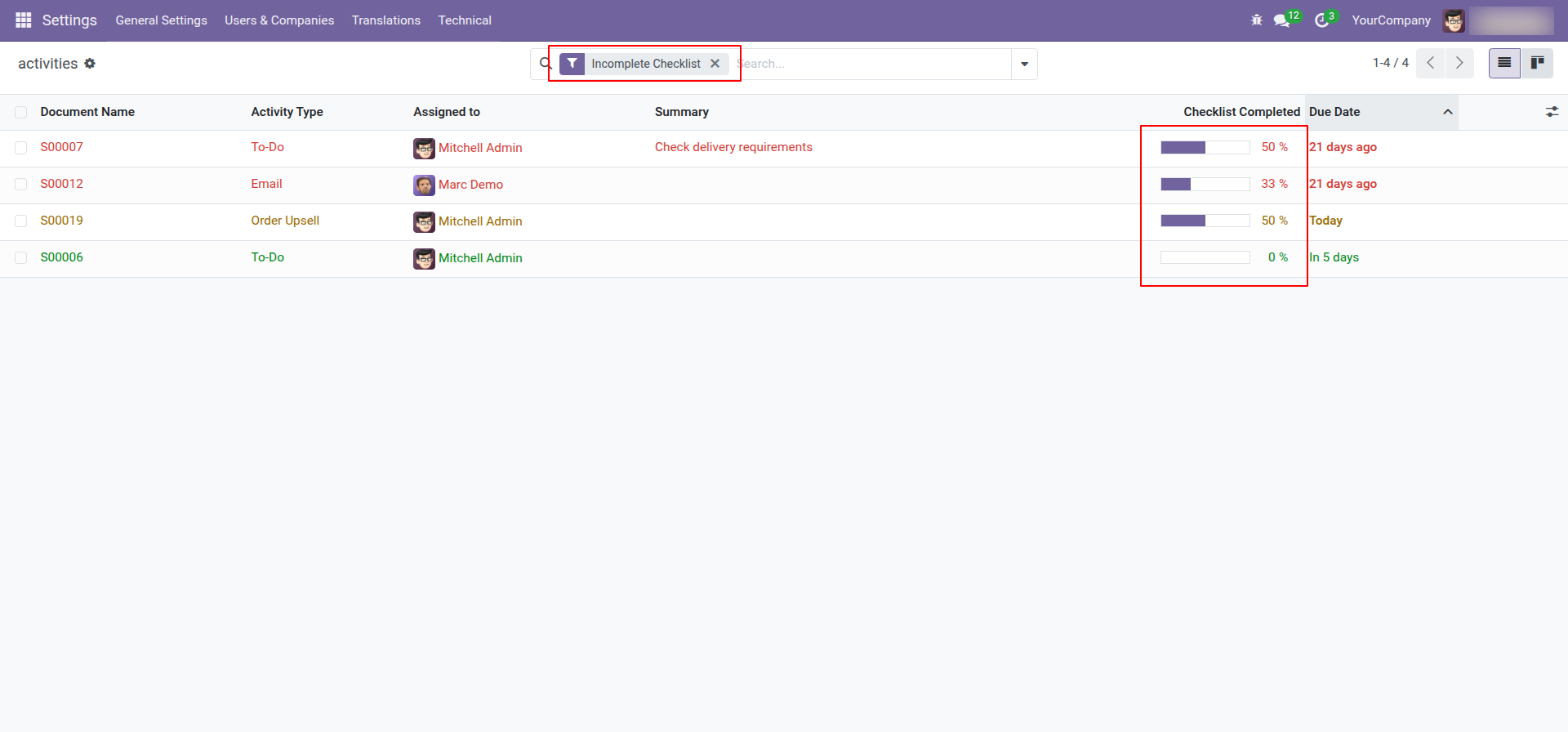
You can filter checklists by 'Incomplete Checklist'.
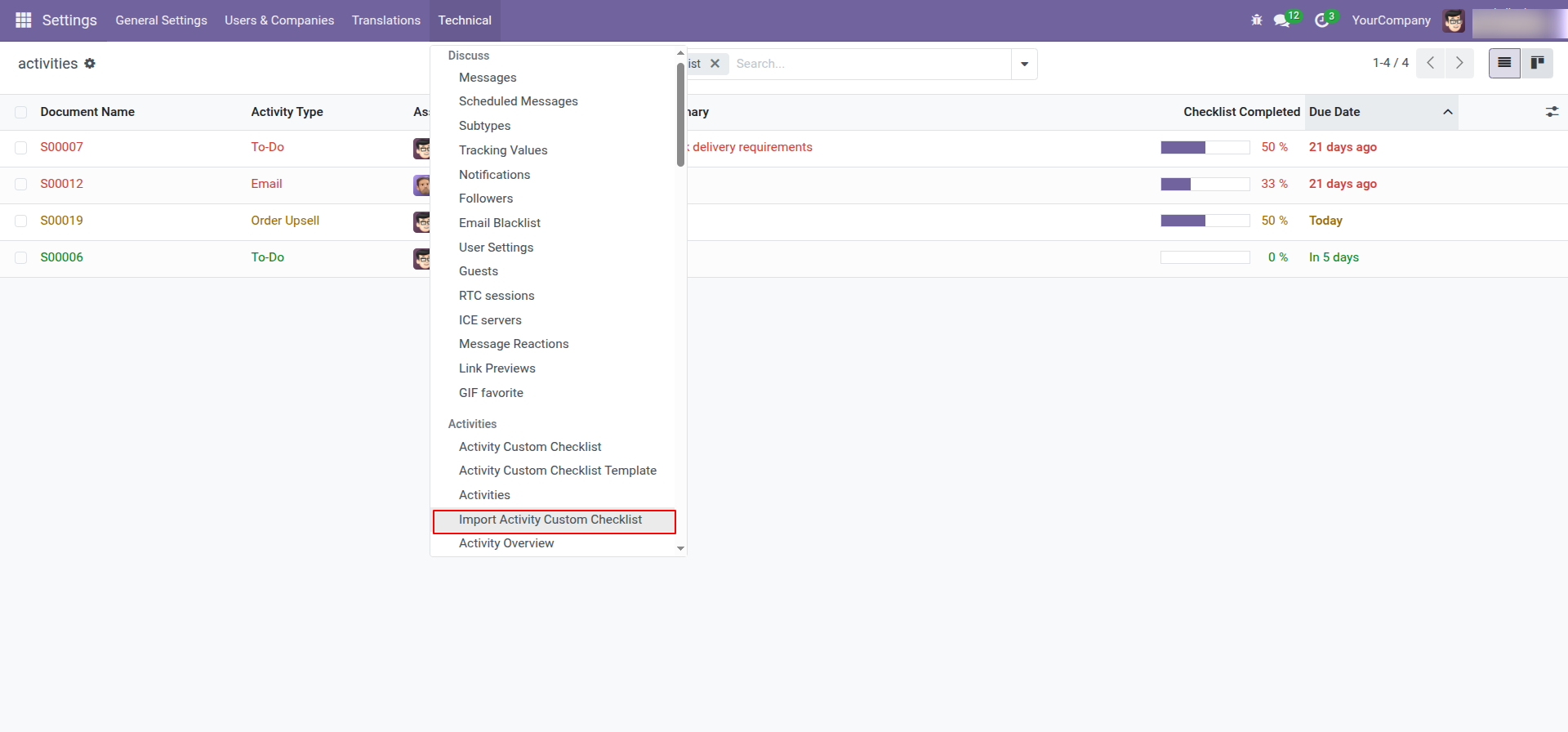
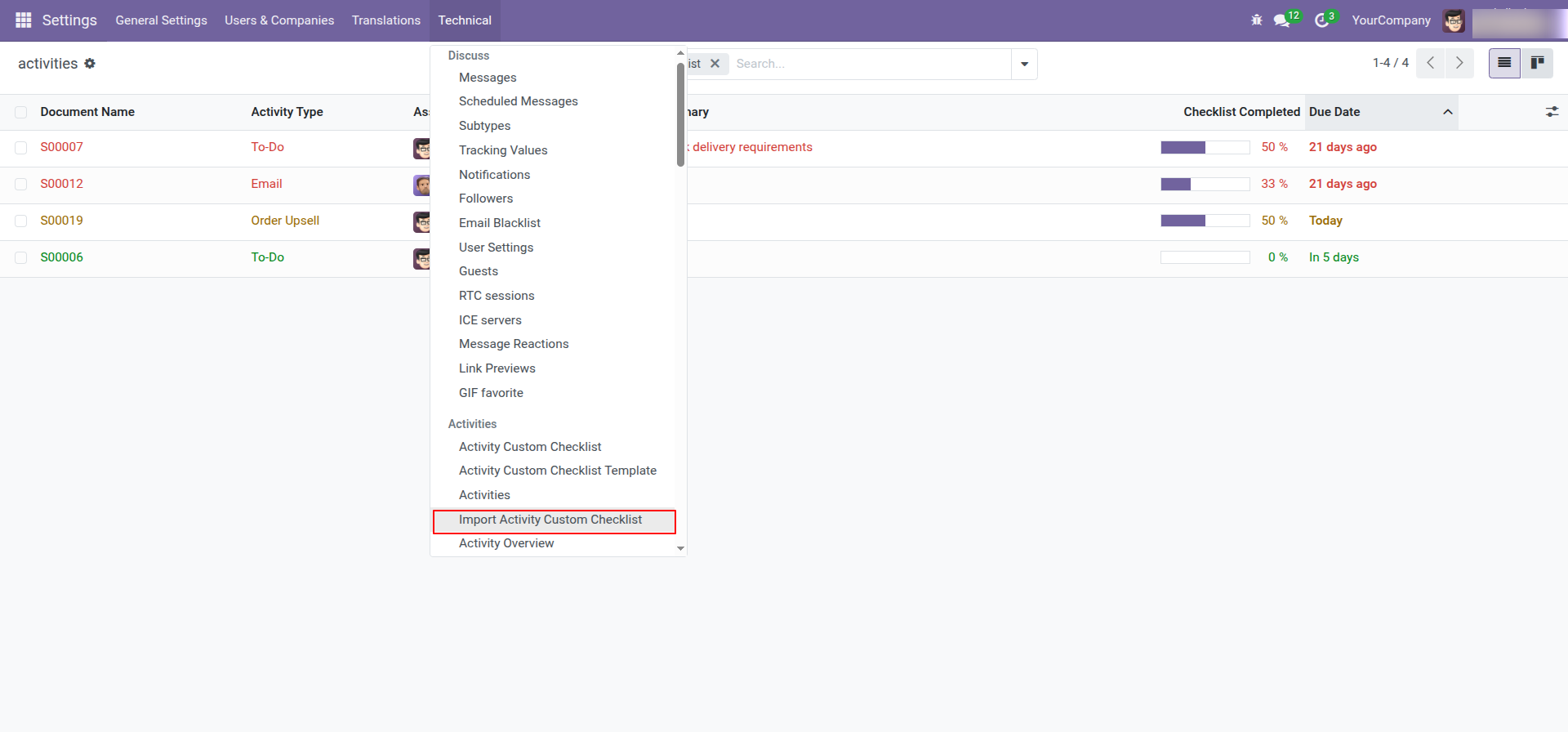
Go to the setting and open the technical menu. From there, Click on the option labeled 'Import Activity Custom Checklist'.
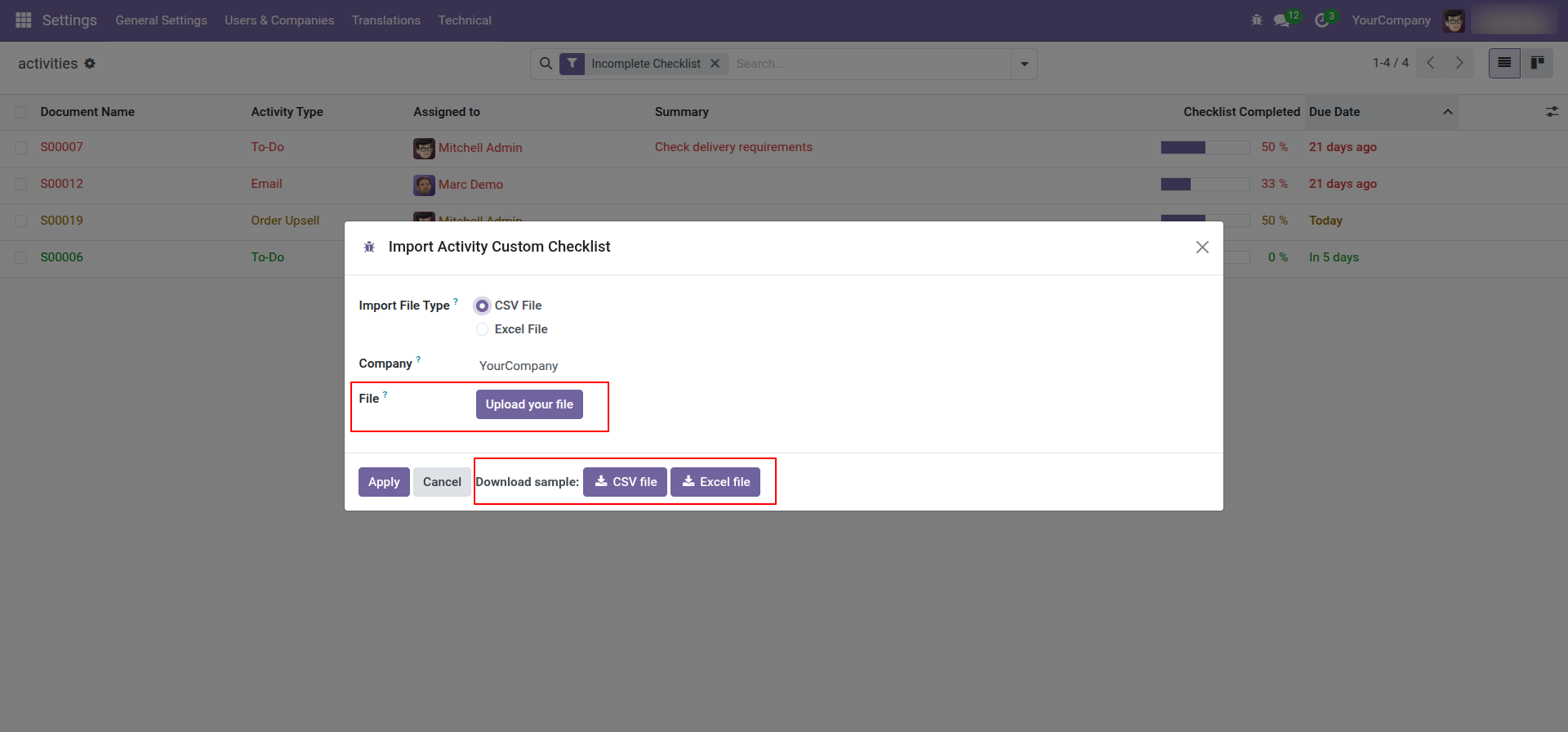
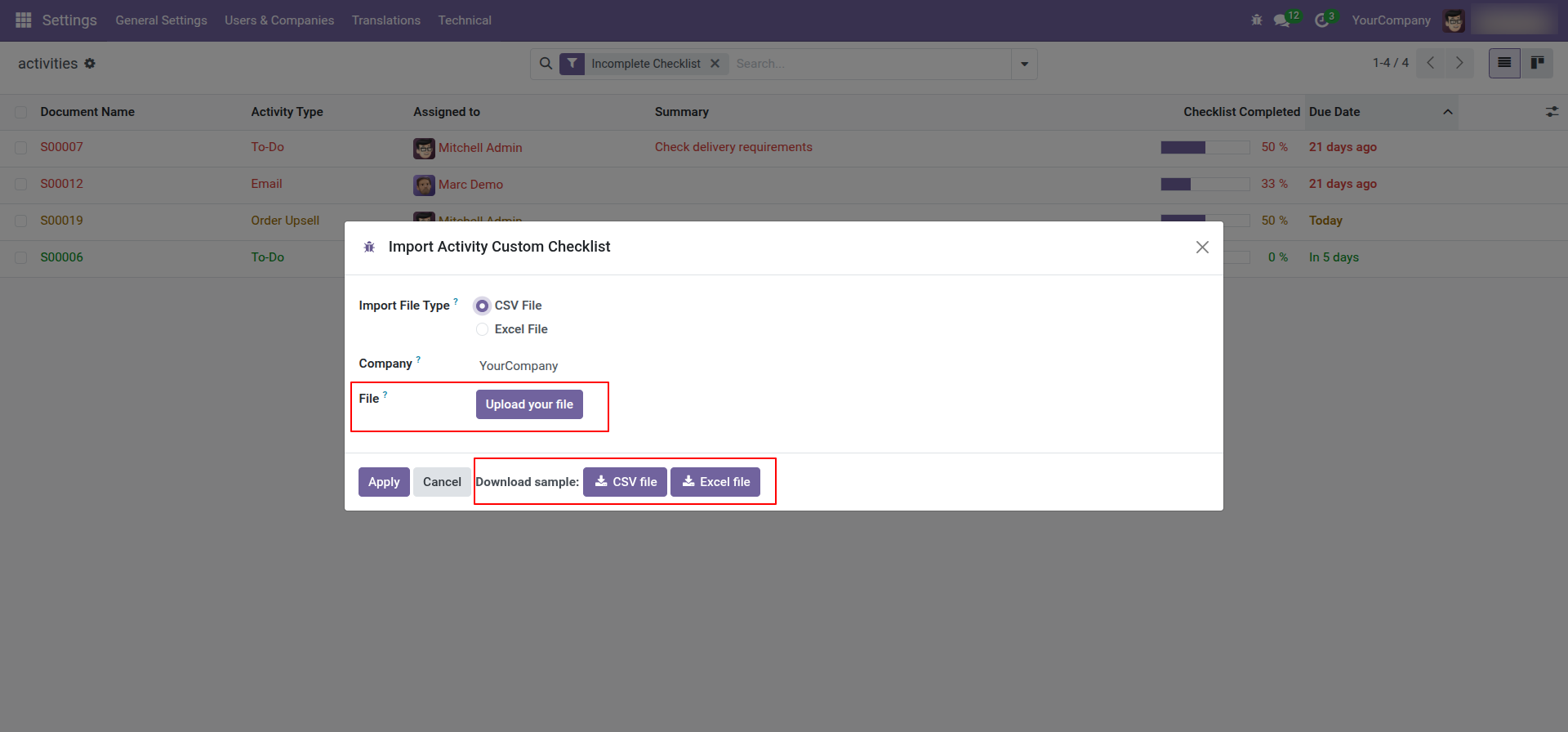
After that, the 'Import Activity Custom Checklist' wizard will appear.
You can download the sample file from the "CSV File" & "EXCEL File" buttons.
Select the import file type, and company name & Select the file which you want to import.
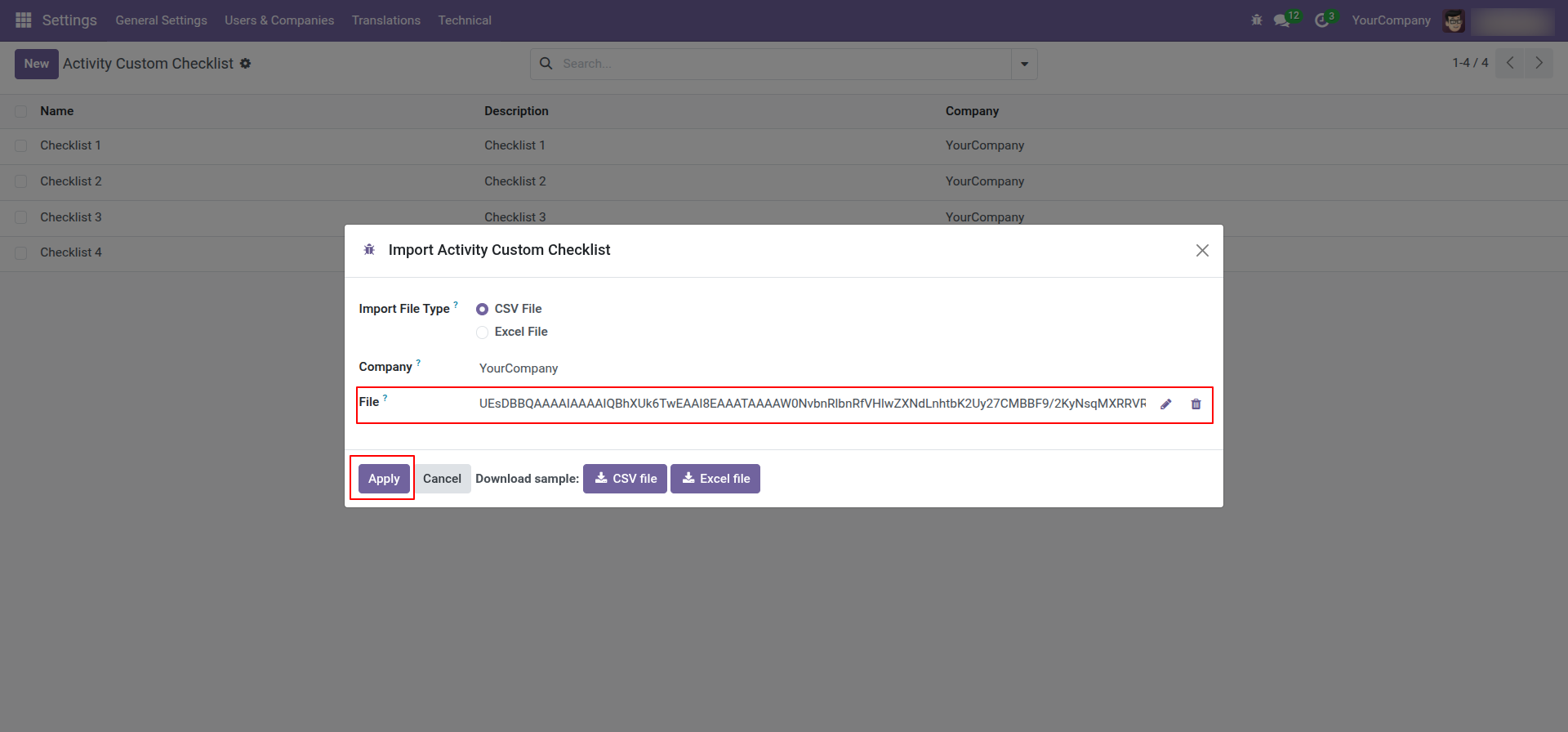
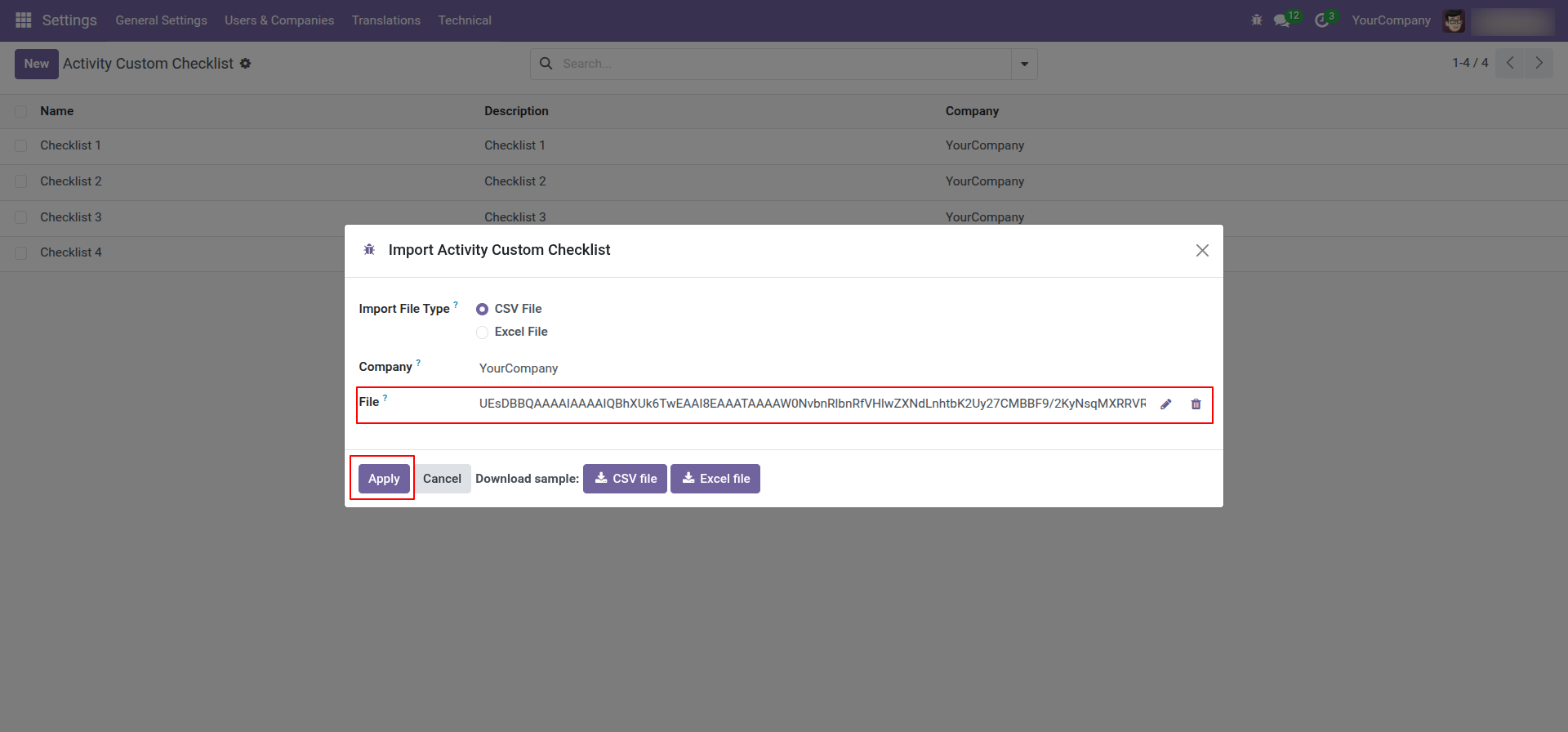
Click on the 'Apply' button after the file is uploaded.
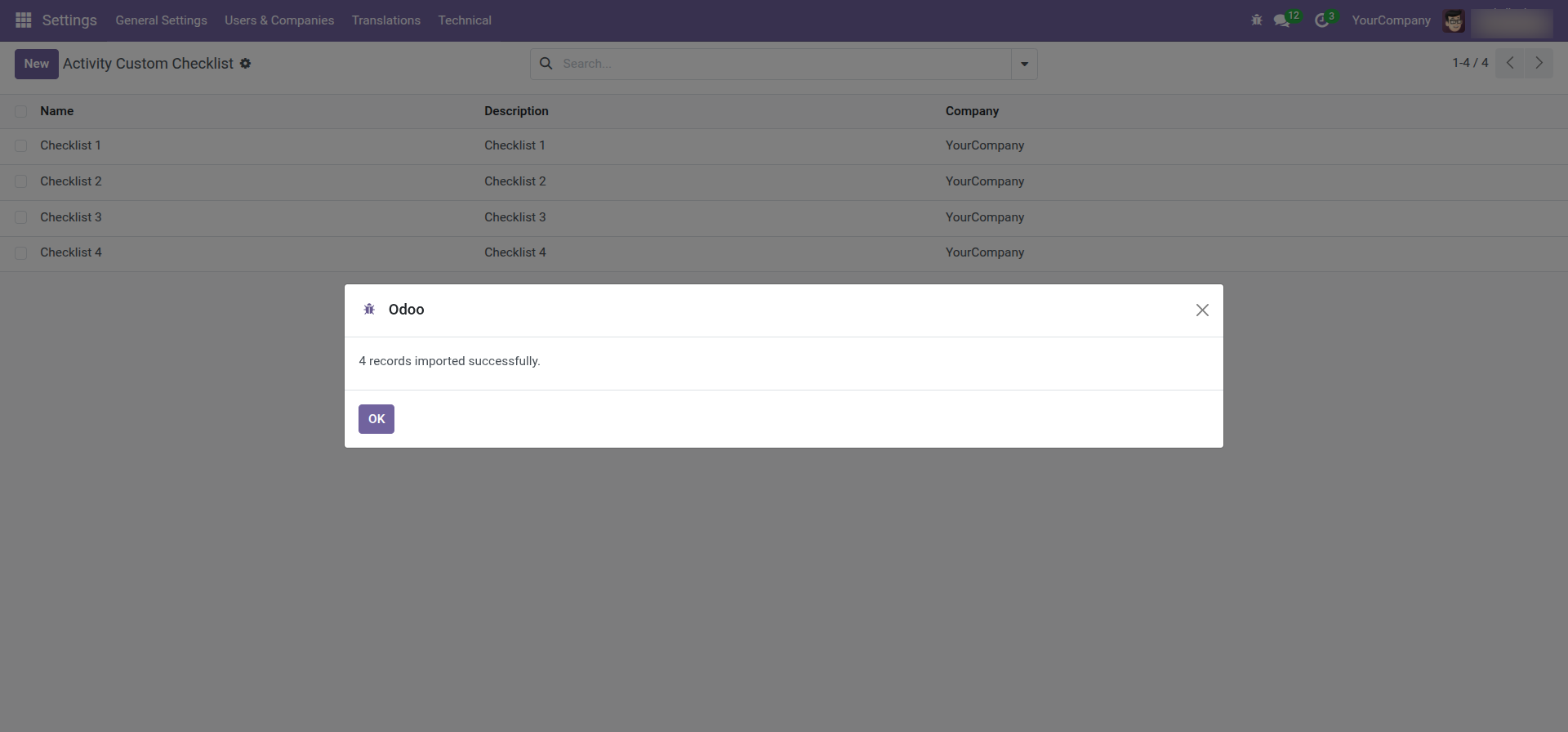
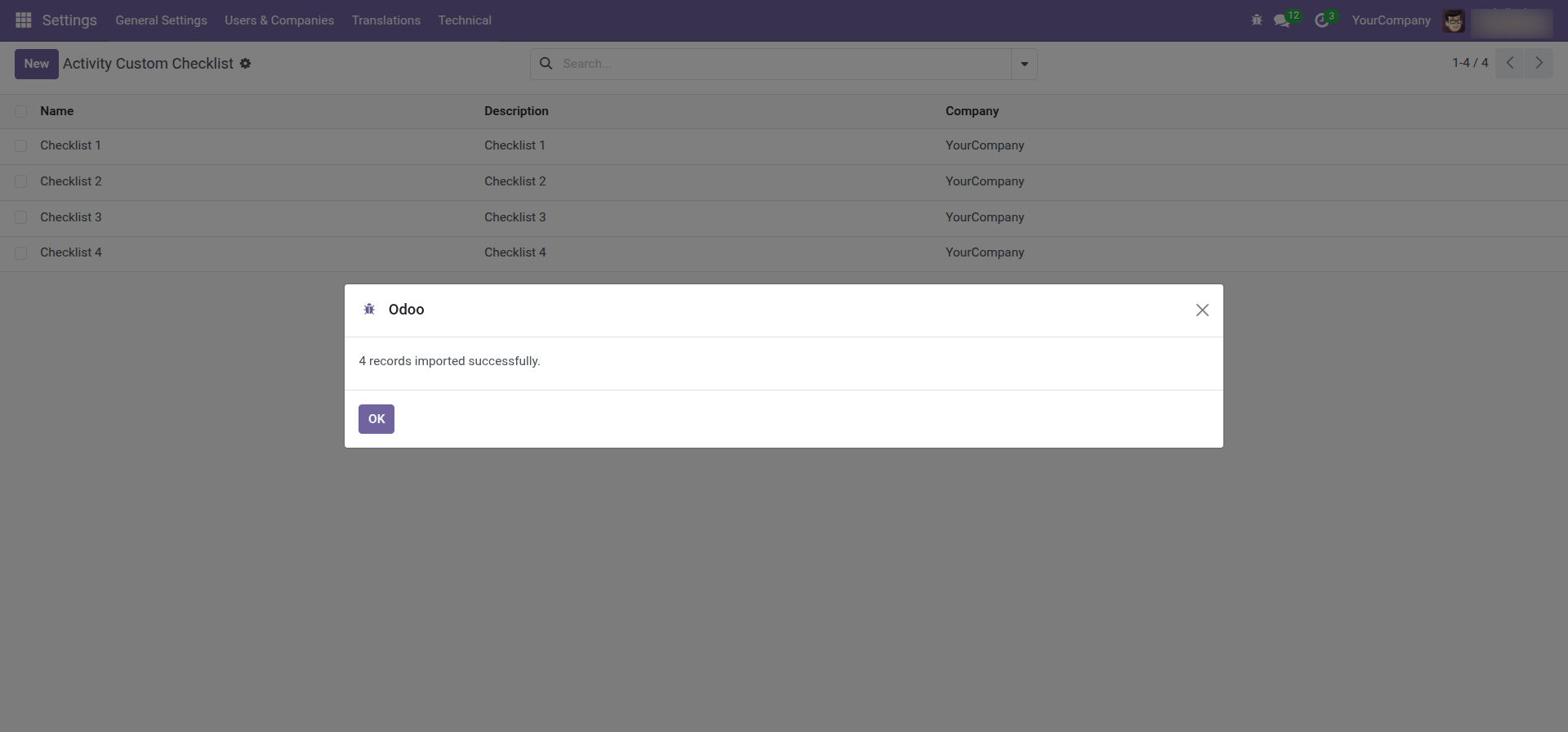
Success message.
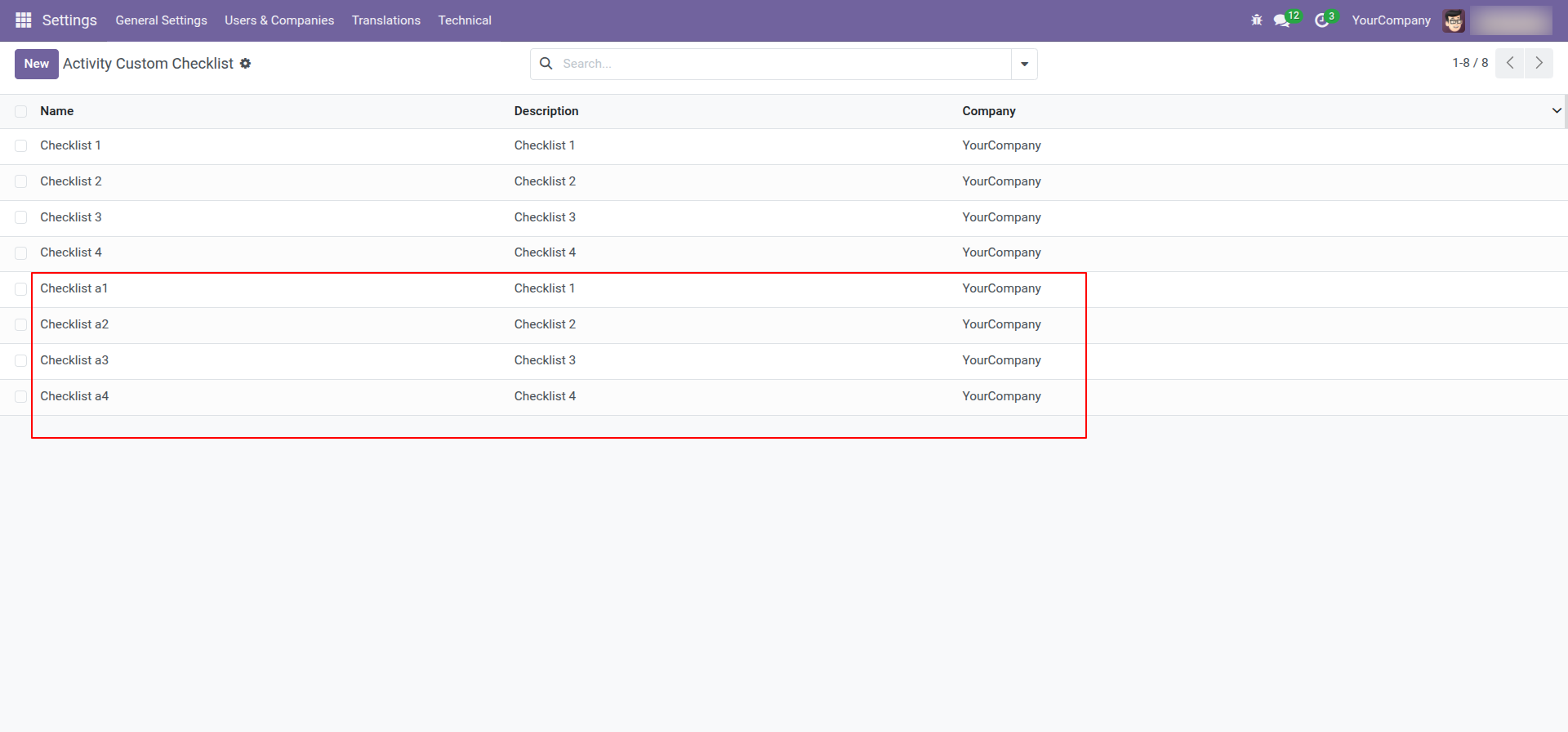
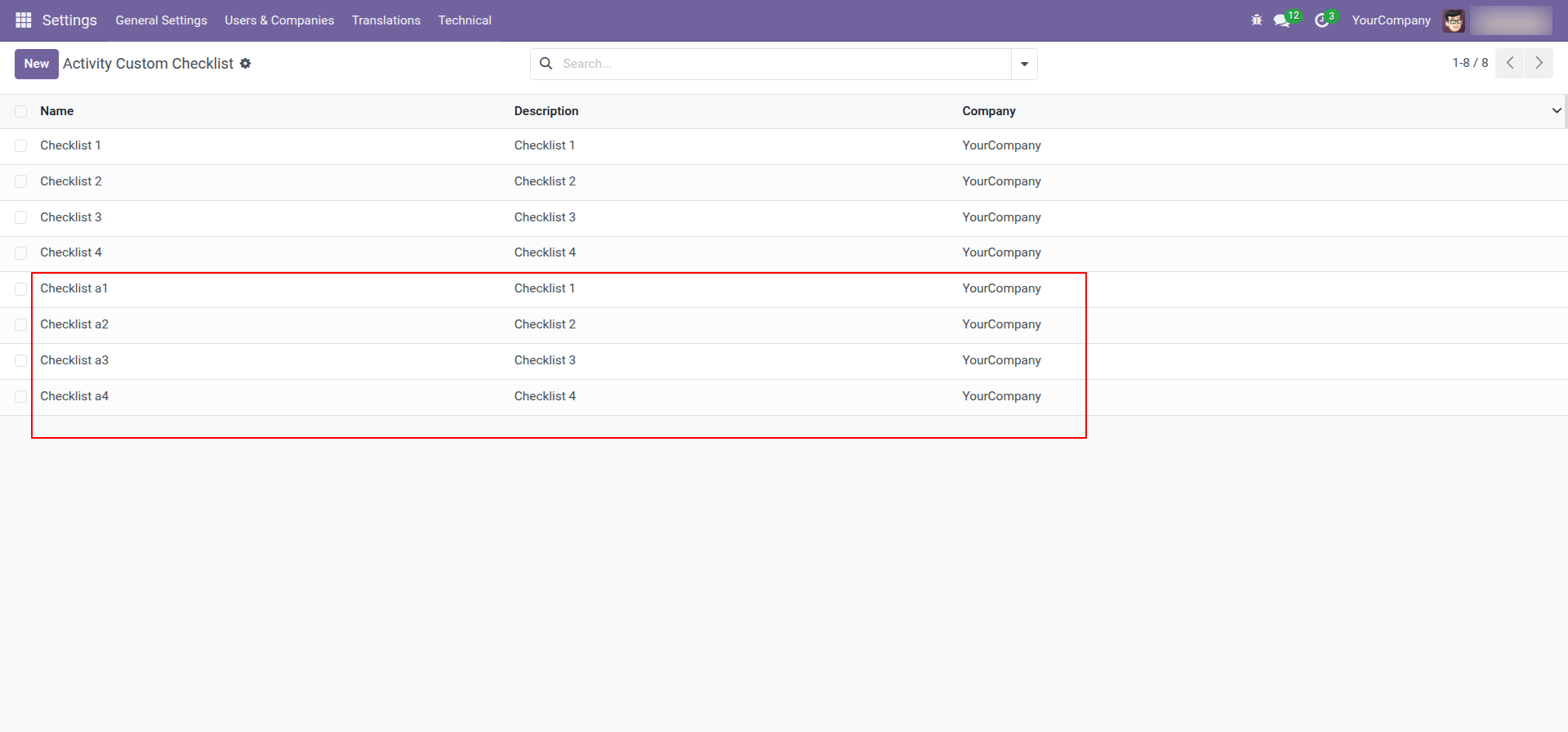
Here, You can see the imported activity custom checklists.
Enable 'Activity Custom Checklist'.
Go to the setting and open the technical menu. From there, Click on the option labeled 'Activity Custom Checklist'.
Form view of the activity custom checklist.
The list view of the activity custom checklist looks like this.
Go to the setting and open the technical menu. From there, Click on the option labeled 'Activity Custom Checklist Template'.
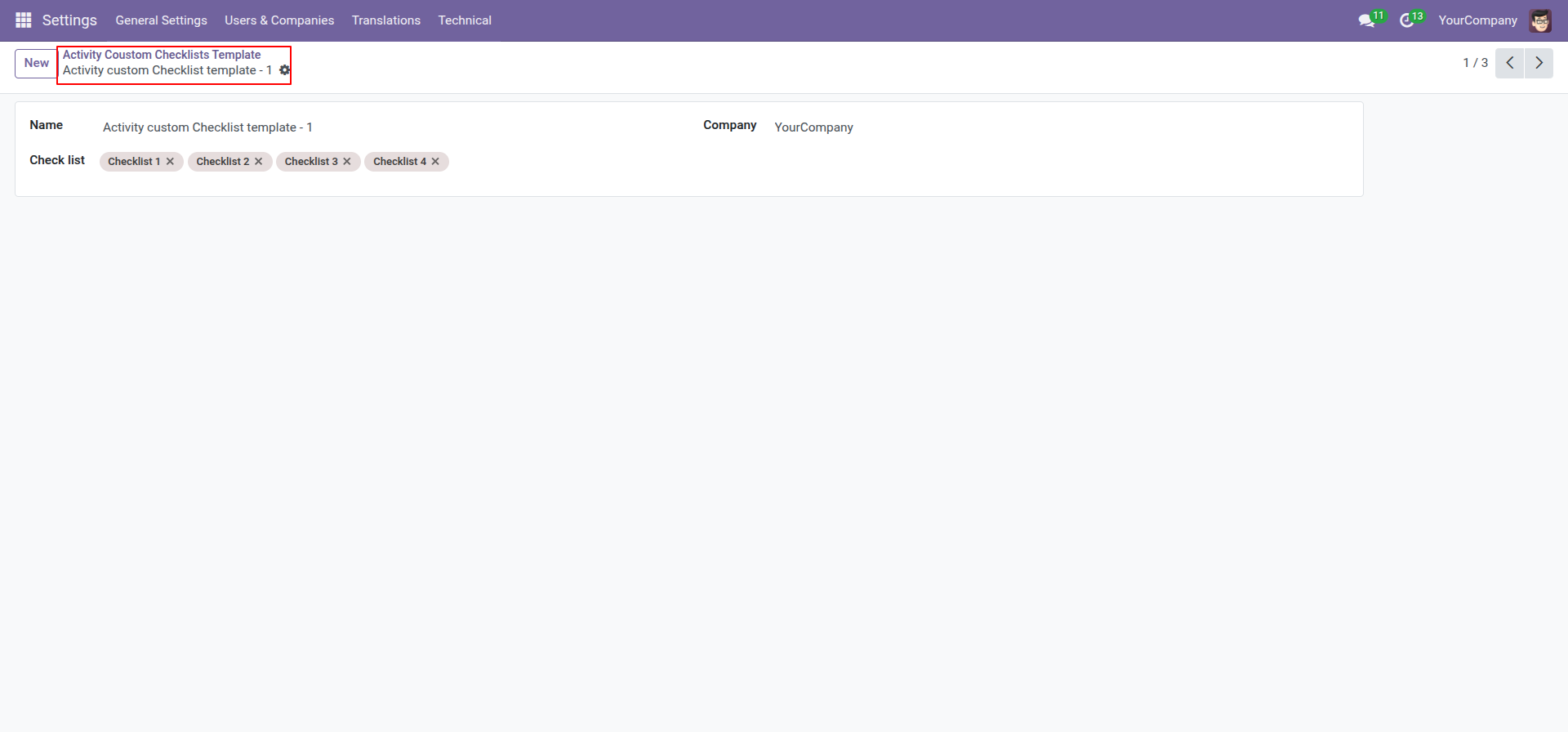
Form view of the activity custom checklist template.
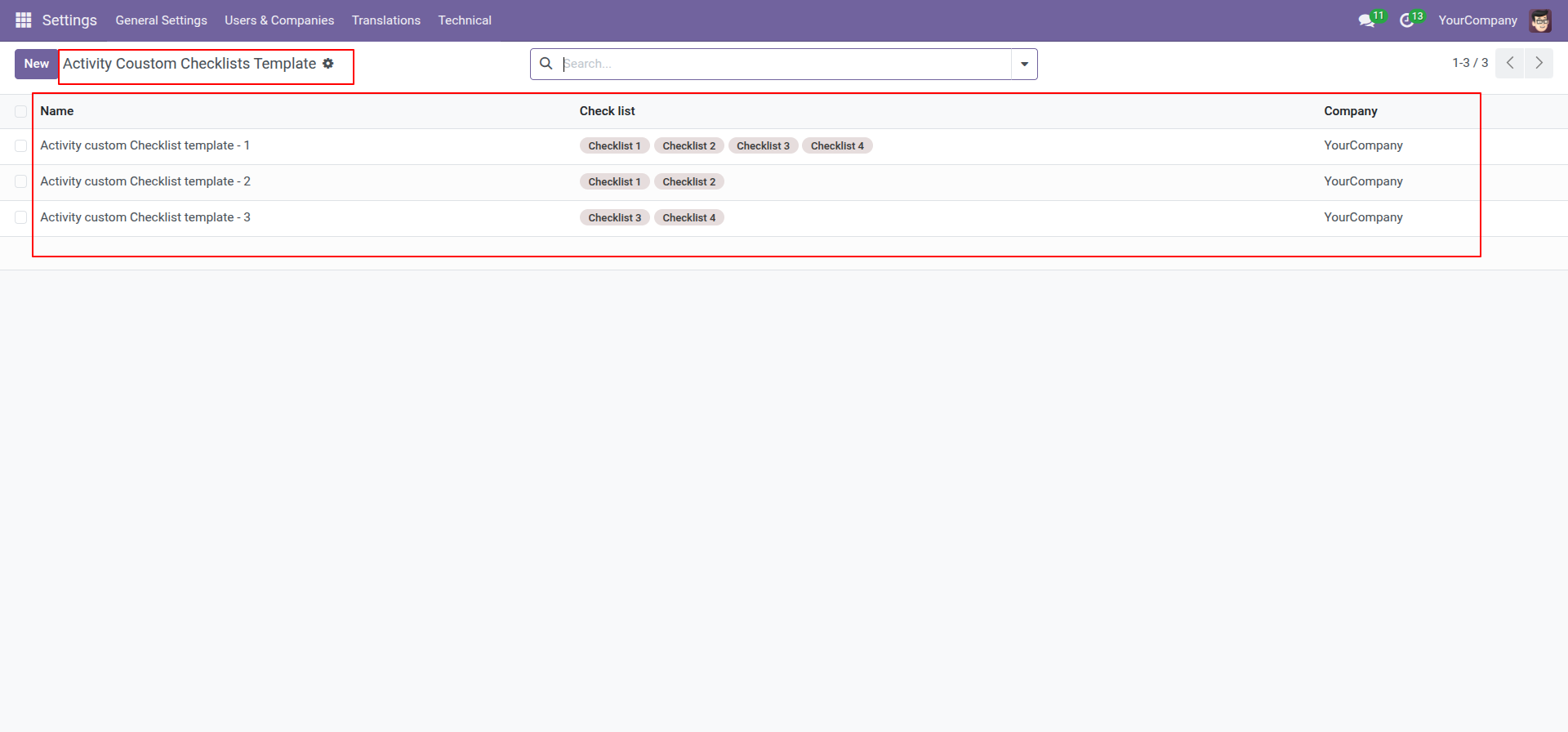
The list view of the activity custom checklist template looks like this.
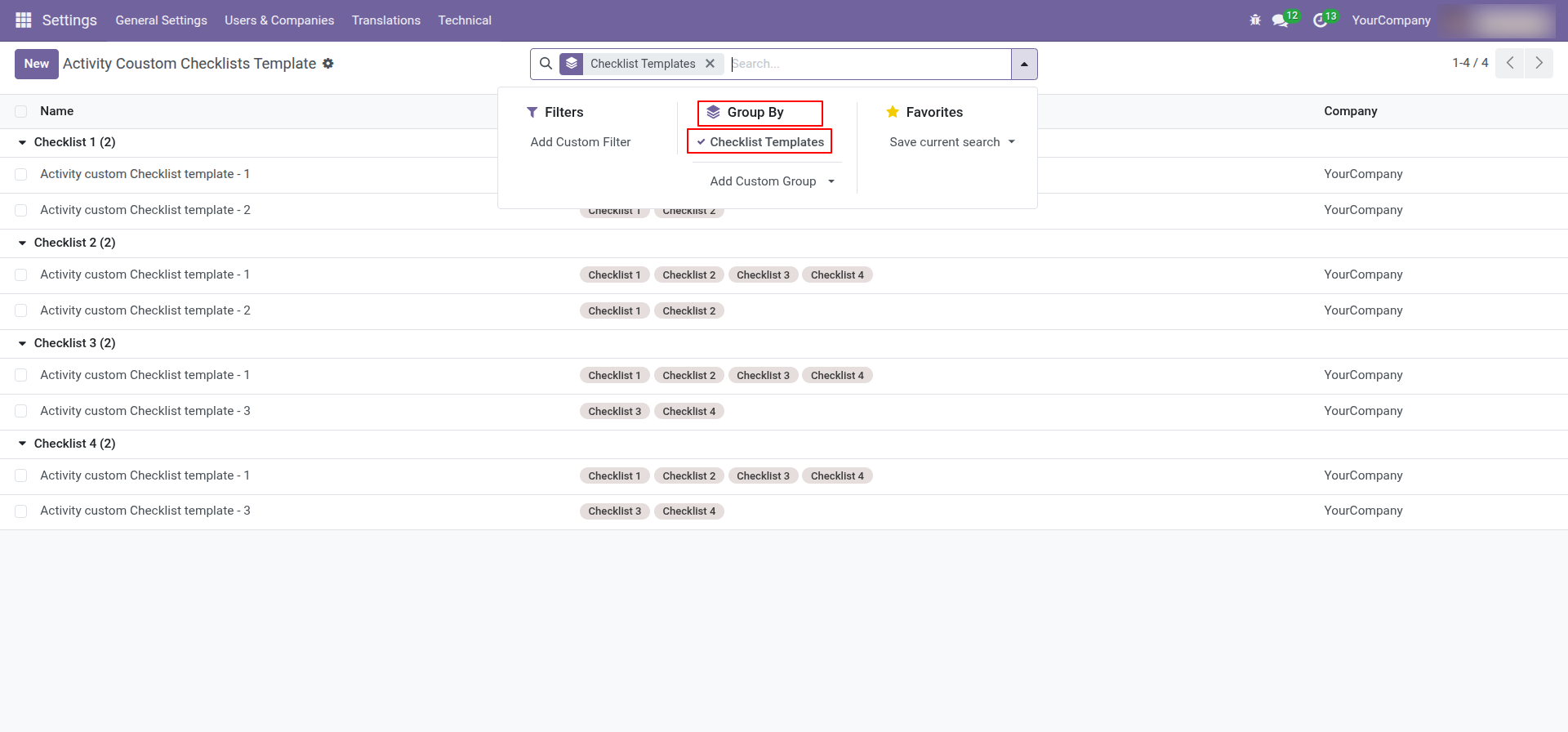
You can group by checklist templates.
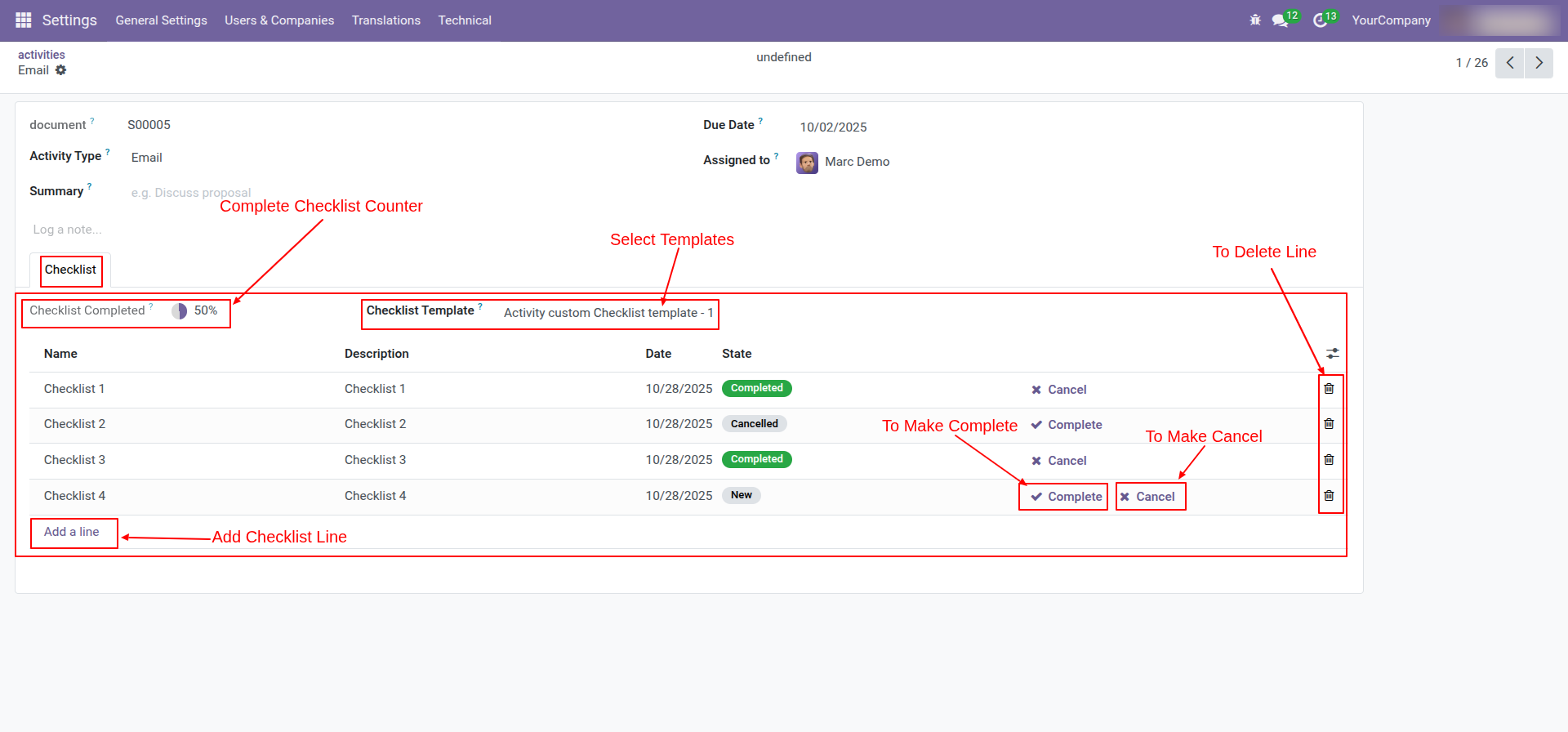
After accessing the "Activity Custom Checklist", you can fill out the checklist by selecting the checklist template. After selecting a template, a new record will be added with the checklist's default states: "New", "Completed", and "Cancelled". Click on Complete Icon To Complete Checklist & Cancel Icon to Cancel Checklist.
Go to the setting and open the technical menu. From there, Click on the option labeled 'Activities'.
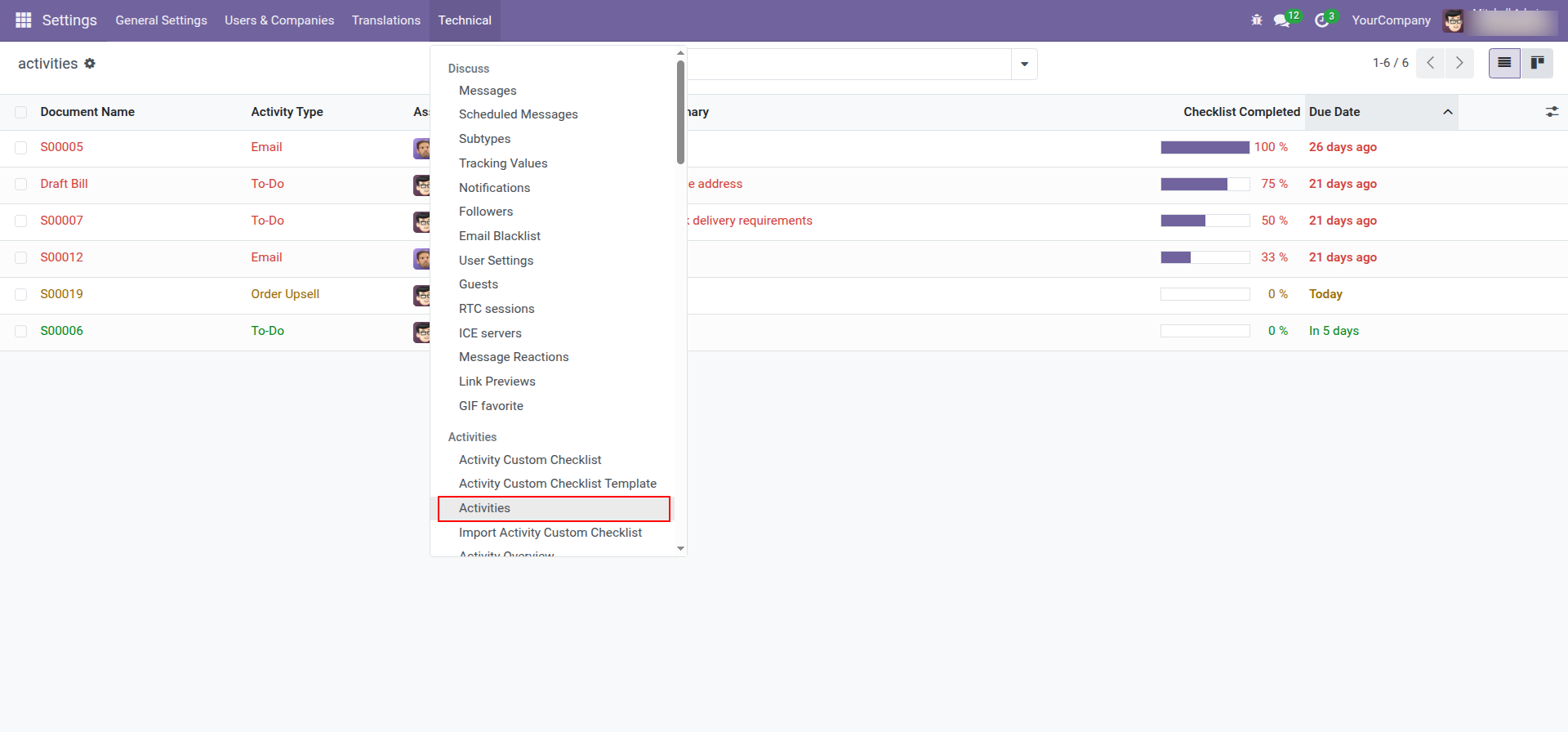
You can see the completed percentage of the checklist in the list view of the activities. You can filter checklists by 'Complete Checklist'.
You can filter checklists by 'Incomplete Checklist'.
Go to the setting and open the technical menu. From there, Click on the option labeled 'Import Activity Custom Checklist'.
After that, the 'Import Activity Custom Checklist' wizard will appear.
You can download the sample file from the "CSV File" & "EXCEL File" buttons.
Select the import file type, and company name & Select the file which you want to import.
Click on the 'Apply' button after the file is uploaded.
Success message.
Here, You can see the imported activity custom checklists.
Enable 'Activity Custom Checklist'.
Go to the setting and open the technical menu. From there, Click on the option labeled 'Activity Custom Checklist'.
Form view of the activity custom checklist.
The list view of the activity custom checklist looks like this.
Go to the setting and open the technical menu. From there, Click on the option labeled 'Activity Custom Checklist Template'.
Form view of the activity custom checklist template.
The list view of the activity custom checklist template looks like this.
You can group by checklist templates.
After accessing the "Activity Custom Checklist", you can fill out the checklist by selecting the checklist template. After selecting a template, a new record will be added with the checklist's default states: "New", "Completed", and "Cancelled". Click on Complete Icon To Complete Checklist & Cancel Icon to Cancel Checklist.
Go to the setting and open the technical menu. From there, Click on the option labeled 'Activities'.
You can see the completed percentage of the checklist in the list view of the activities. You can filter checklists by 'Complete Checklist'.
You can filter checklists by 'Incomplete Checklist'.
Go to the setting and open the technical menu. From there, Click on the option labeled 'Import Activity Custom Checklist'.
After that, the 'Import Activity Custom Checklist' wizard will appear.
You can download the sample file from the "CSV File" & "EXCEL File" buttons.
Select the import file type, and company name & Select the file which you want to import.
Click on the 'Apply' button after the file is uploaded.
Success message.
Here, You can see the imported activity custom checklists.
Technical Information
Availability
Odoo Online
Odoo.sh
On Premise
Technical Name
kx_activity_custom_checklist
License
OPL-1
Dependencies
mail
crm
Supported Versions
18.0
18.0.1.0.0
₹ 1,896.86
19.0
19.0.1.0.0
₹ 1,896.86
Want to share your experience? Writing a review
is open to verified customers — buy or download
this module first.
?unique=1d6fd7c)