

Screenshots
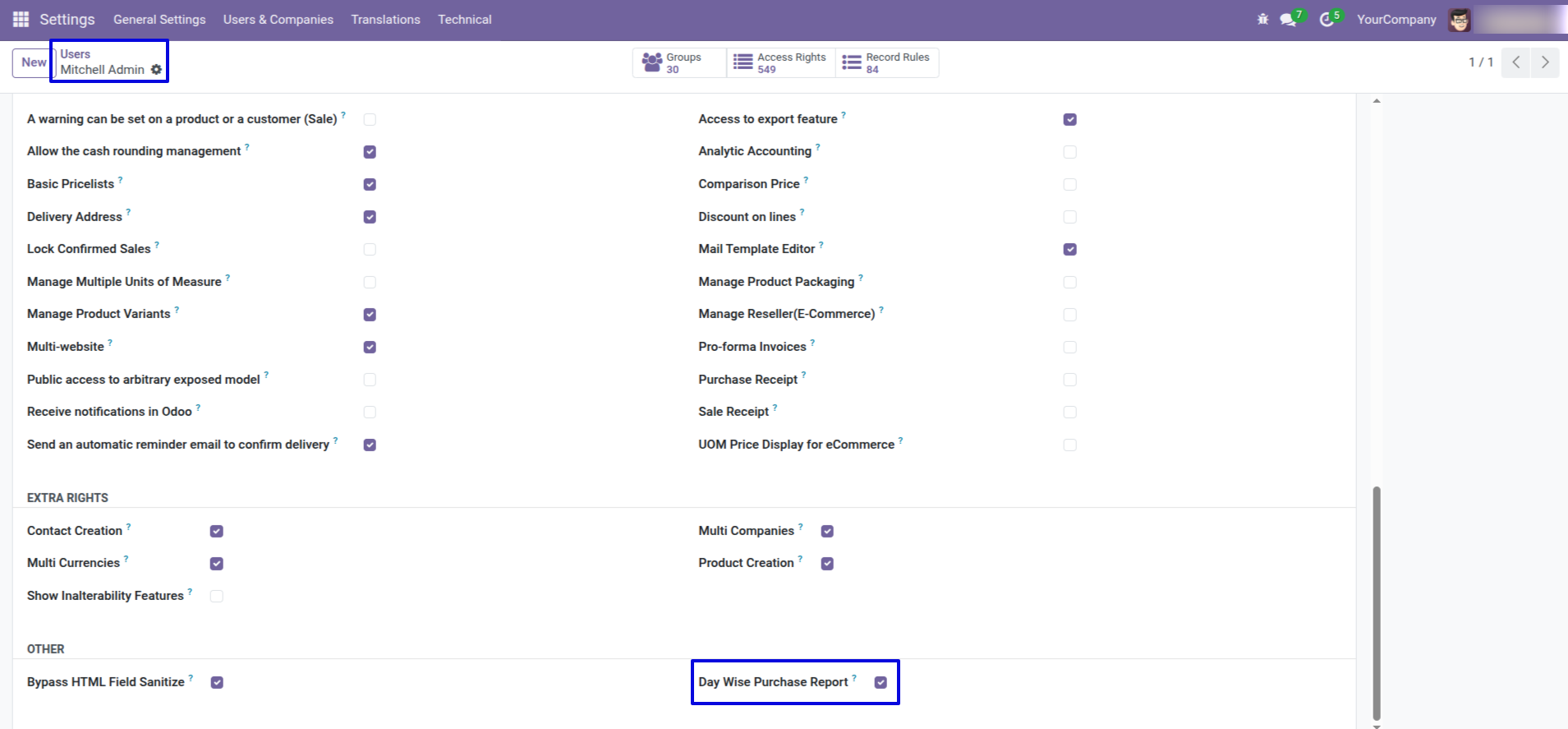
Go to Users and enable 'Day Wise Purchase Report'.
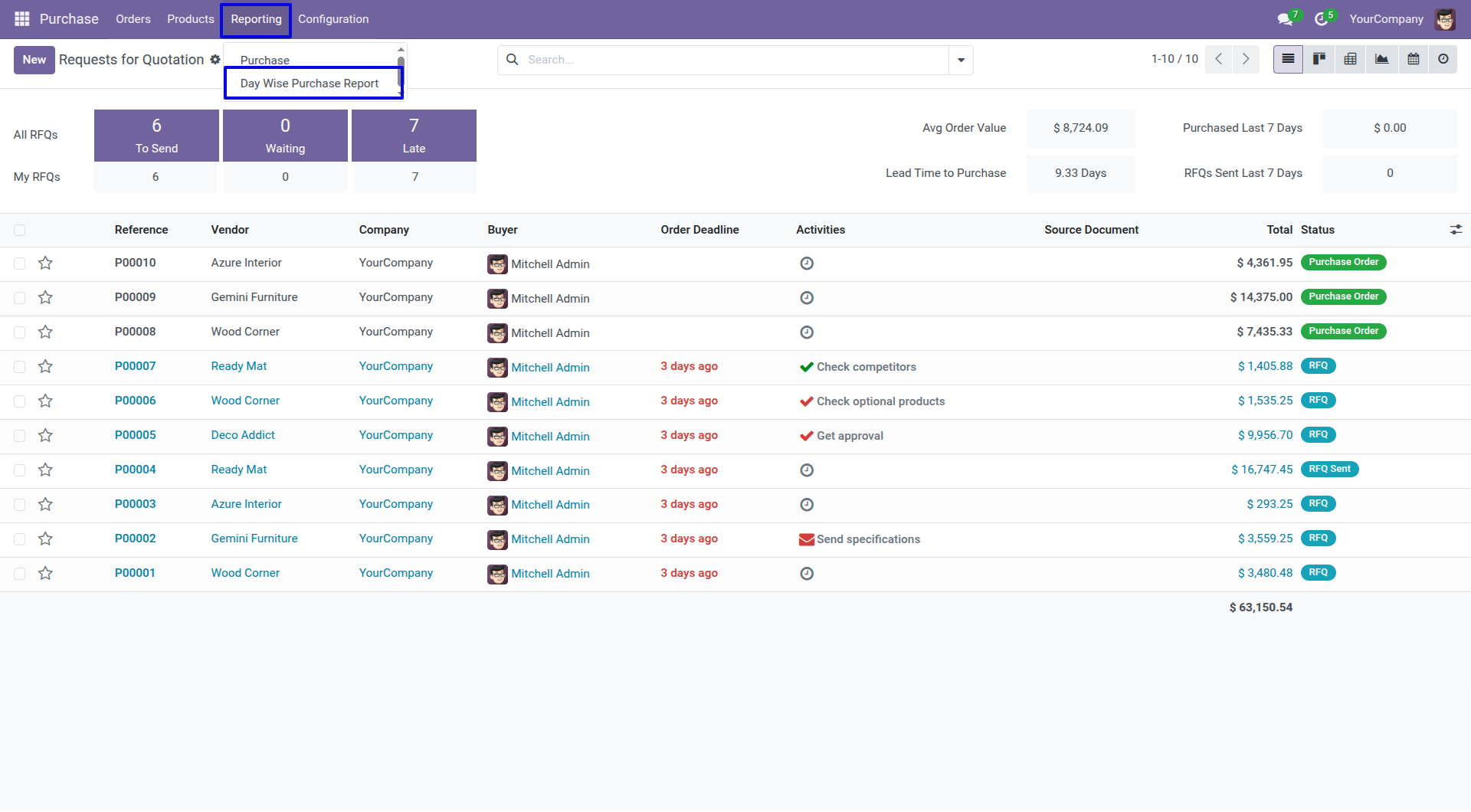
Go to 'Day Wise Purchase Report'.
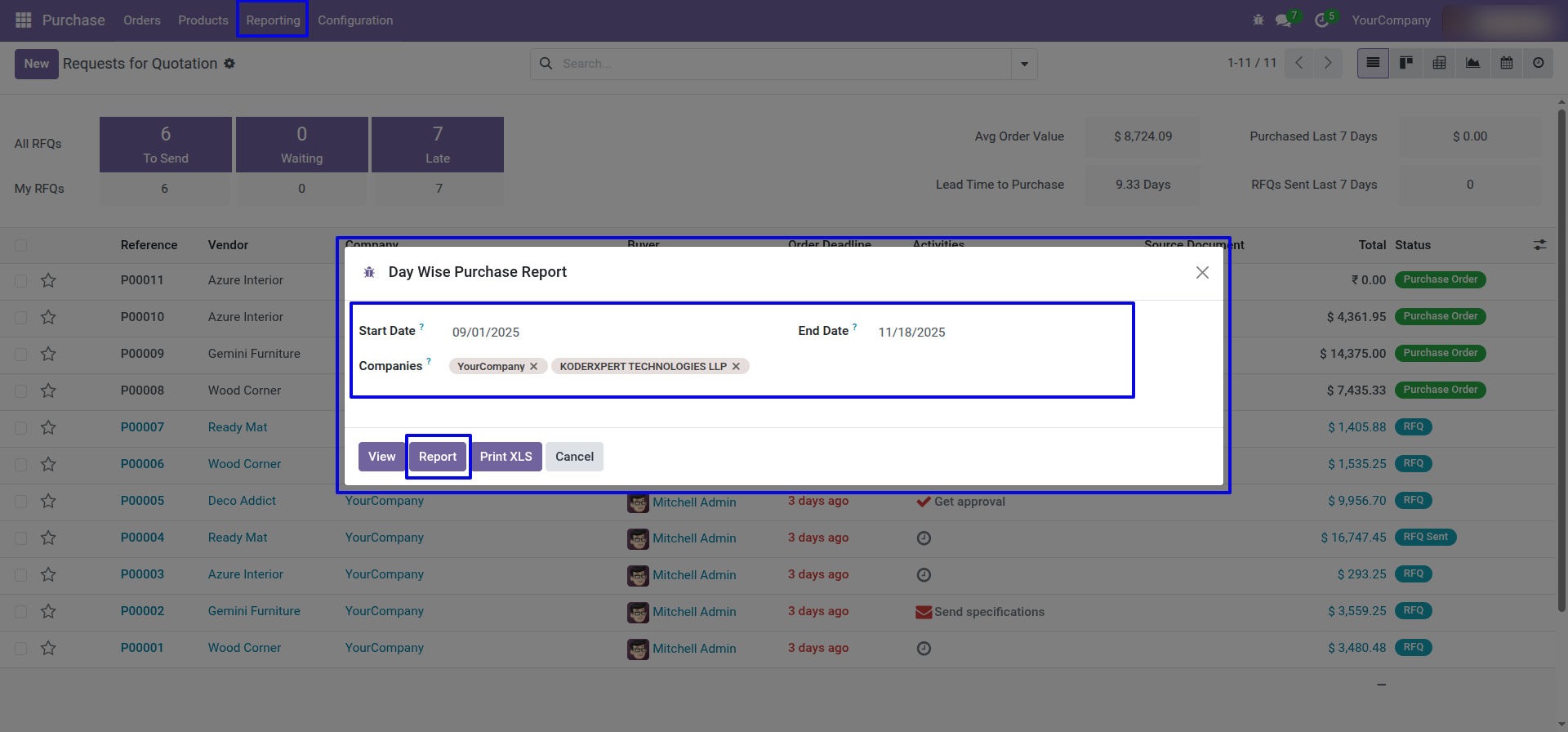
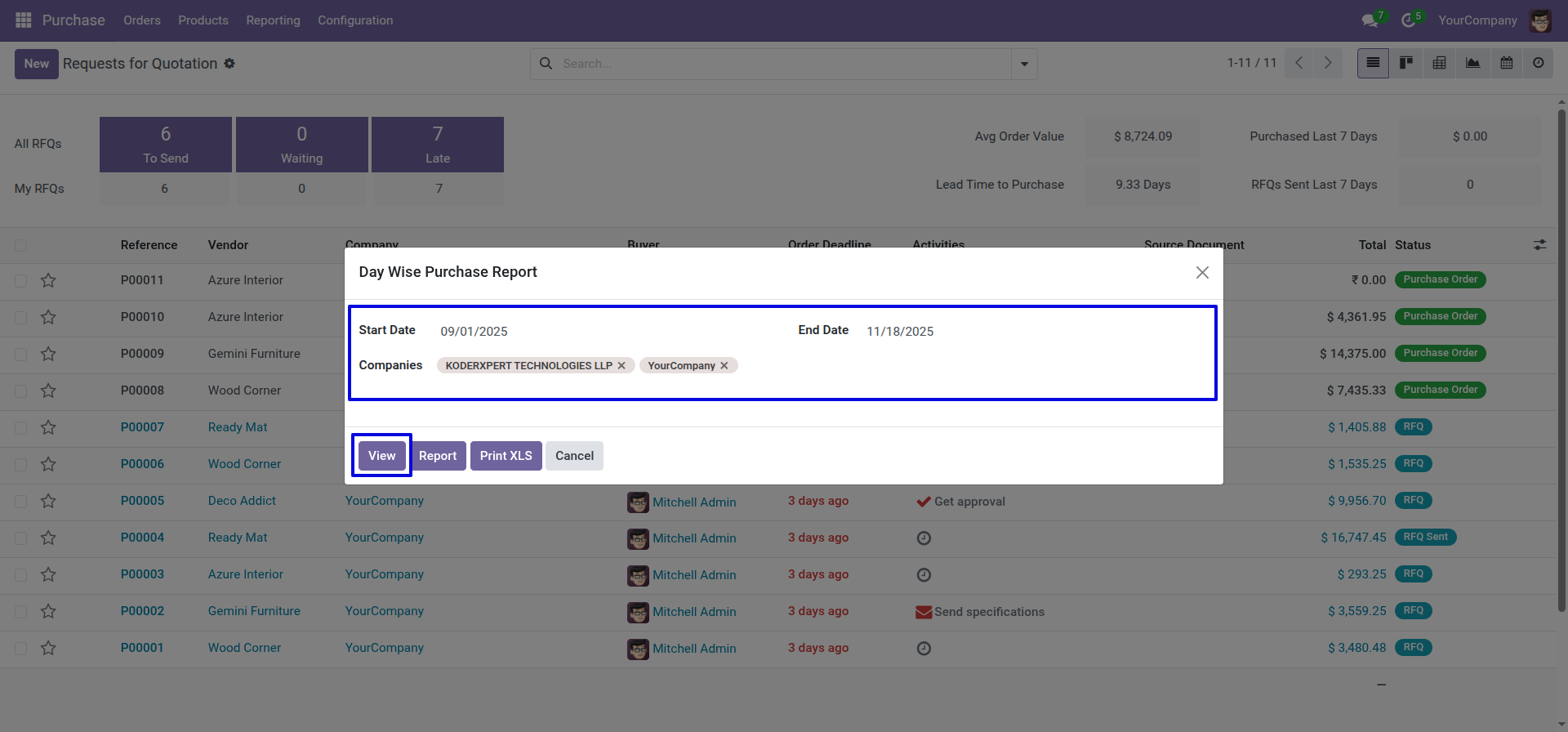
Set the date range for the PDF/Excel report and select the companies you want to include in the multi-company option.
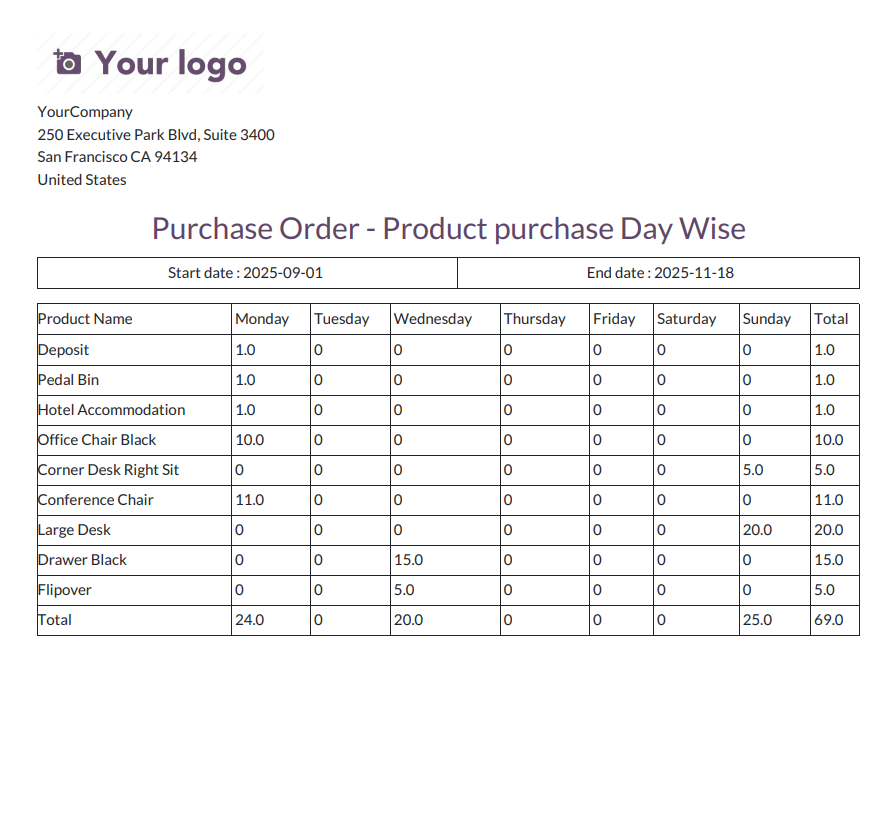
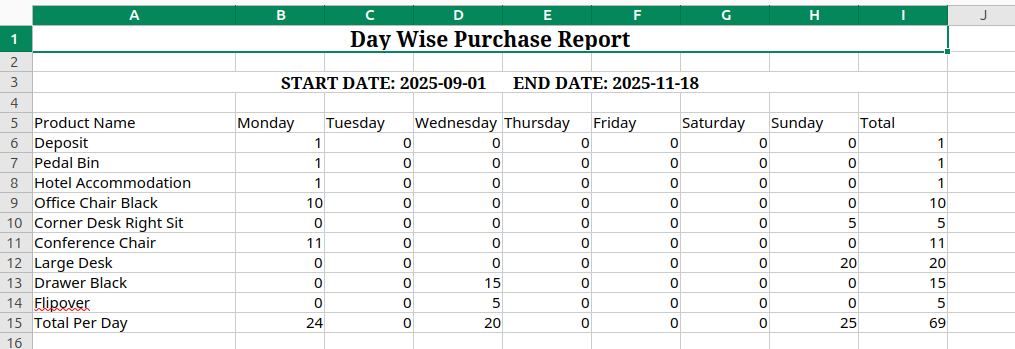
Generate a day-wise purchase products report with total quantities purchased for the selected date range in PDF format.
Set Date Range for PDF/Excel Report.
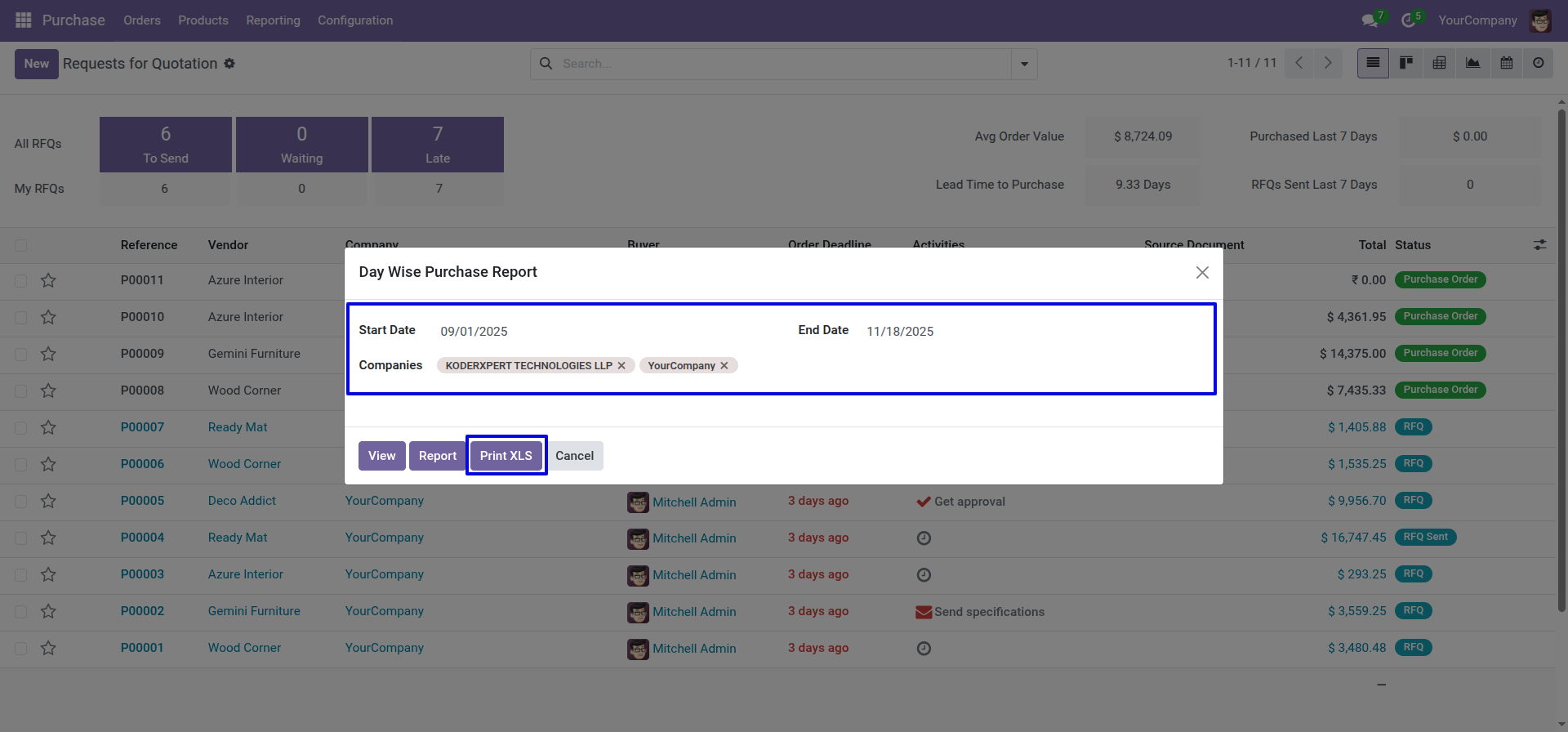
Generate a day-wise purchase products report with total quantities purchased for the selected date range in Excel format.
Set the date range to view the report and select the companies for the multi-company option.
Purchase products day wise report view with total products purchase for the given date range.
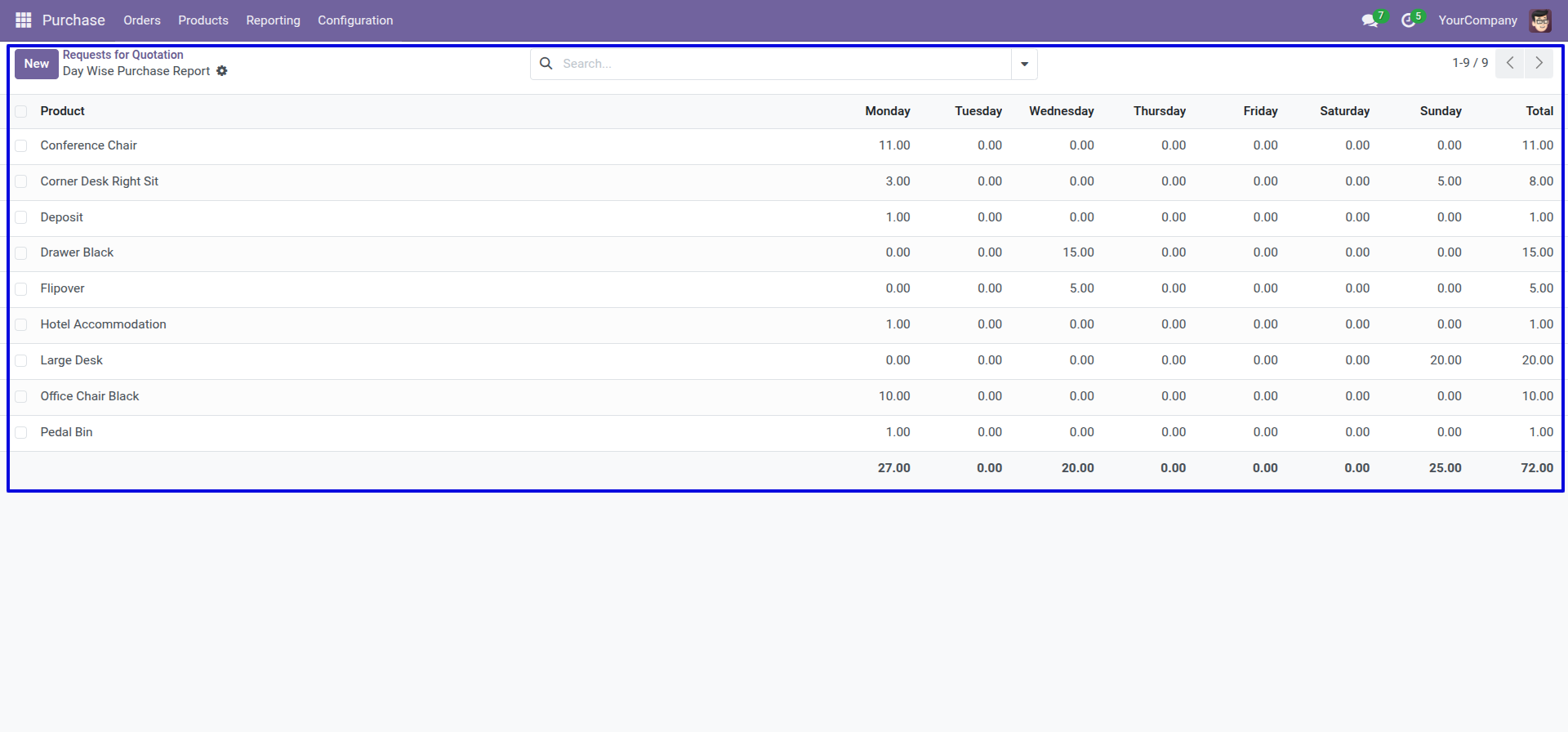
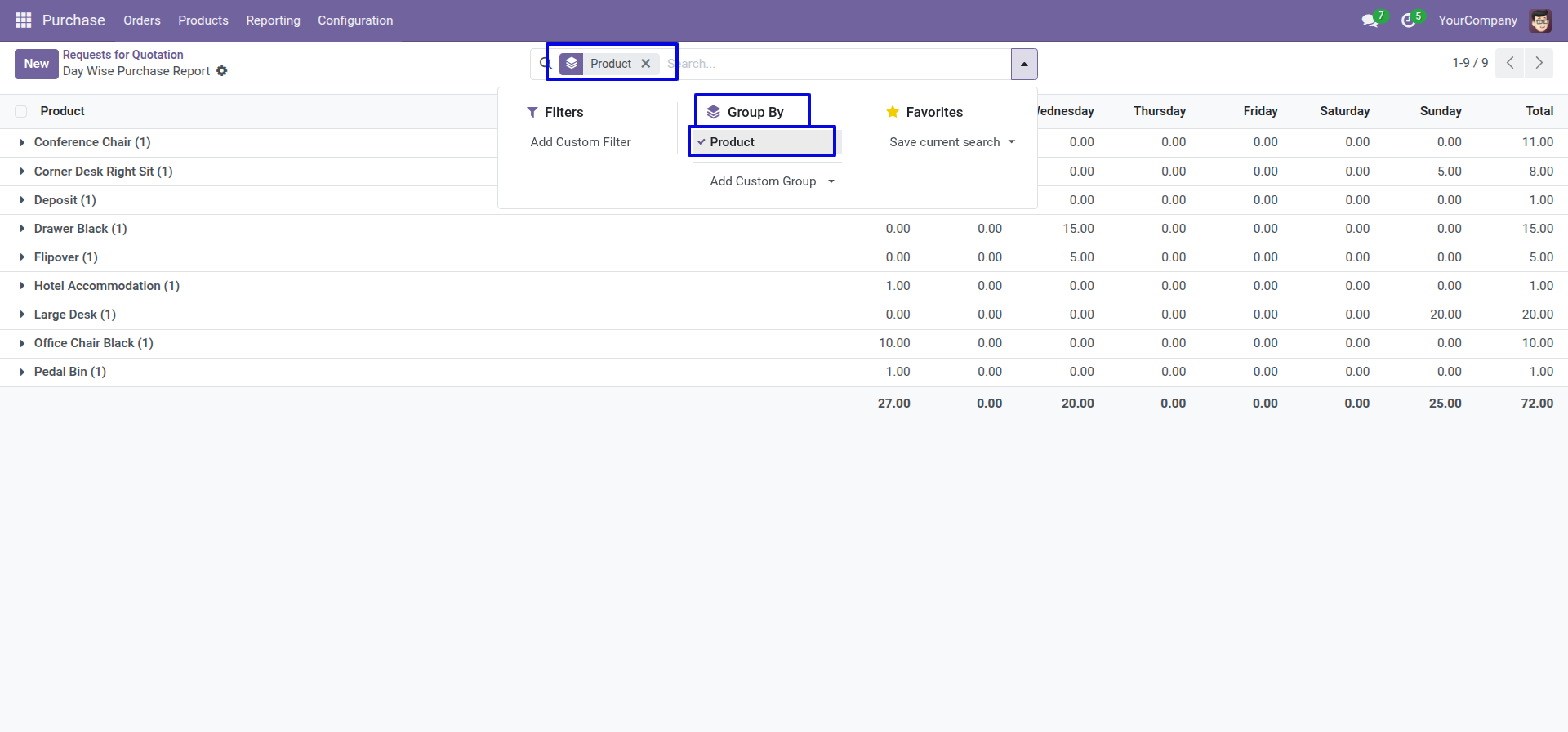
You can group by the day wise purchase report.
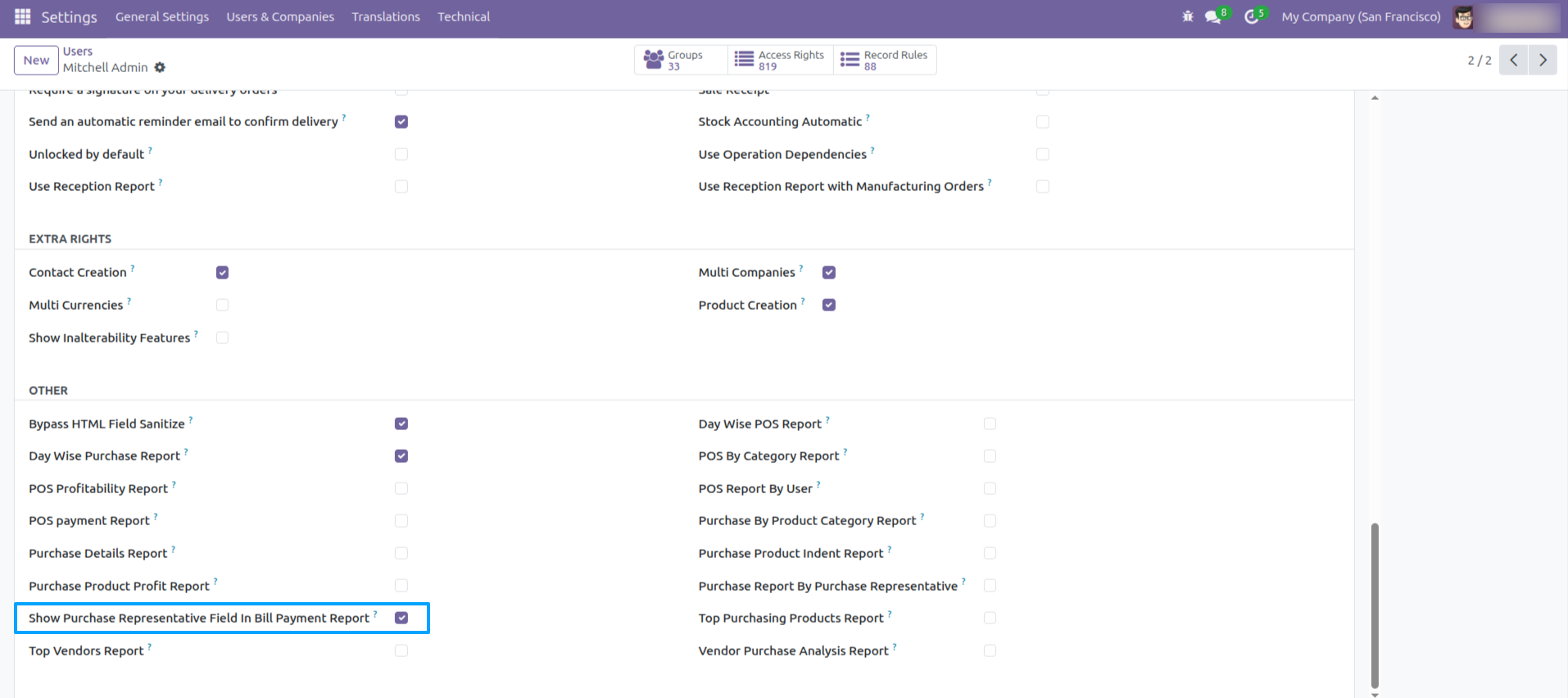
Tick this group 'Show Purchase Representative Field In Bill Payment Report' to show the representative field in the wizard.
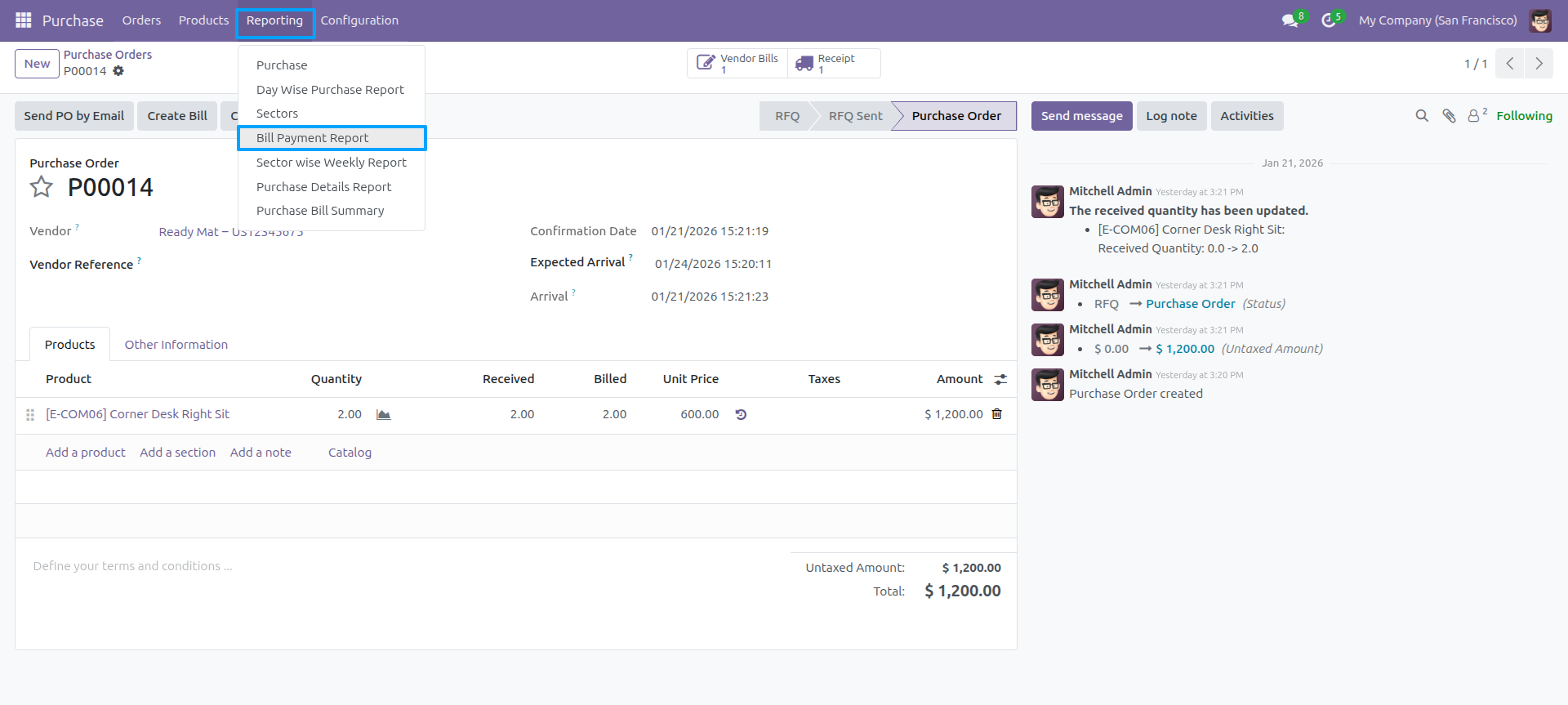
Bill payment report menu.
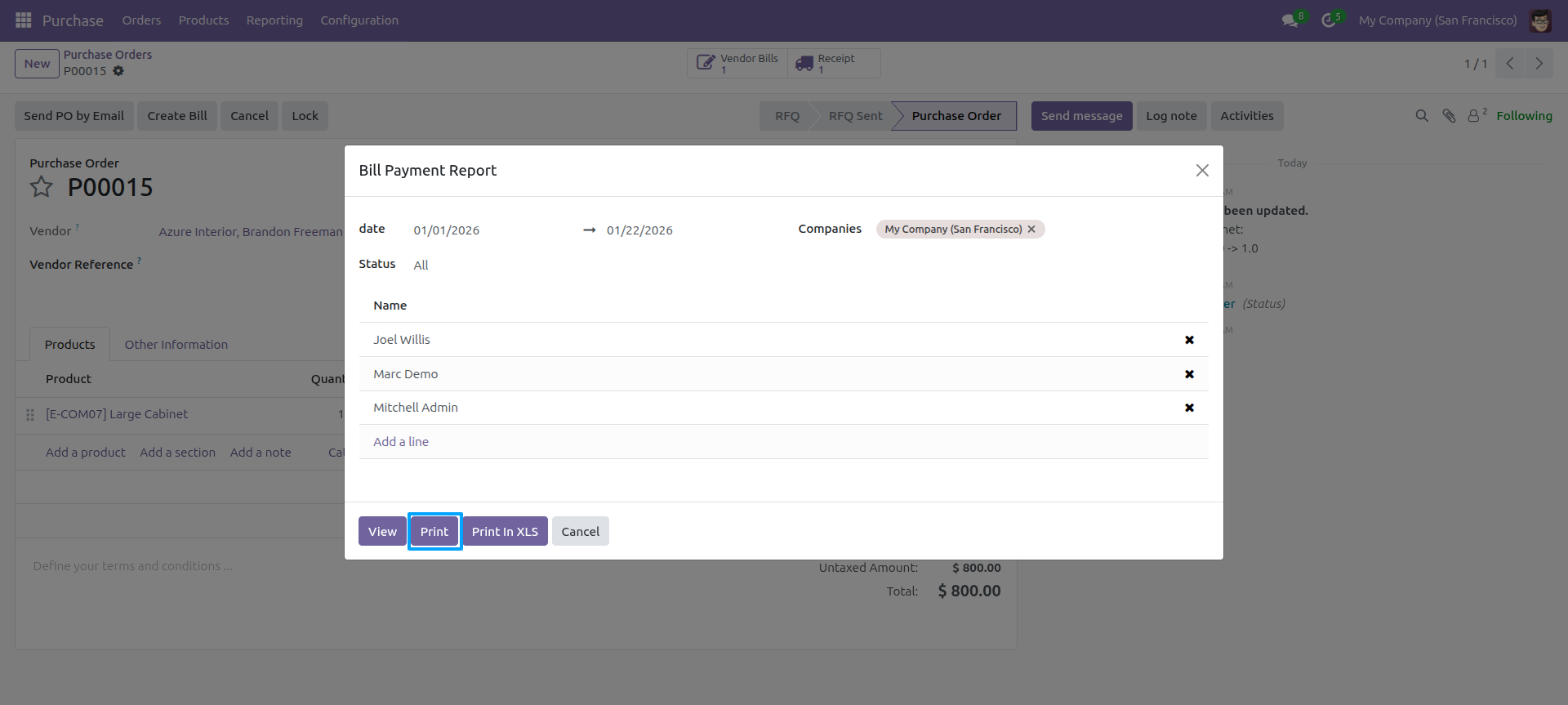
Bill payment PDF/Excel report wizard.
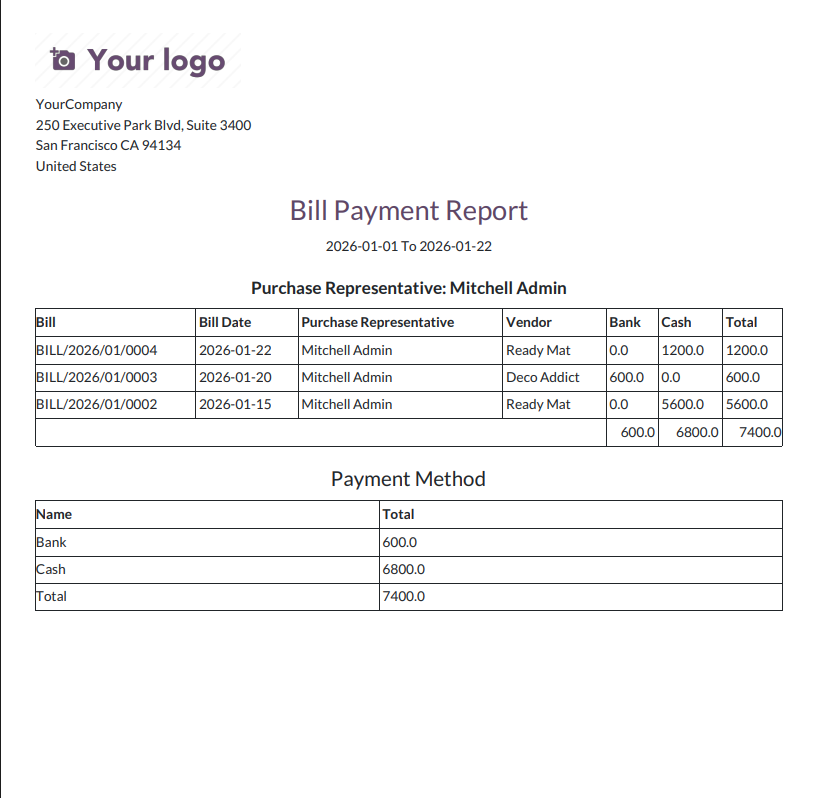
Bill Payment PDF report looks like below.
Bill payment PDF/Excel report wizard.
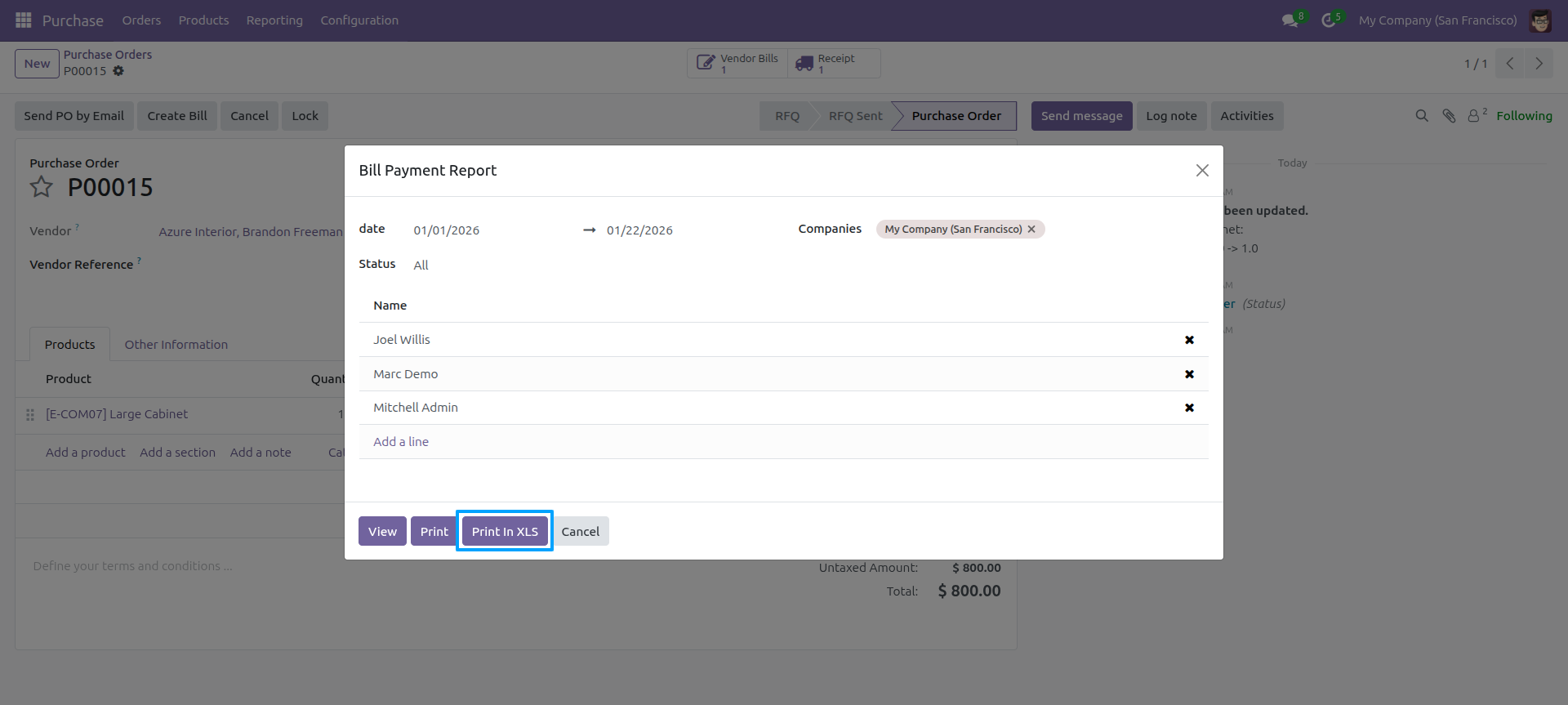
The Bill payment excel report looks like below.
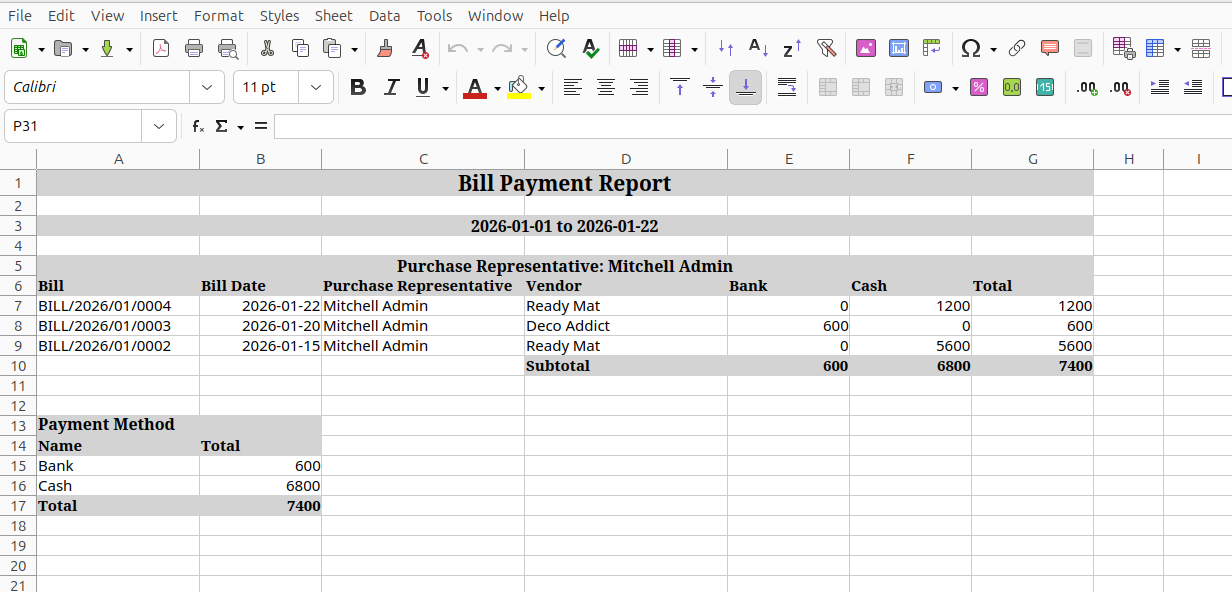
PDF/Excel report wizard, we view the report.
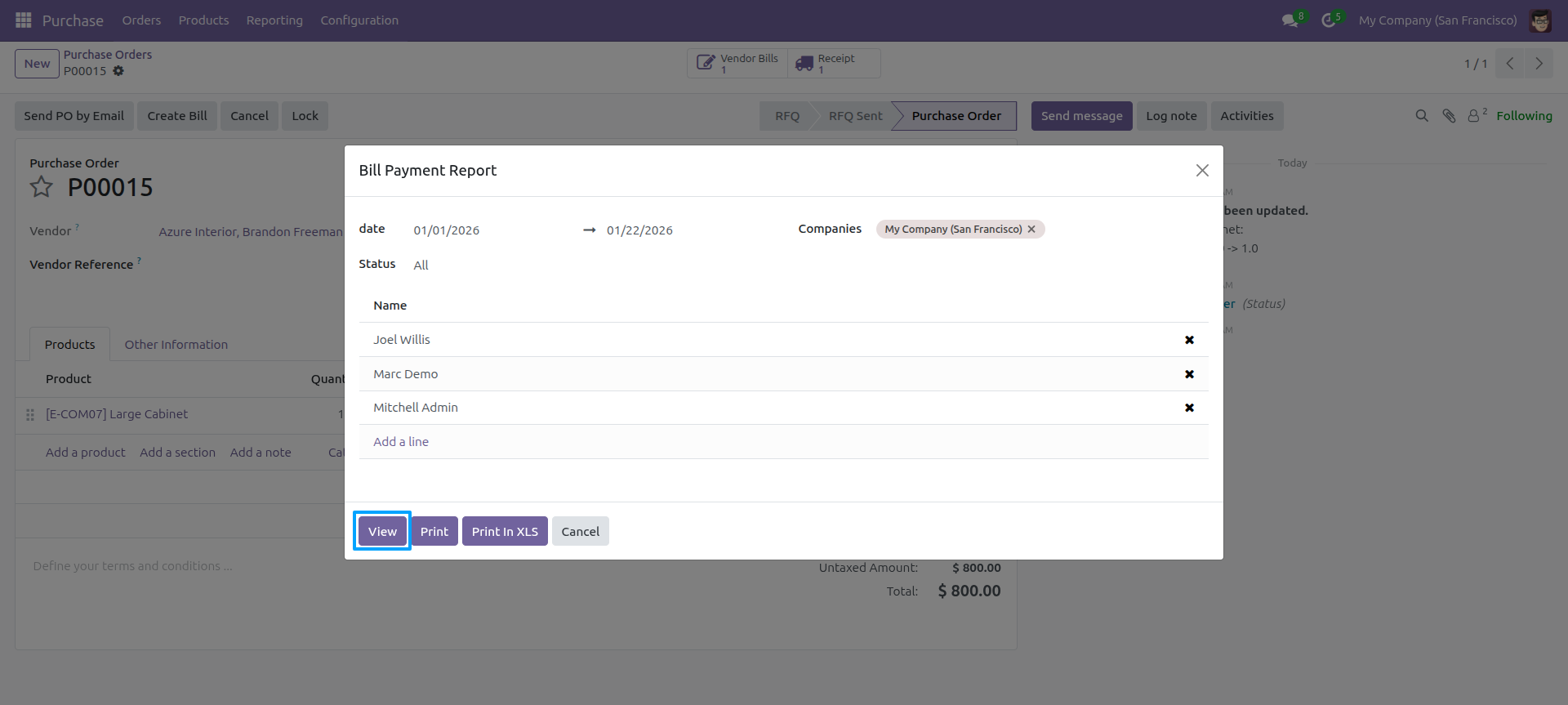
Bill Payment Report view looks like below.
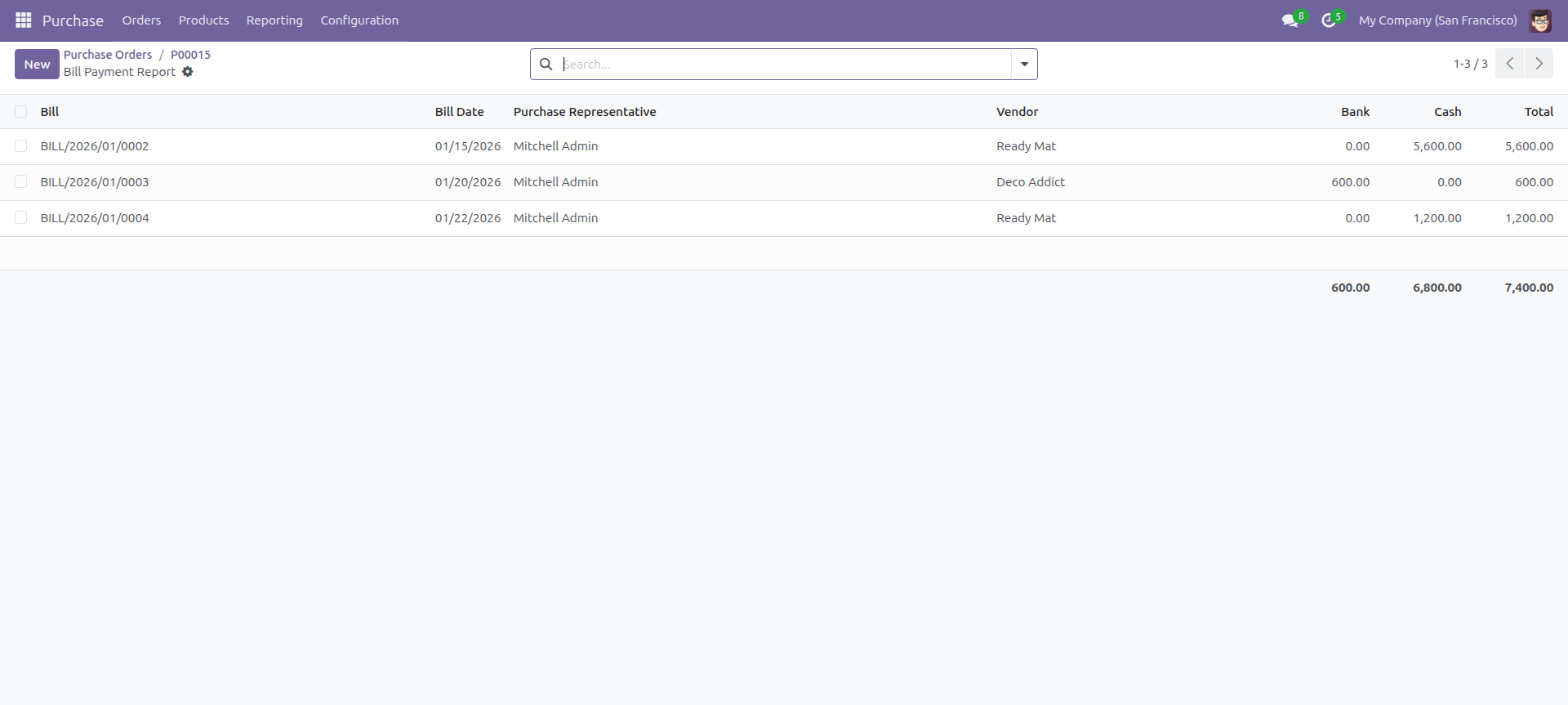
Report view, you can group by the report.
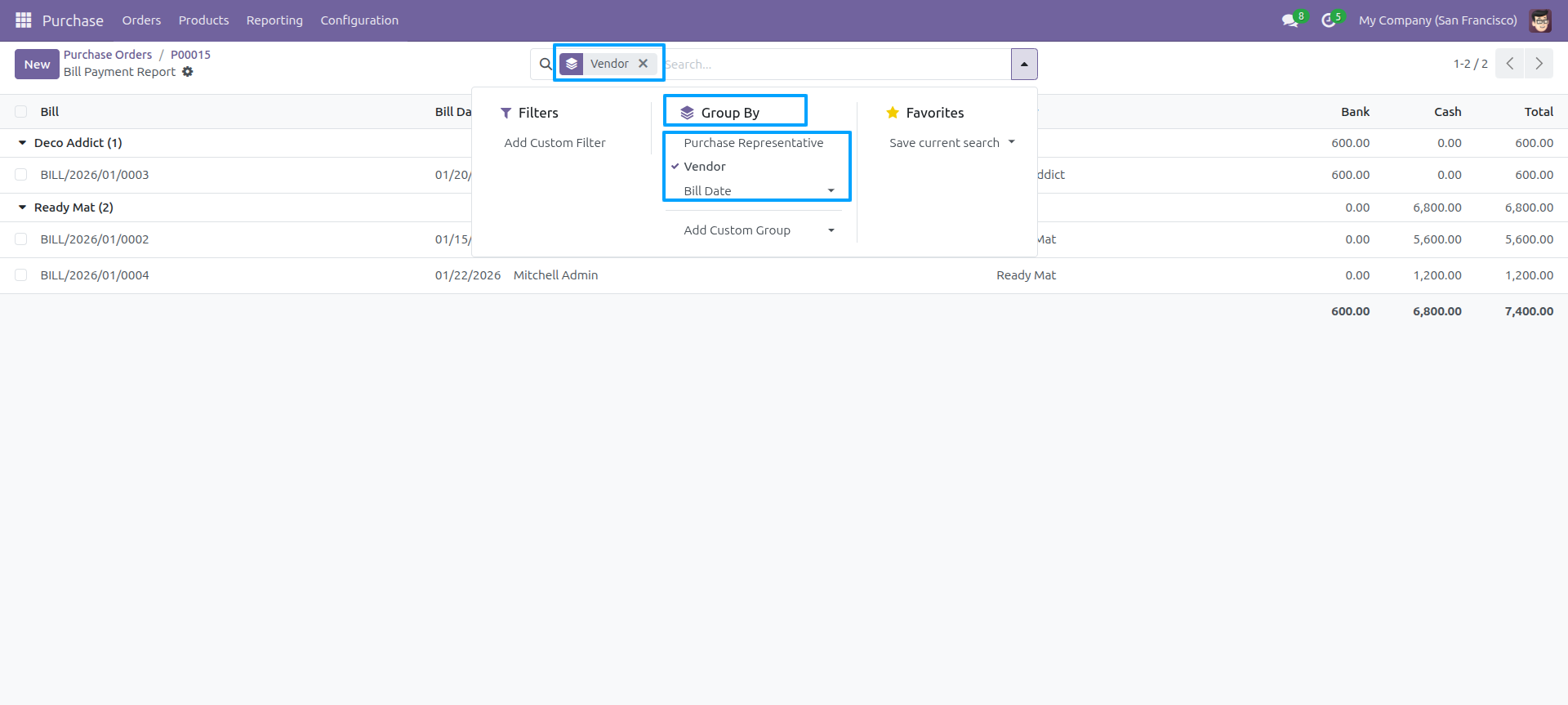
Go to user configuration and enable 'Purchase Detail Report'.
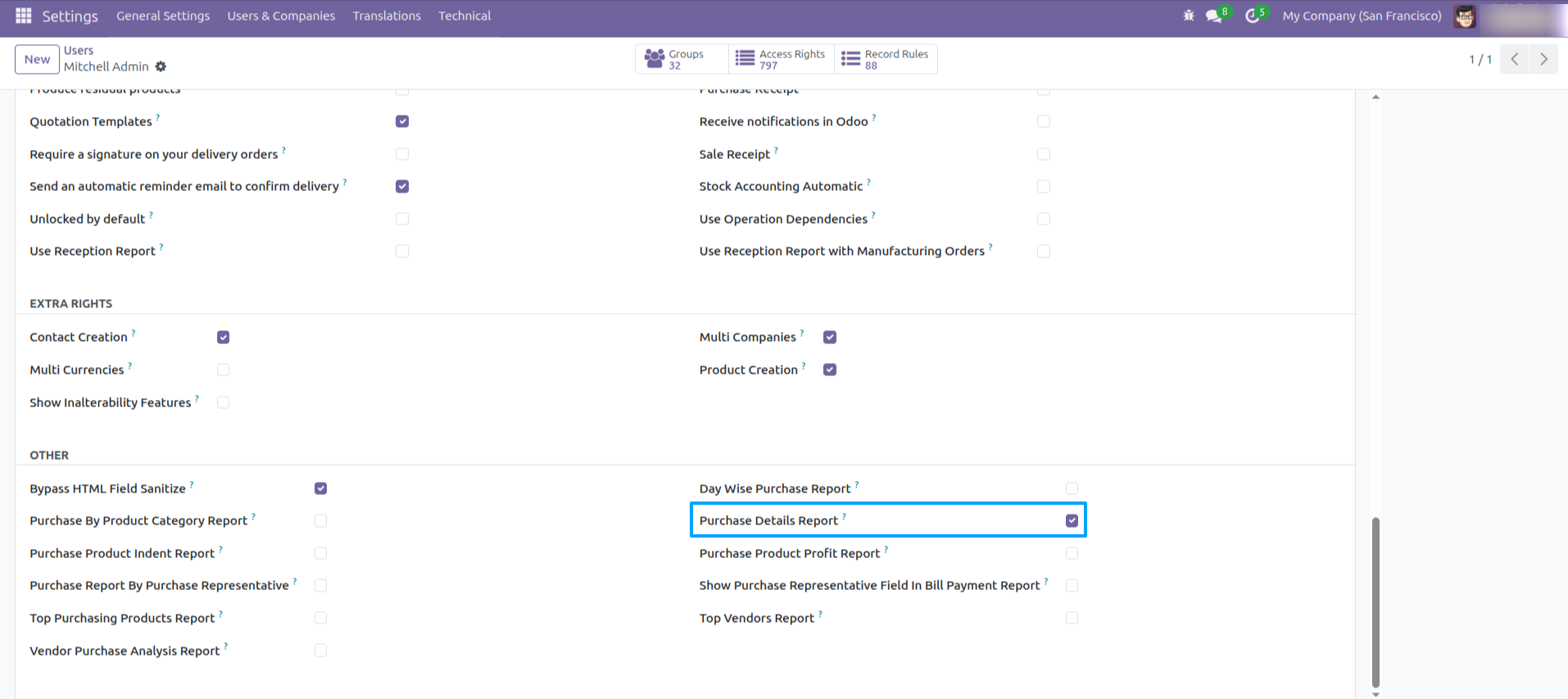
Go to reporting and click on 'Purchase Details Report'.
Purchase details PDF/Excel report wizard. Select a date and time to get a report between particular date-time.
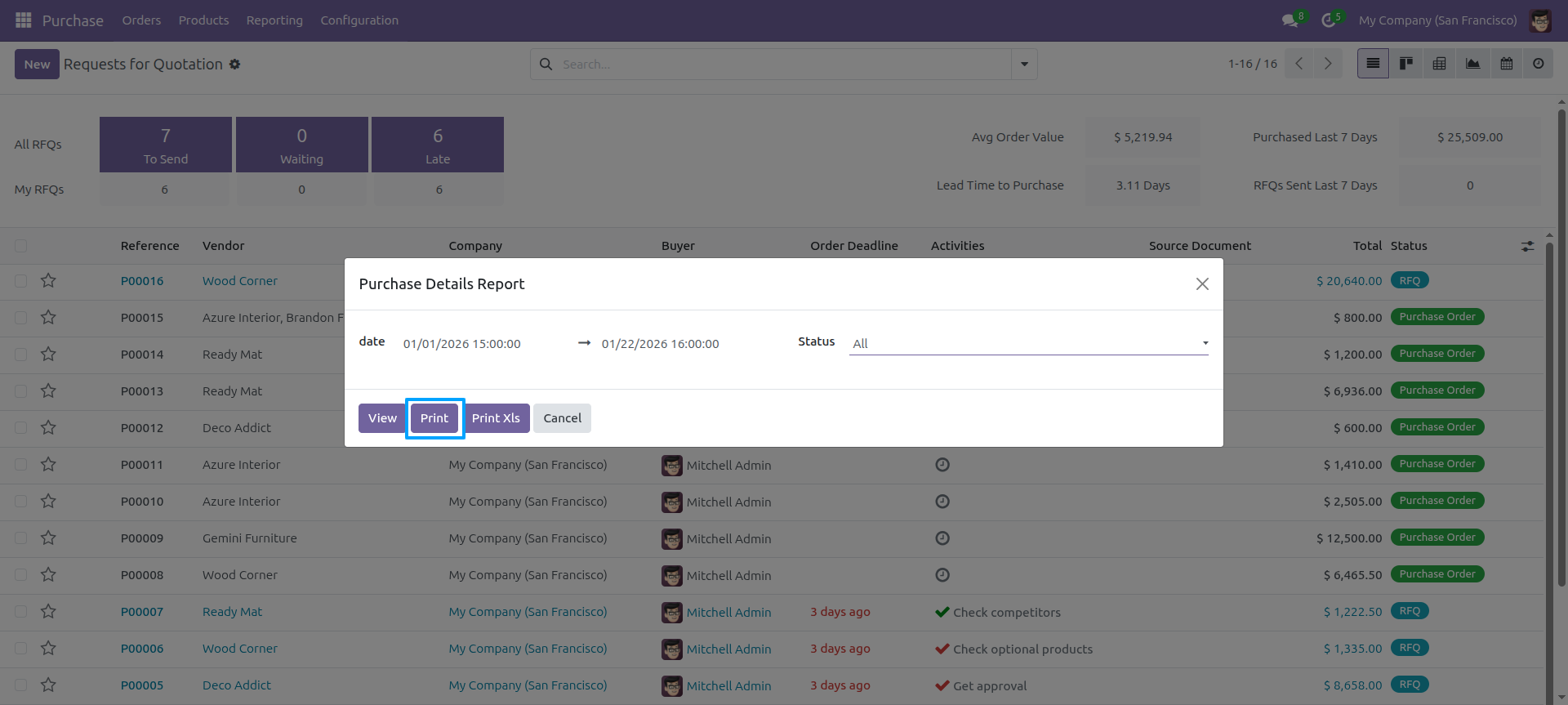
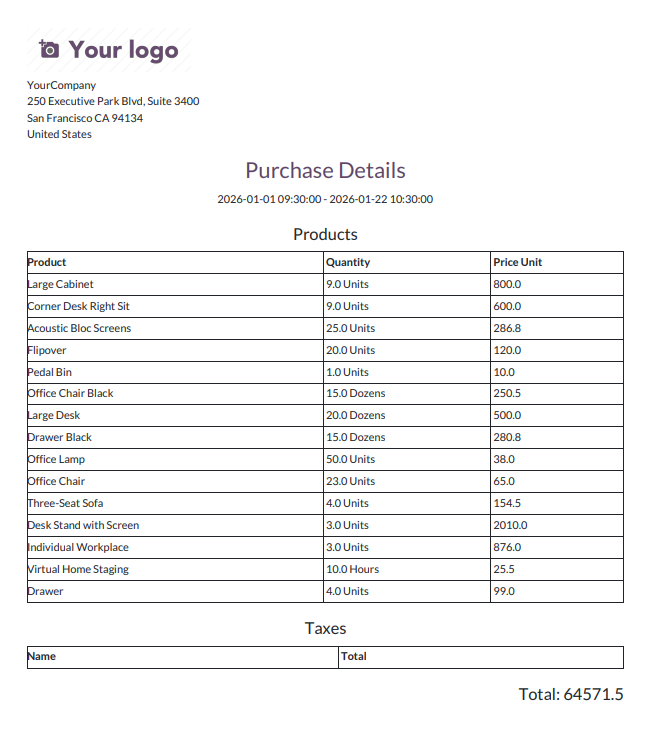
The Purchase Details PDF report looks like the below.
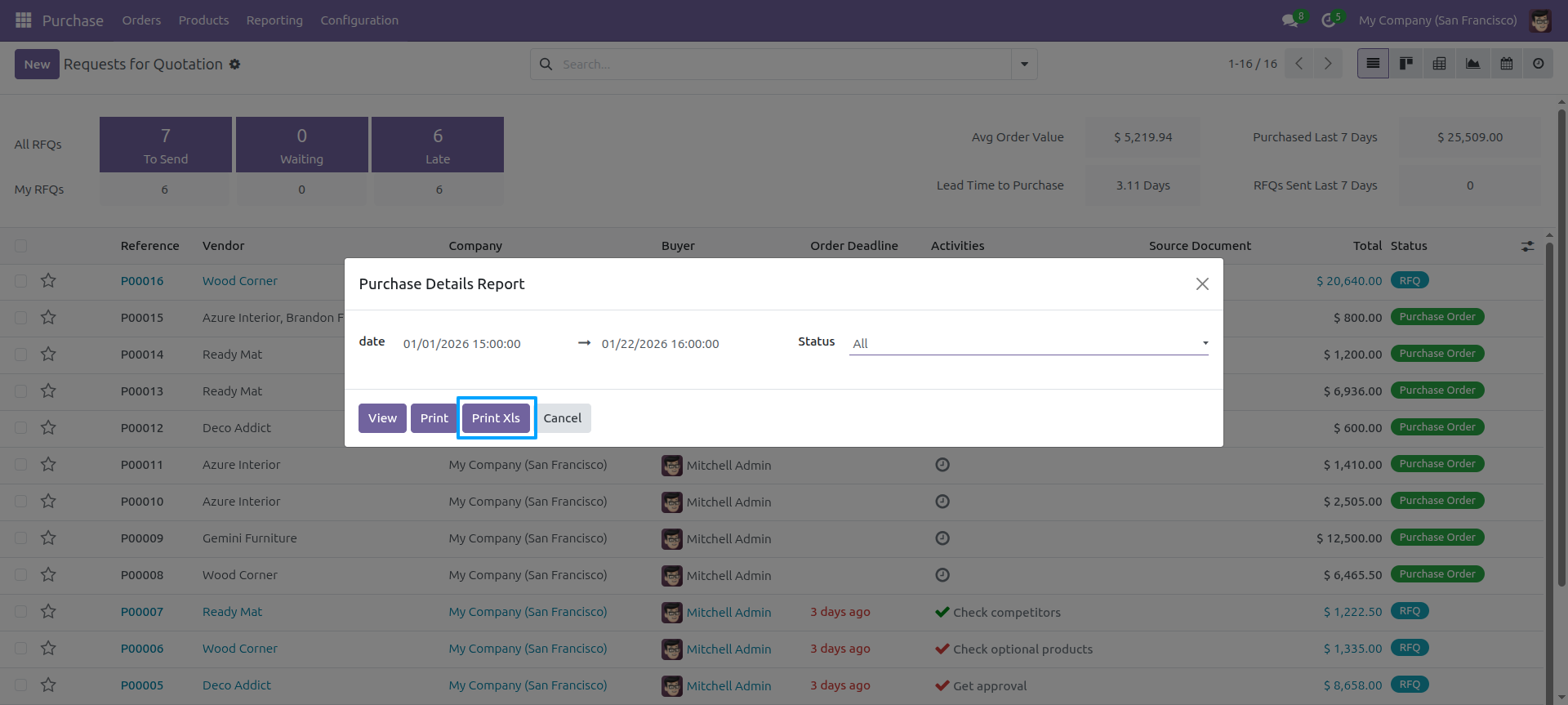
Purchase Details PDF/Excel report wizard and then print the Excel report.
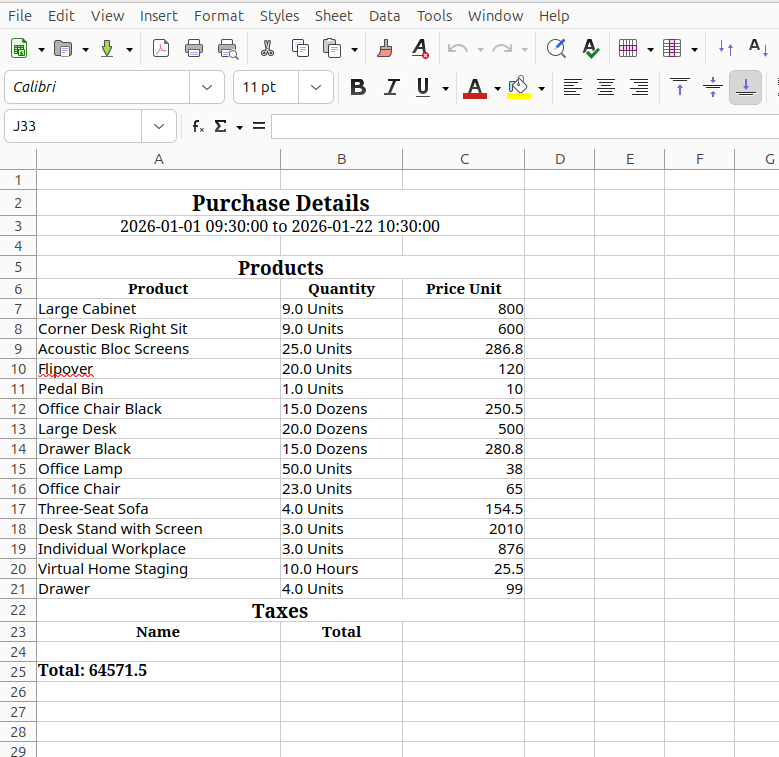
The purchase details Excel report is formatted as below.
We view the report using the PDF/Excel report wizard
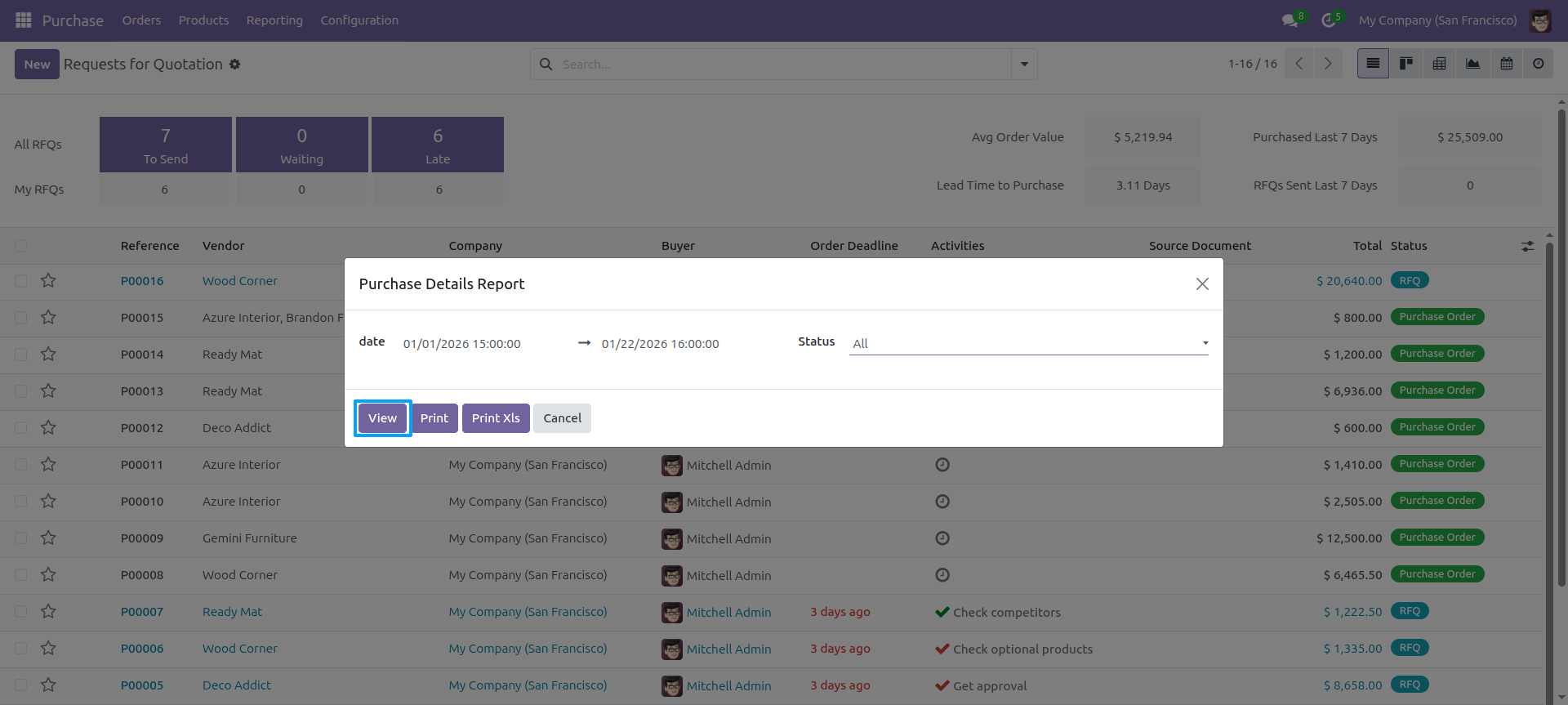
This is a list view of the Purchase Details Report.
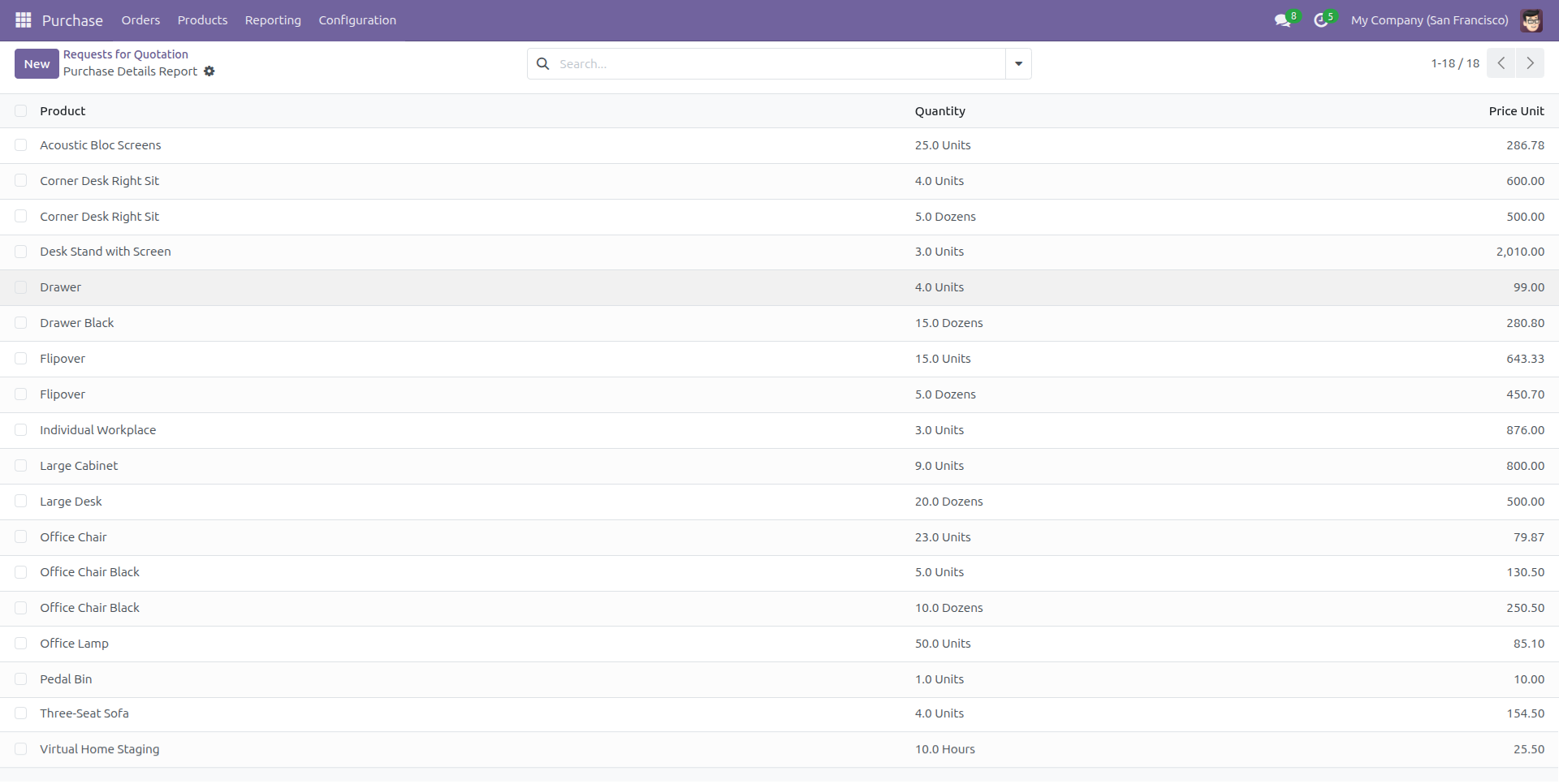
In the report view, you have the option to group the report.
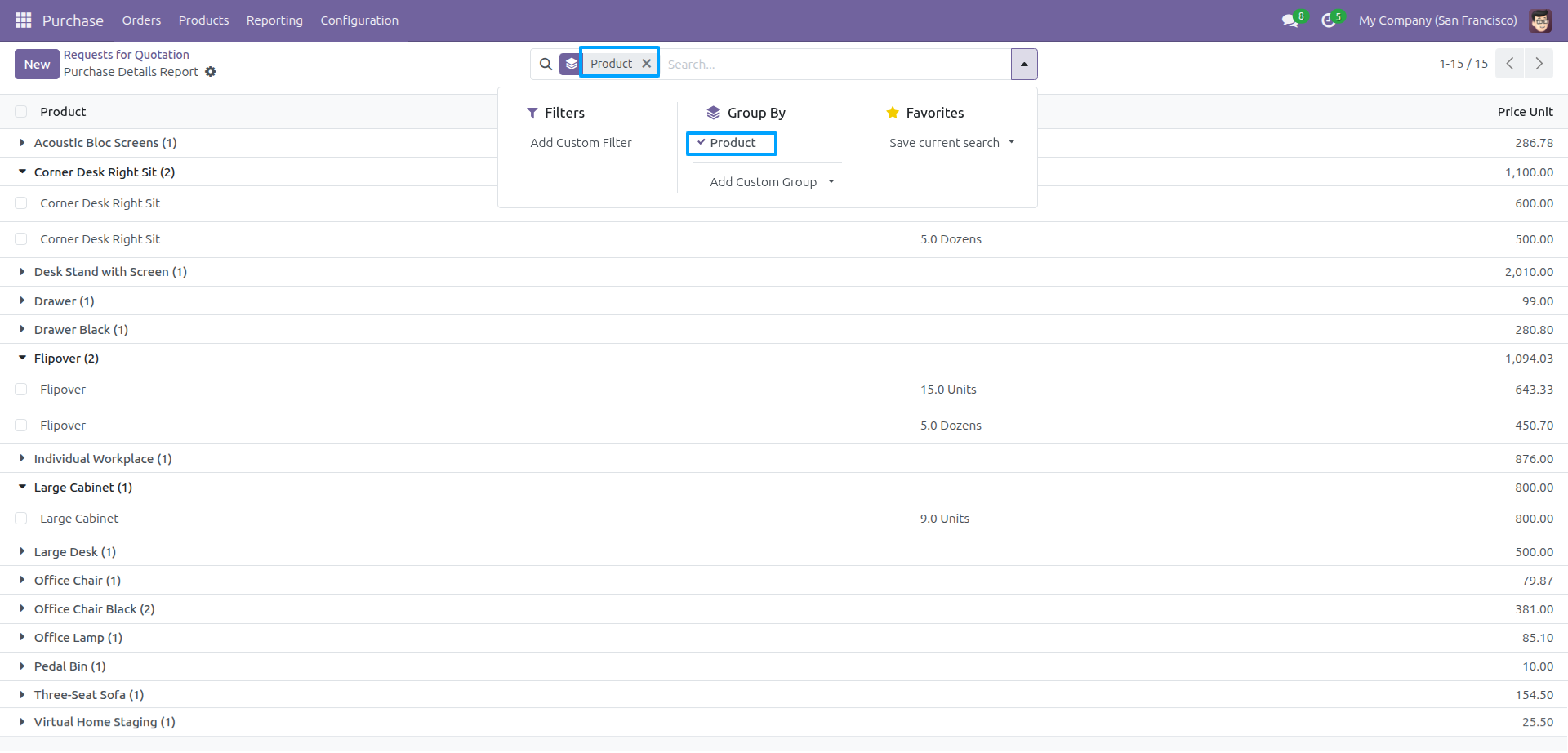
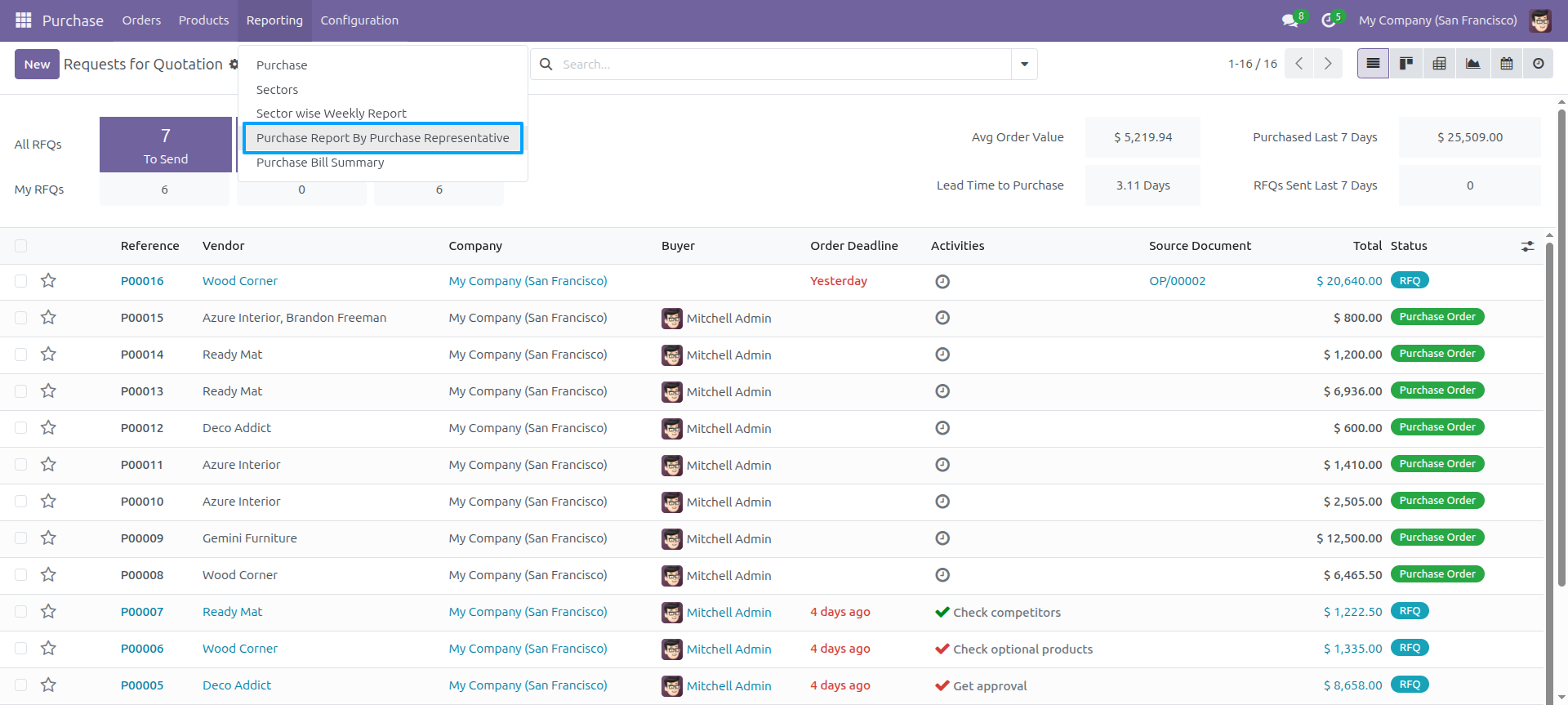
Go to User Enable 'Purchase report by representative'.
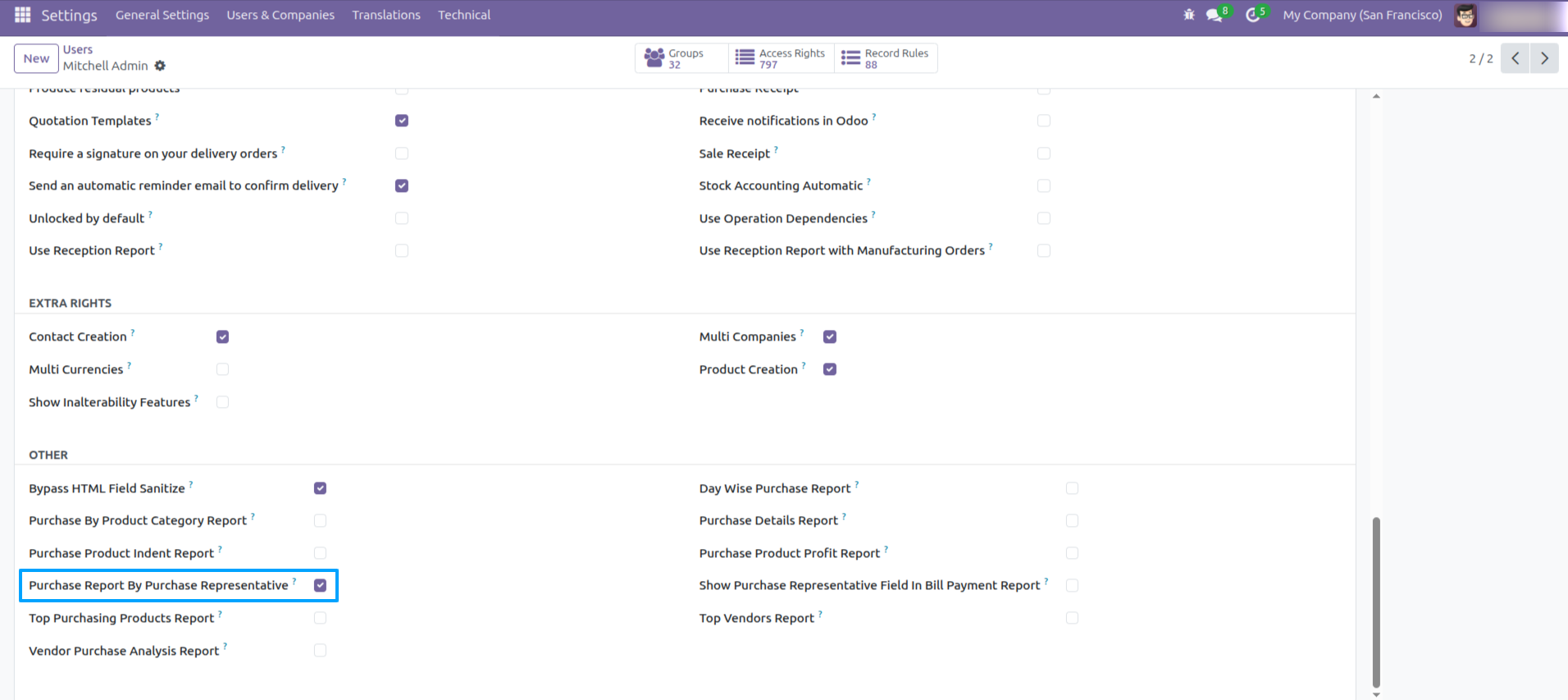
Purchase report by representative menu.
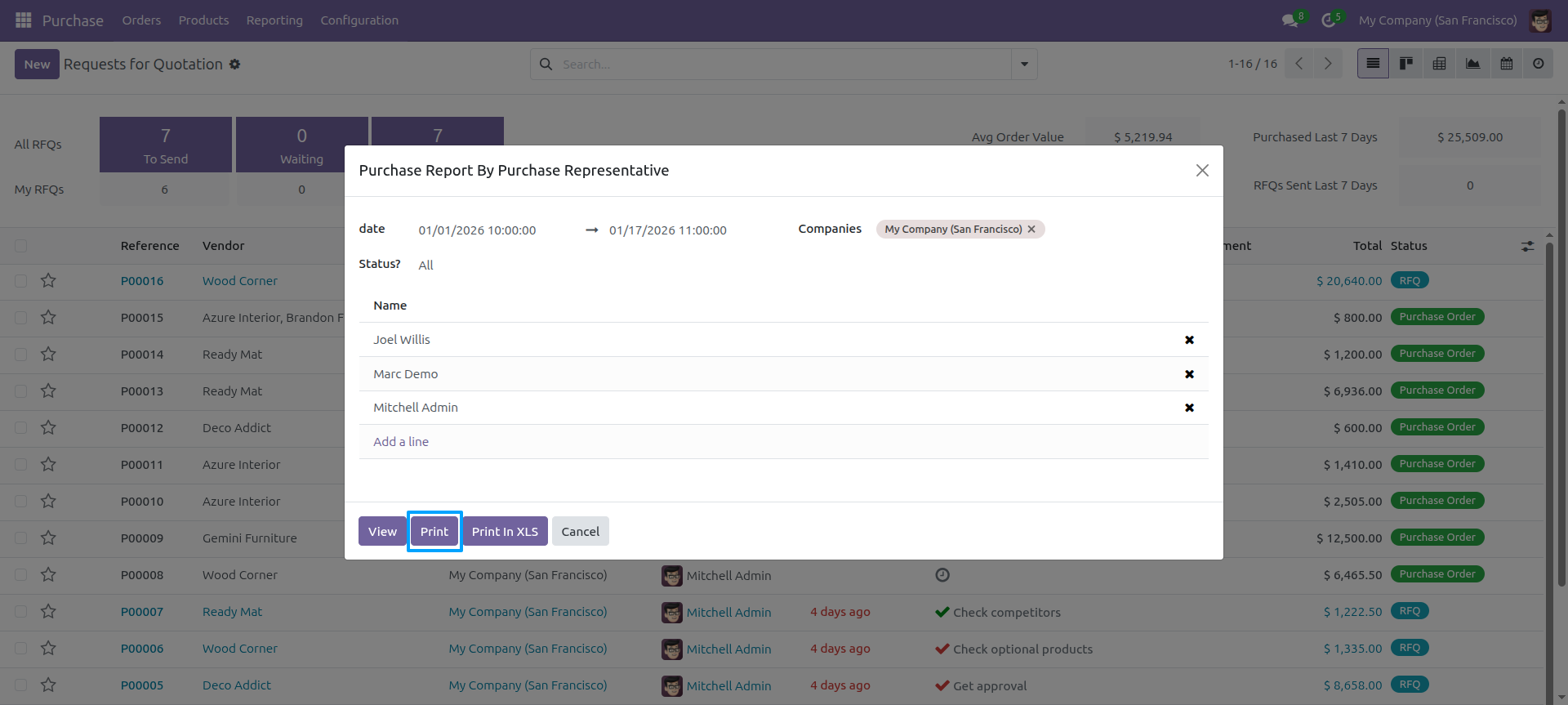
Purchase report by representative Pdf/Excel report wizard.
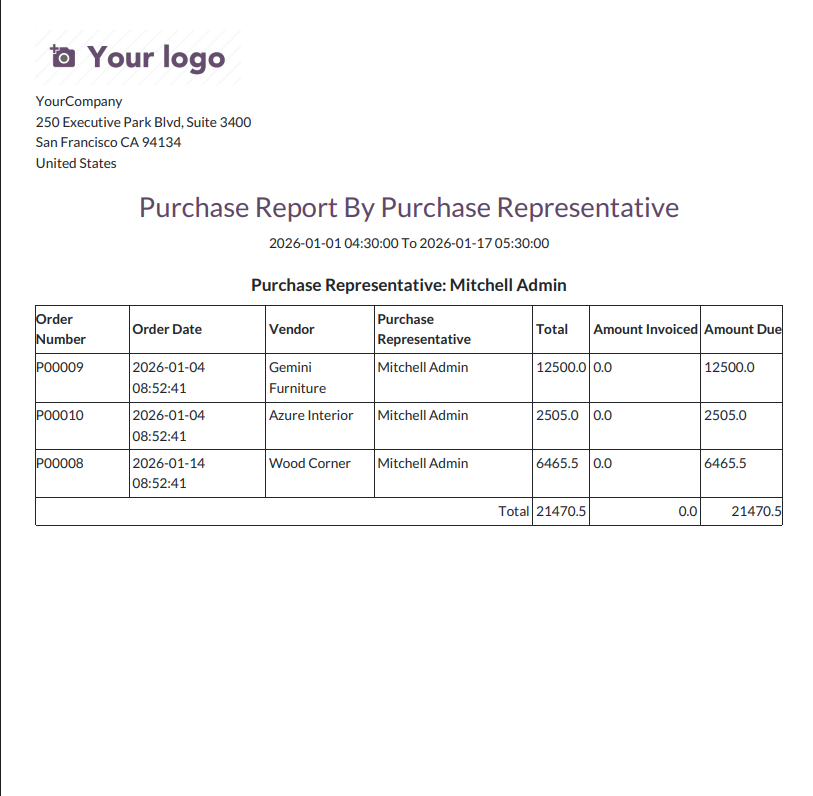
Purchase report by representative PDF report looks like below.
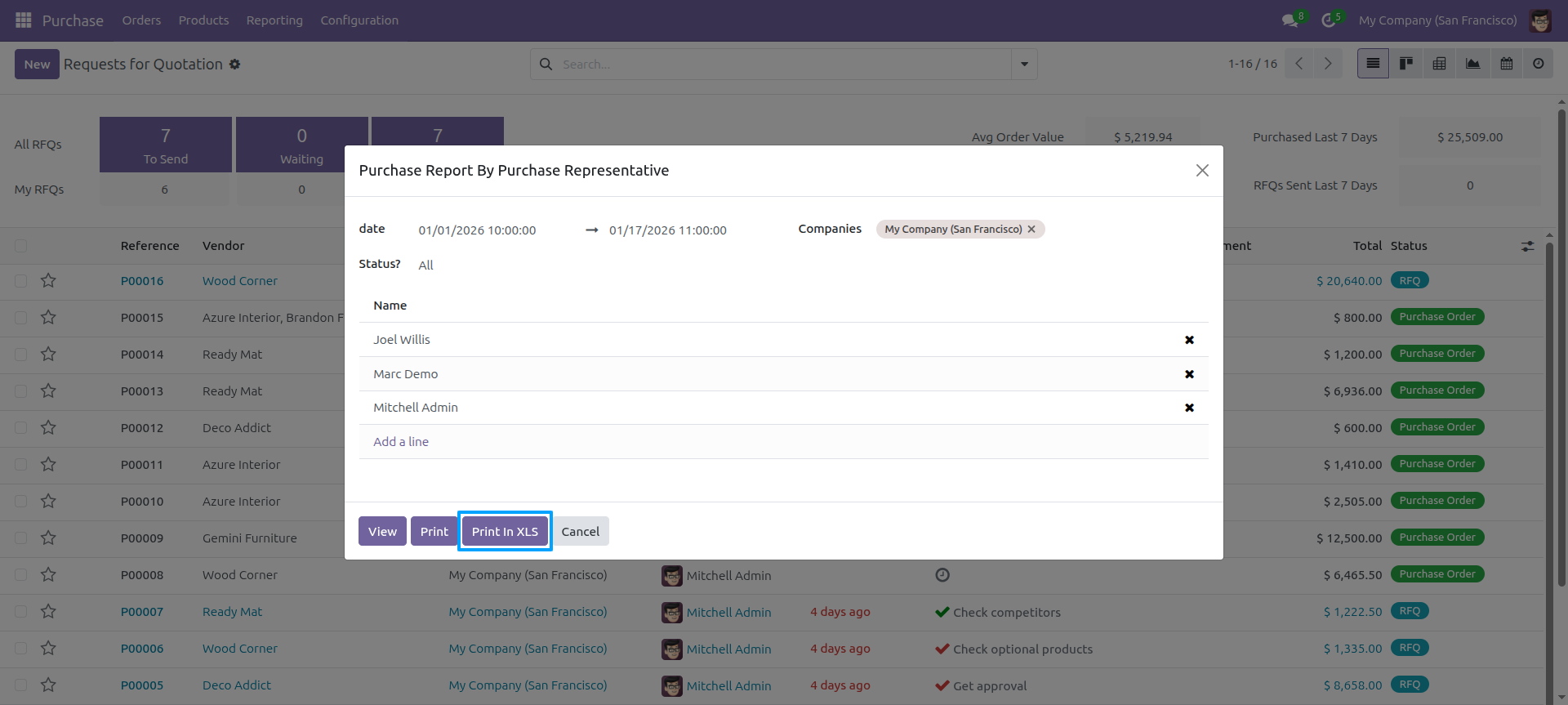
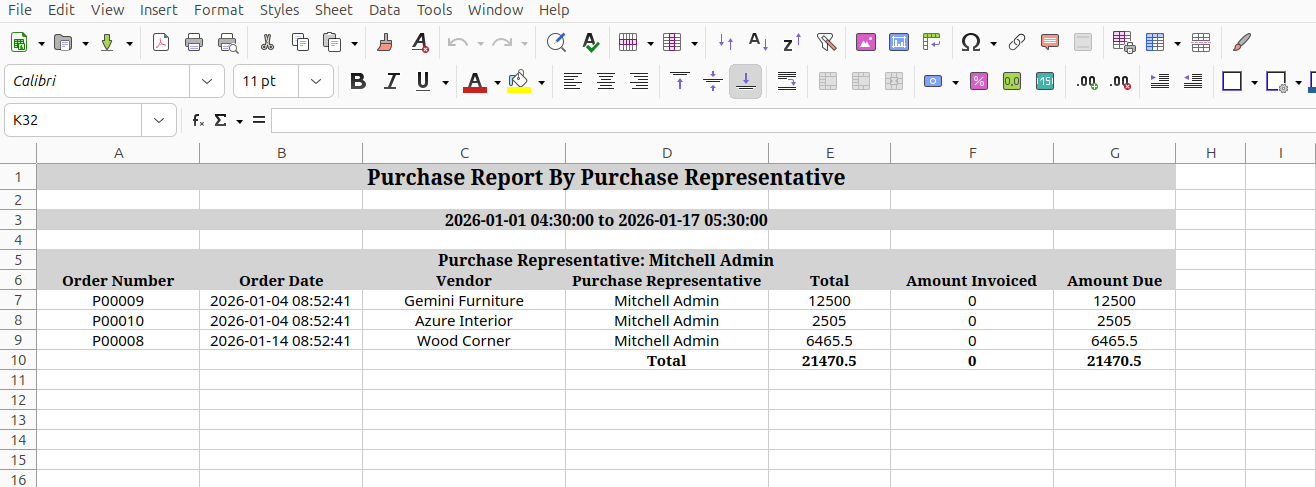
Purchase report by representative Pdf/Excel report wizard.
The purchase report by the representative excel report looks like below.
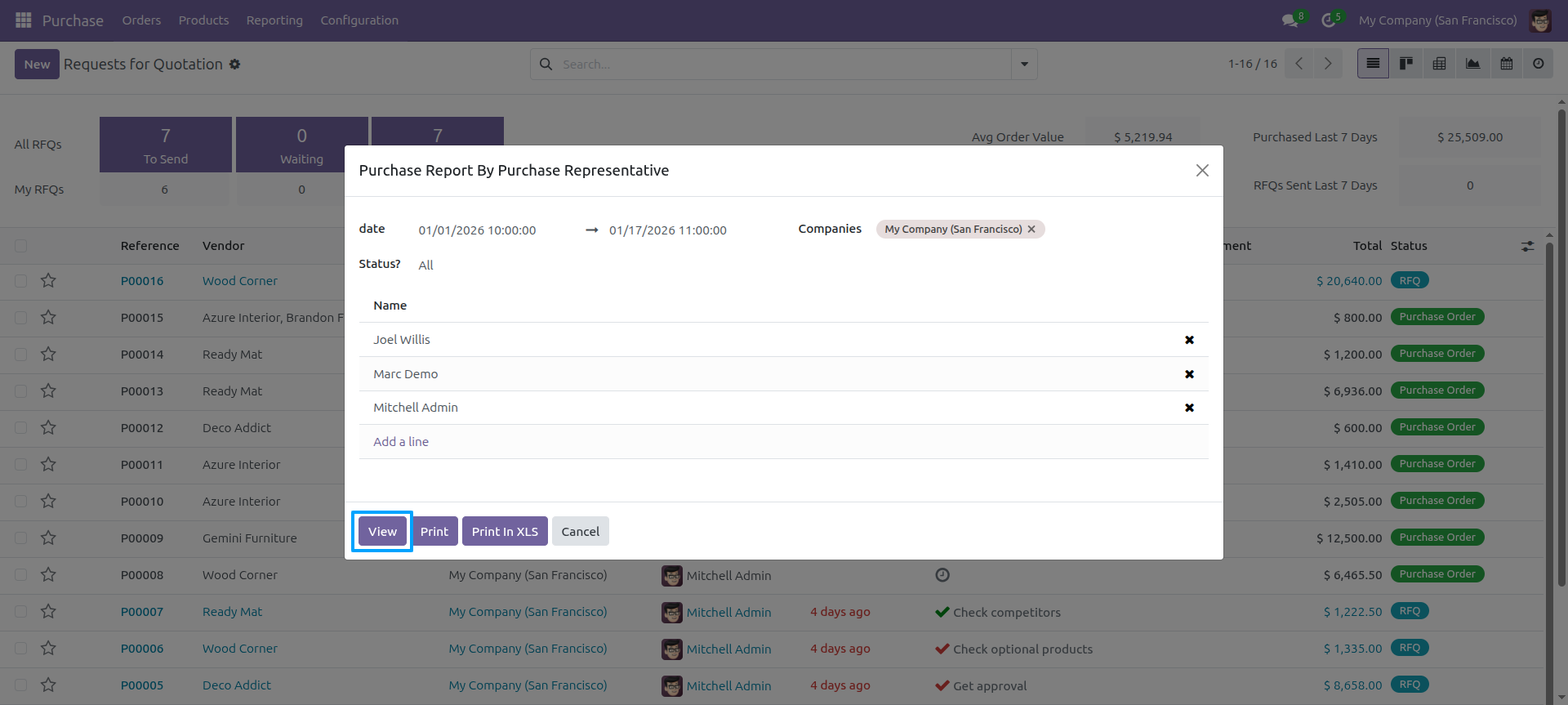
PDF/Excel report wizard, we view the report.
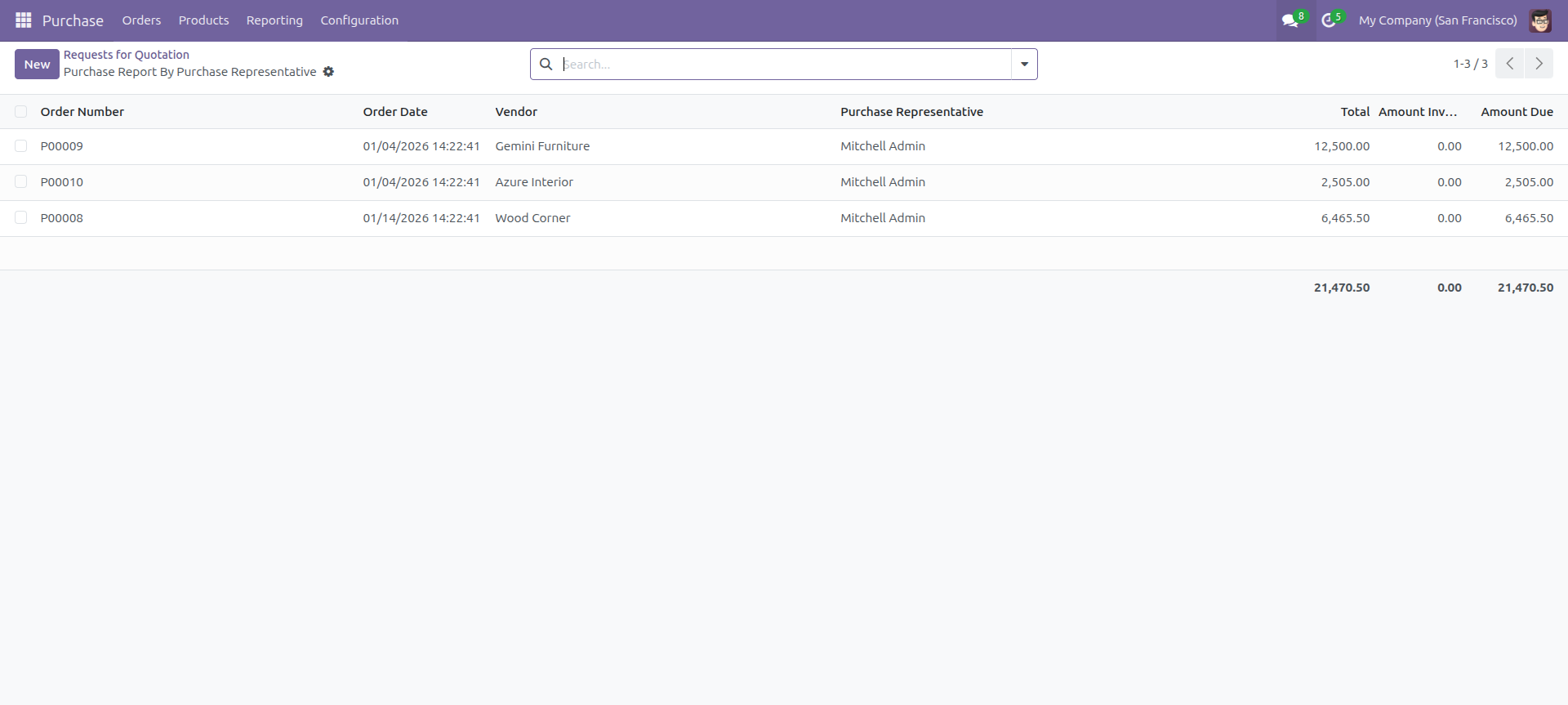
Purchase report by representative report view looks like below.
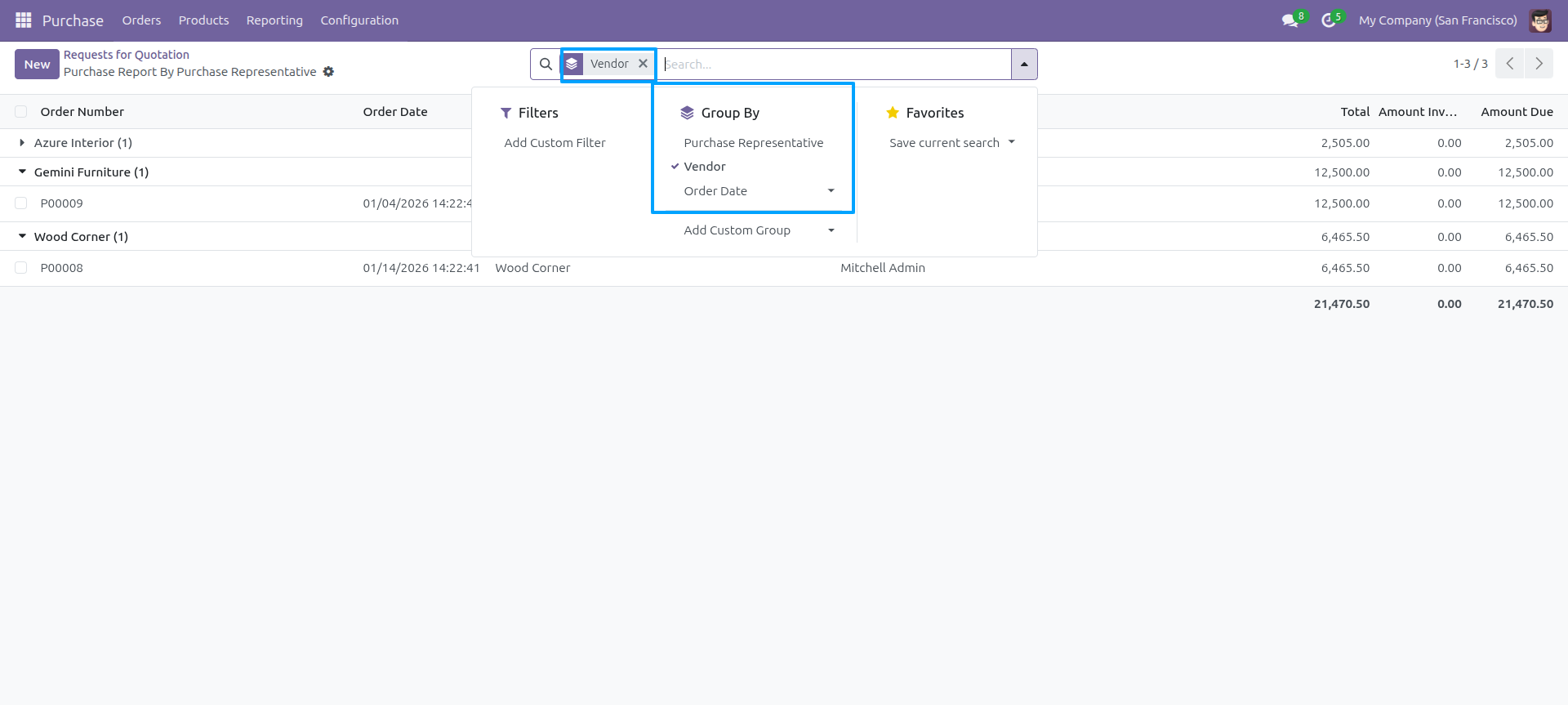
Purchase report by representative report view looks like below.
Report view, you can group by the report.
Go to user enable 'Top Purchasing Products Report' feature.
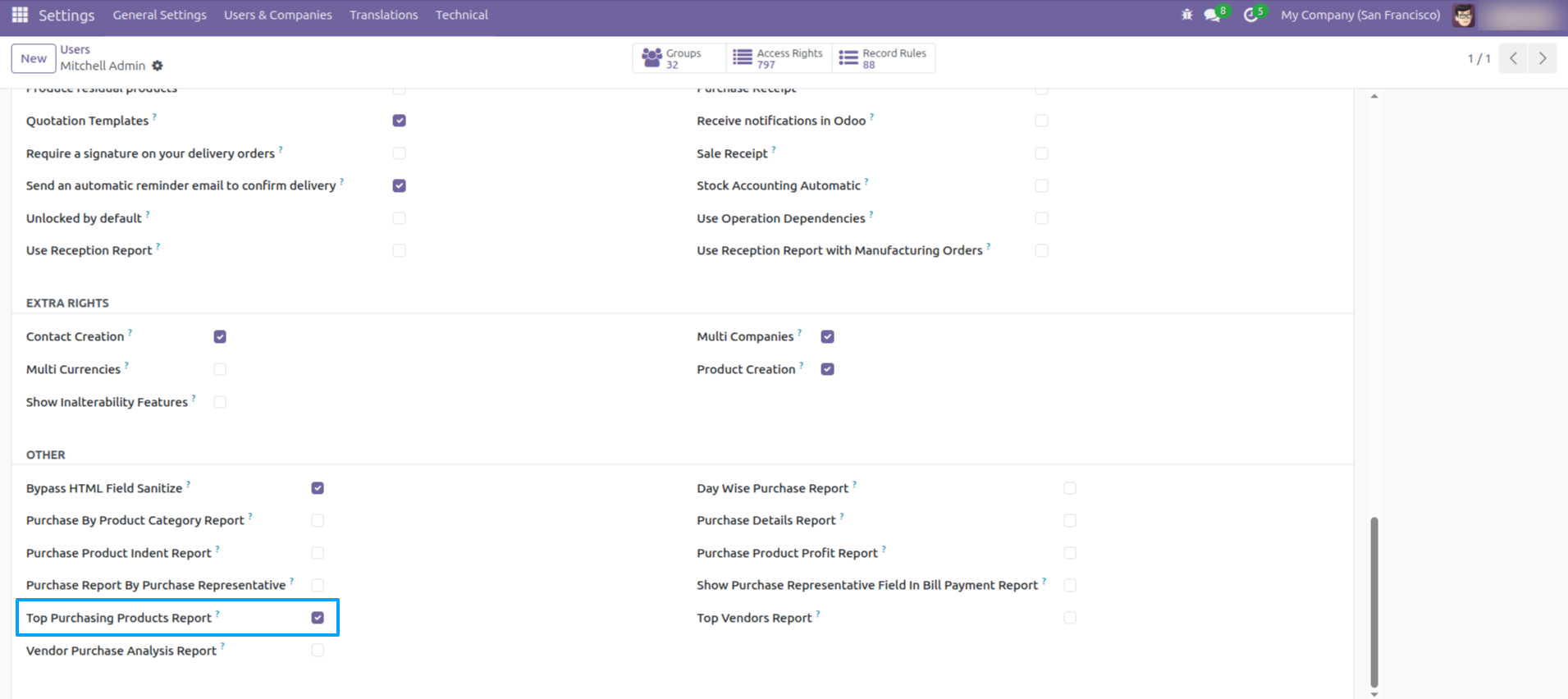
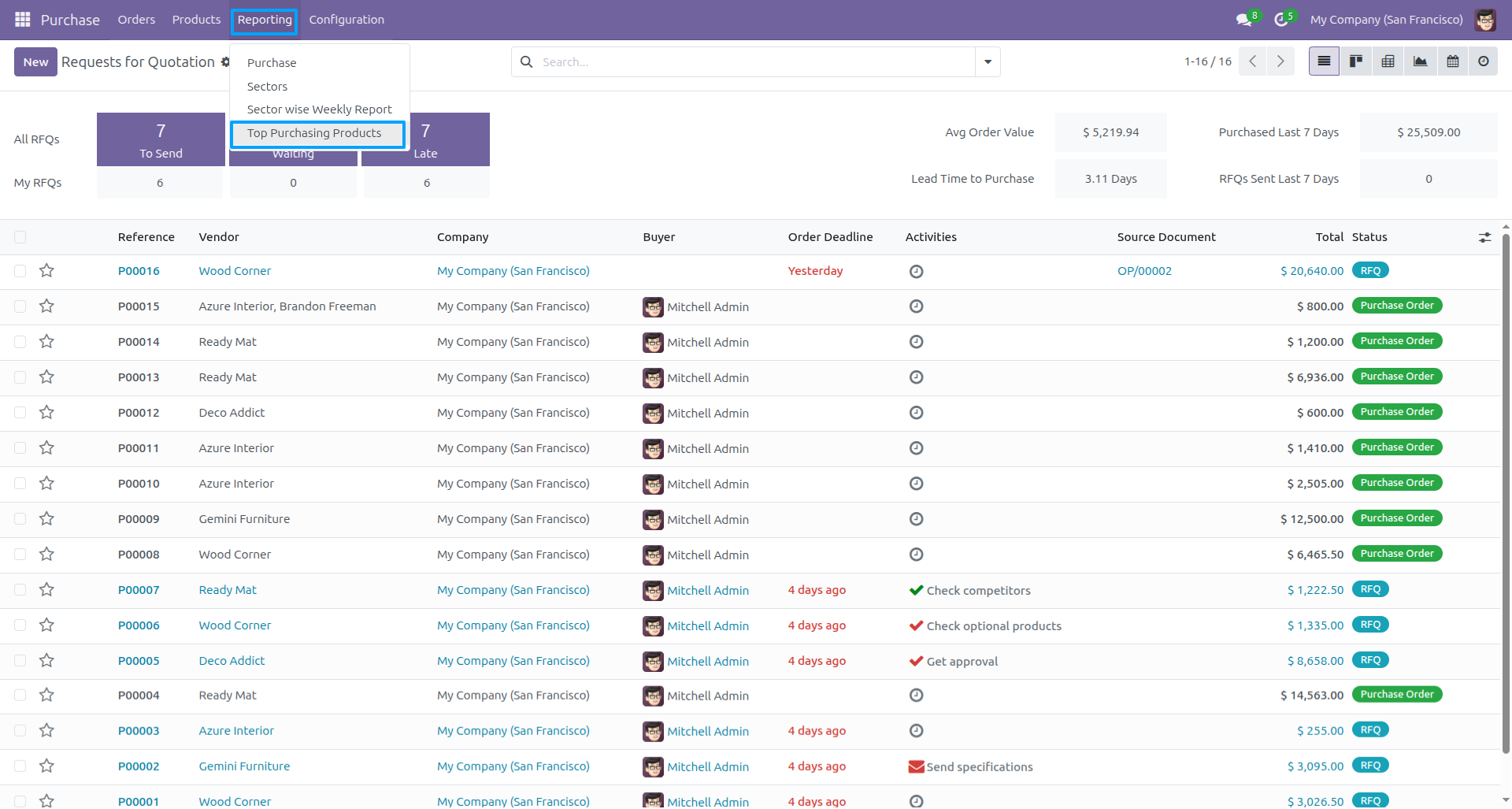
'Top Purchasing Products Report' menu.
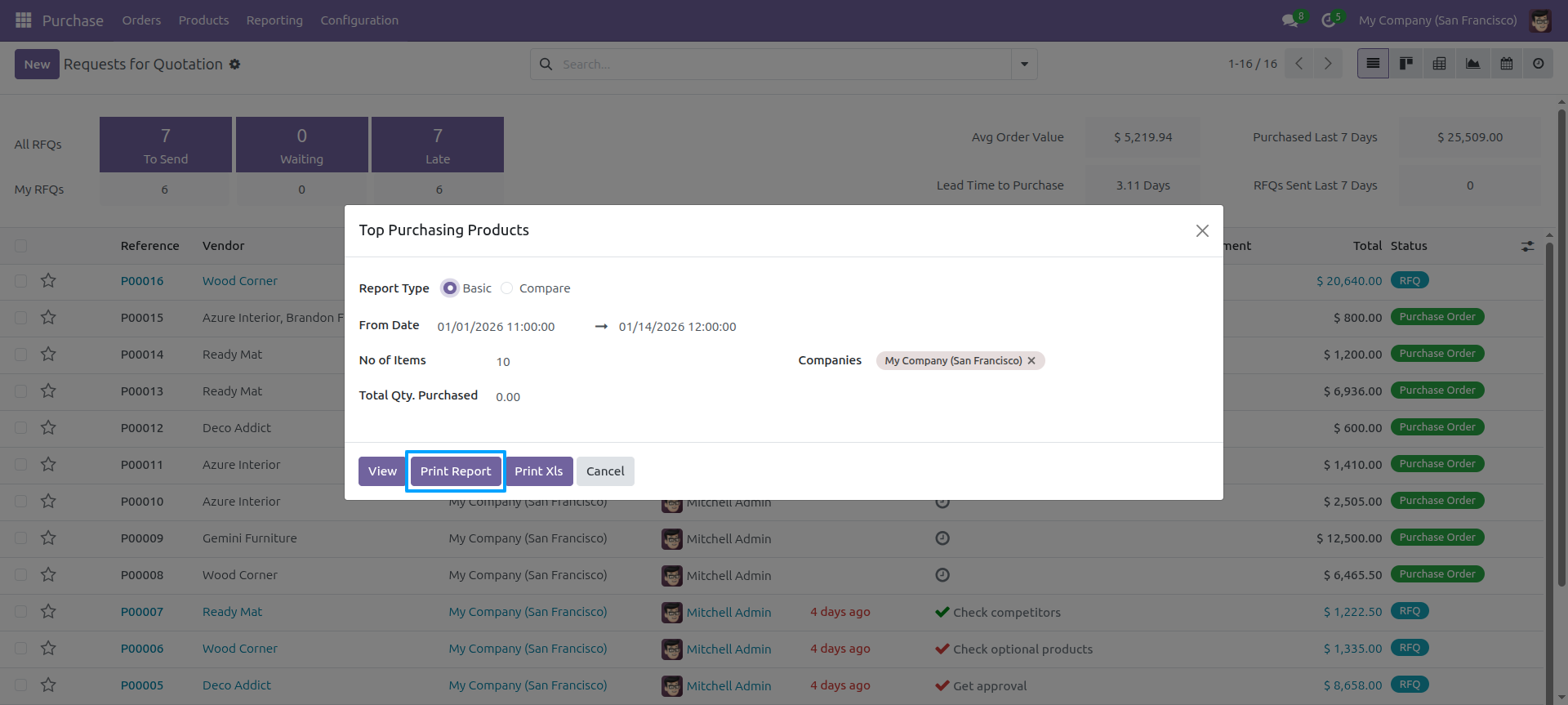
Top purchasing products report wizard and select basic report type and press 'Print Report'.
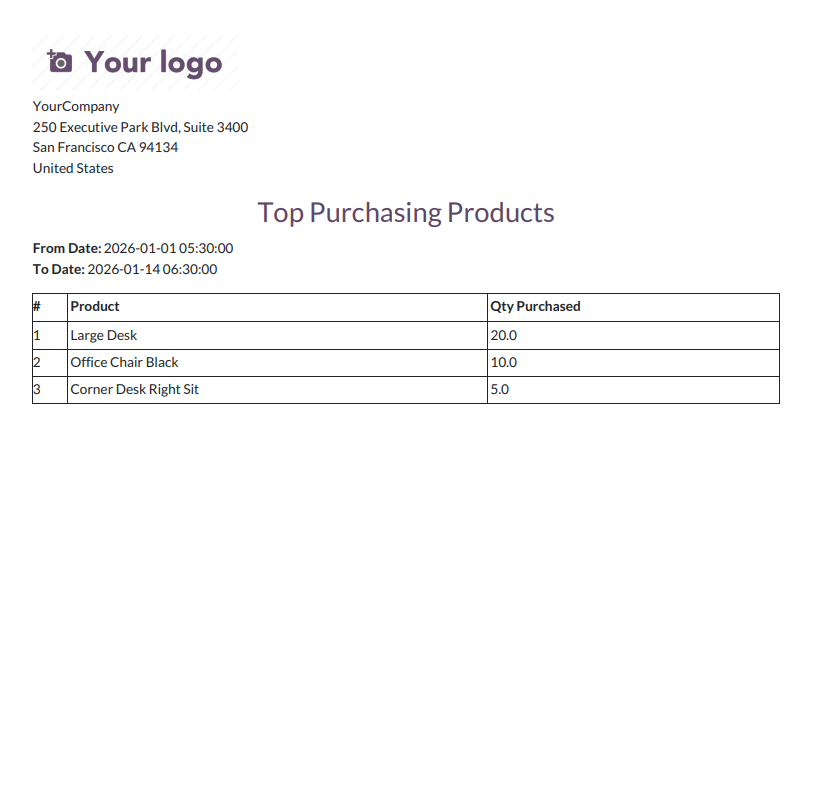
Top purchasing product basic PDf report look like below.
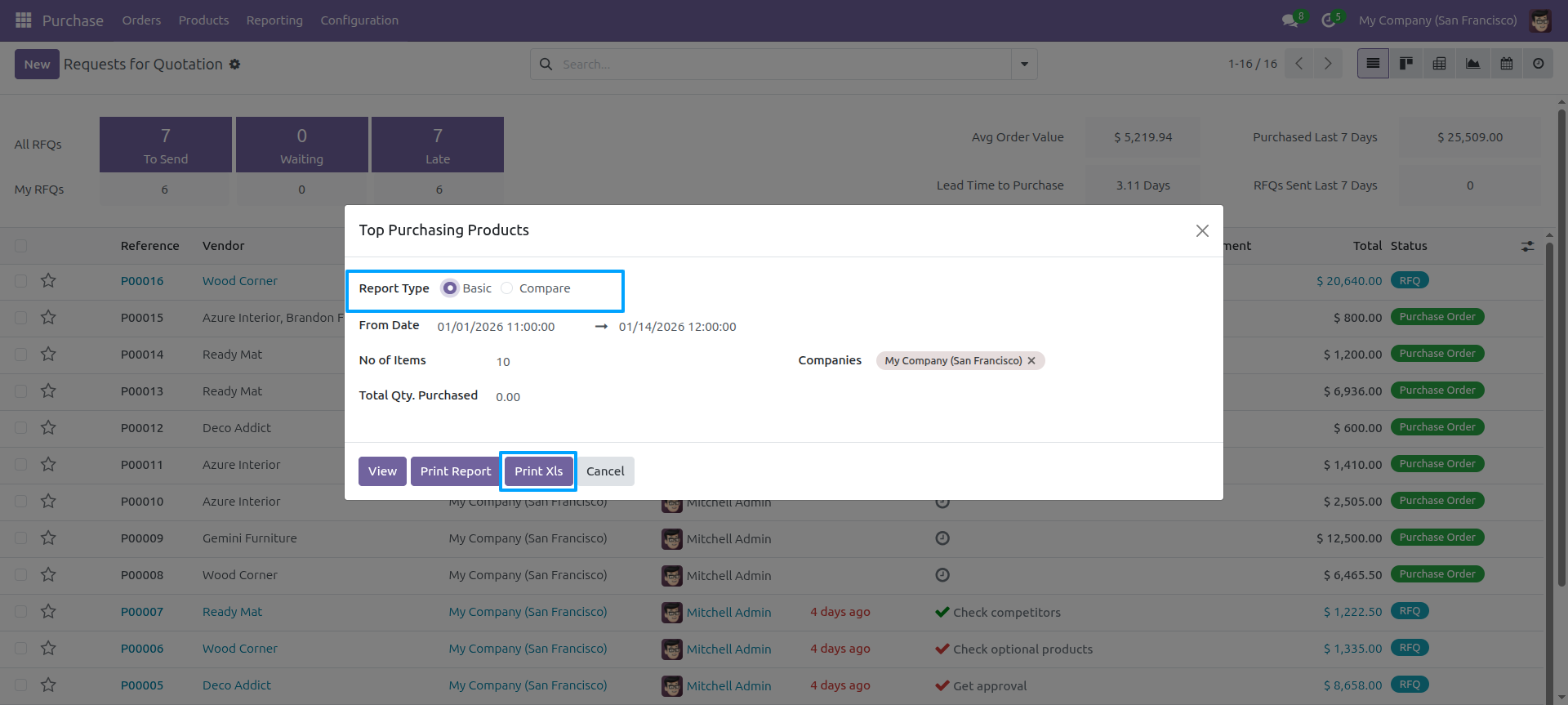
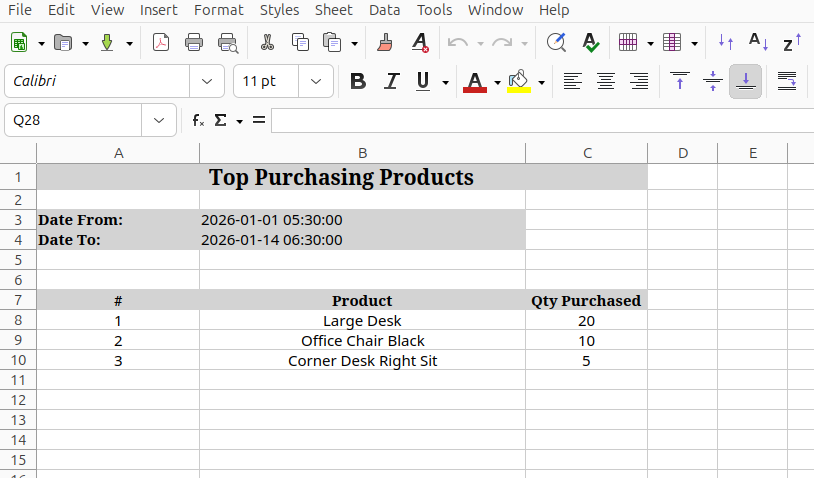
Top purchasing products report wizard and select basic report type and press 'Print Xls'.
Top purchasing product basic excel report look like below.
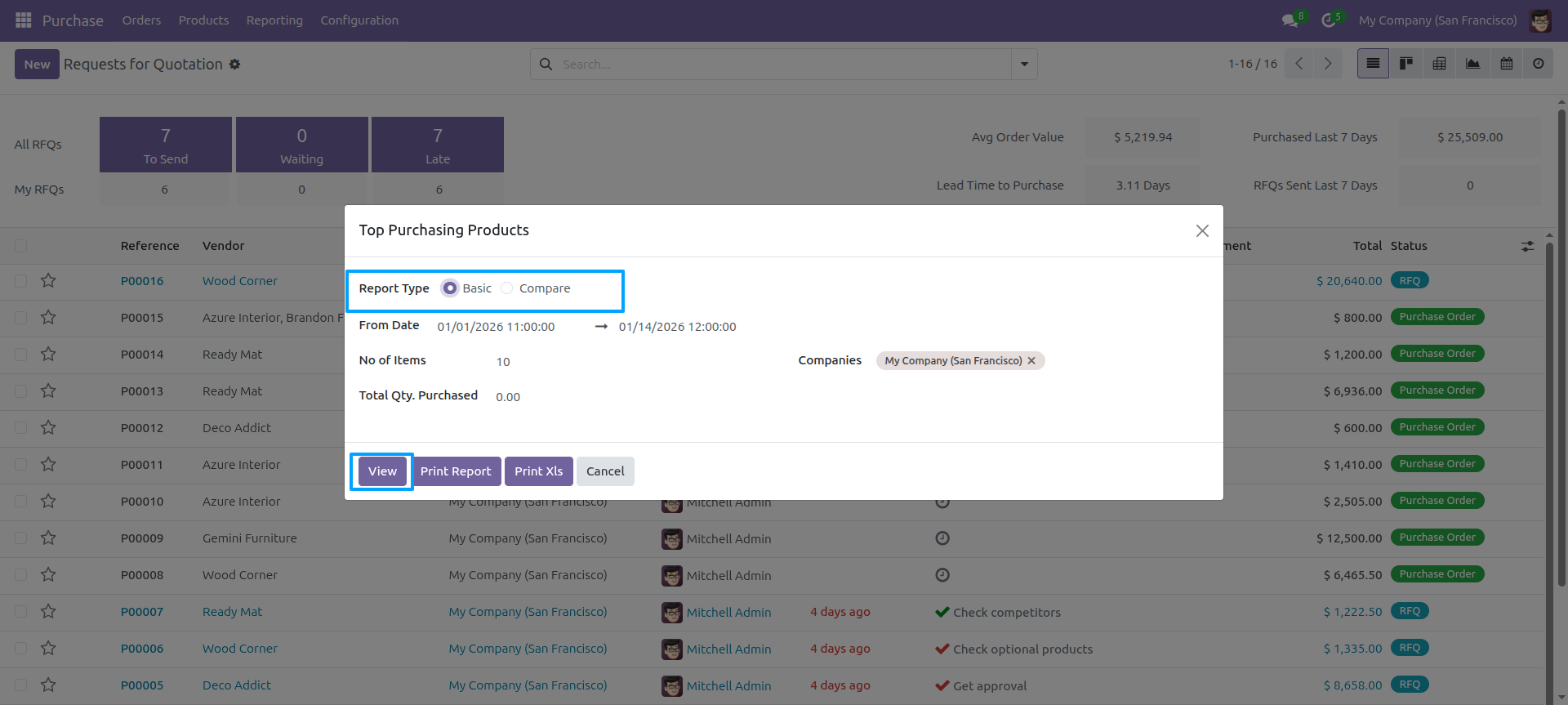
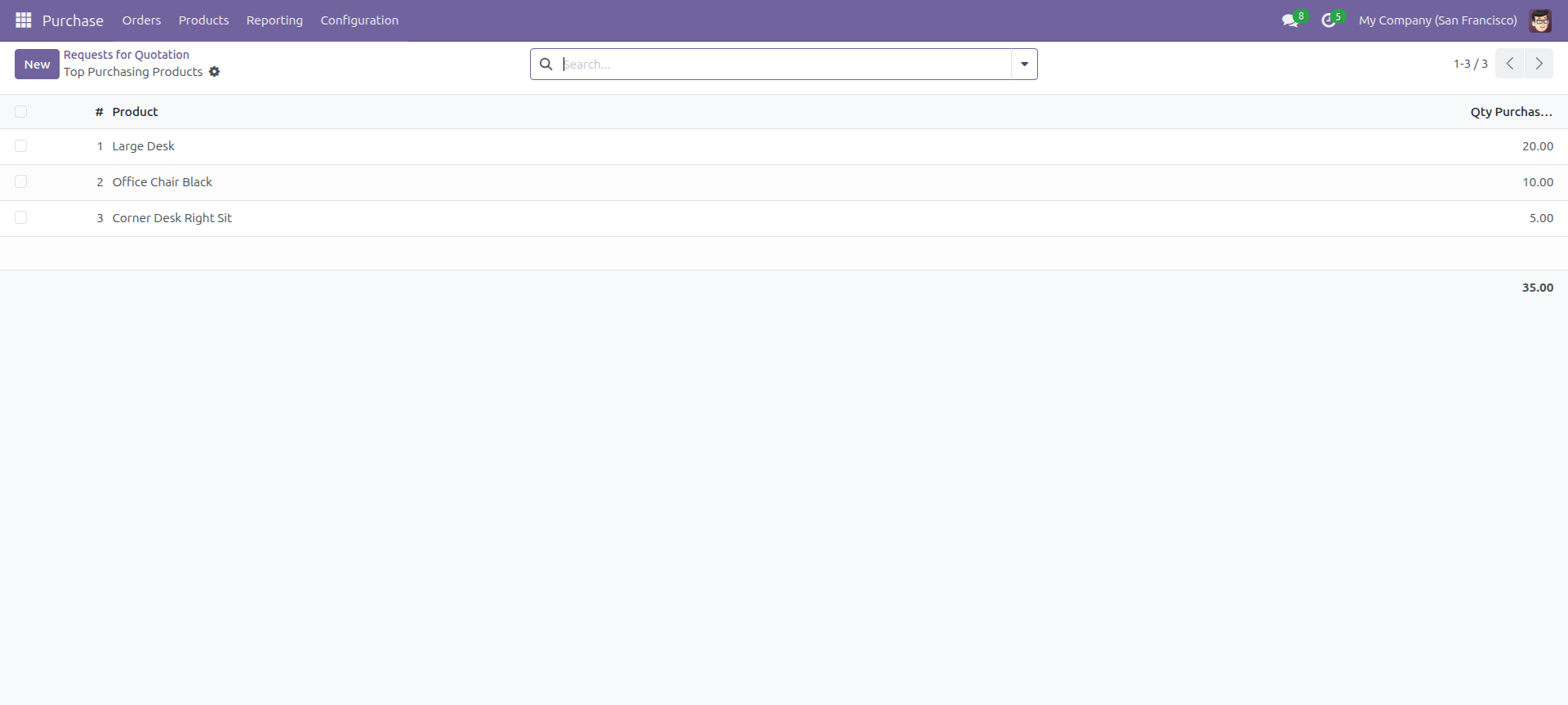
Top purchasing products report wizard and select basic report type and press 'View'.
The view of top purchasing products.
Report view, you can group by the report.
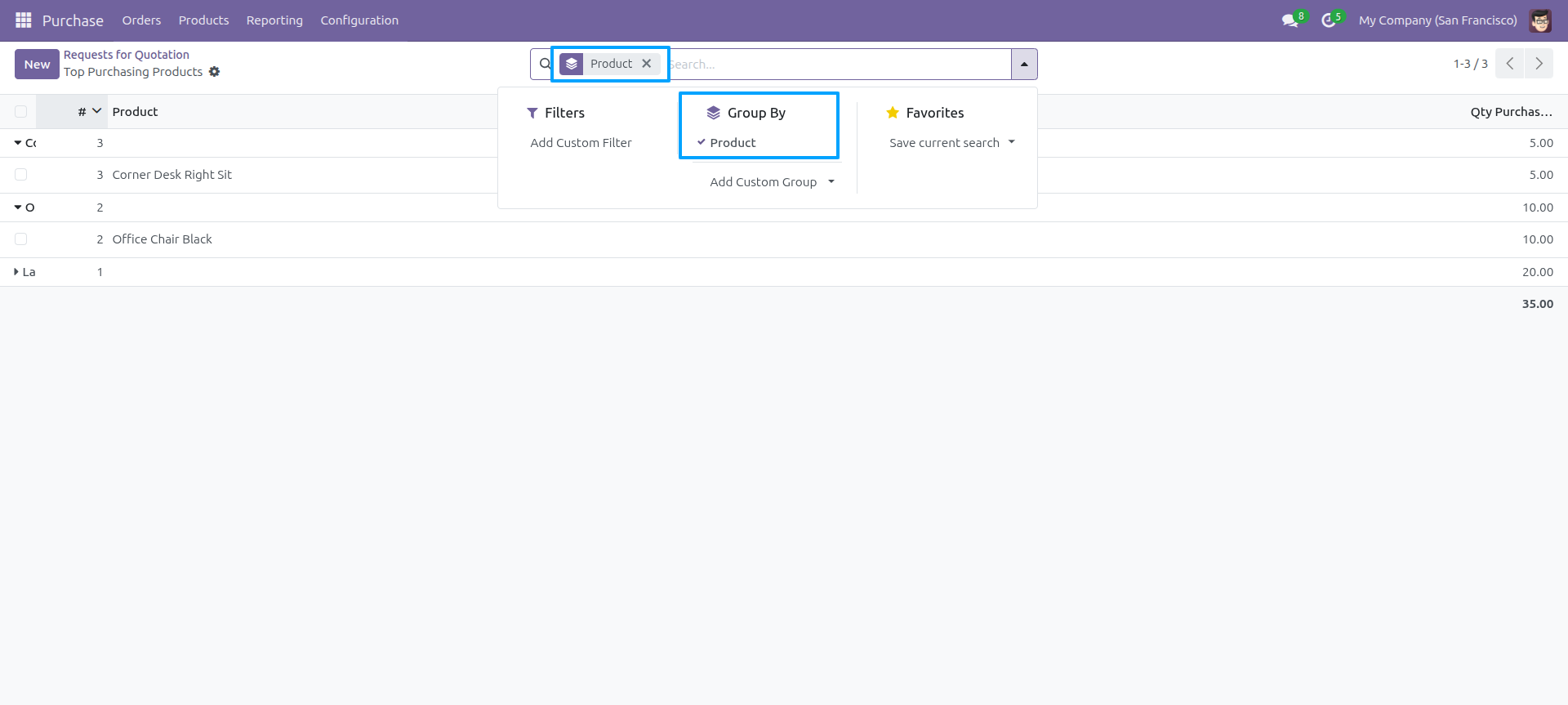
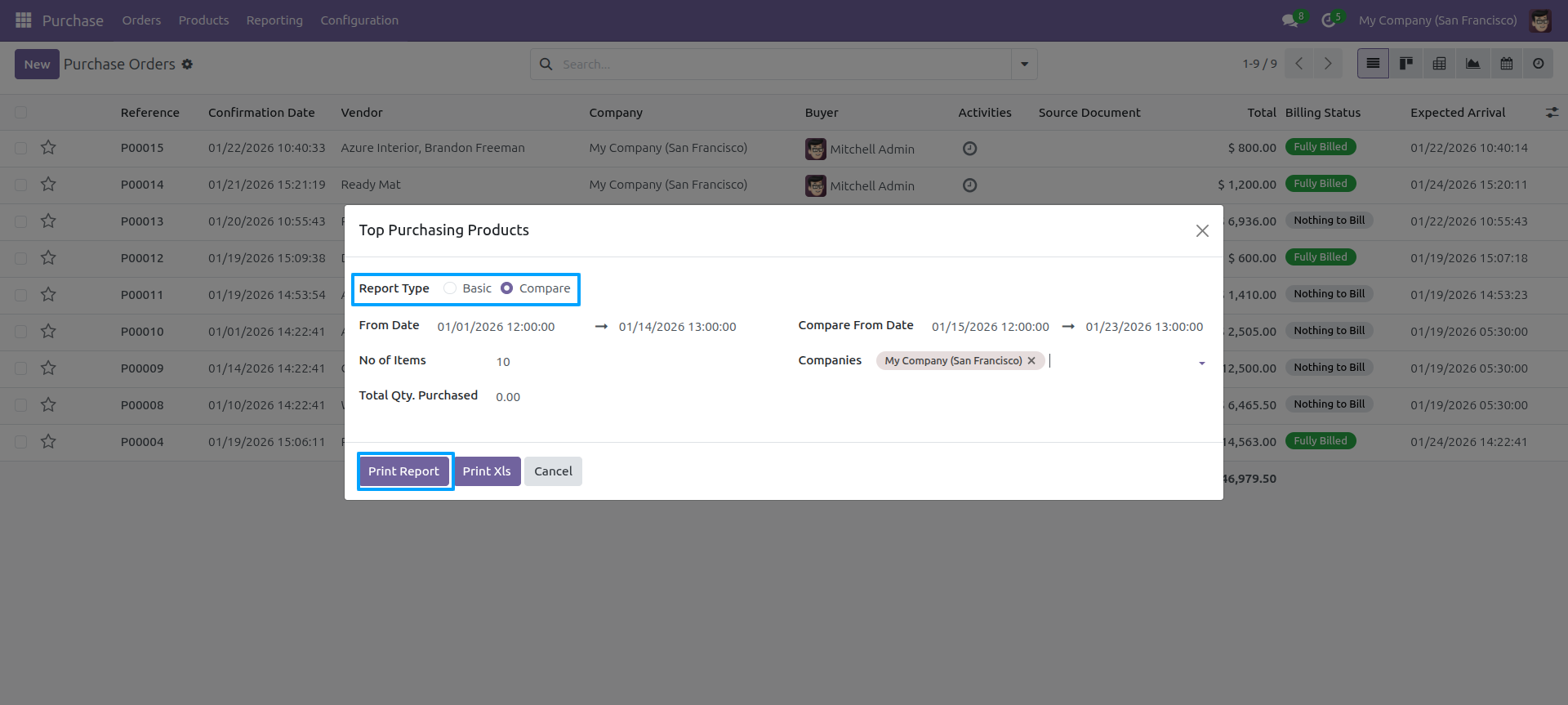
Top purchasing products report wizard and select compare report type and press 'Print Report'.
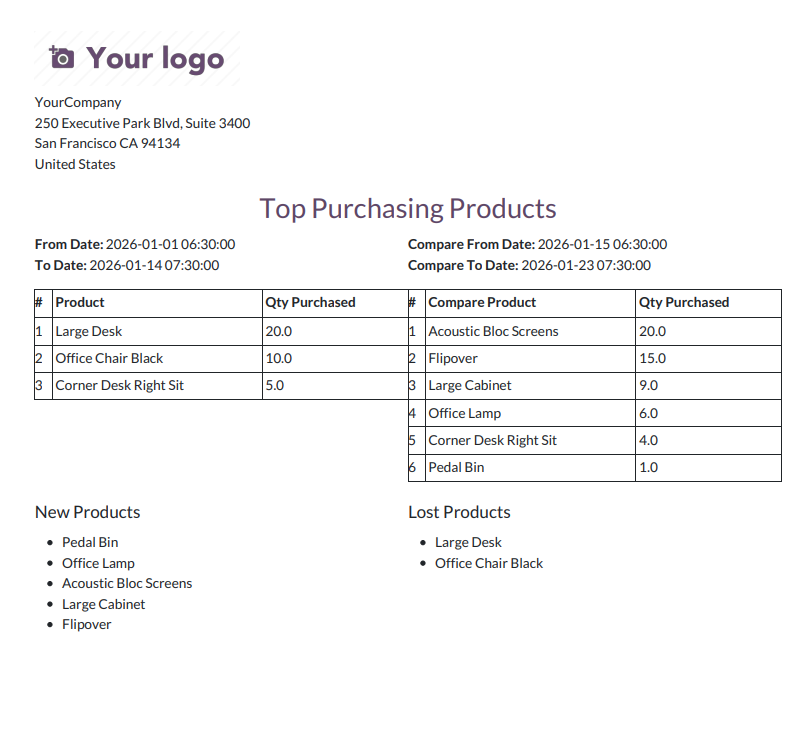
Top purchasing product compare PDf report look like below.
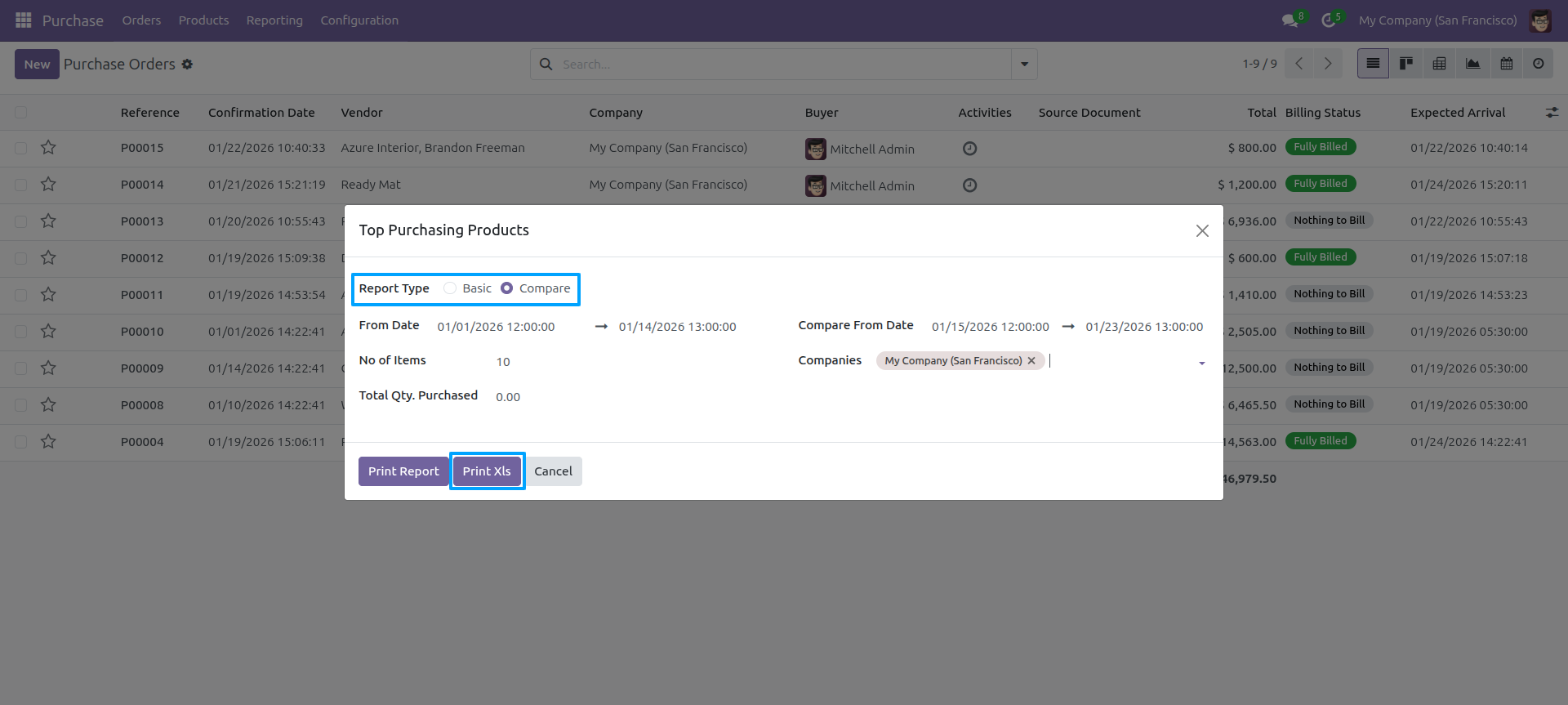
Top purchasing products report wizard and select basic report type and press 'Print Xls'.
Top purchasing product basic excel report look like below.
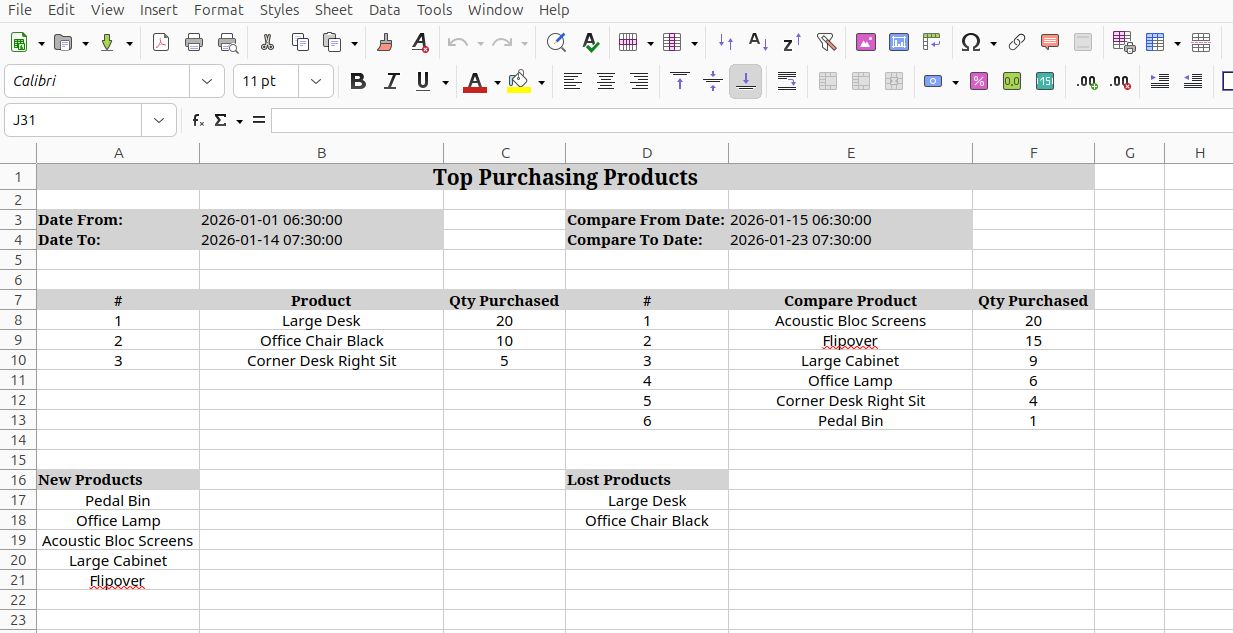
Go to user enable 'Top Vendors Report' feature.
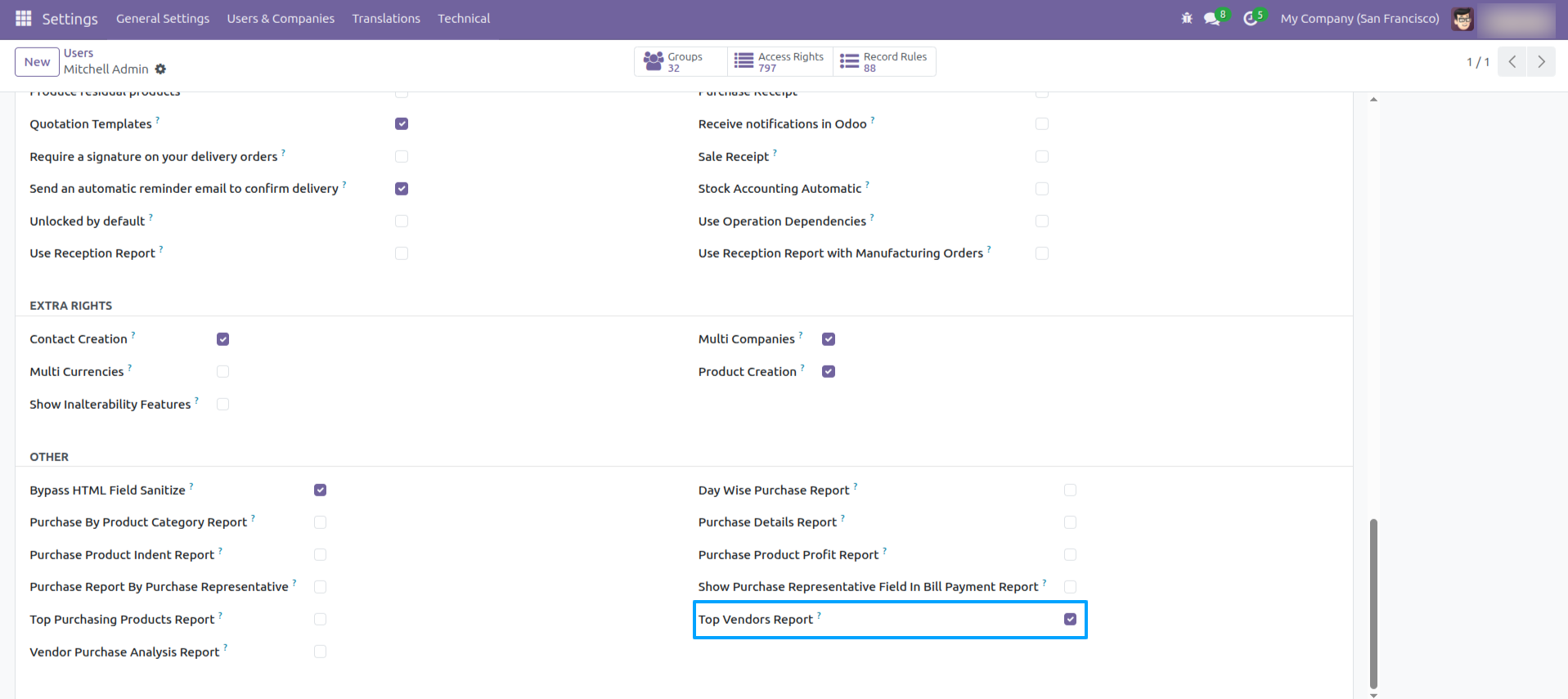
'Top Vendors Report' menu.
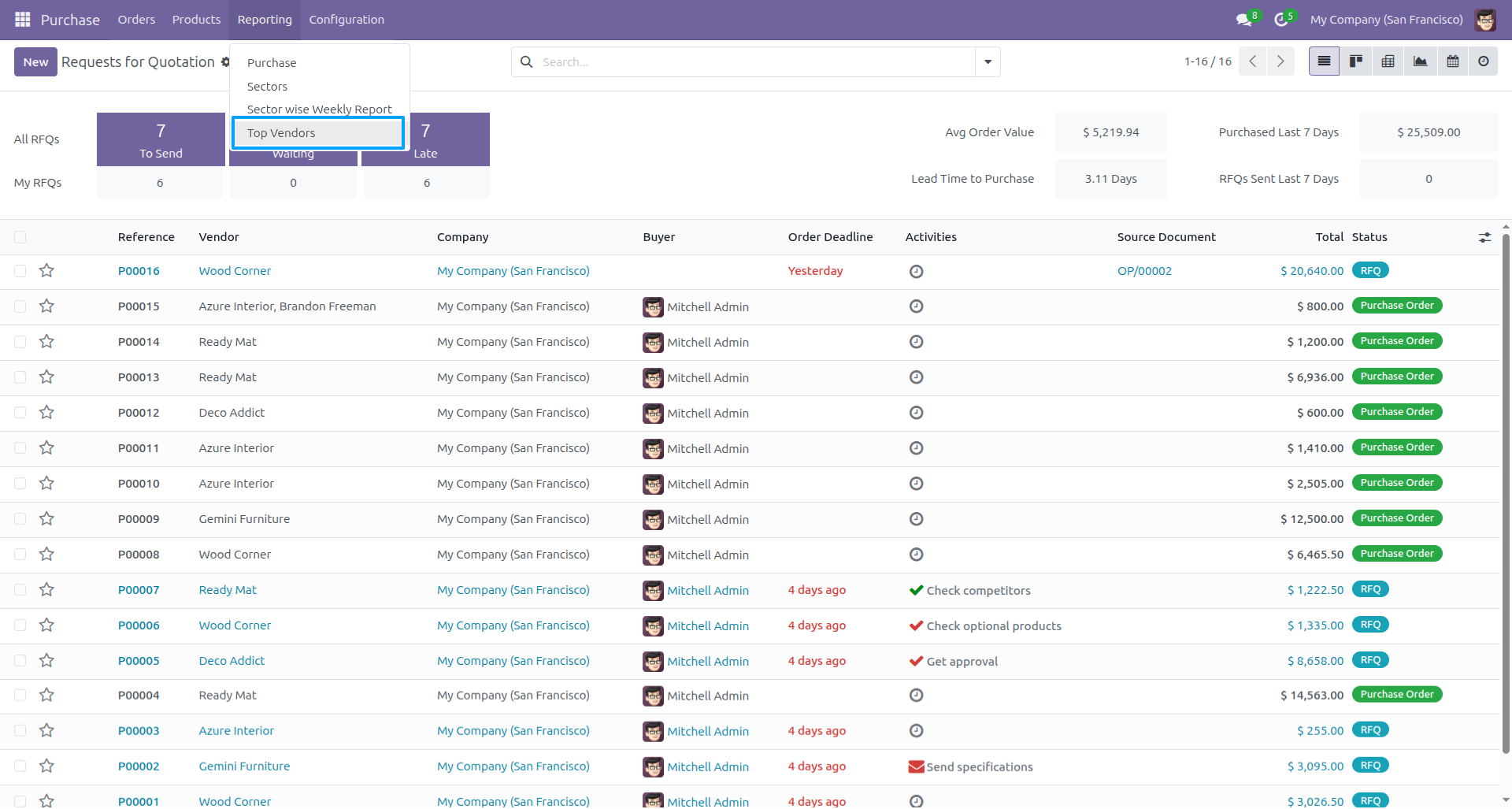
Top Vendors report wizard and select basic report type and press 'Print Report'.
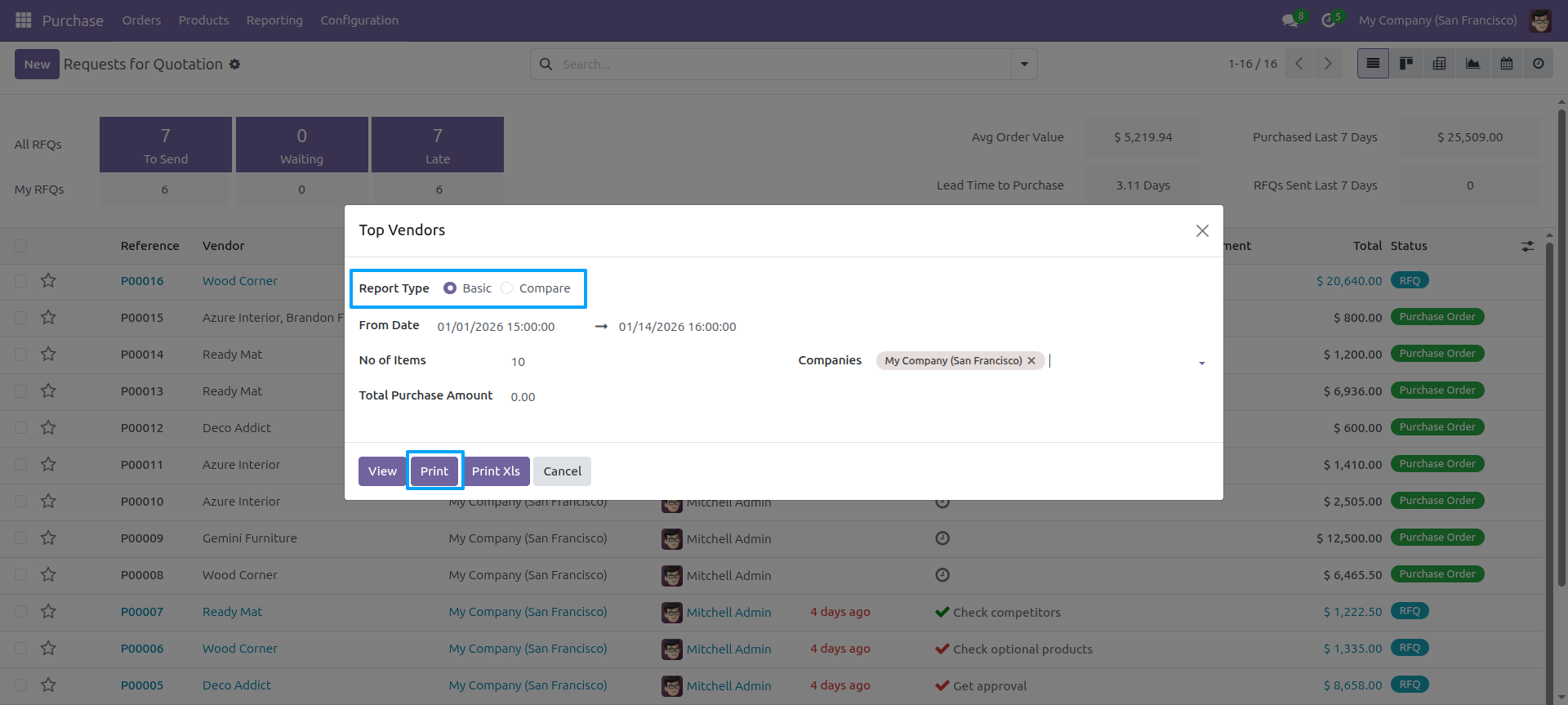
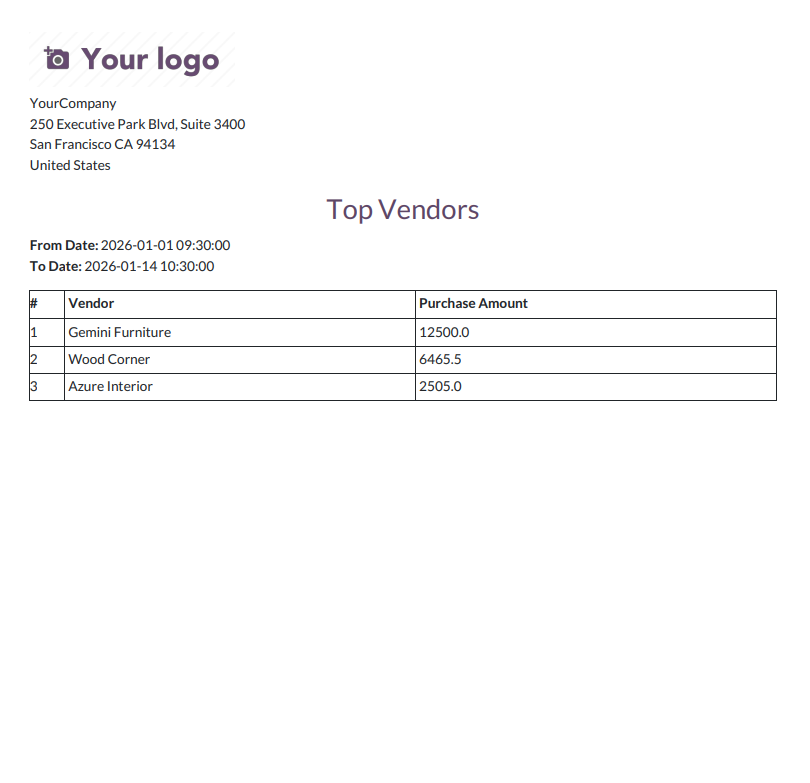
Top Vendors basic PDF report look like below.
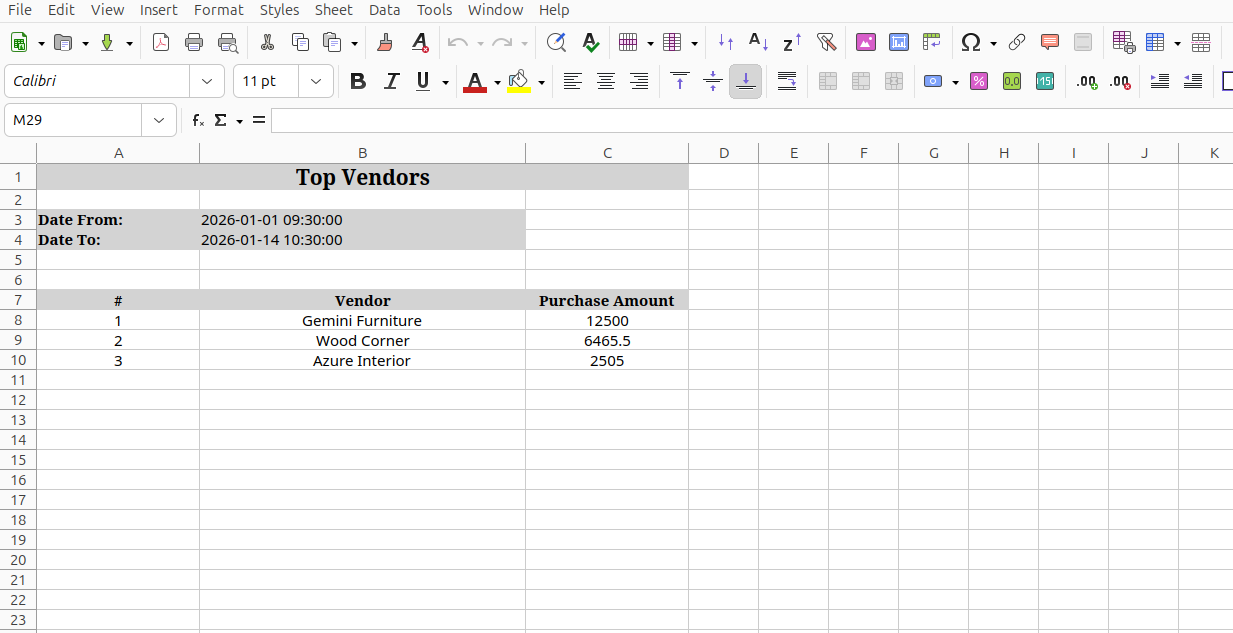
Top Vendors report wizard and select basic report type and press 'Print Xls'.
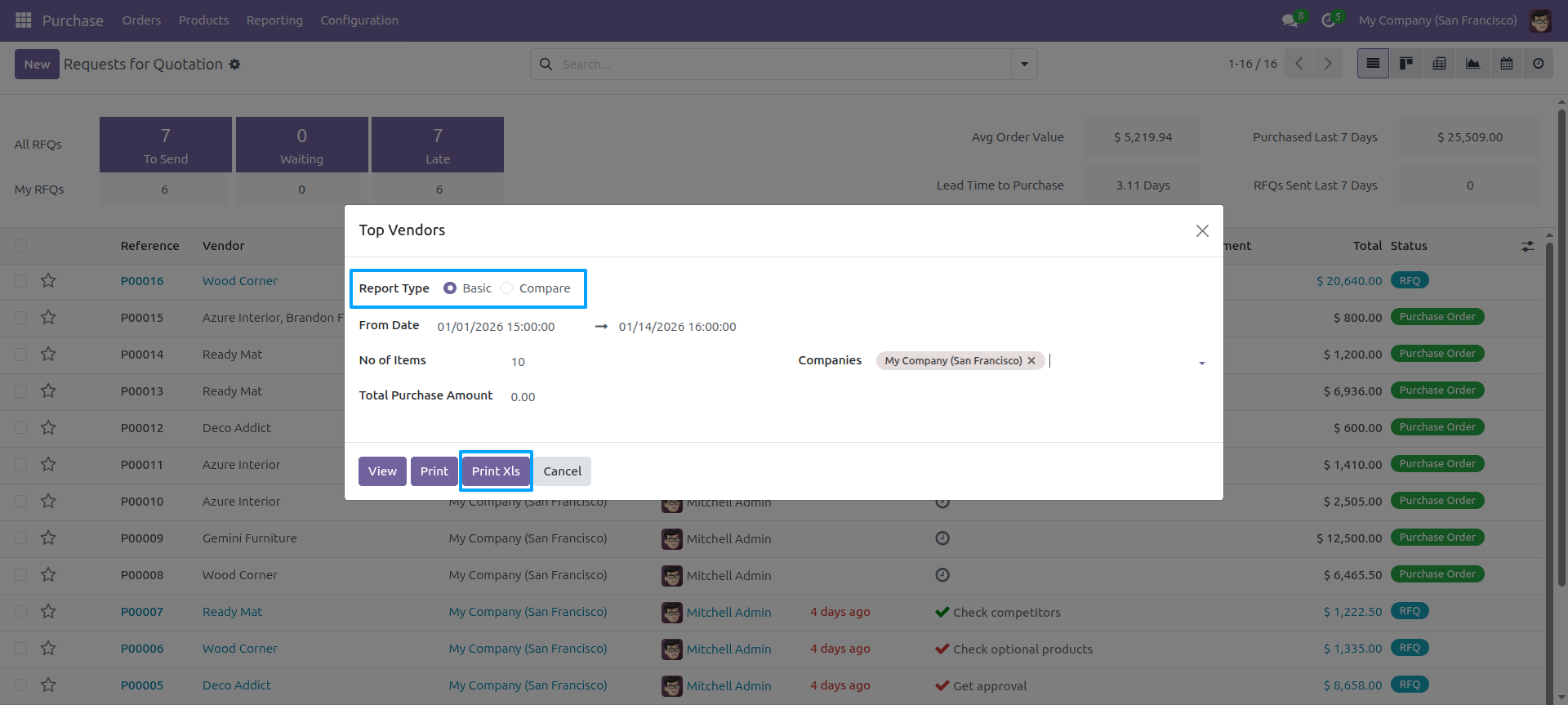
Top Vendors basic excel report look like below.
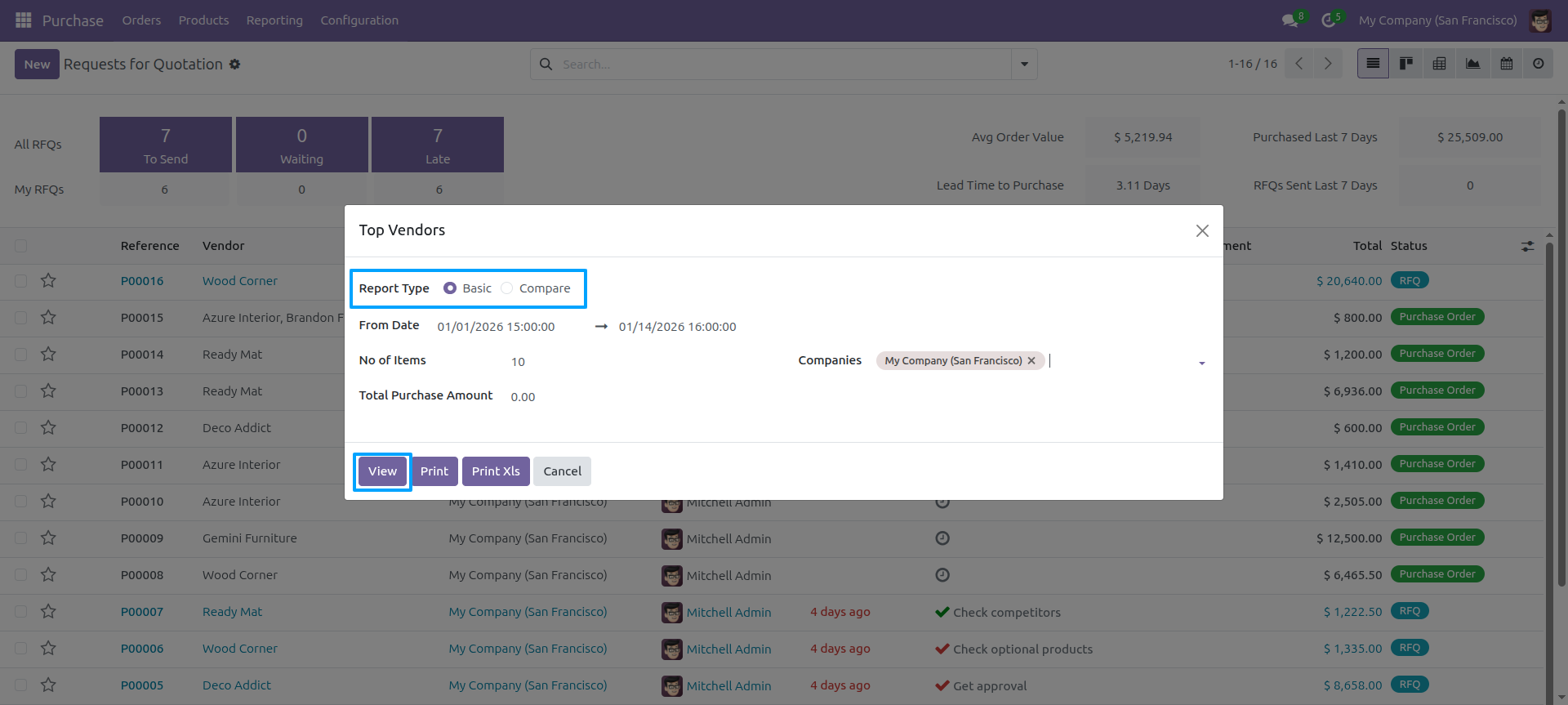
Top Vendors report wizard and select basic report type and press 'View'.
The view of top vendors.
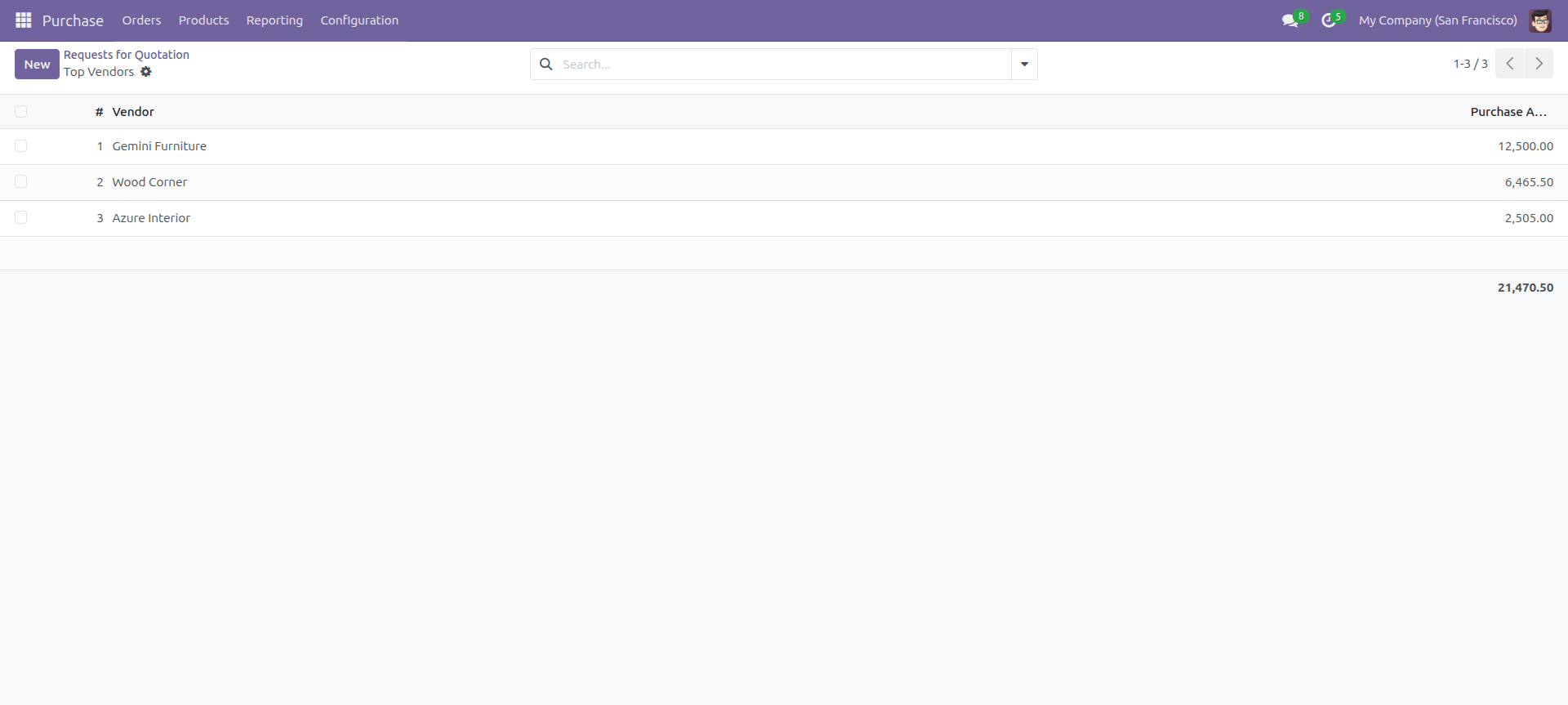
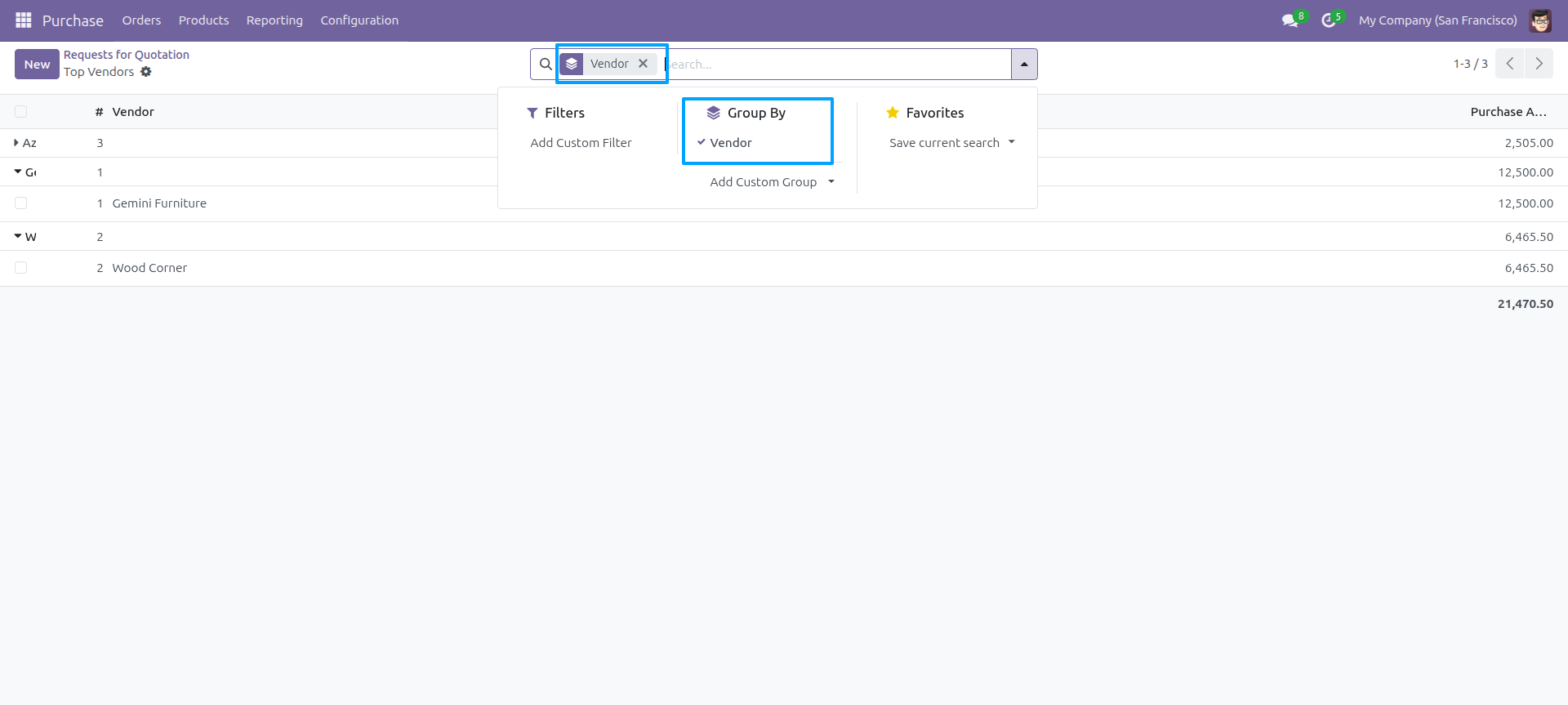
Report view, you can group by the report.
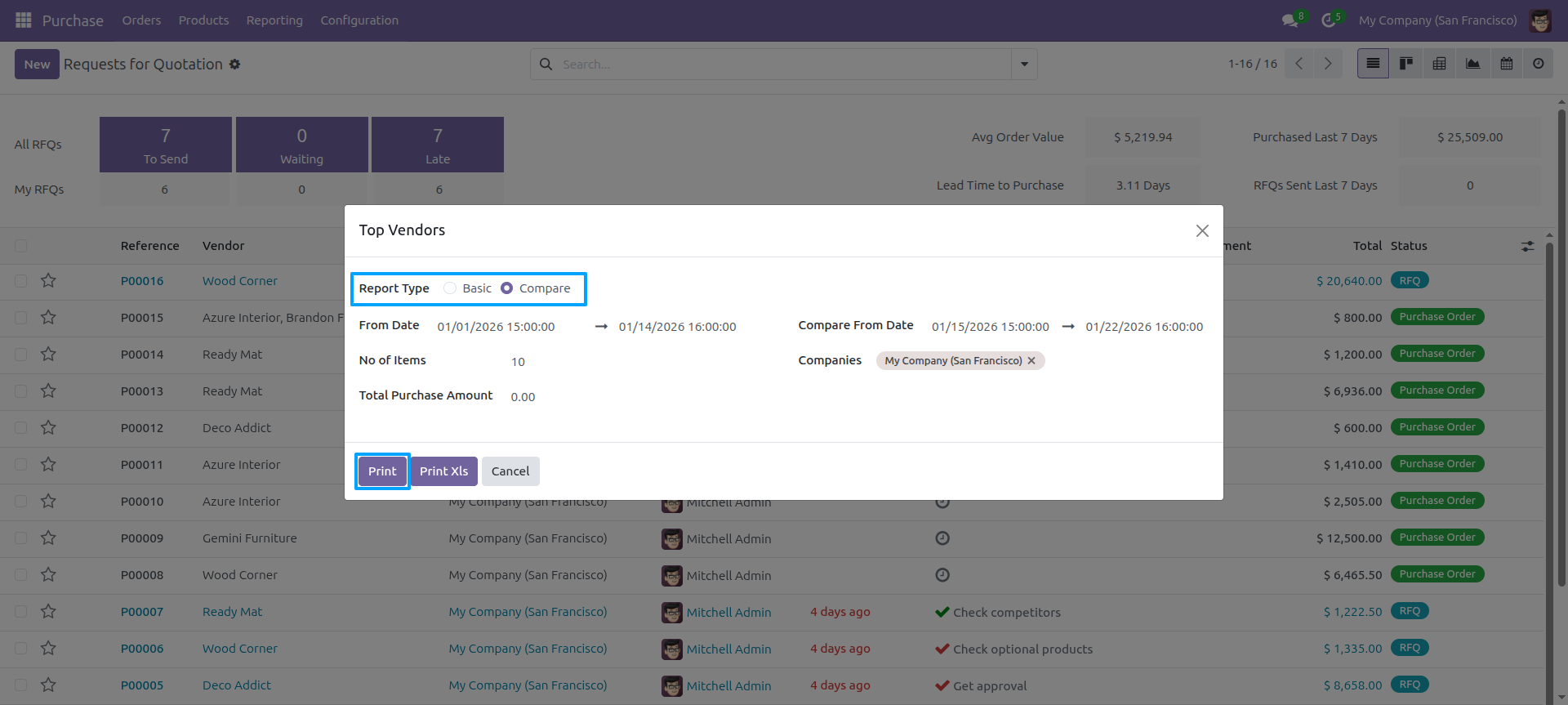
Top Vendors report wizard and select compare report type and press 'Print Report'.
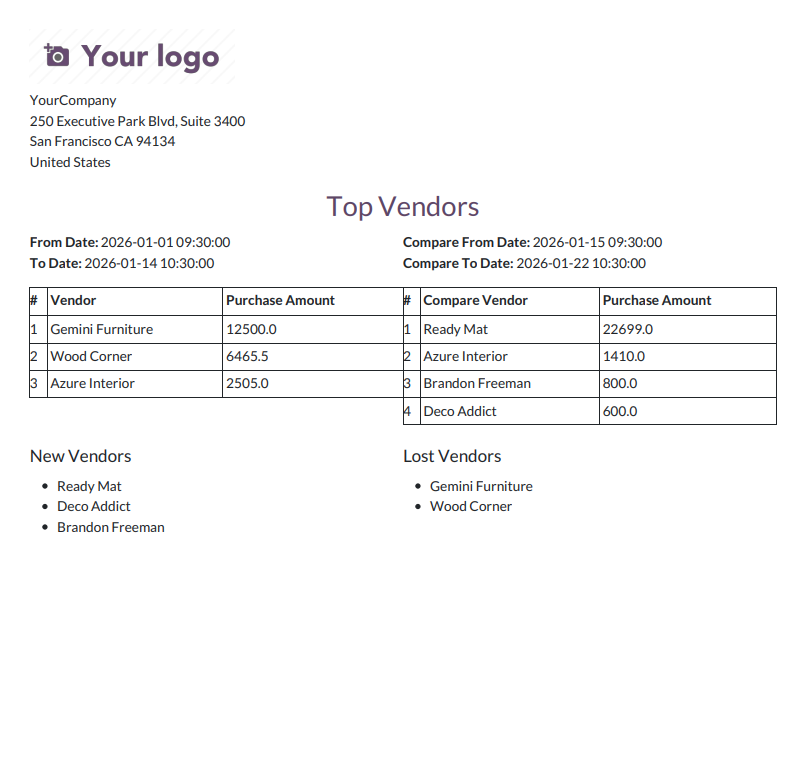
Top Vendors compare PDF report look like below.
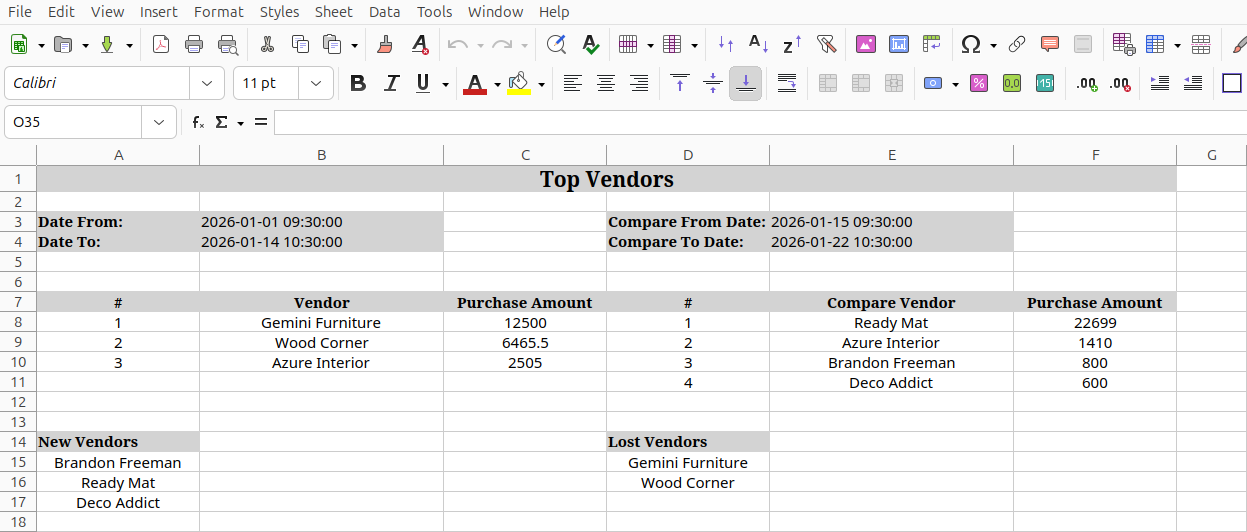
Top Vendors report wizard and select compare report type and press 'Print Xls'.
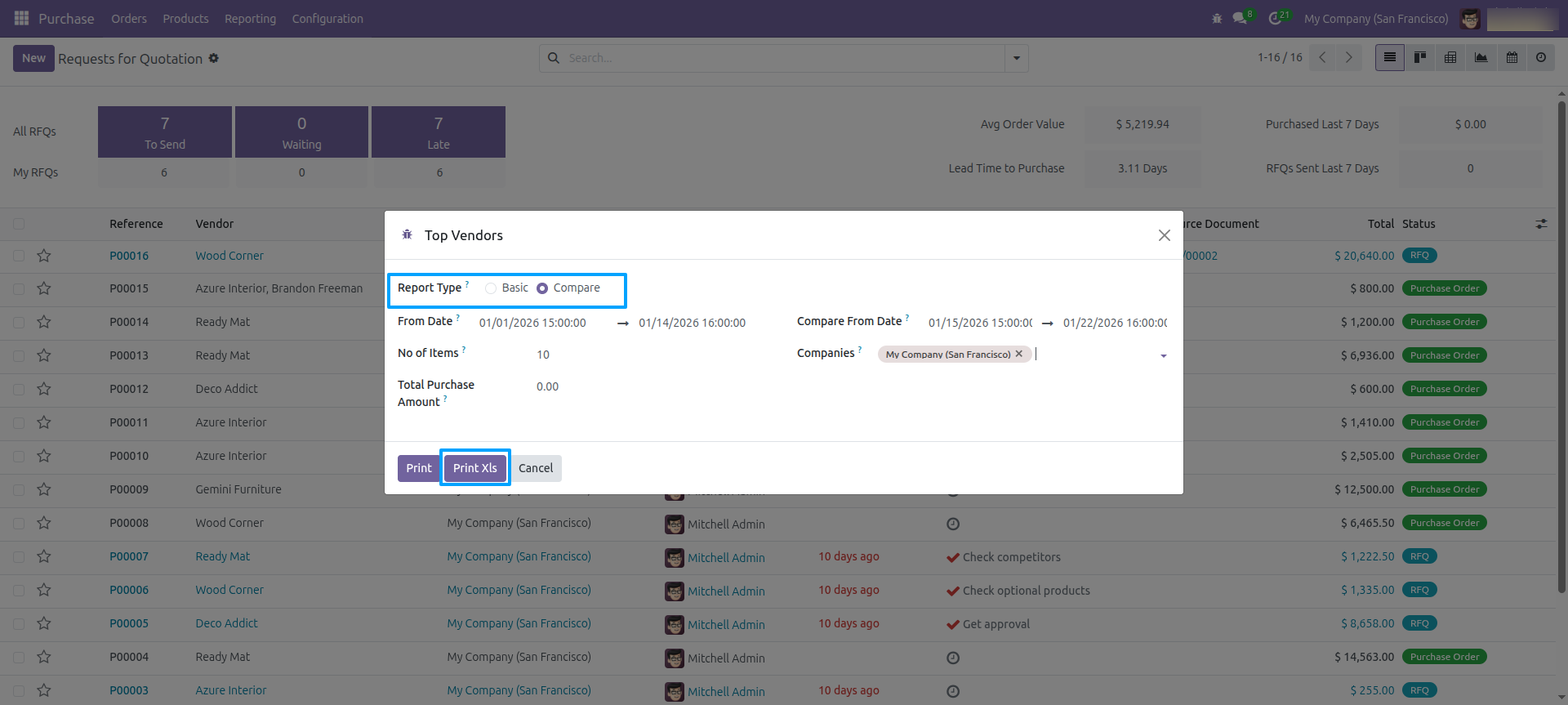
Top Vendors compare excel report look like below.
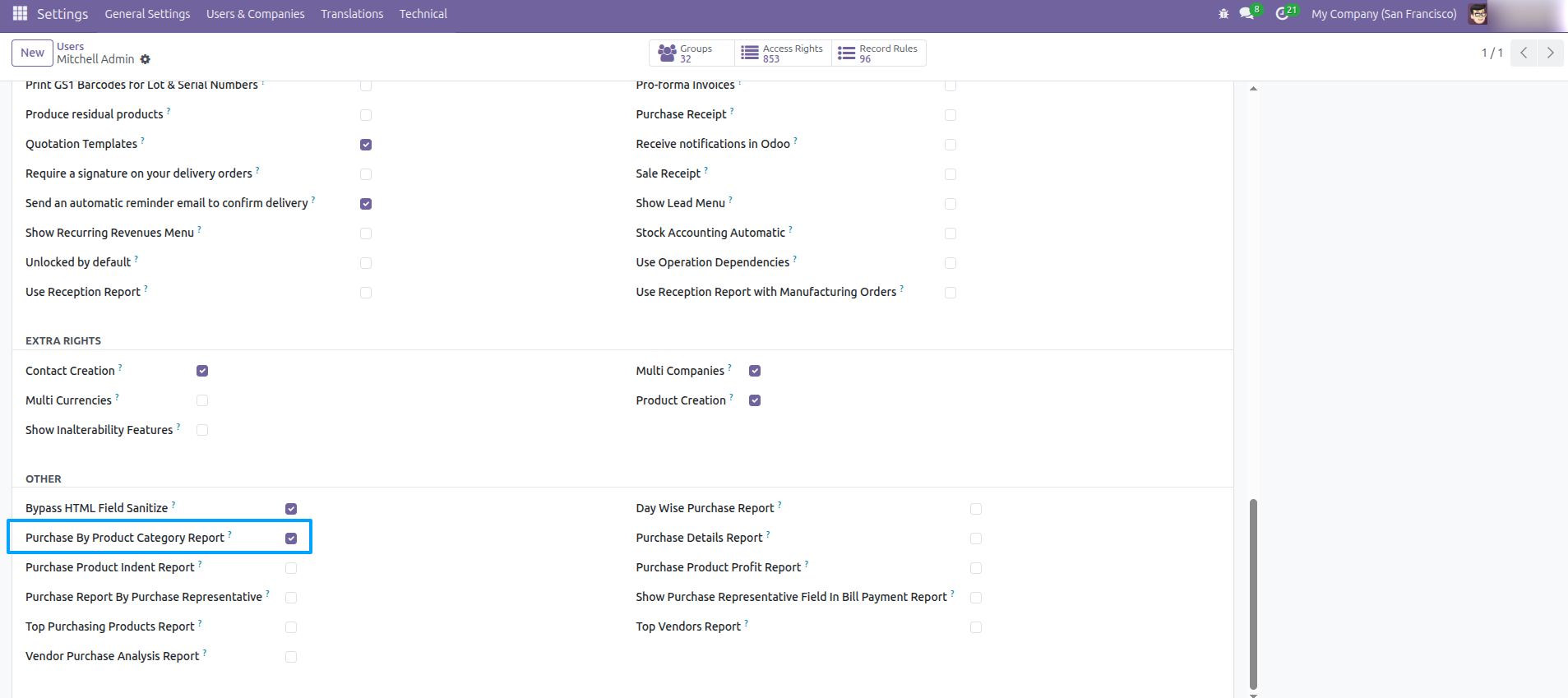
Go to Users and enable 'Purchase By Product Category Report' feature.
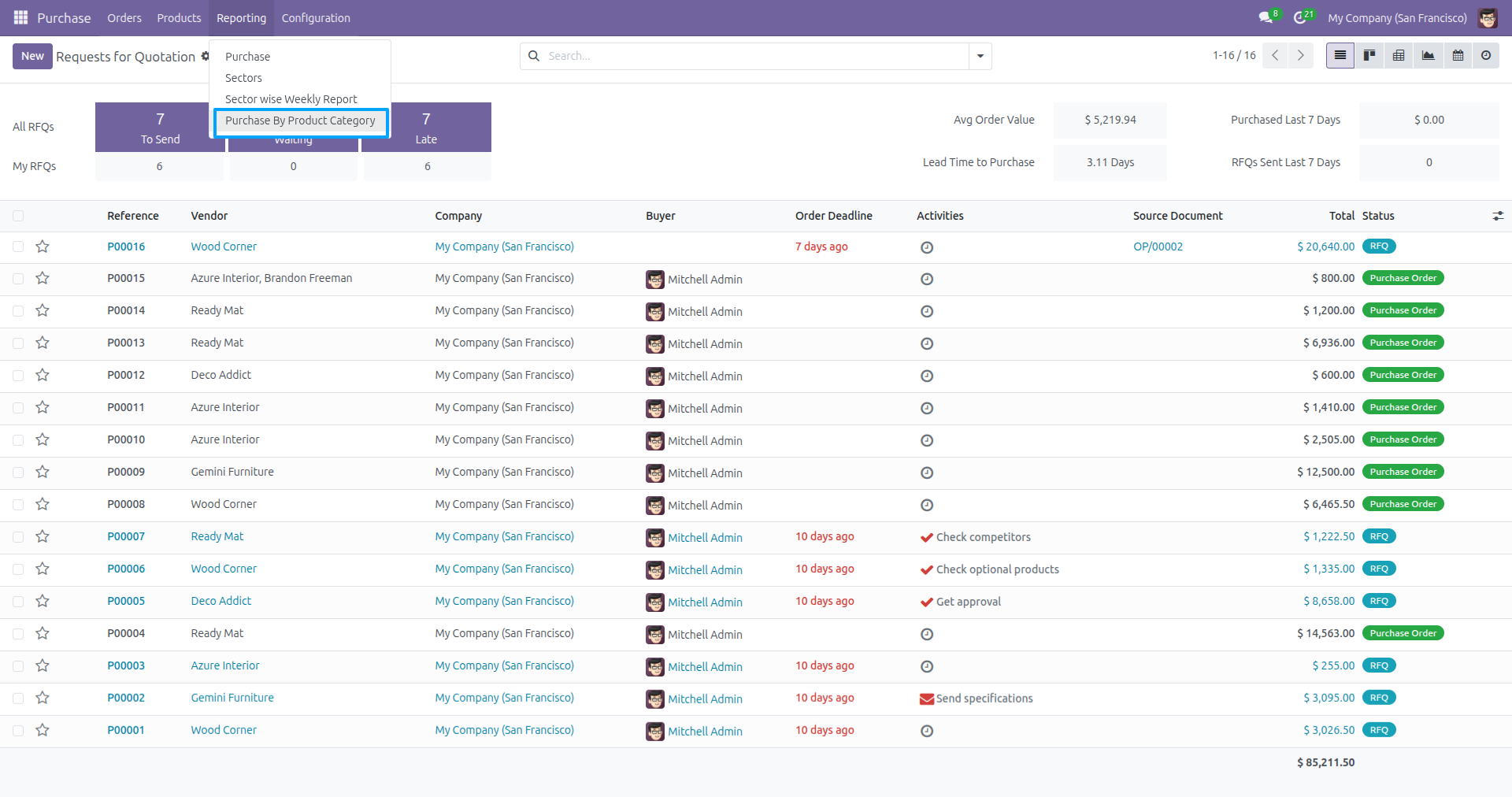
Go to Purchase → Reporting and select 'Purchase By Product Category' from the report menu.
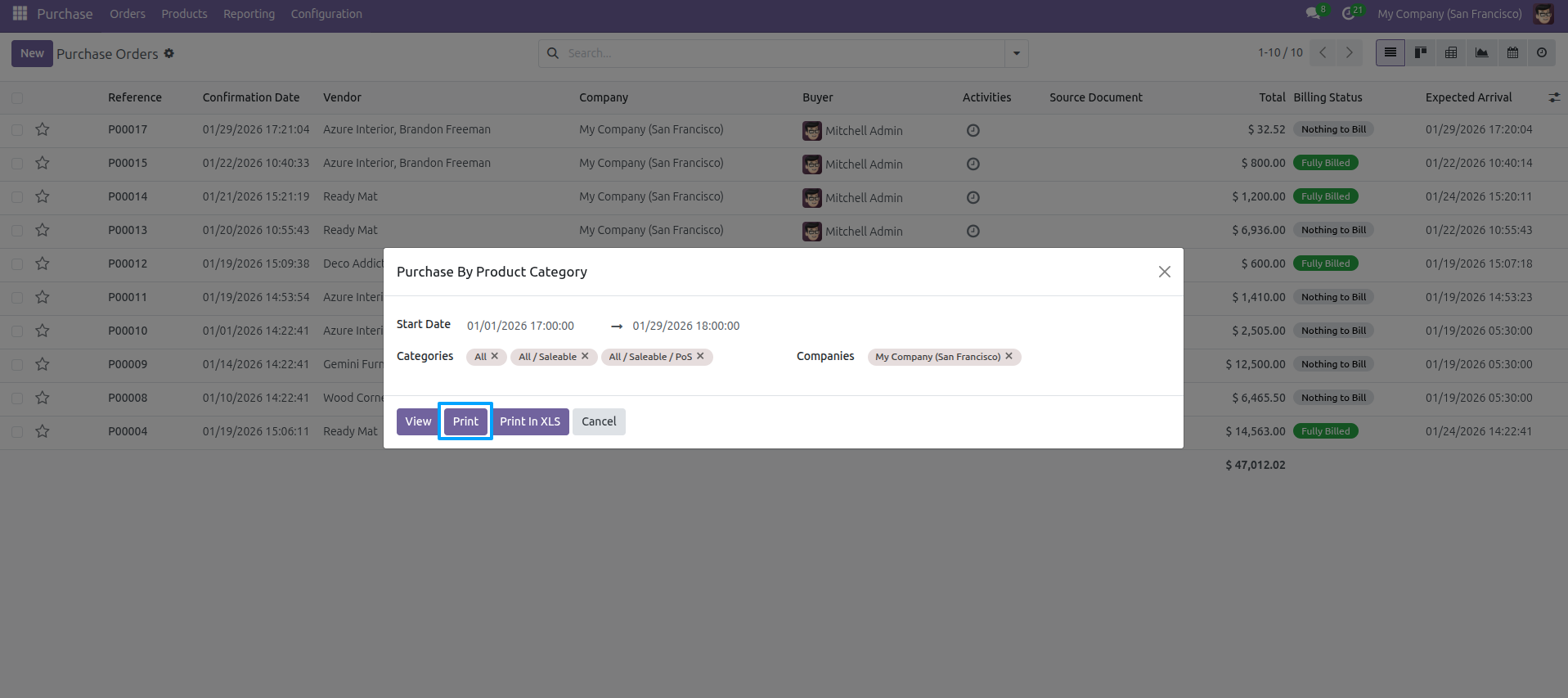
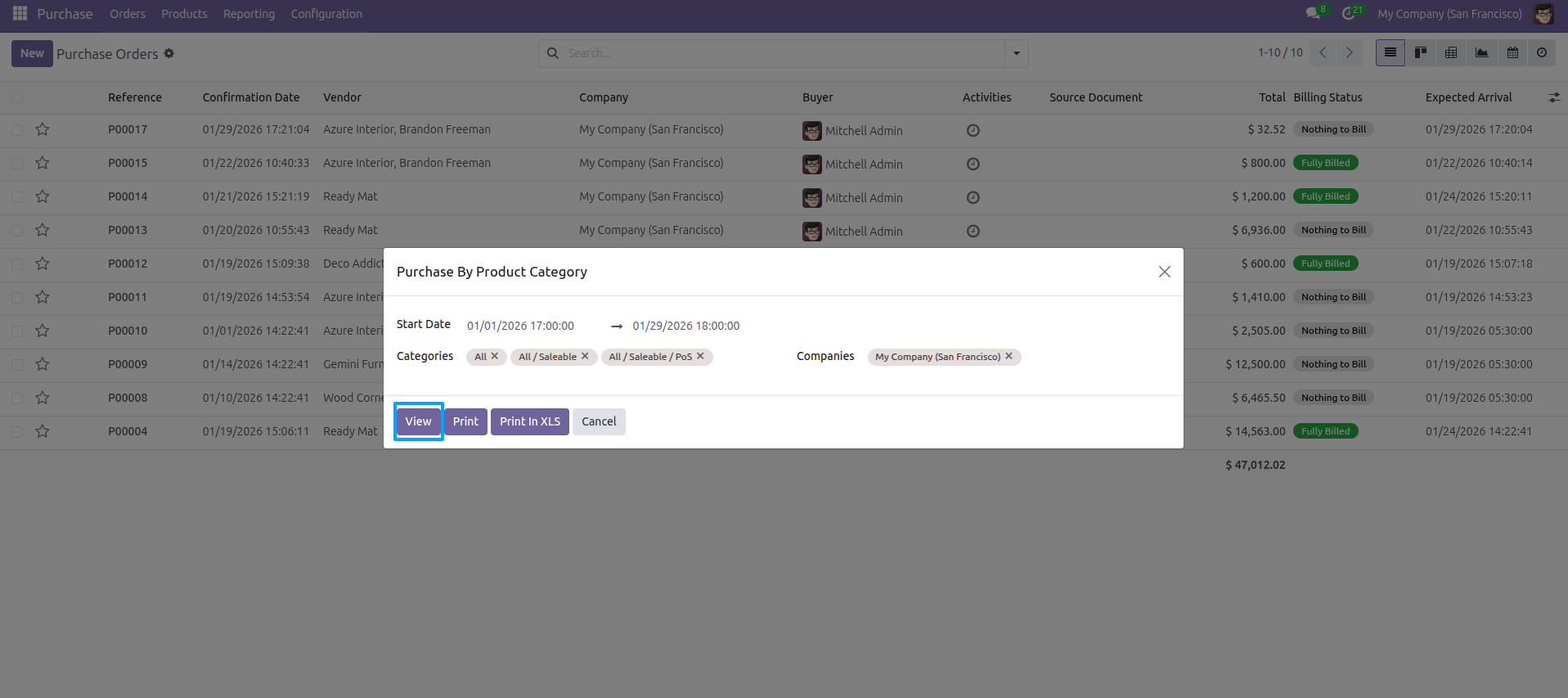
Purchase By Product Category wizard: set Start Date, End Date, select Categories and Companies, then click 'Print'.
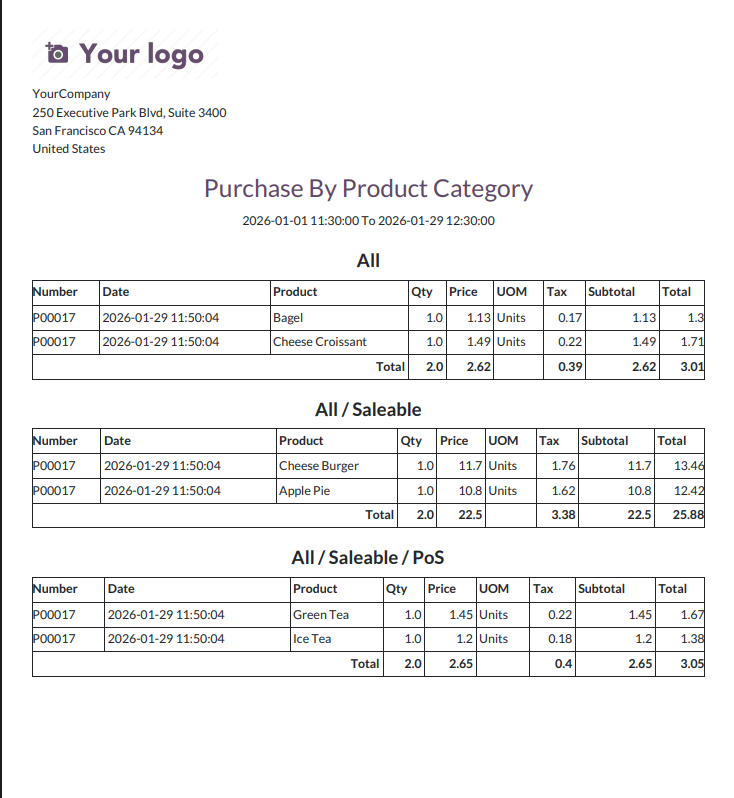
Purchase By Product Category PDF report with sections by category (All, All / Saleable, All / Saleable / PoS).
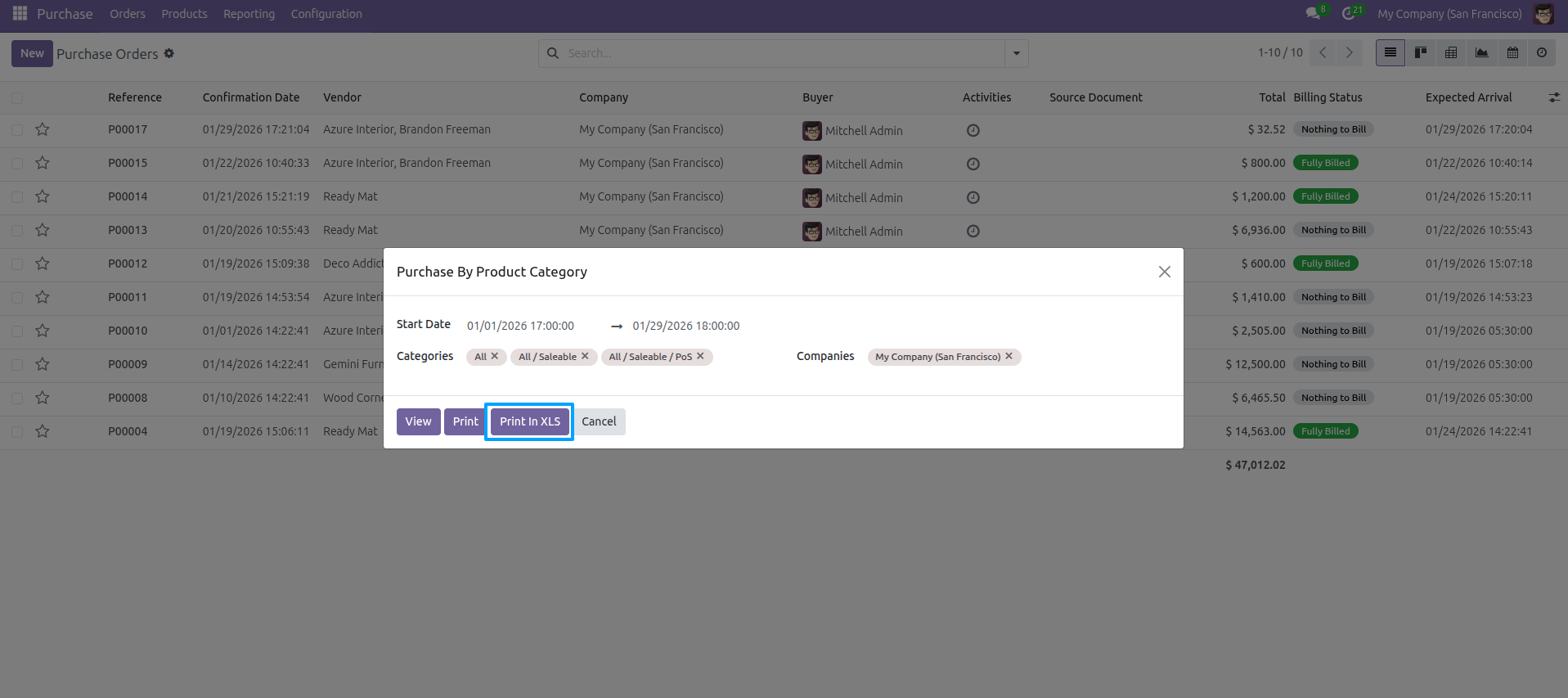
Purchase By Product Category report wizard: press 'Print In XLS' to export to Excel.
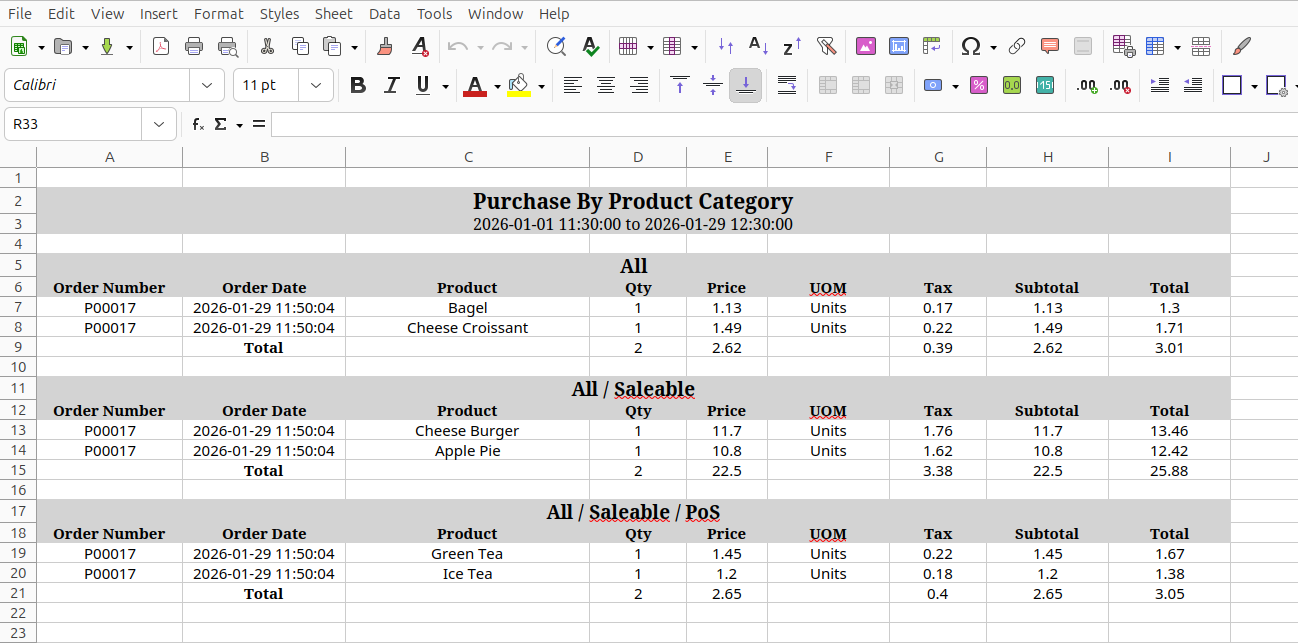
Purchase By Product Category Excel report with date range and data grouped by category.
Purchase By Product Category report view: click 'View' to see the report in list format.
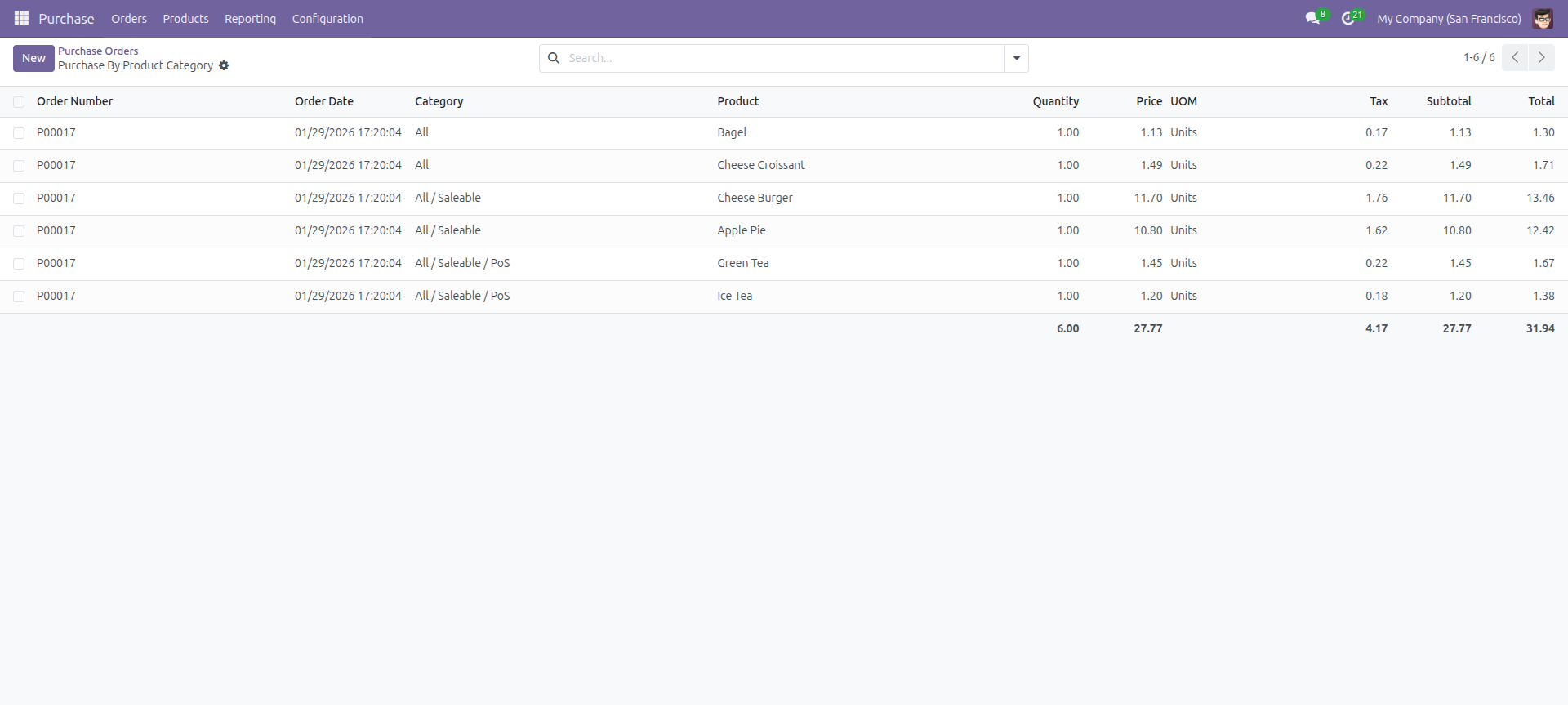
Purchase By Product Category report view look like below.
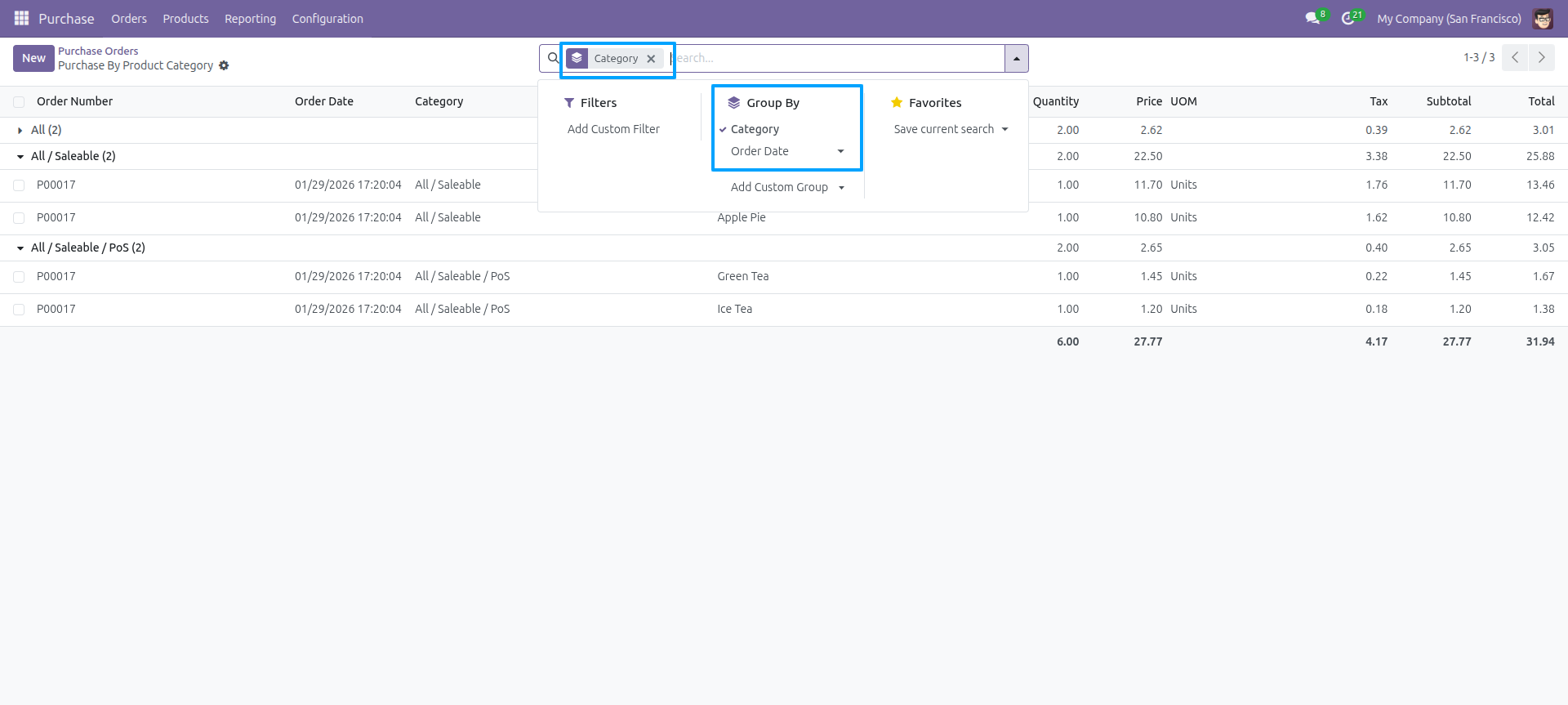
Report view, you can group by the Category.
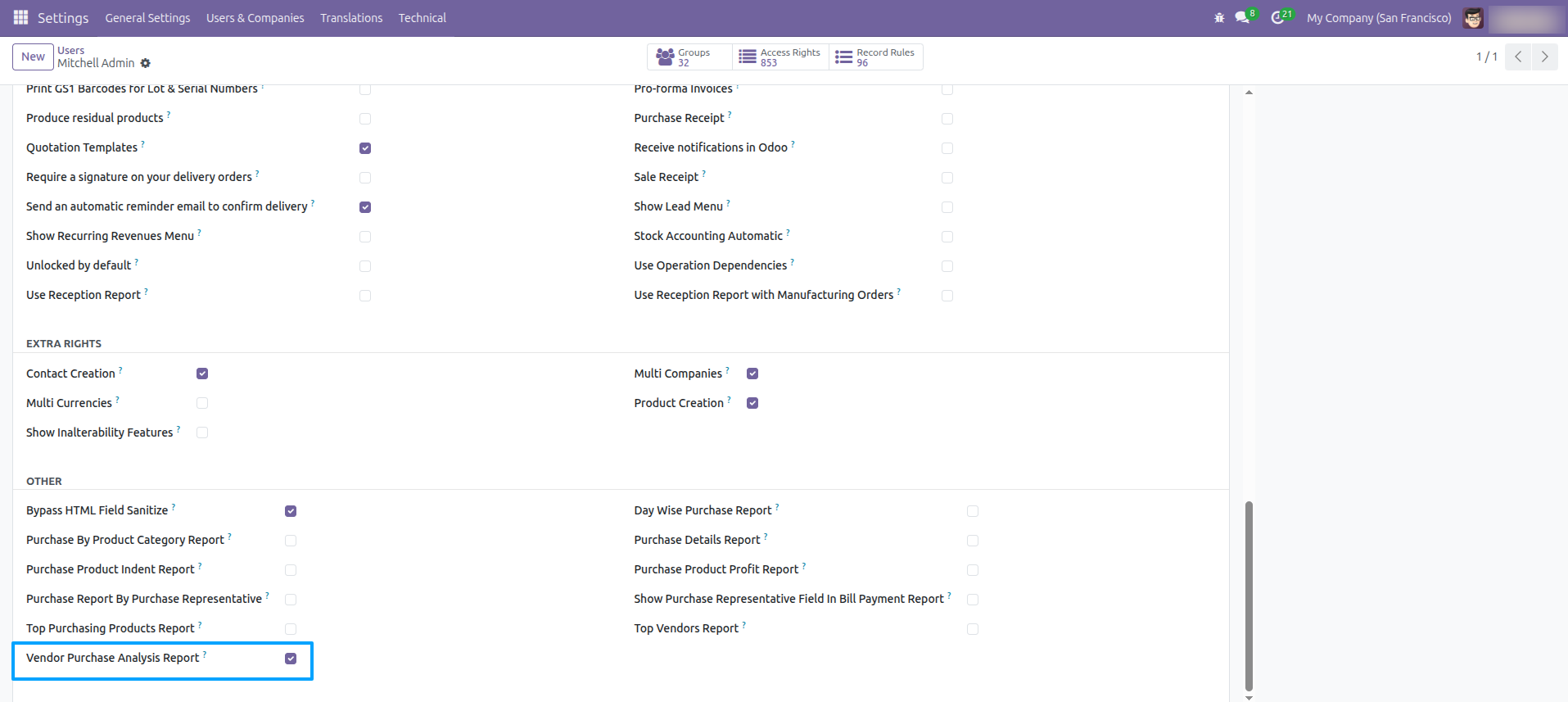
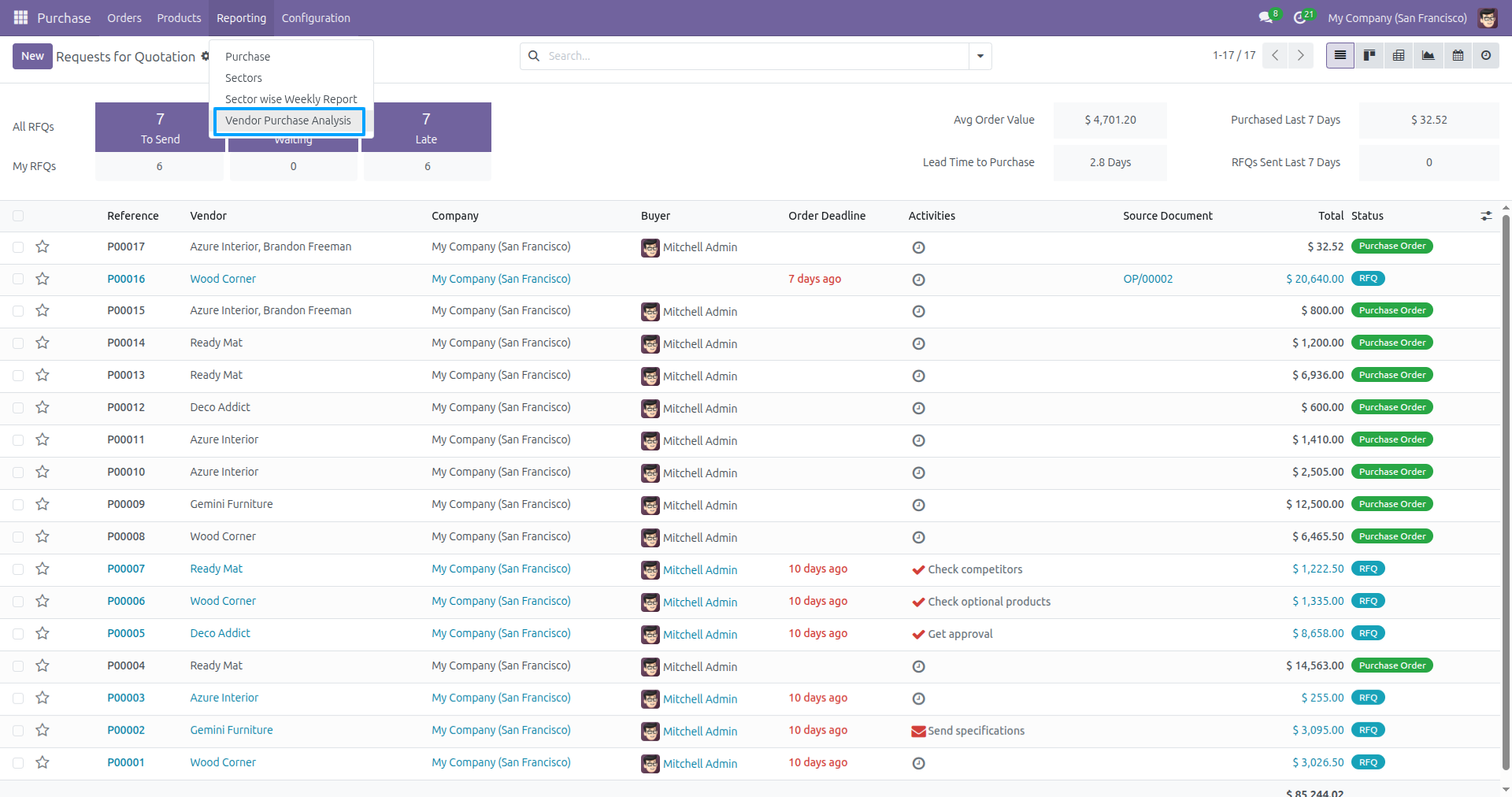
Go to Users and enable 'Vendor Purchase Analysis Report' feature.
Go to Purchase → Reporting and select 'Vendor Purchase Analysis' from the report menu.
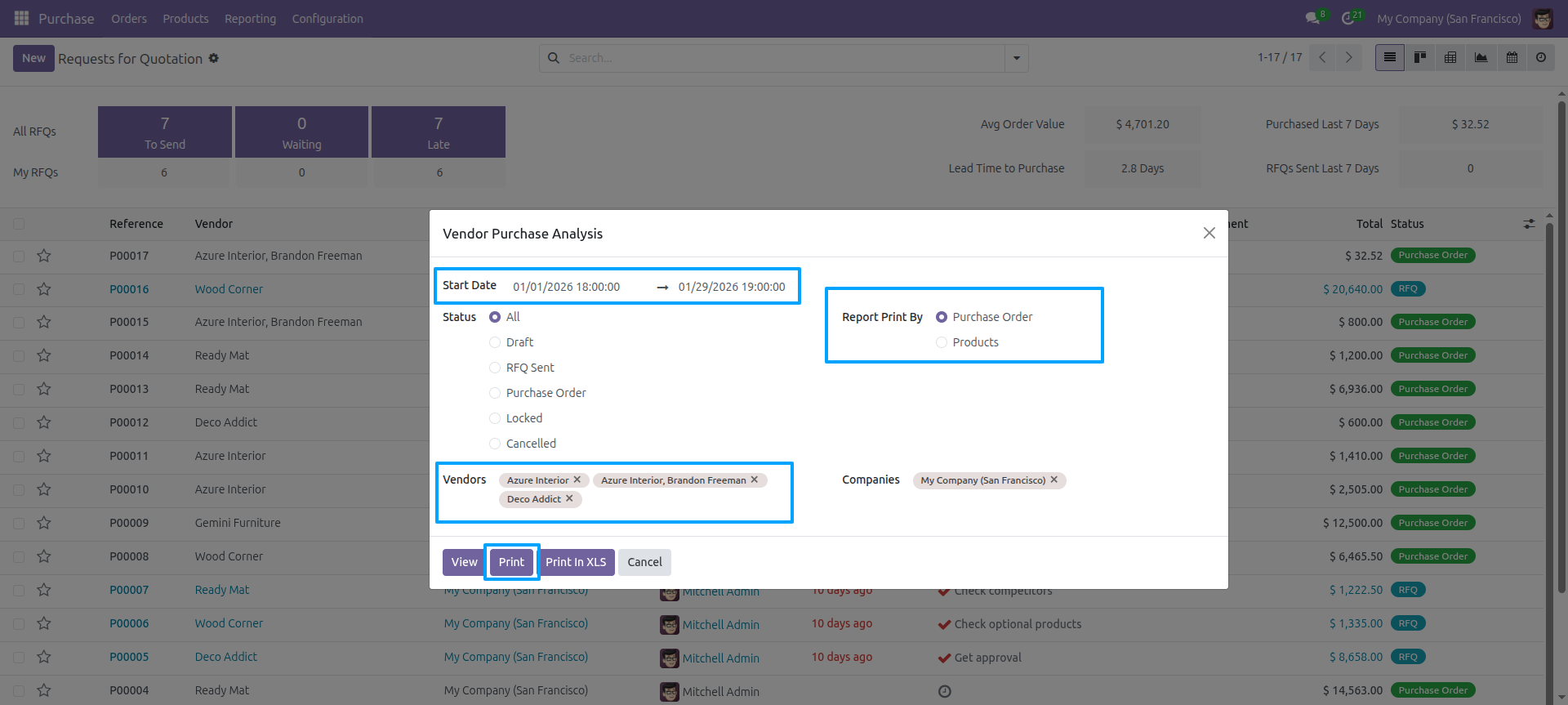
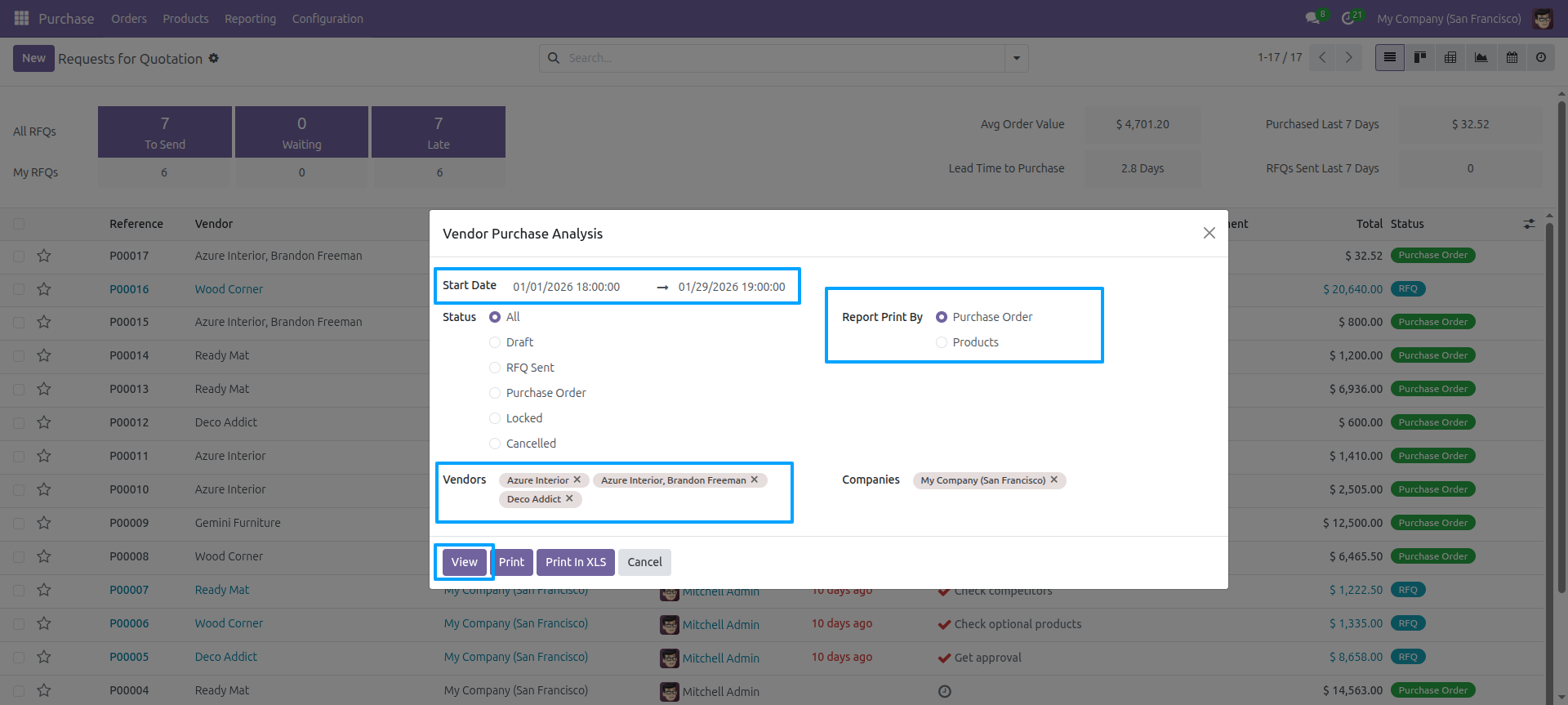
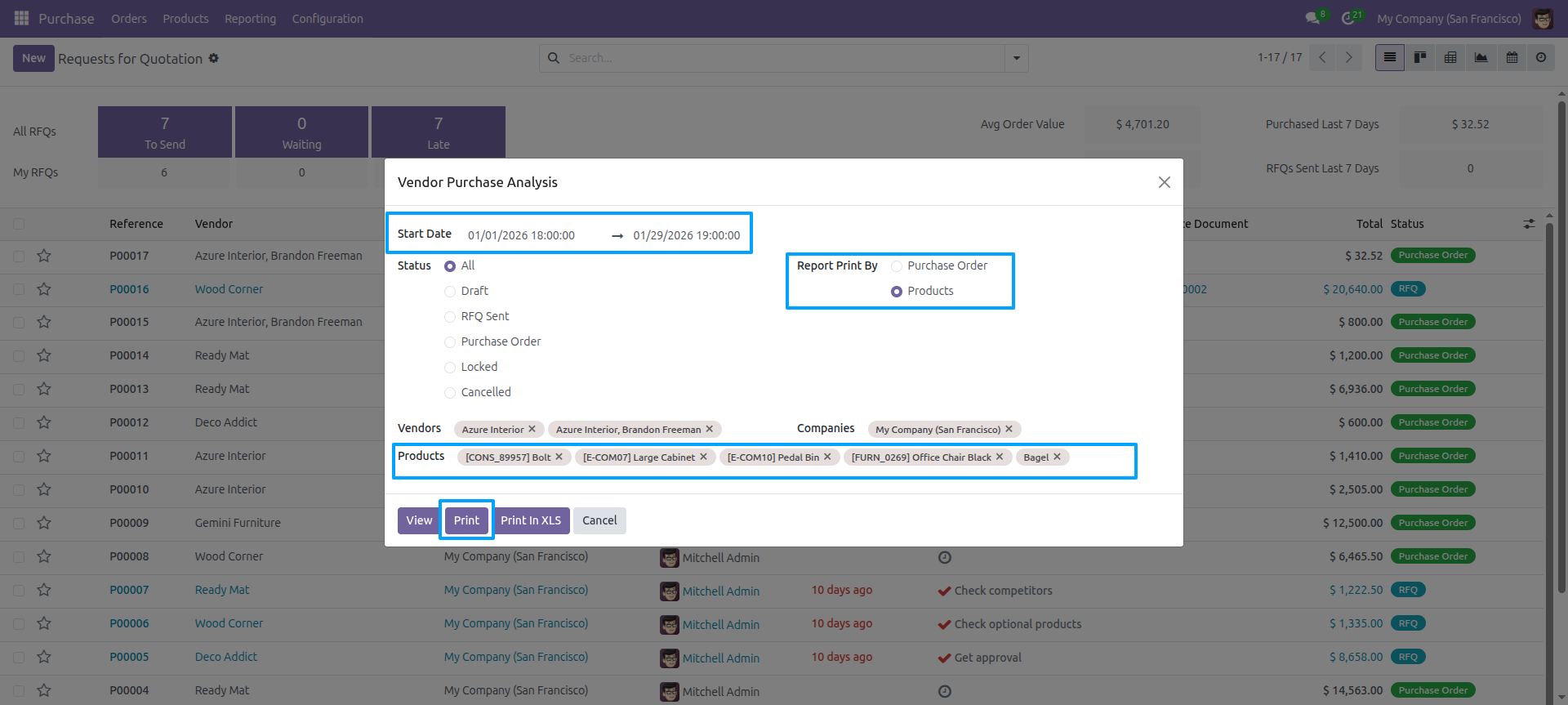
Vendor Purchase Analysis wizard: set Start Date, End Date, Status (All / Draft / RFQ Sent / Purchase Order / Locked / Cancelled), Report Print By (Purchase Order or Products), select Vendors, Products, and Companies, then click 'View', 'Print', or 'Print In XLS'.
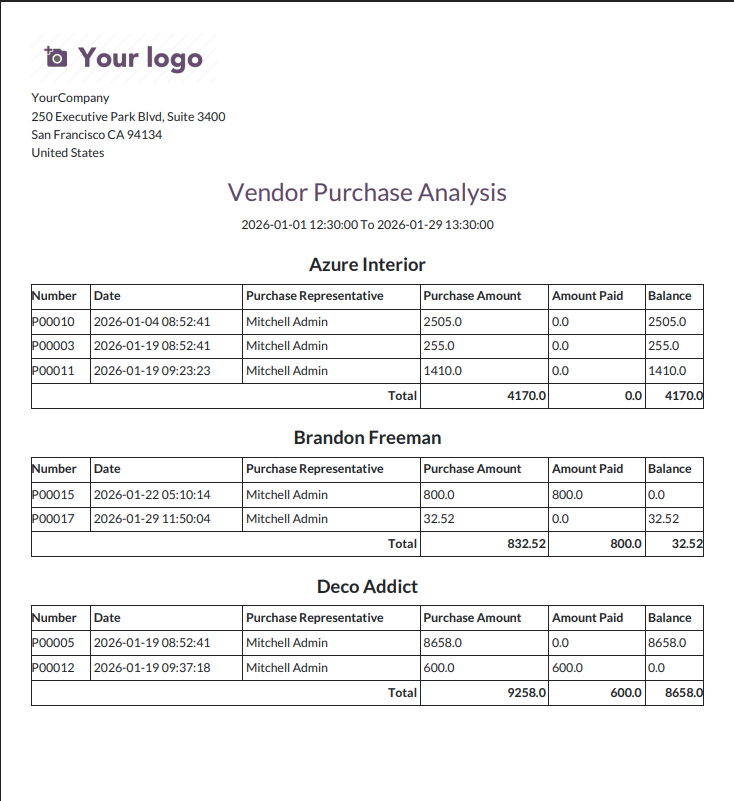
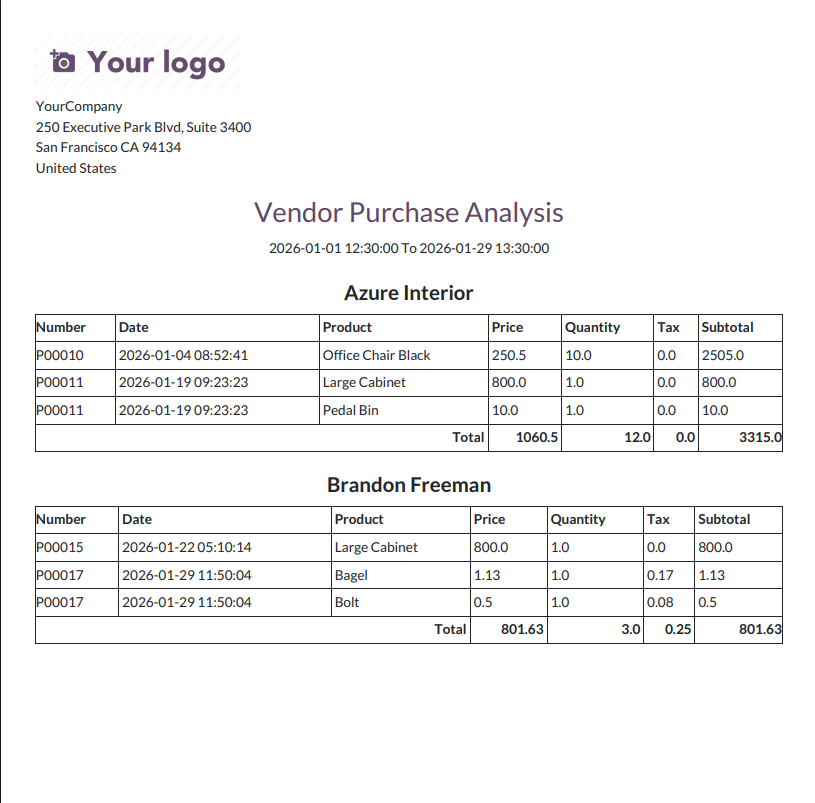
Vendor Purchase Analysis PDF report look like below.
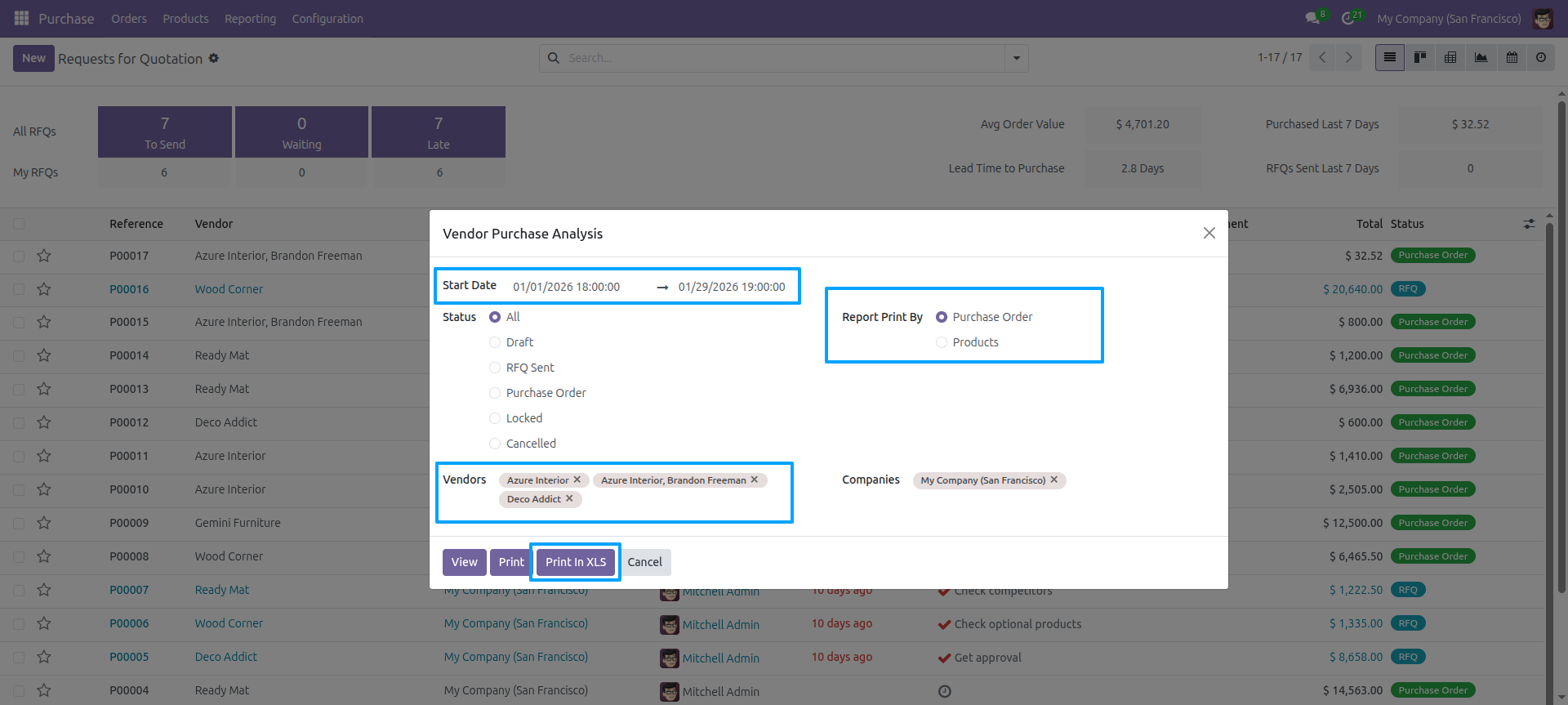
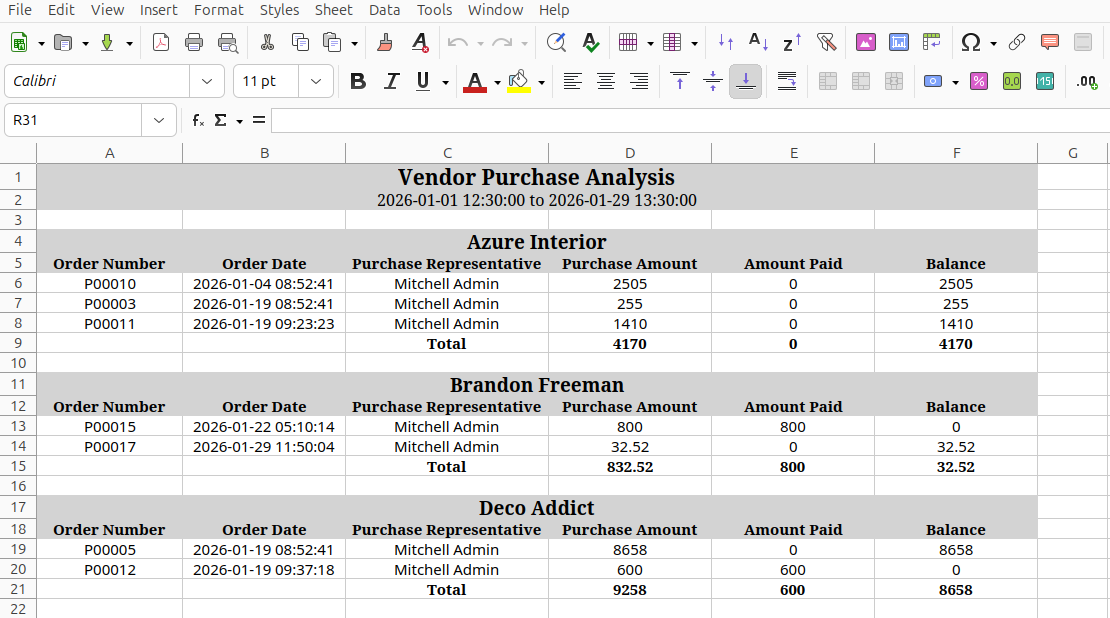
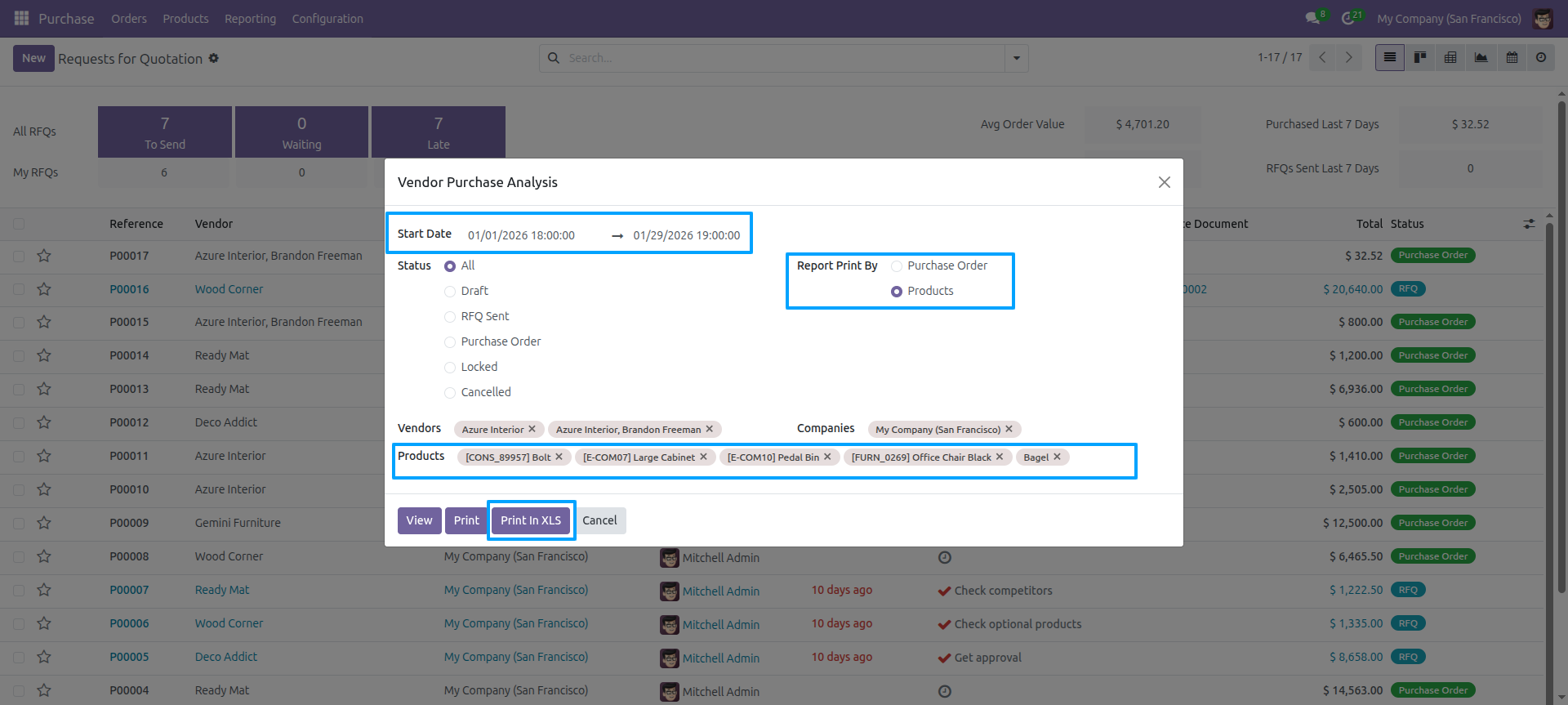
Vendor Purchase Analysis wizard: set Start Date, End Date, Status, Report Print By, select Vendors, Products, and Companies, then click 'Print In XLS'.
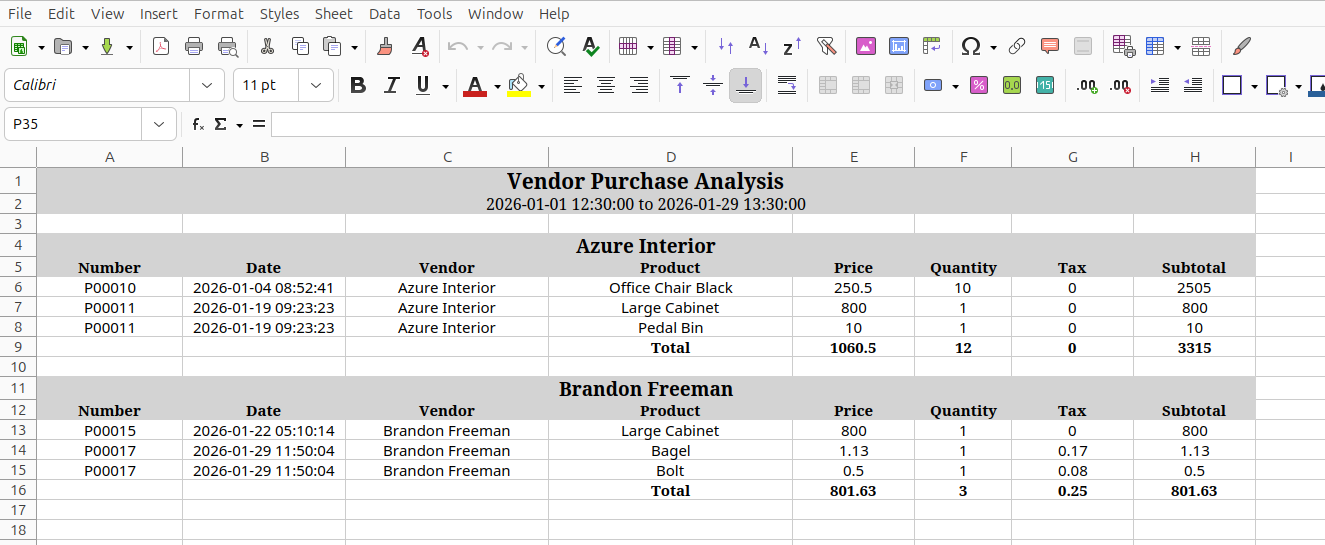
Vendor Purchase Analysis Excel report look like below.
click 'View' to see the report view.
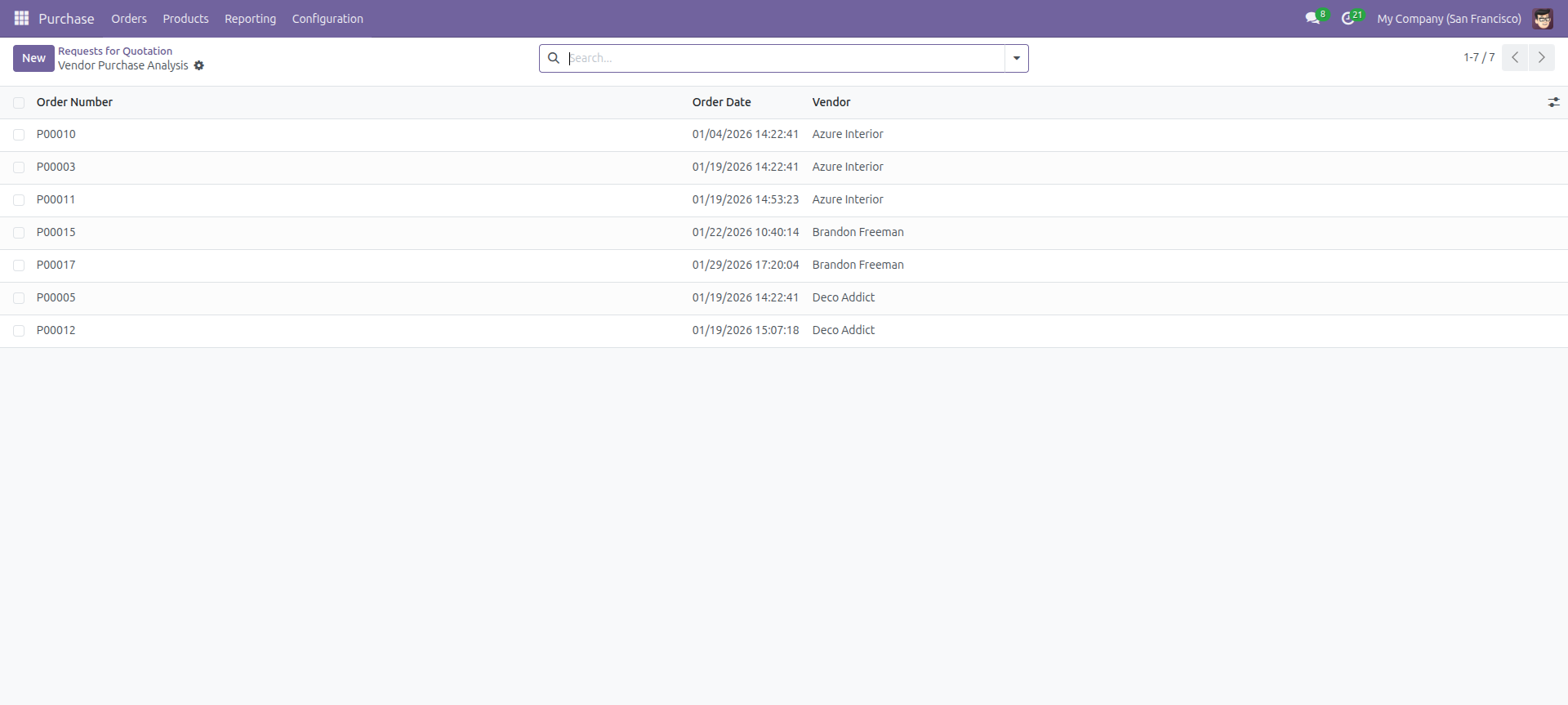
Report view look like below.
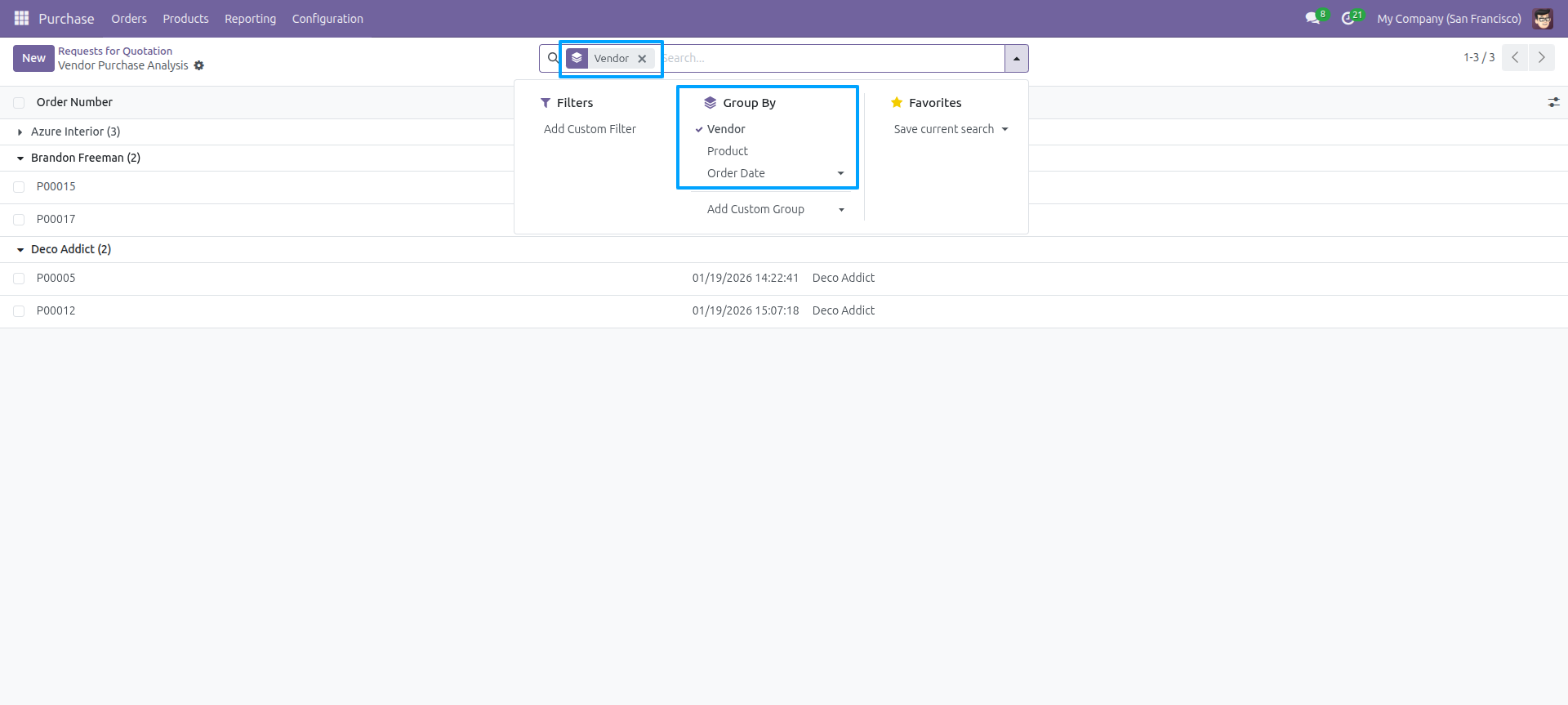
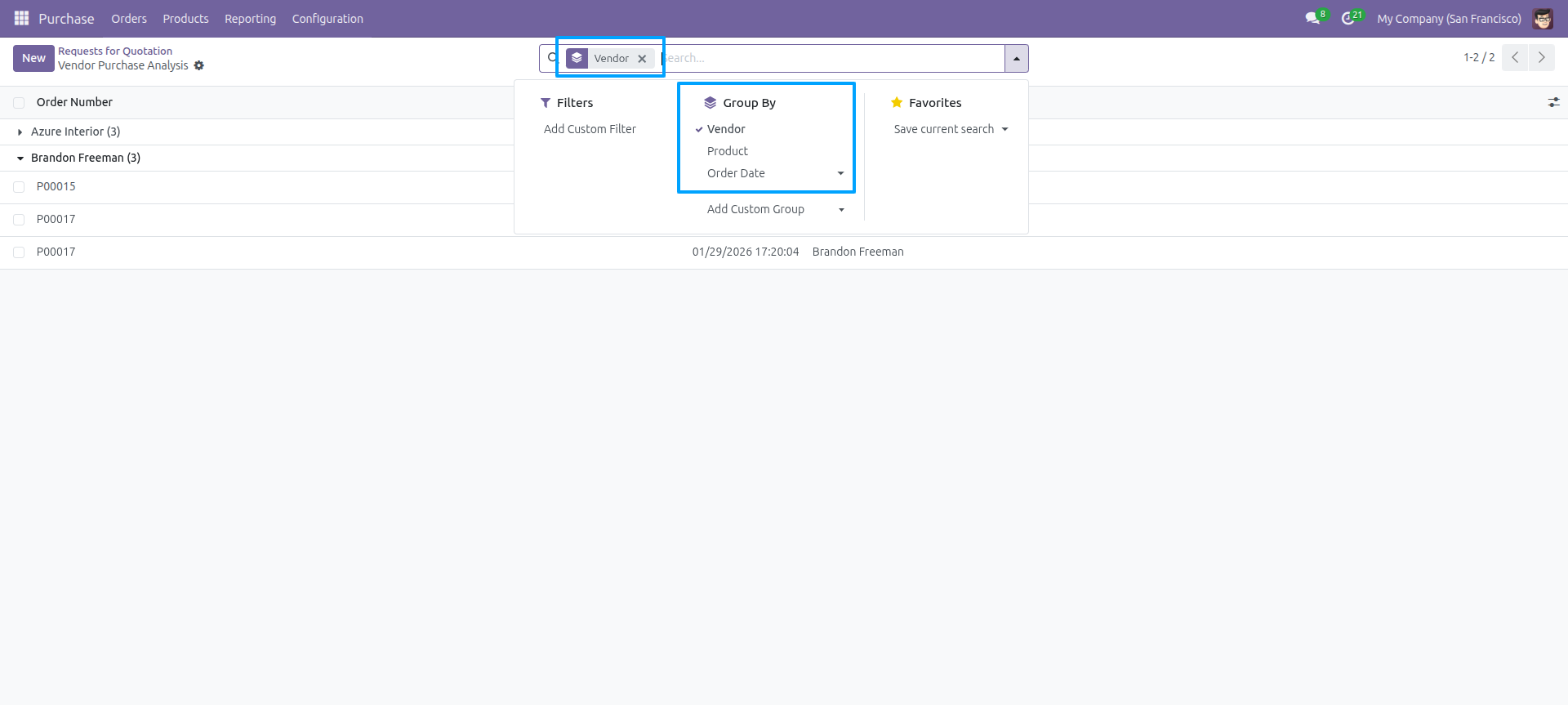
You can group by the Vendor Purchase Analysis report.
Vendor Purchase Analysis wizard: press 'Print' to generate a PDF report.
Vendor Purchase Analysis PDF report when Report Print By is 'Products'.
Vendor Purchase Analysis wizard: press 'Print In XLS' to export to Excel.
Vendor Purchase Analysis excel report when Report Print By is 'Products'.
Vendor Purchase Analysis wizard: press 'view' to see the report view.
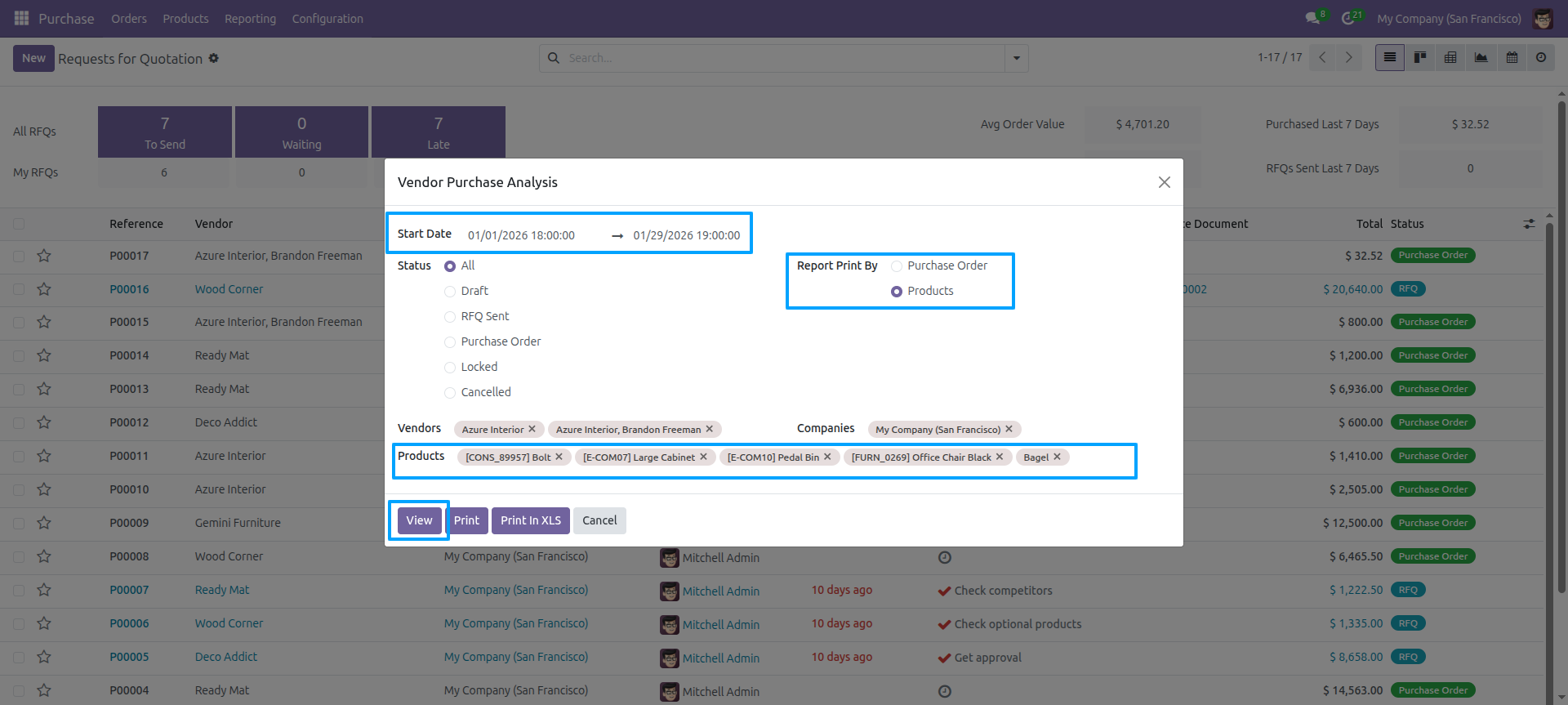
Vendor Purchase Analysis report view look like below.
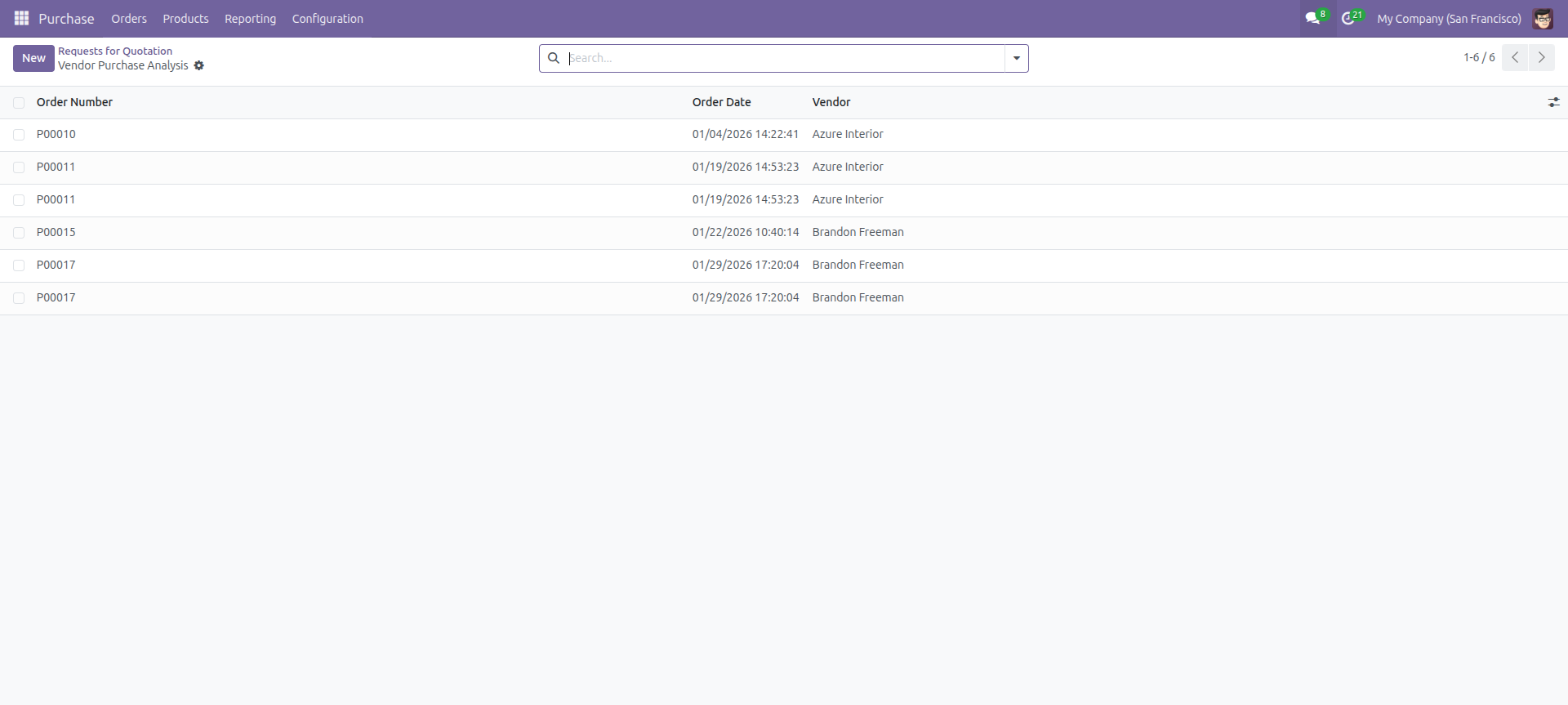
You can group by the Vendor Purchase Analysis report.
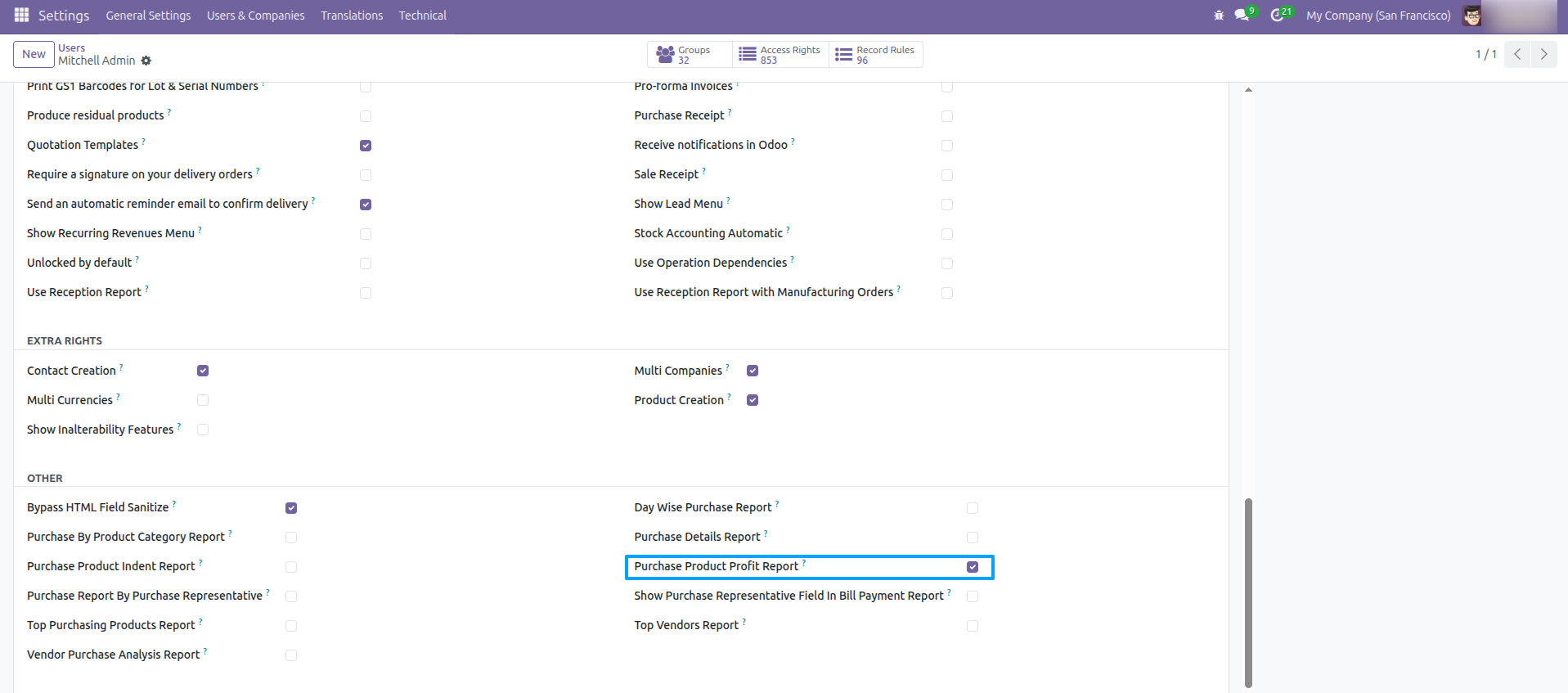
Go to Users and enable 'Purchase Product Profit Report'.
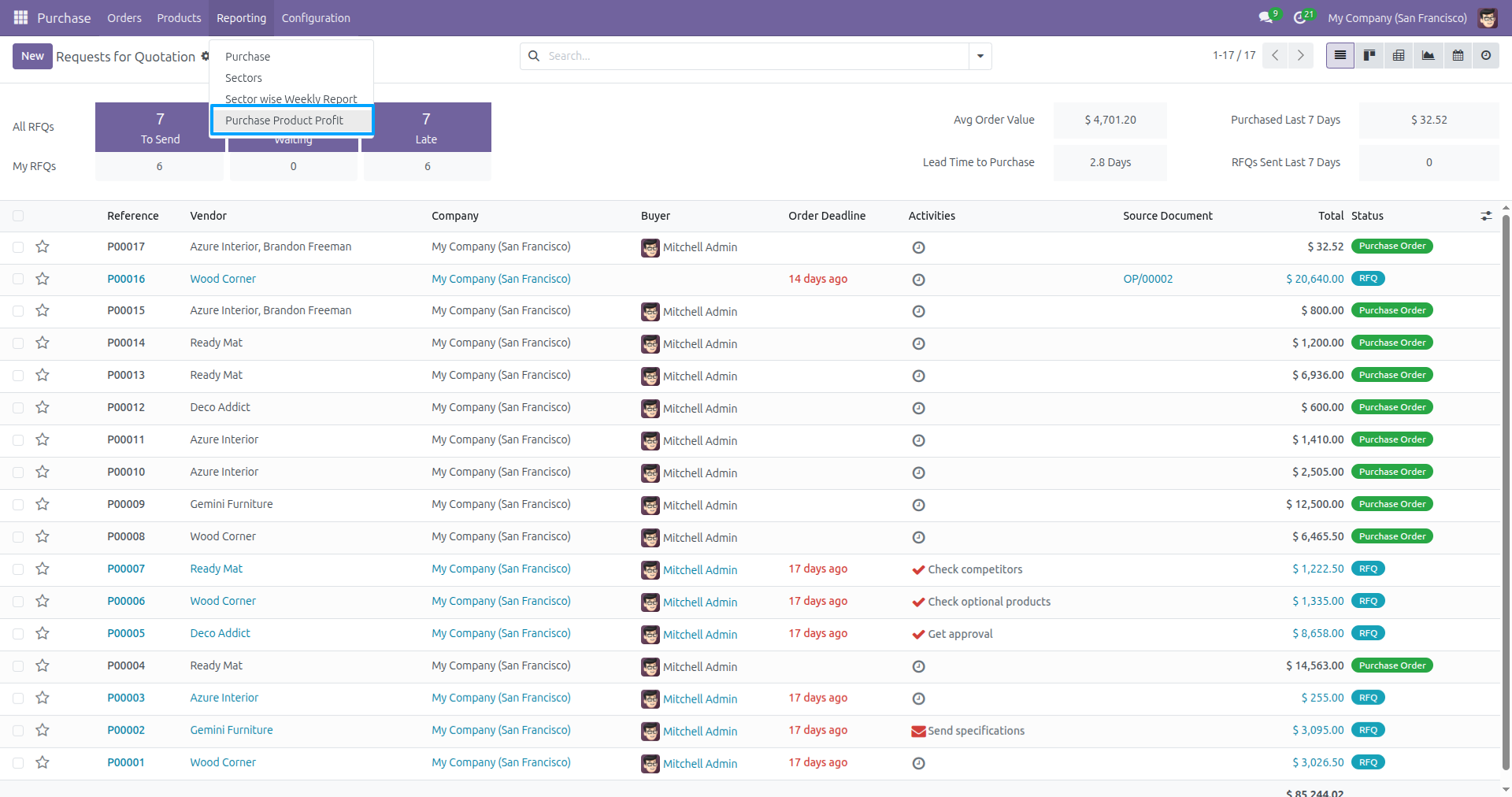
Go to 'Purchase Product Profit' menu.
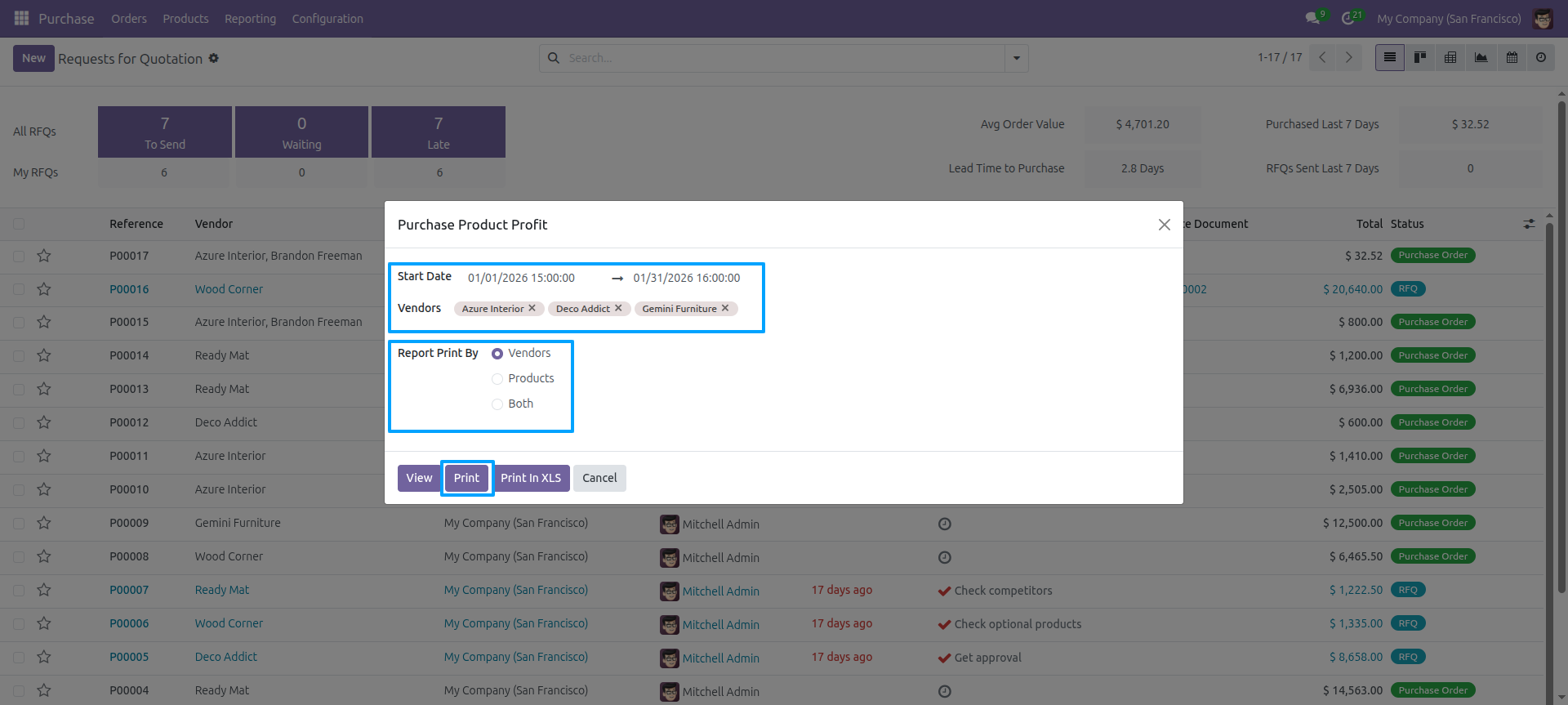
Set date range, select Vendors and Report Print By (Vendors) and click 'Print'.
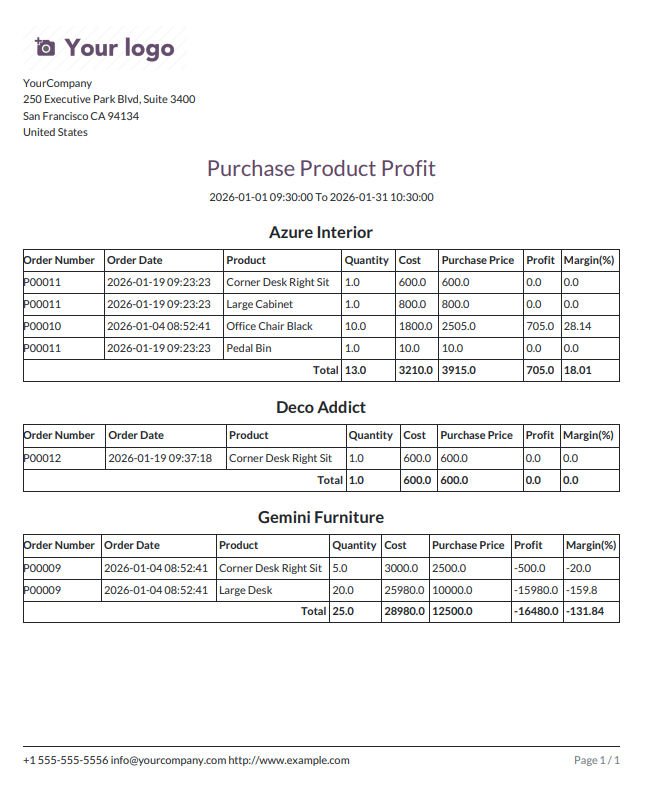
Purchase Product Profit PDF report grouped by vendor.
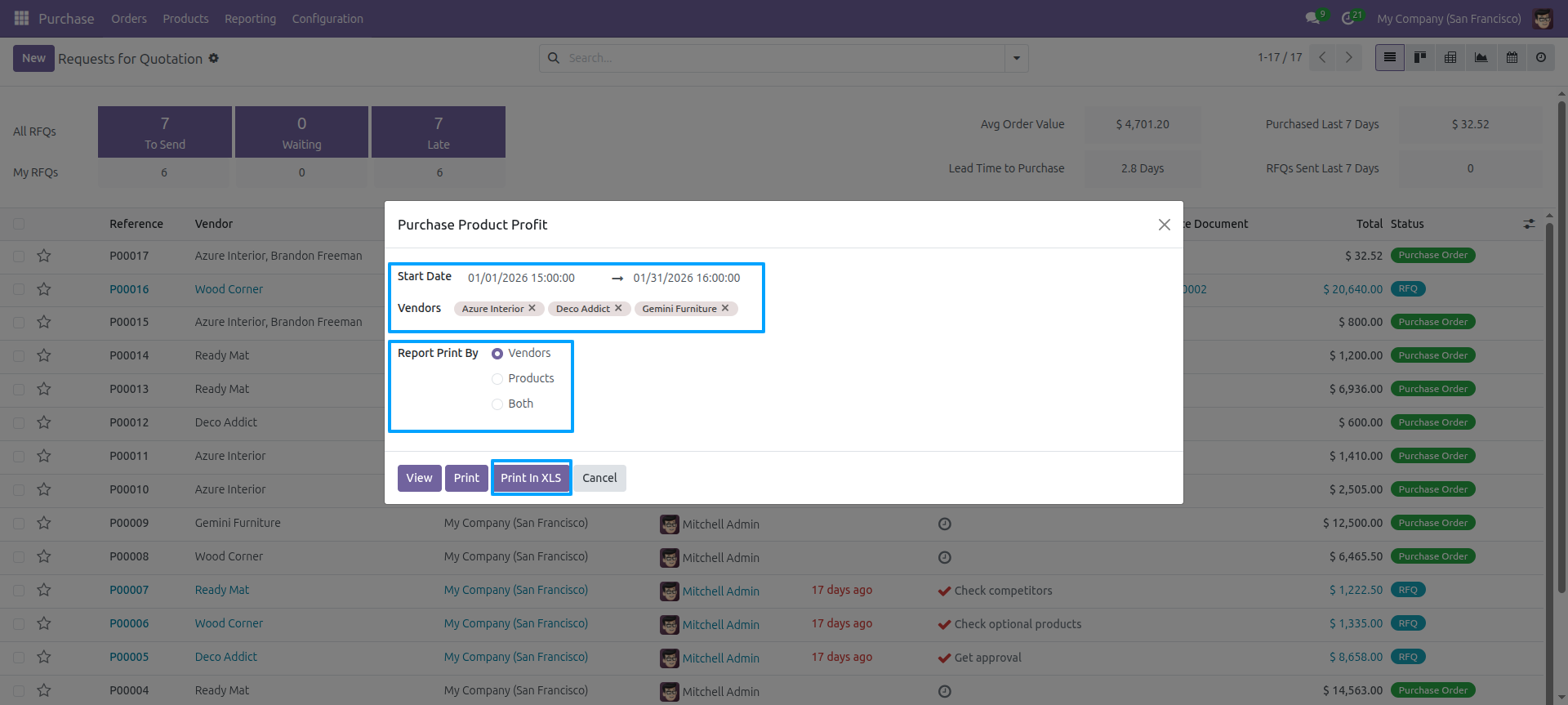
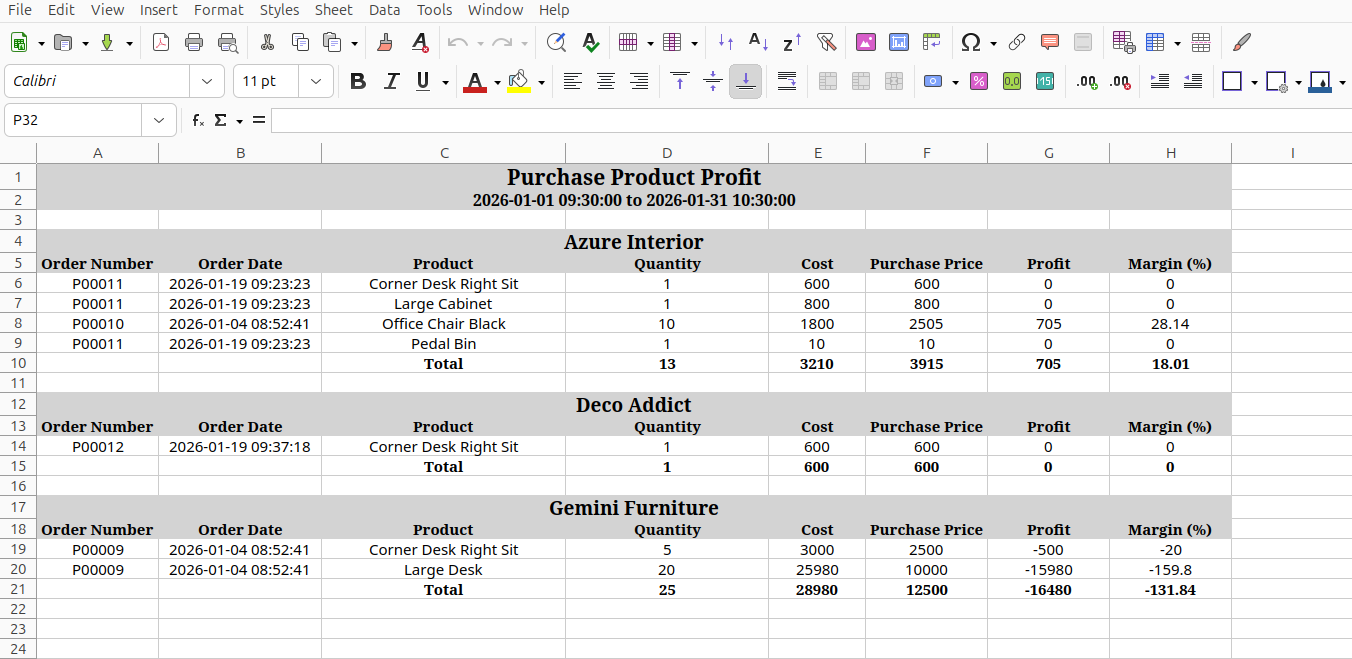
Set date range, select Vendors and Report Print By (Vendors) and click 'Print In XLS'.
Purchase Product Profit report excel look like below.
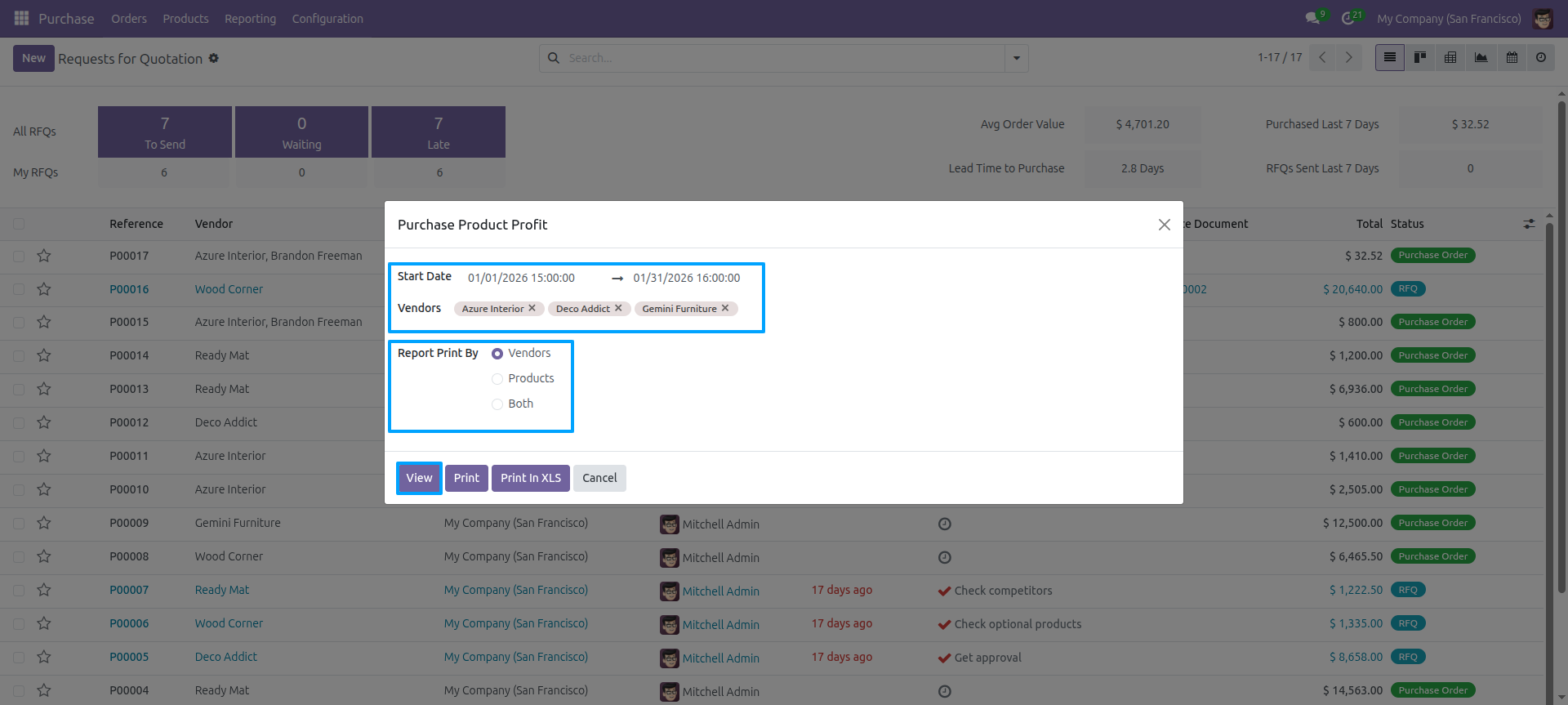
Set date range, select Vendors and Report Print By (Vendors) and click 'view'.
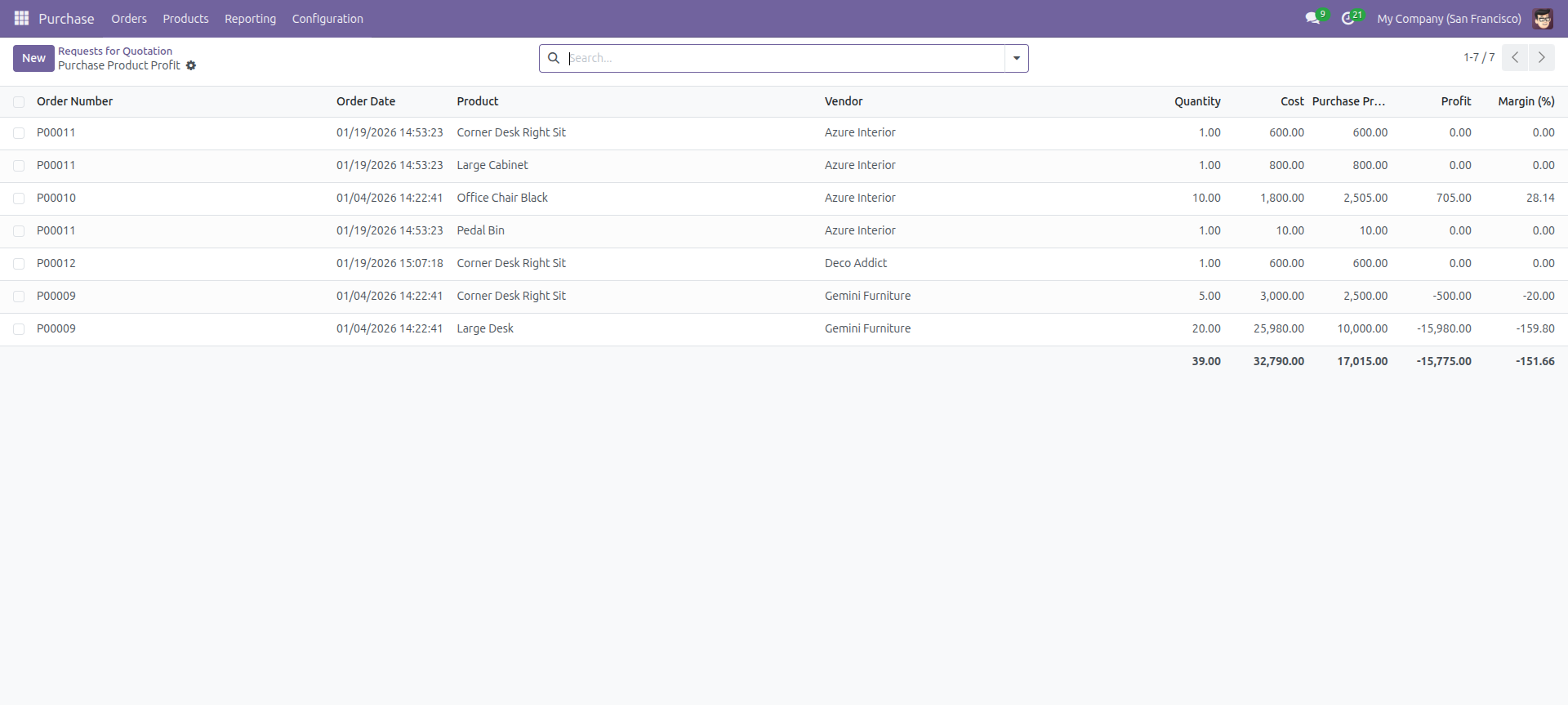
Purchase Product Profit report view look like below.
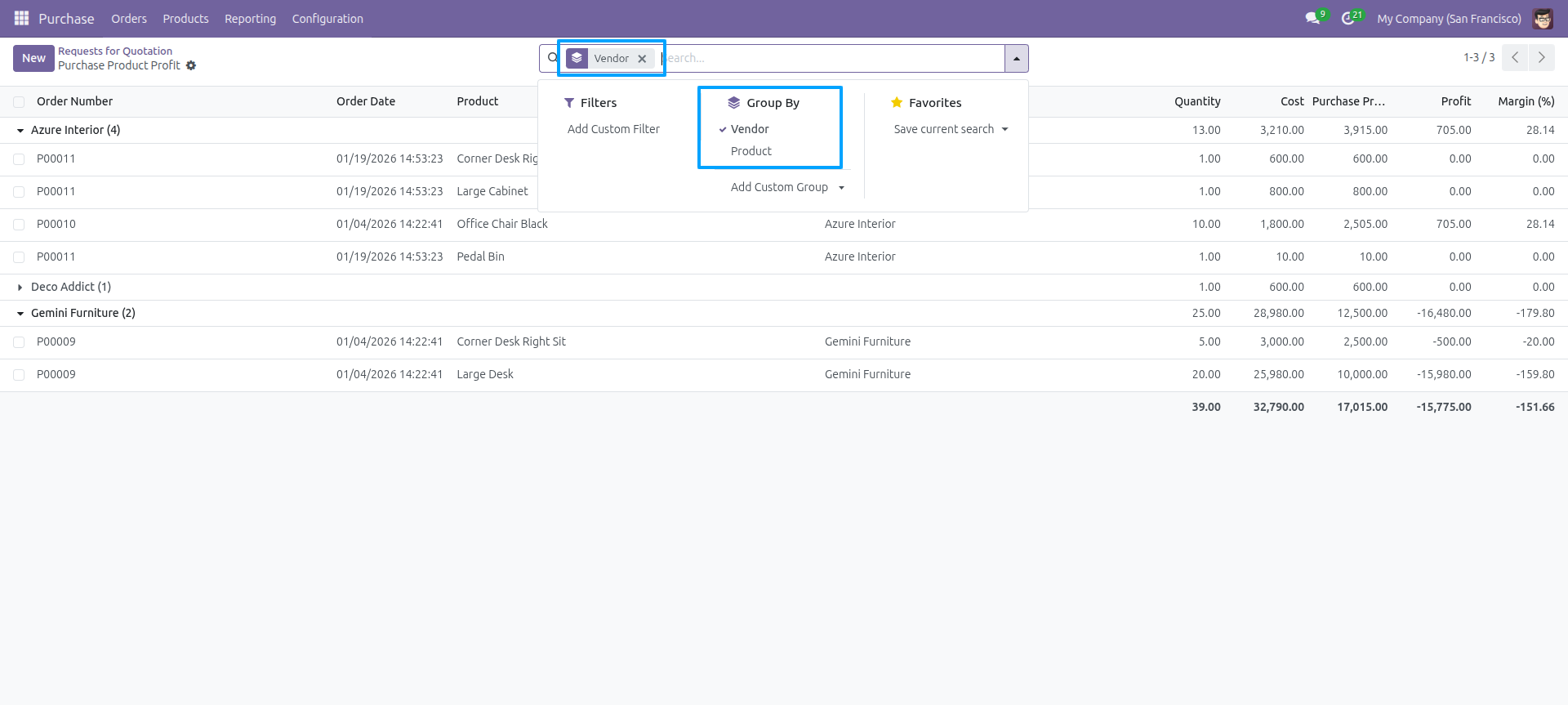
Purchase Product Profit report view grouped by product and vendor.
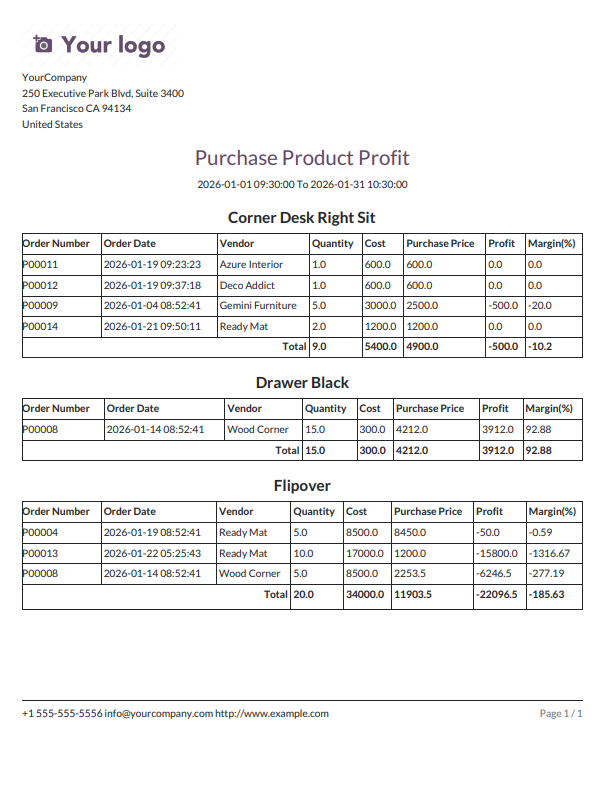
Set date range, select Vendors and Report Print By (Products) and click 'print'.
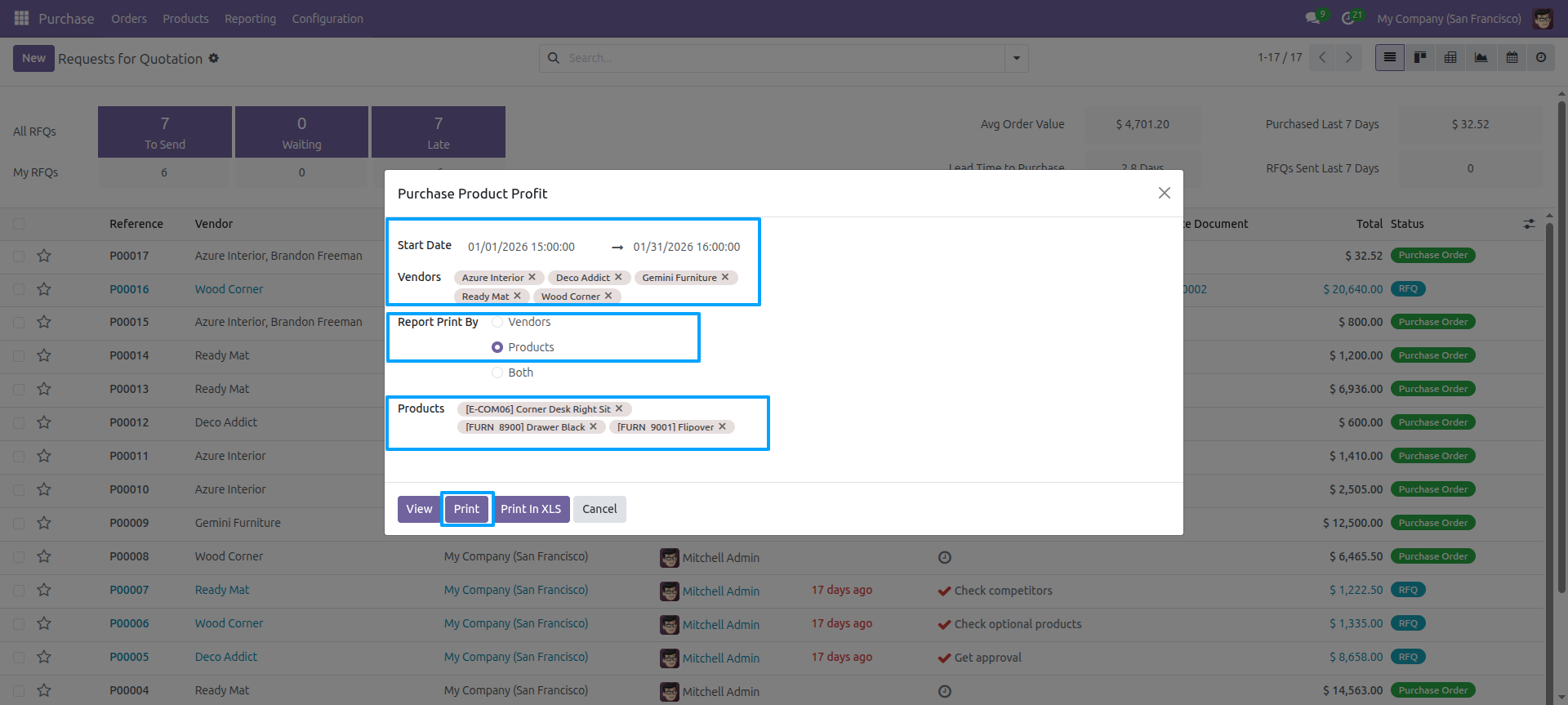
Purchase Product Profit PDF report grouped by product.
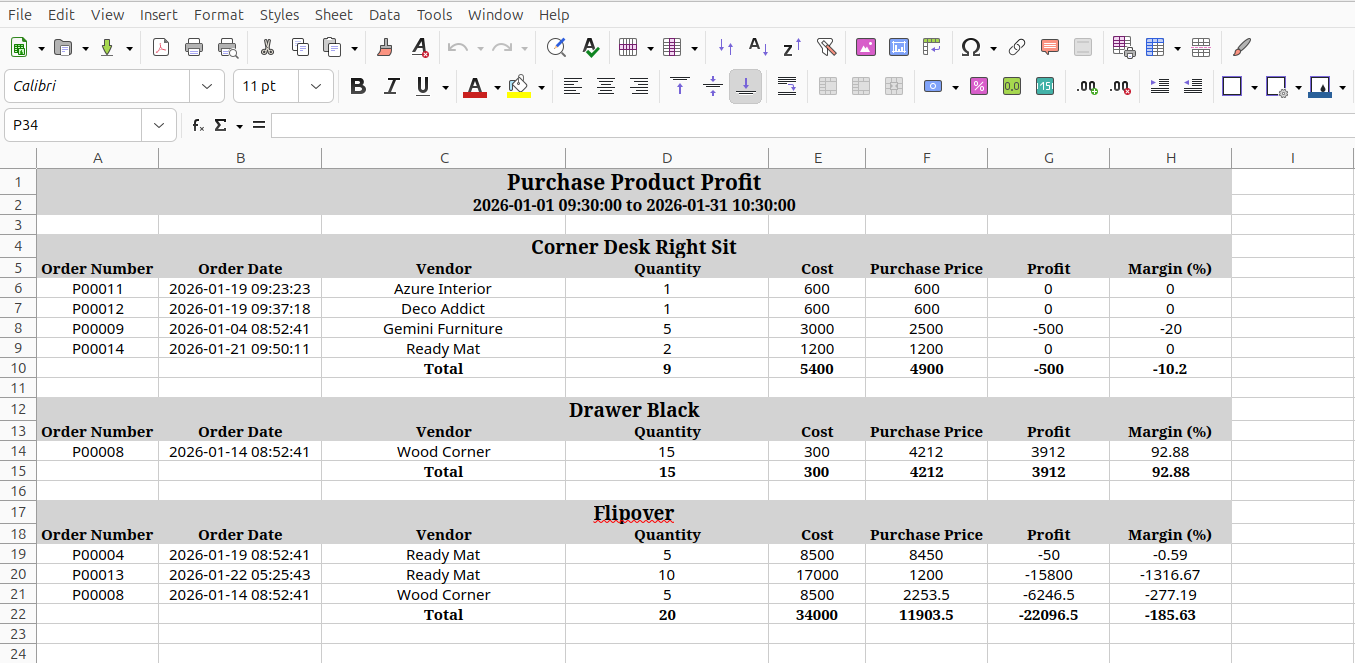
Set date range, select Vendors and Report Print By (Products) and click 'print in xls'.
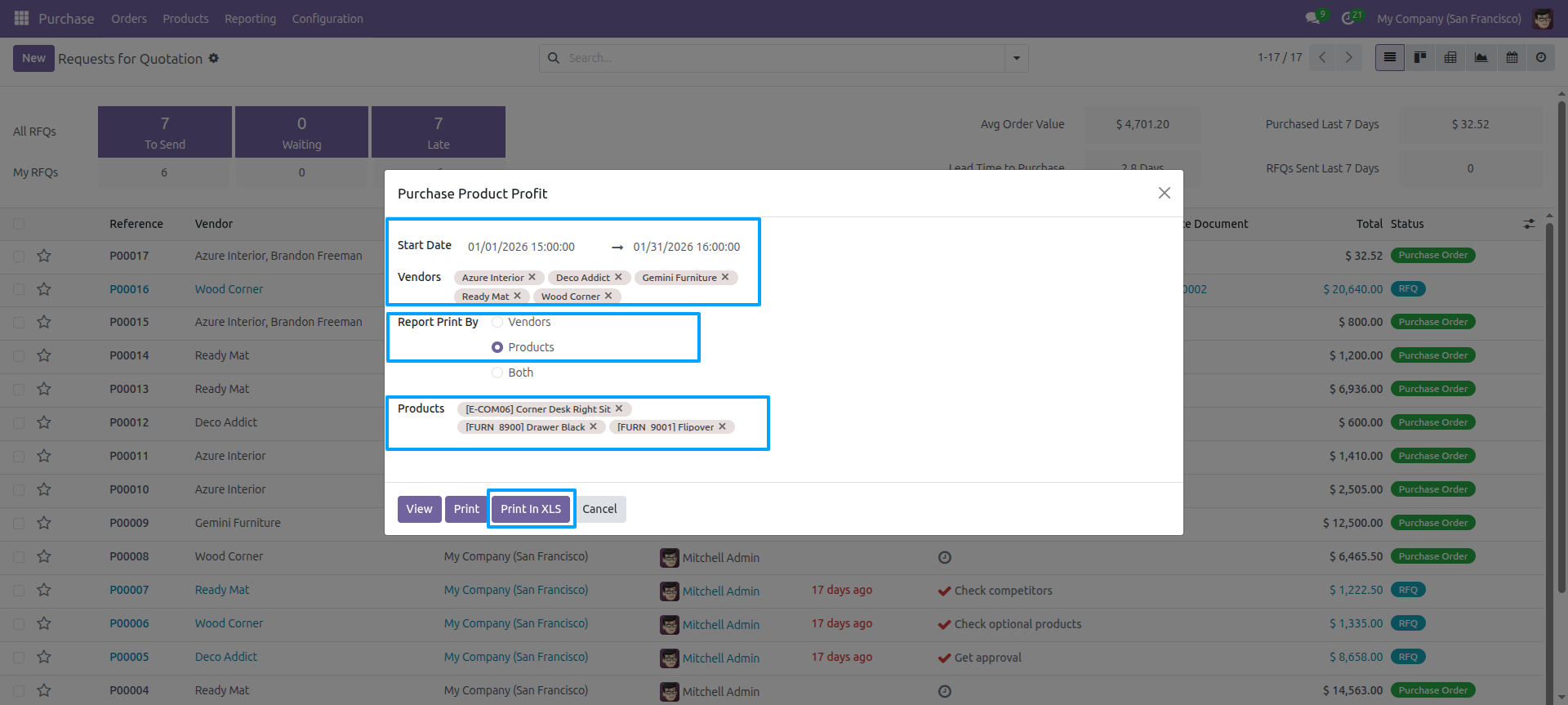
Purchase Product Profit excel report grouped by product.
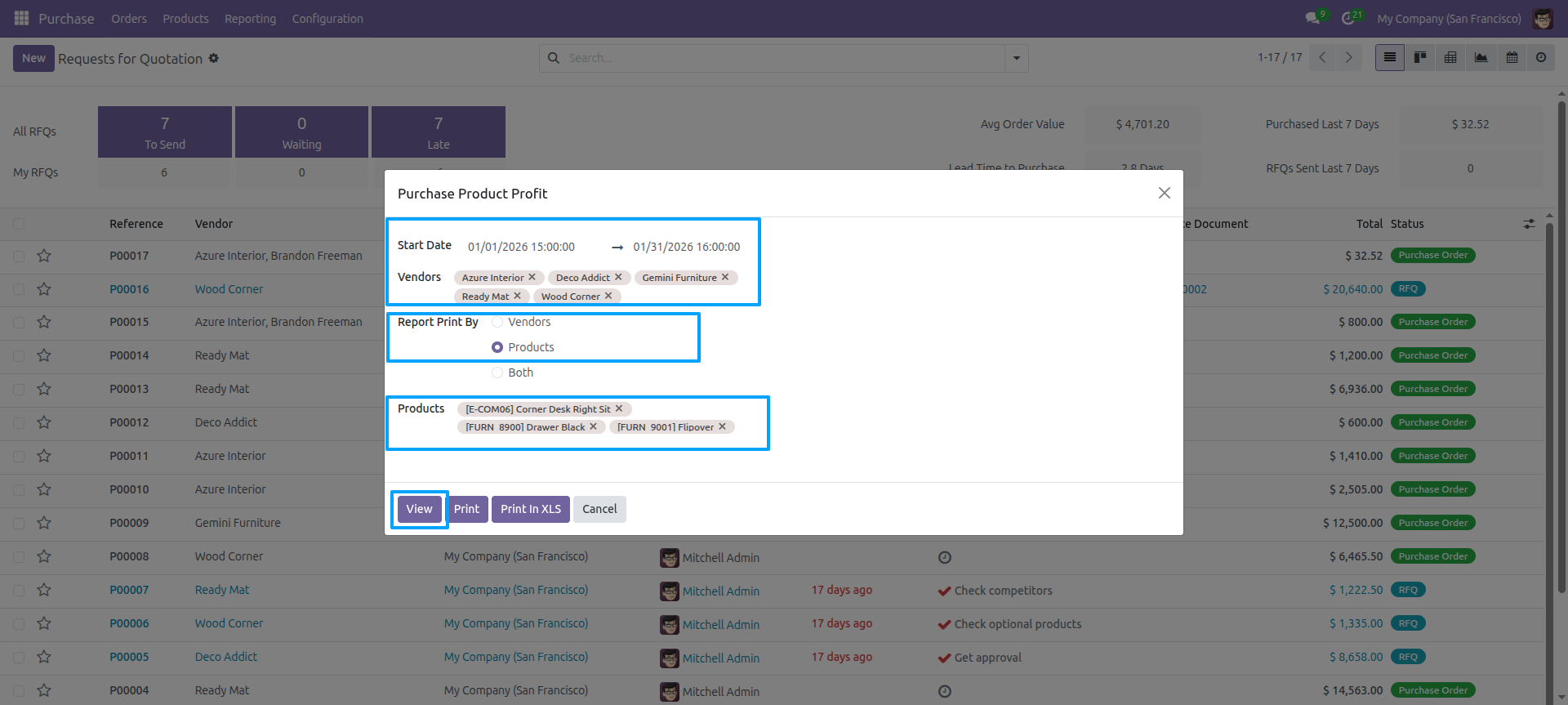
Set date range, select Vendors and Report Print By (Products) and click 'view'.
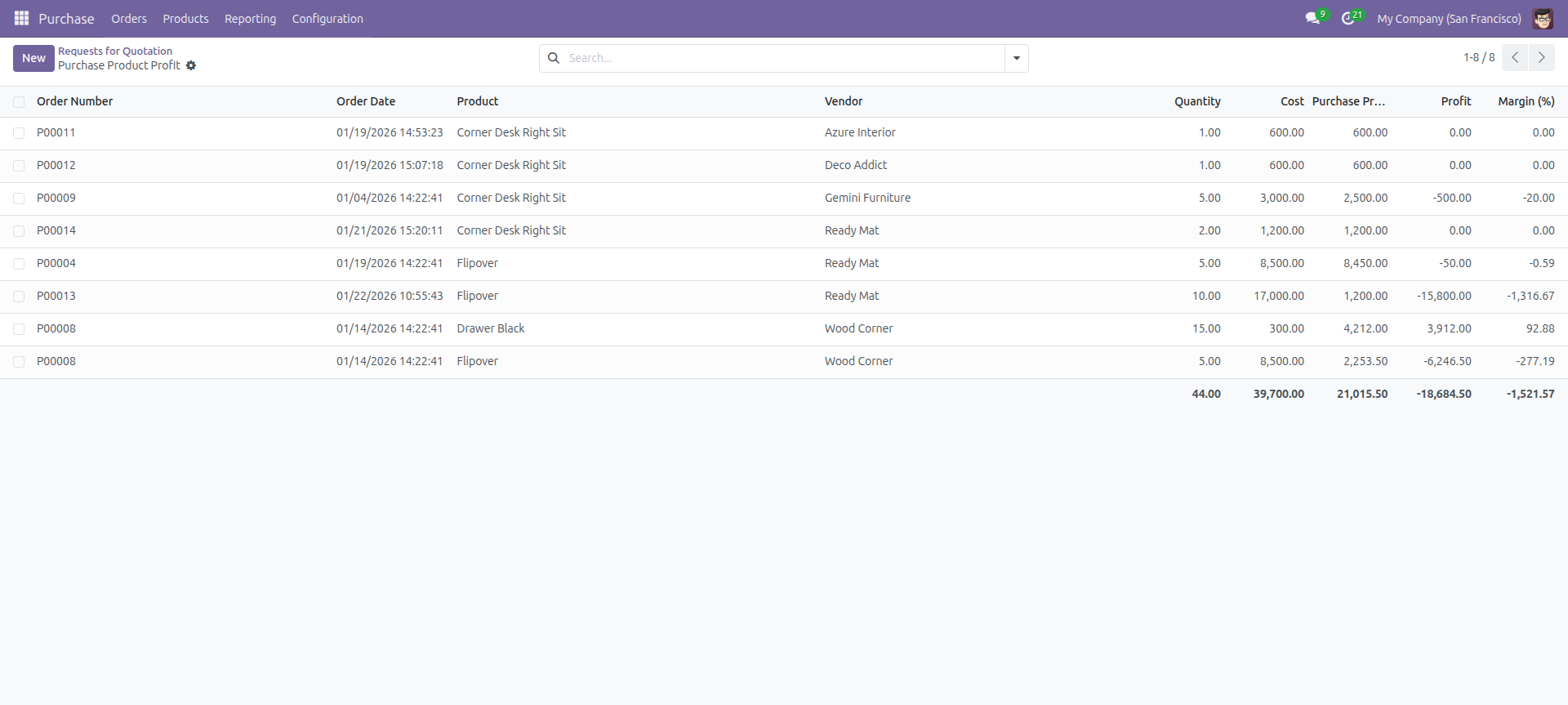
Purchase Product Profit report view.
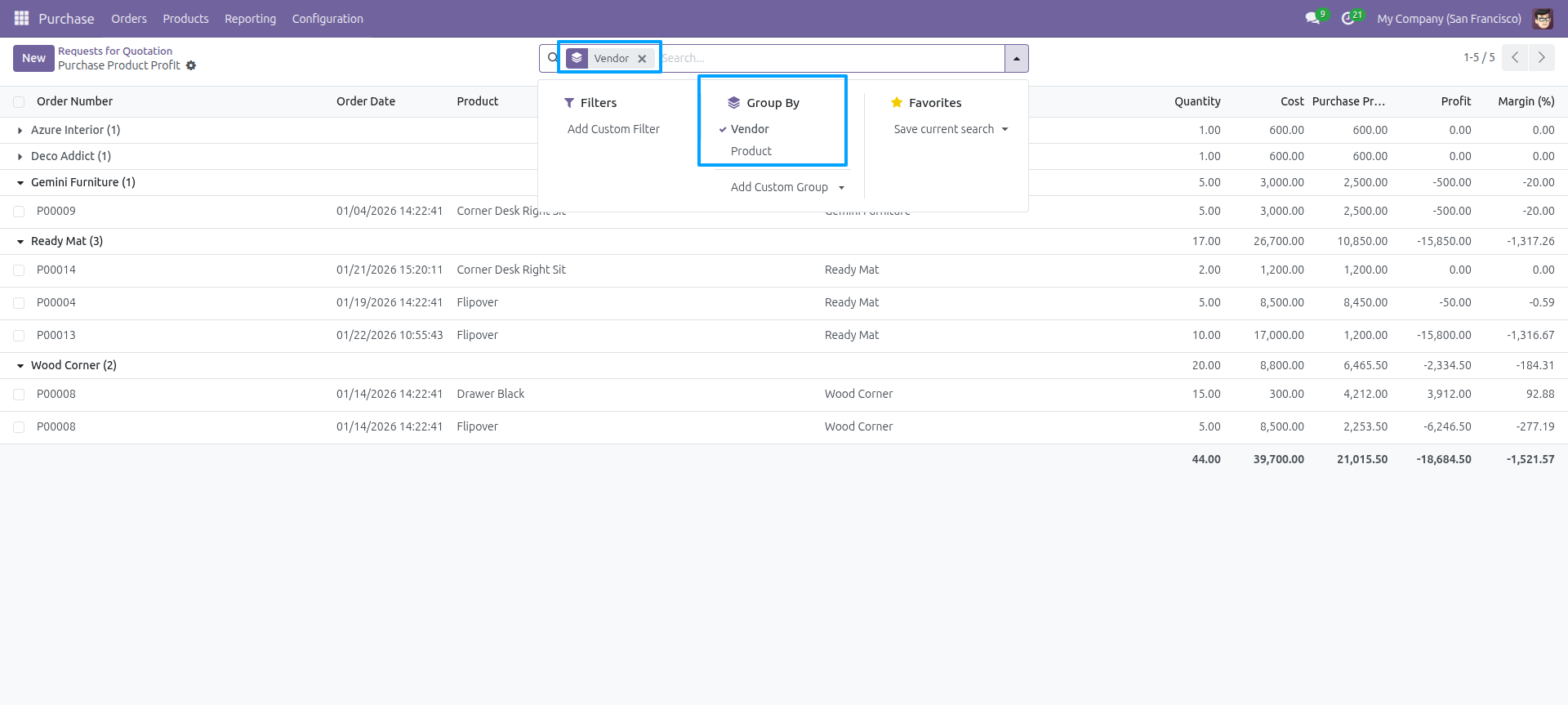
Purchase Product Profit report view grouped by product and vendor.
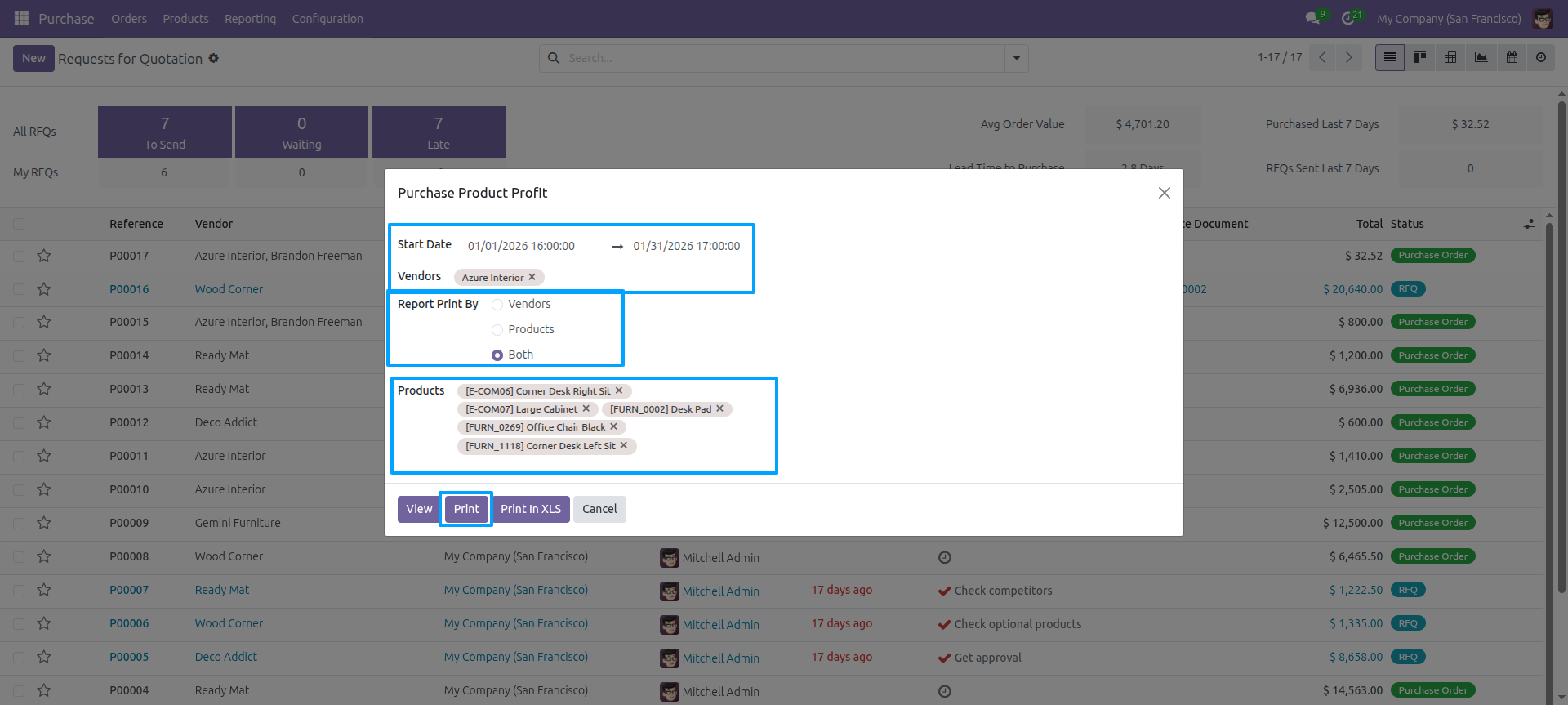
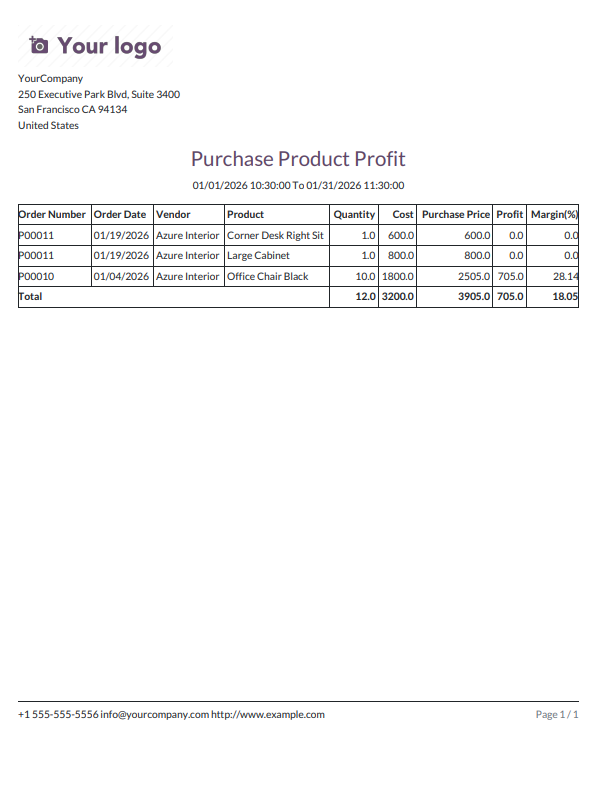
Set date range, select Vendors and Report Print By (both) and click 'print'.
Purchase Product Profit pdf report.
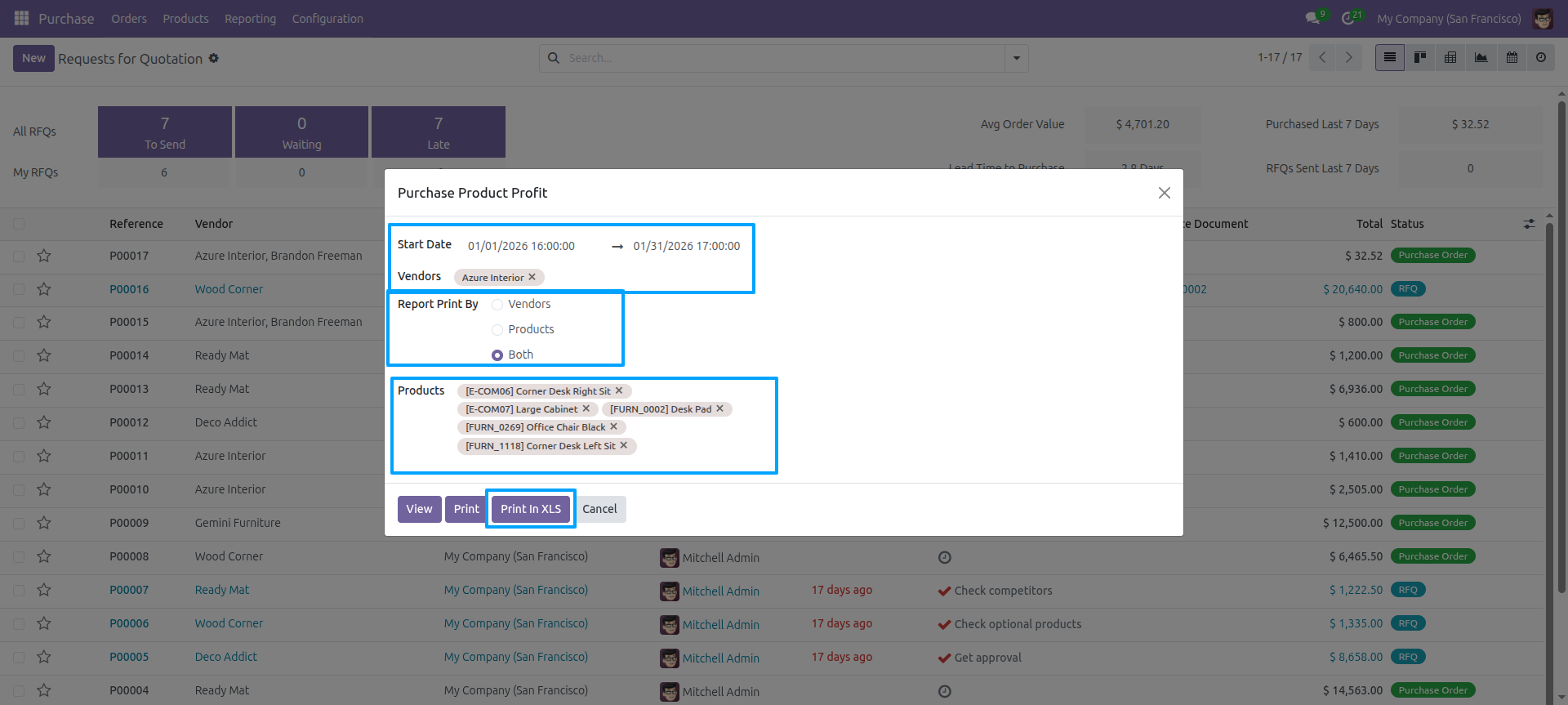
Set date range, select Vendors and Report Print By (both) and click 'print in xls'.
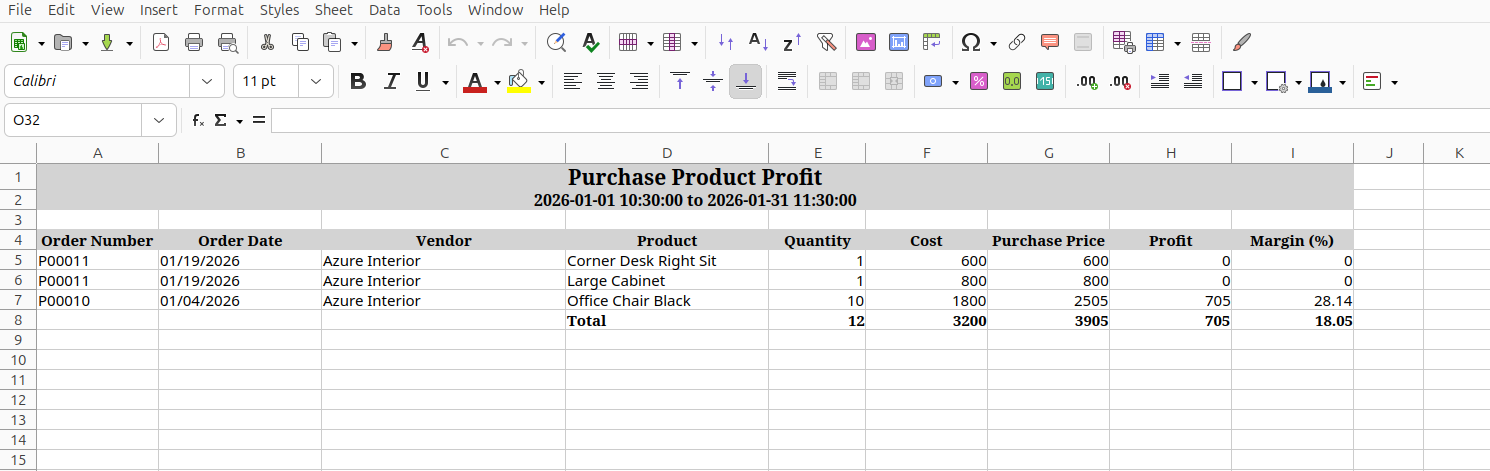
Purchase Product Profit excel report.
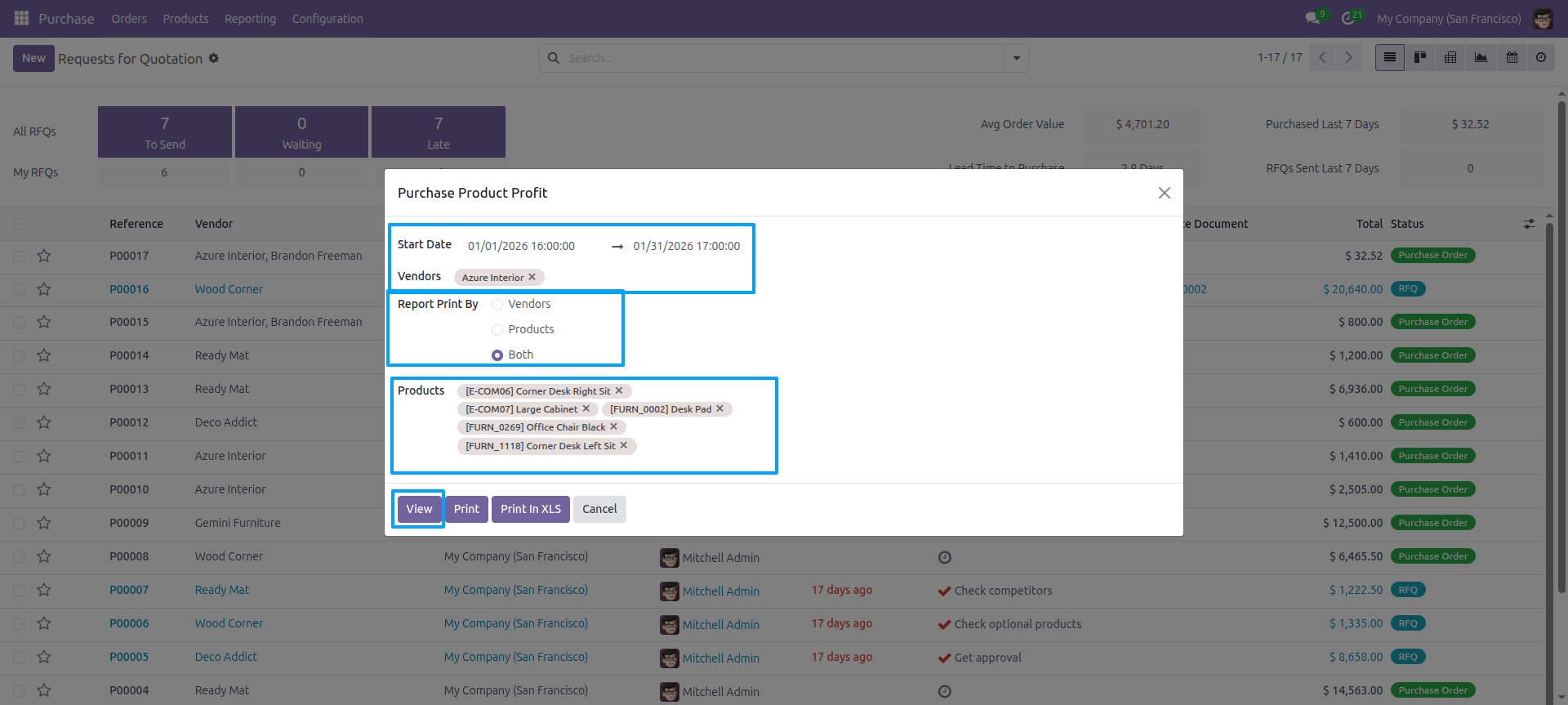
Set date range, select Vendors and Report Print By (both) and click 'view'.
Purchase Product Profit report view look like below.
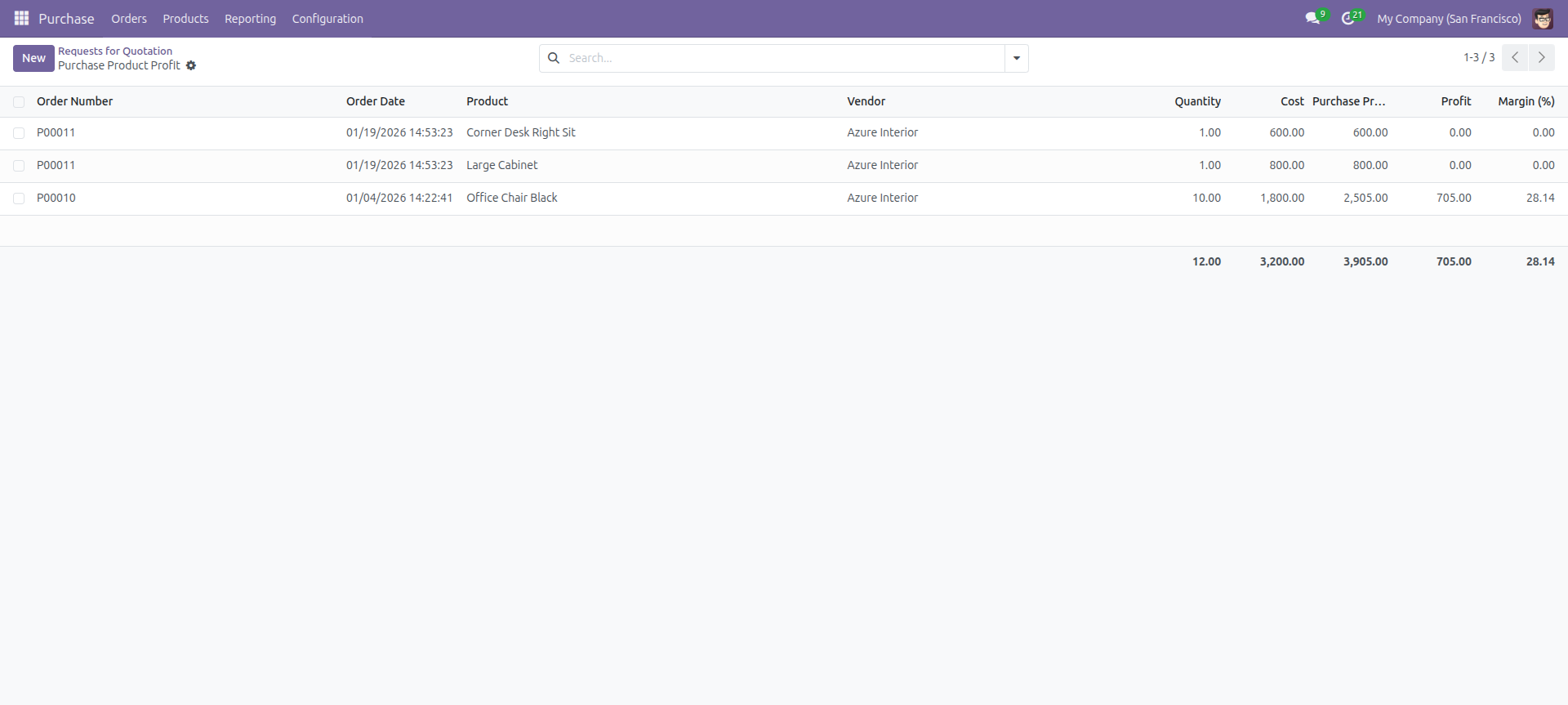
Purchase Product Profit report view grouped by product and vendor.
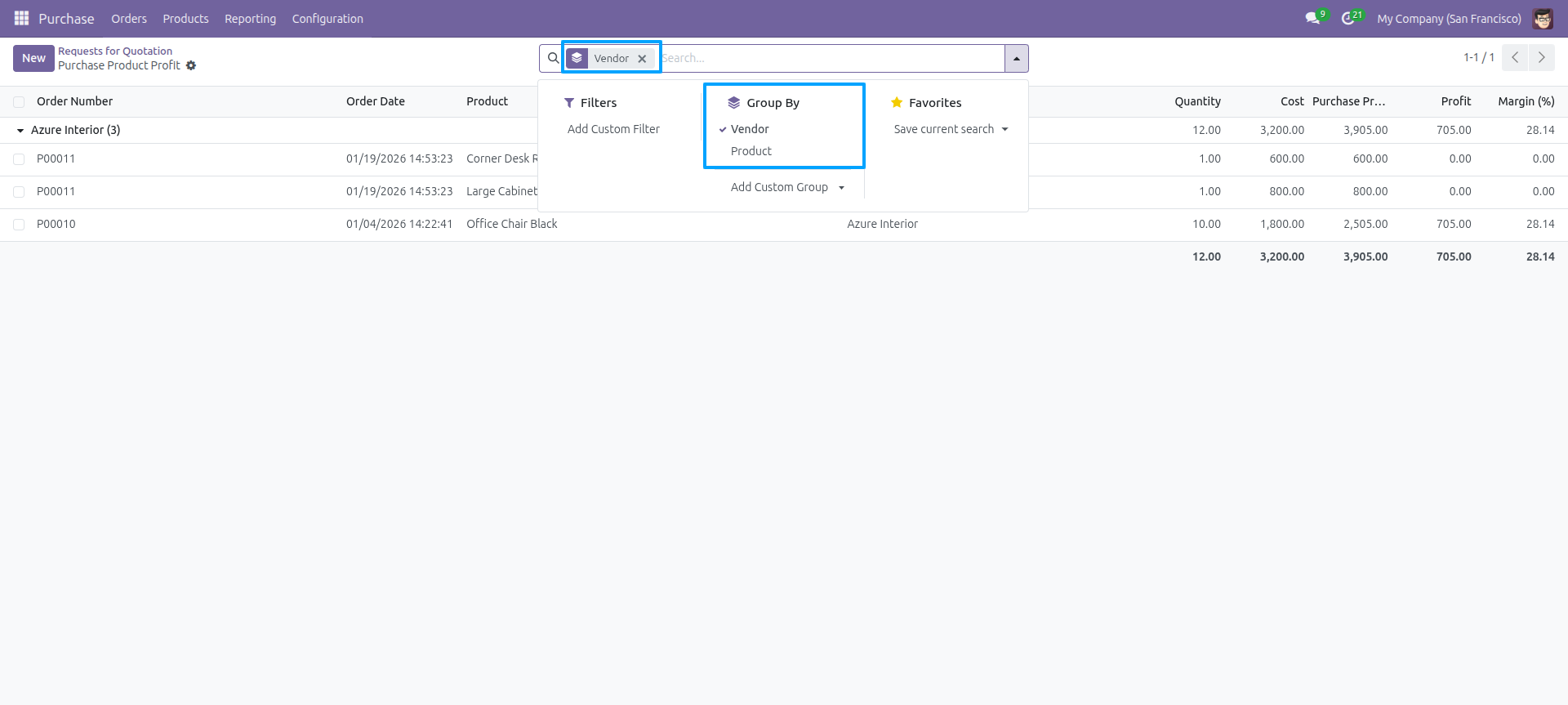
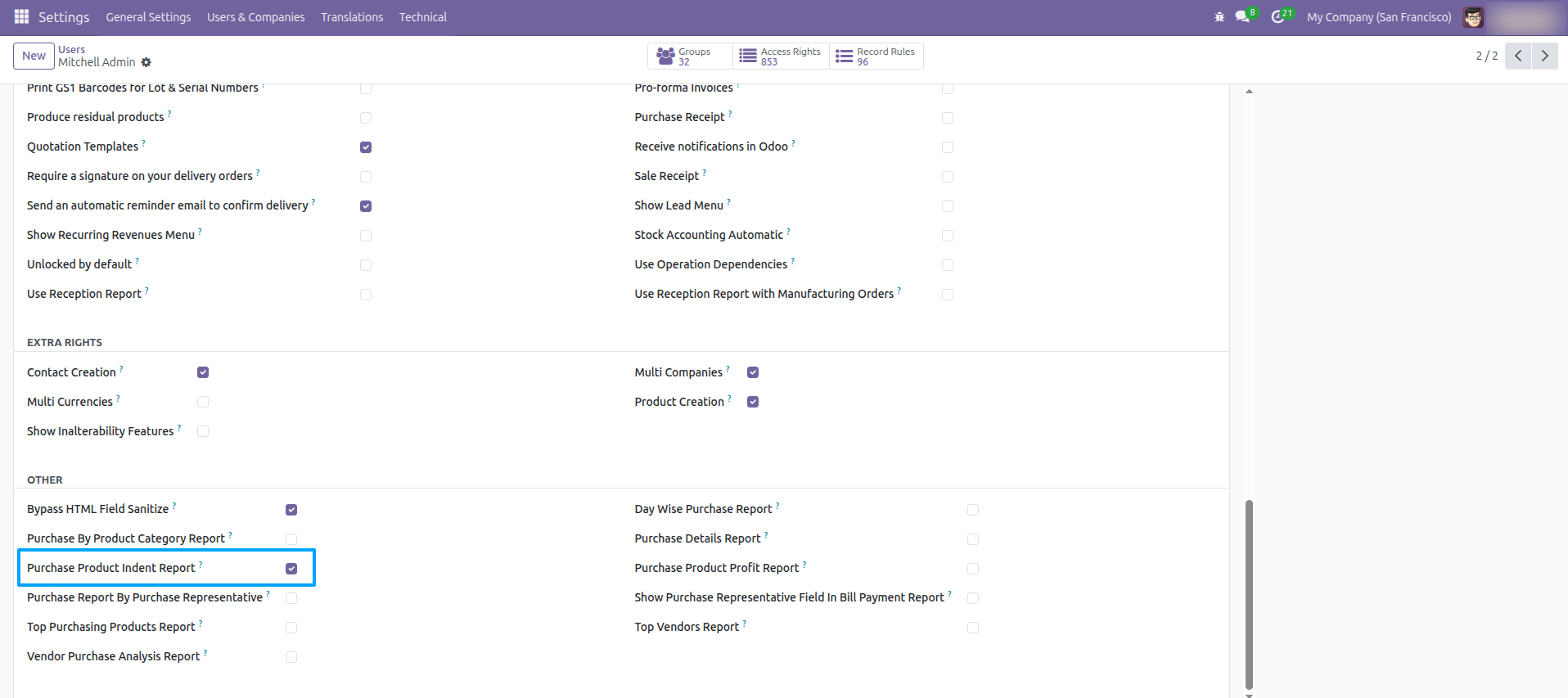
Go to Users and enable 'Purchase Product Indent Report'.
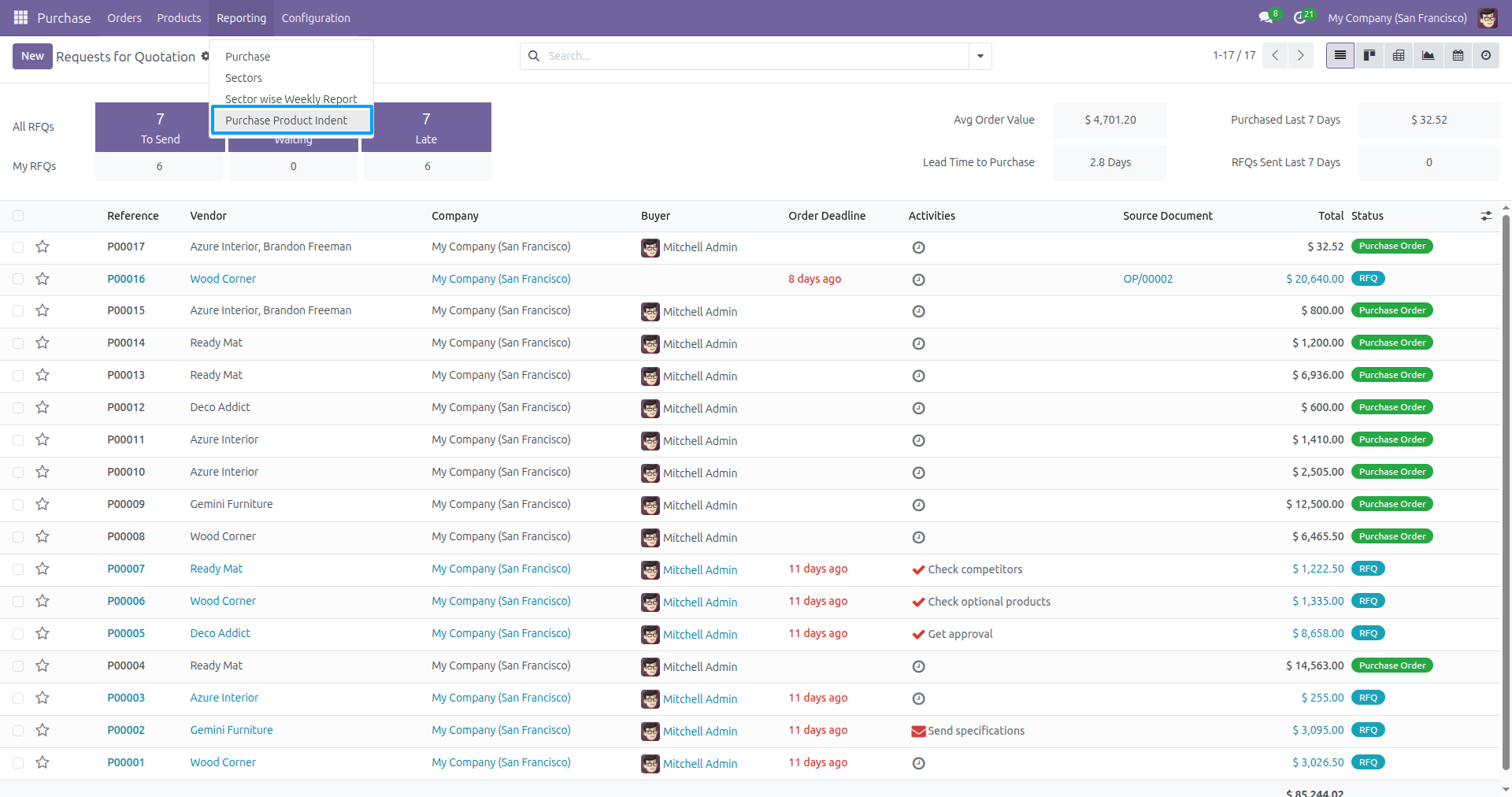
Go to Purchase → Reporting and select 'Purchase Product Indent'.
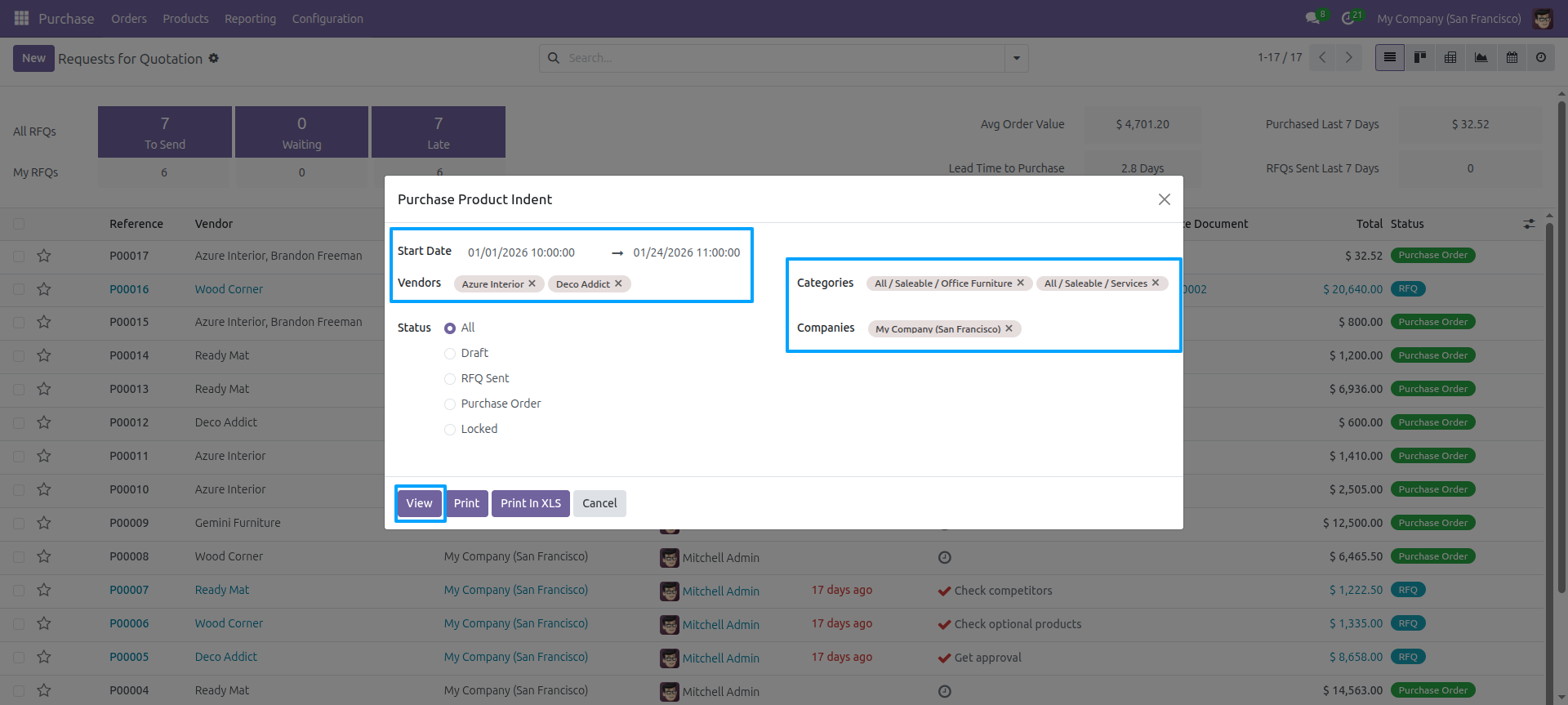
Purchase Product Indent wizard: set Start Date, End Date, Vendors, Status, Categories, and Companies, then click 'Print'.
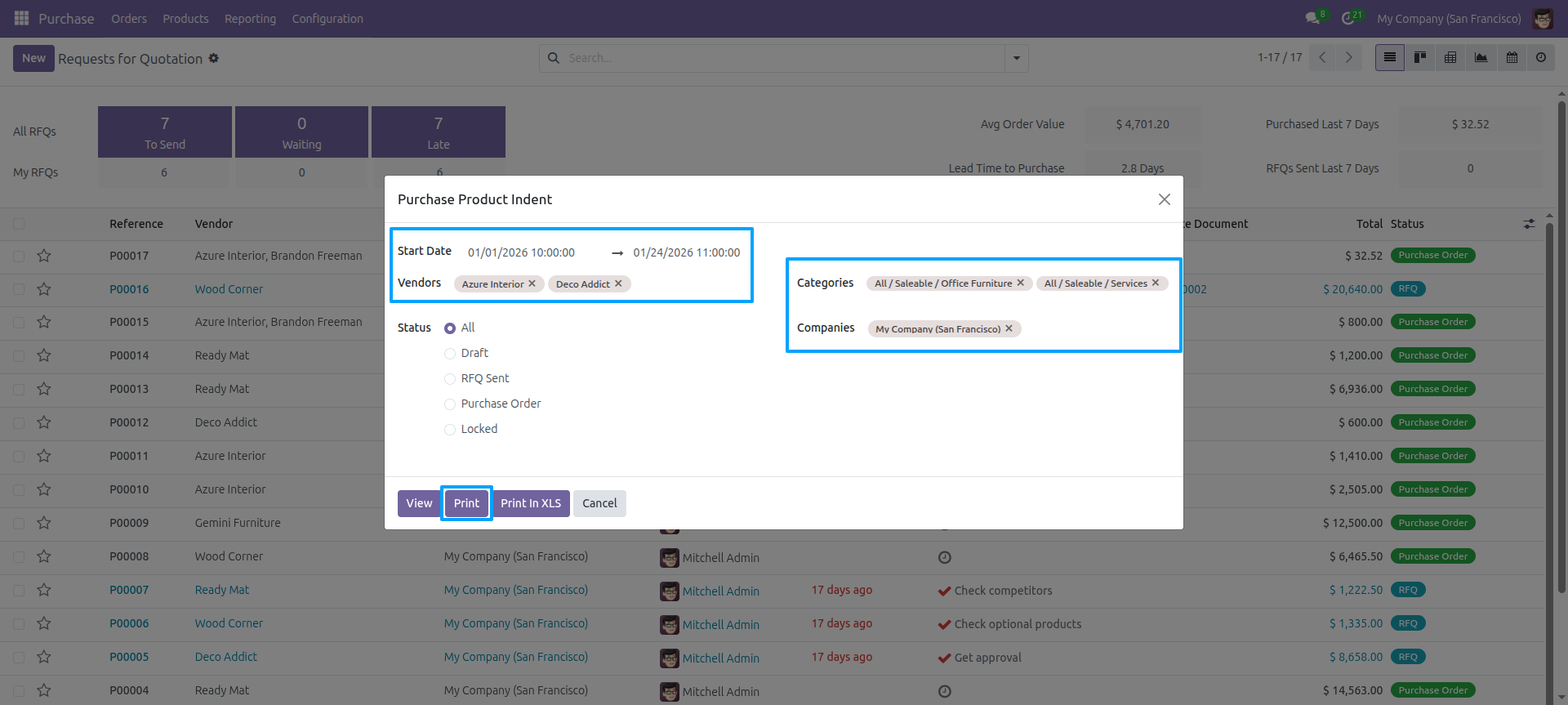
Purchase Product Indent PDF report with products and quantities grouped by vendor and category.
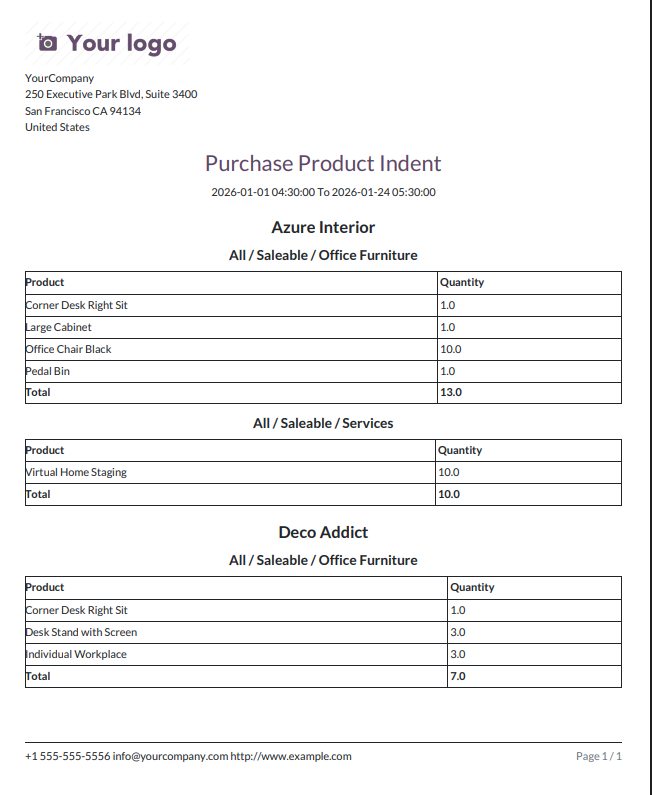
Purchase Product Indent wizard: click 'Print In XLS' to export the report to Excel.
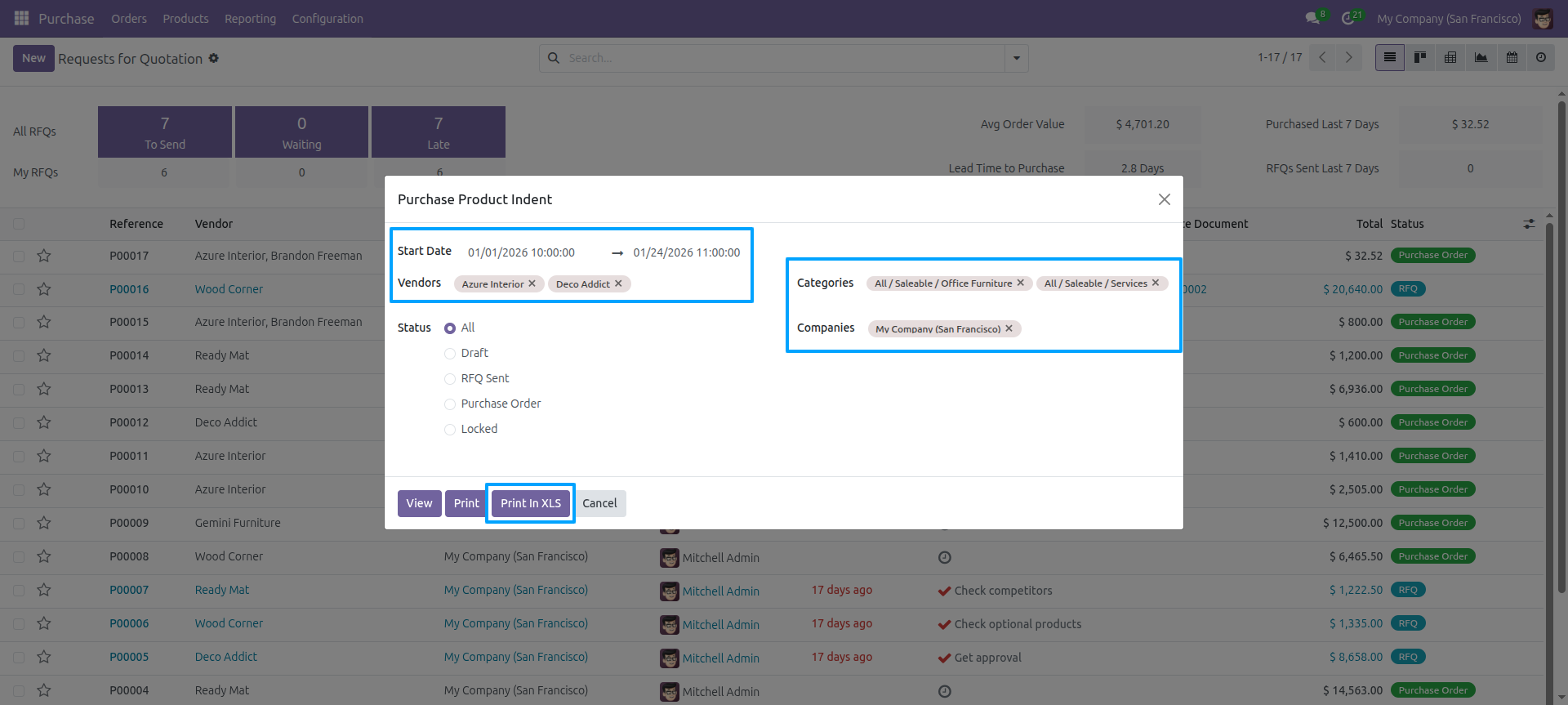
Purchase Product Indent Excel report with date range and data grouped by vendor and category.
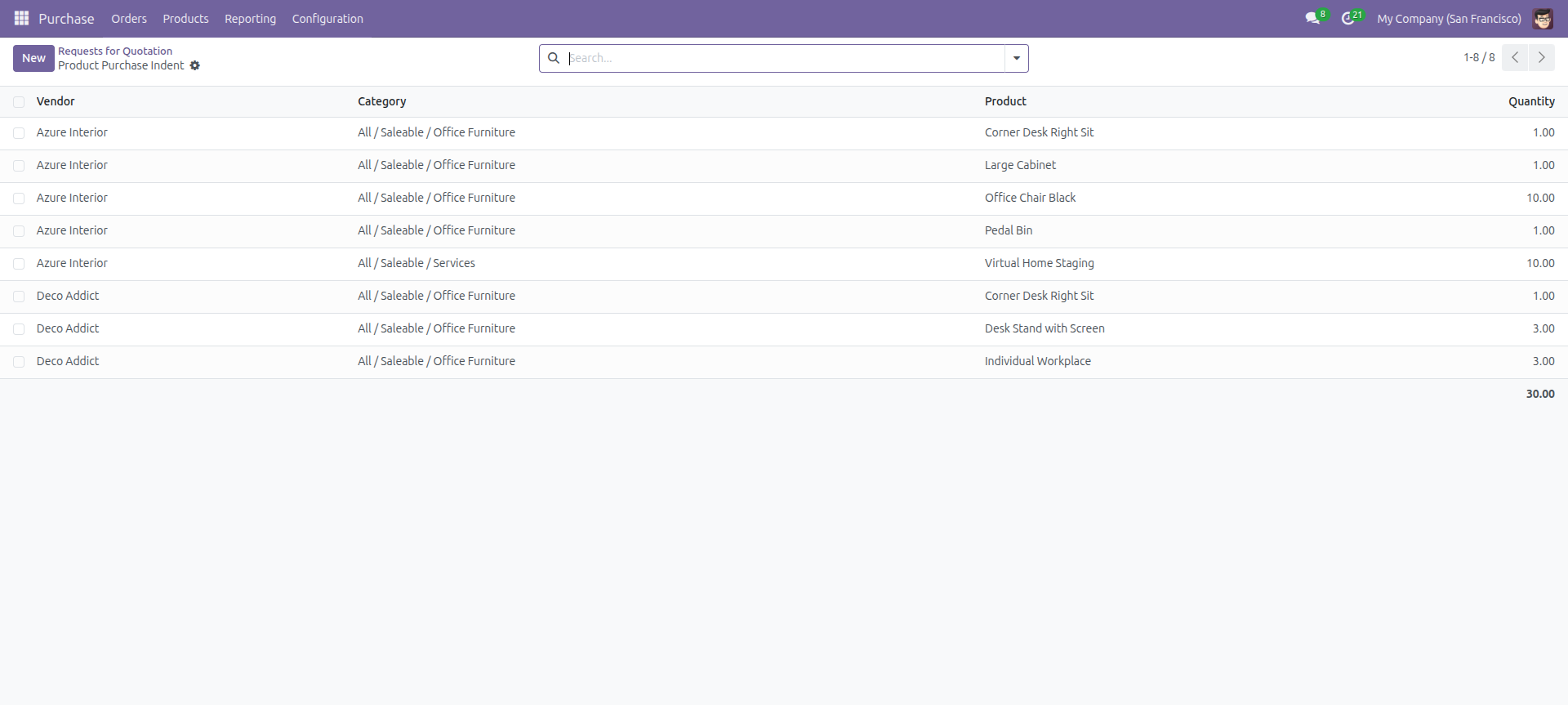
Click 'View' to see the Purchase Product Indent report as a list with Vendor, Category, Product, and Quantity.
Purchase Product Indent report view with Vendor, Category, Product, and Quantity columns.
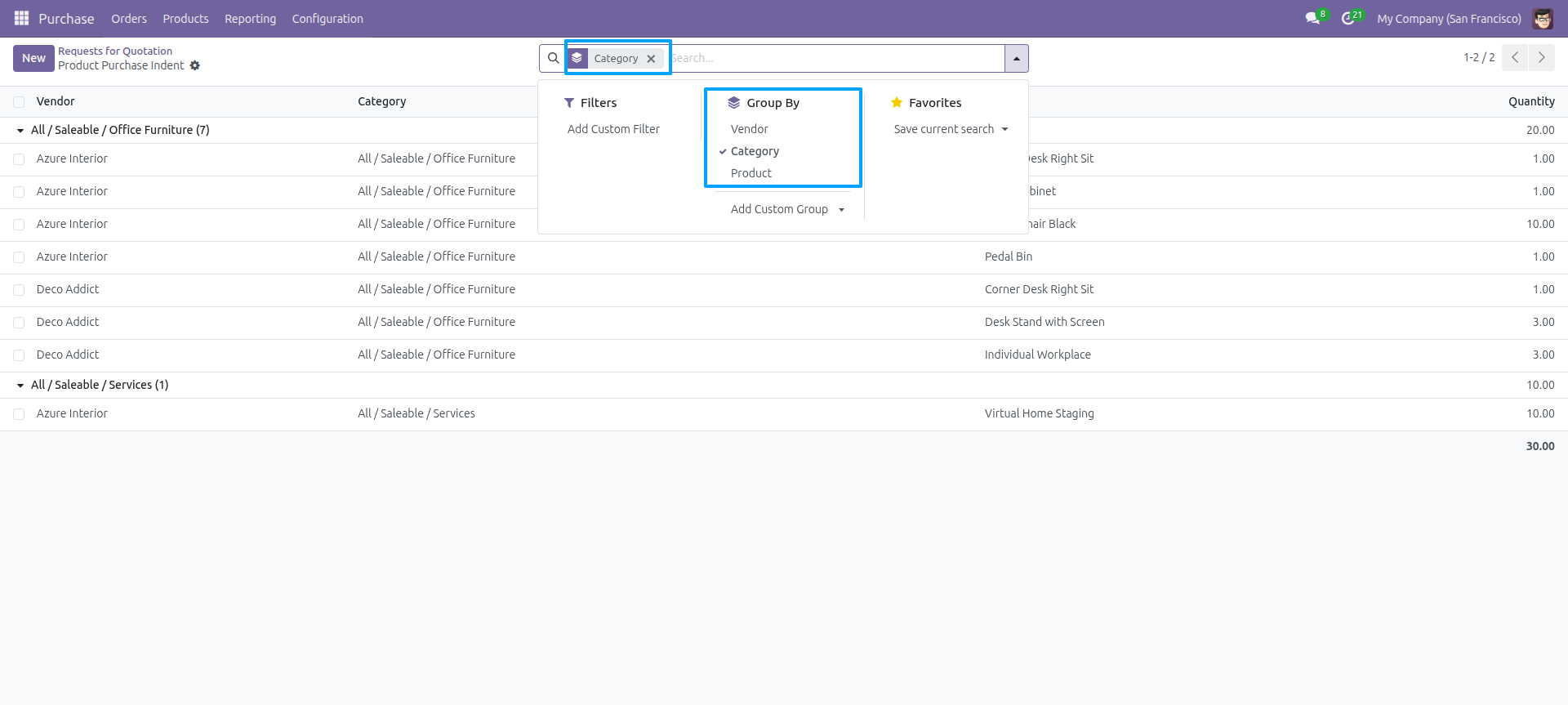
Report view, you can group by the report.
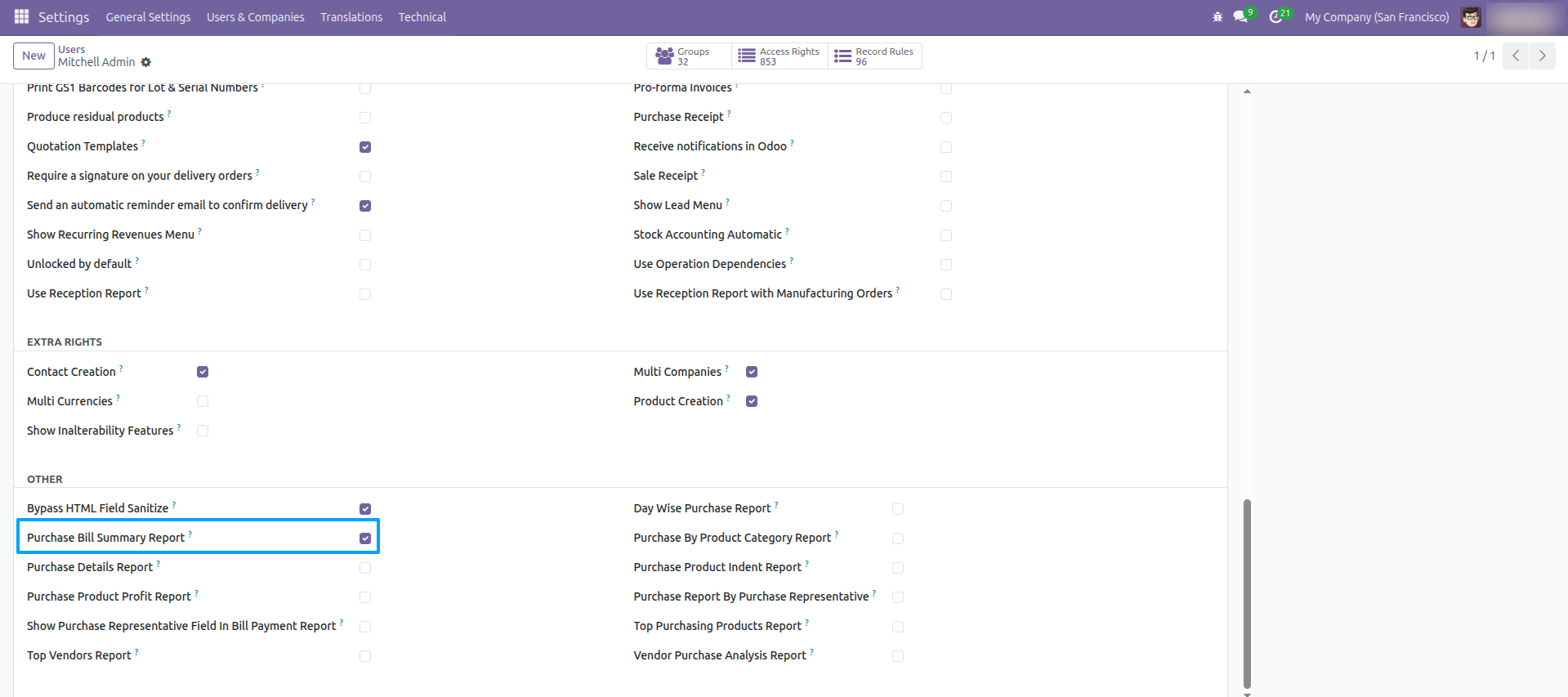
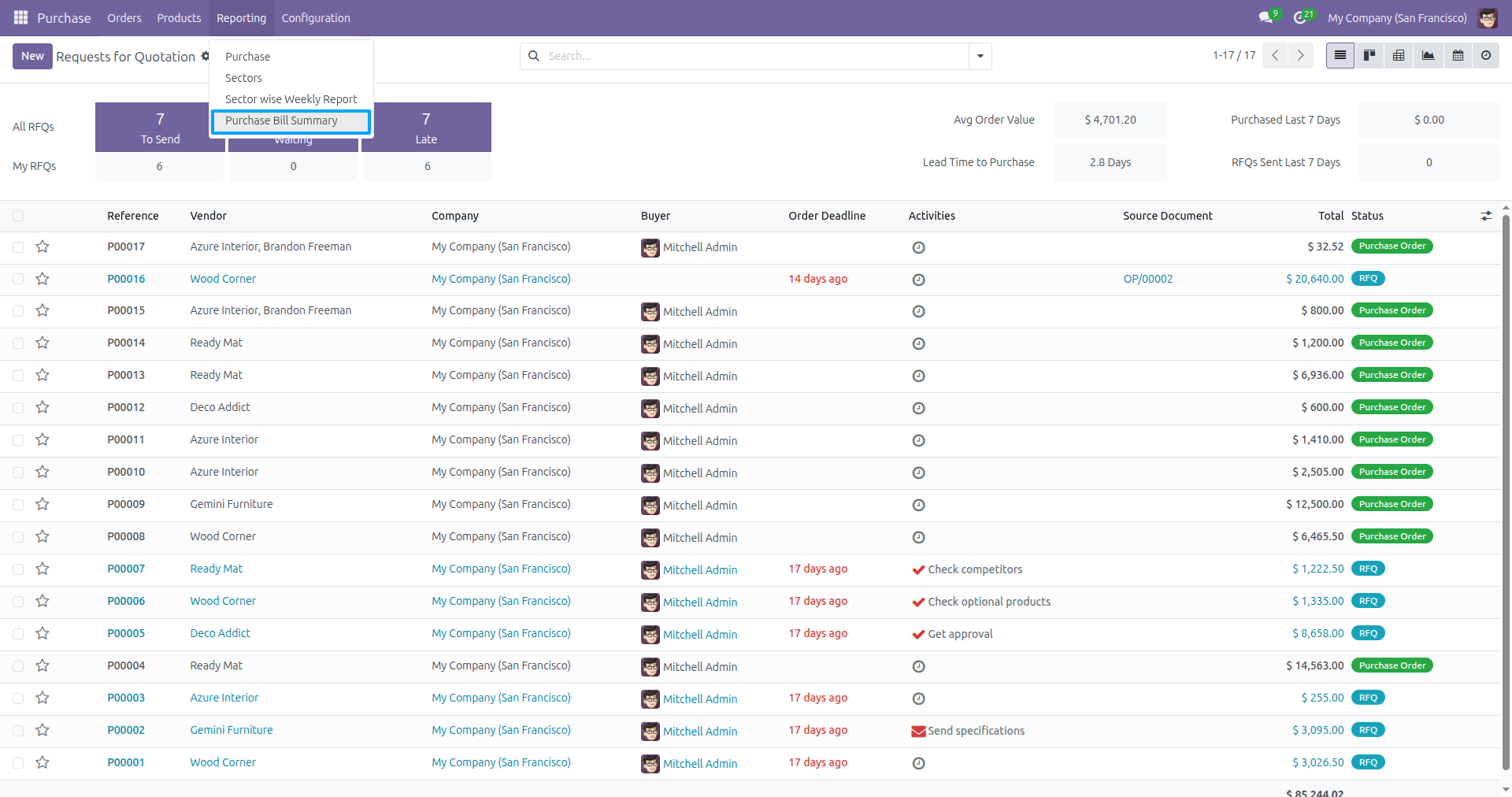
Go to Users and enable 'Purchase Bill Summary Report'.
Go to 'Purchase Bill Summary' menu.
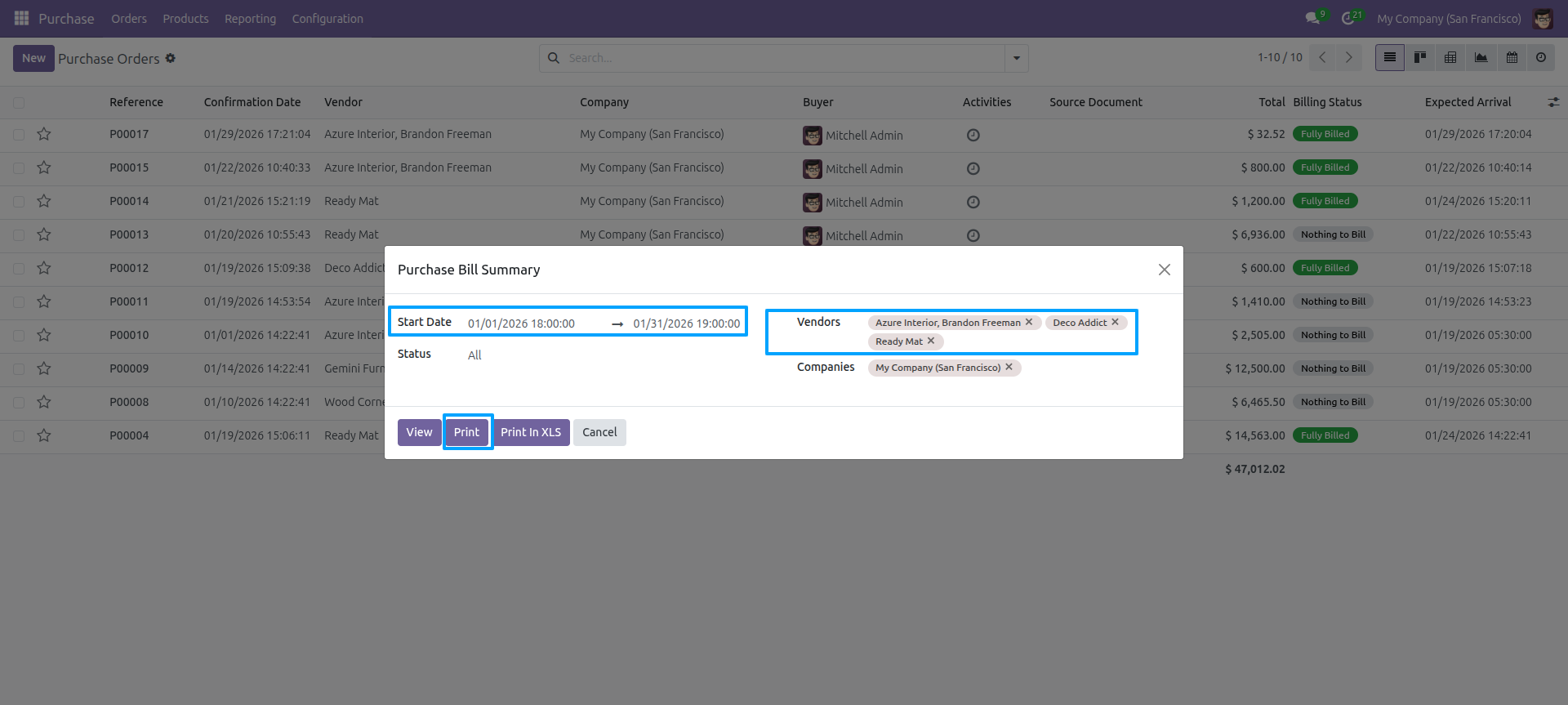
Set date range, Status, select Vendors and Companies, then Print.
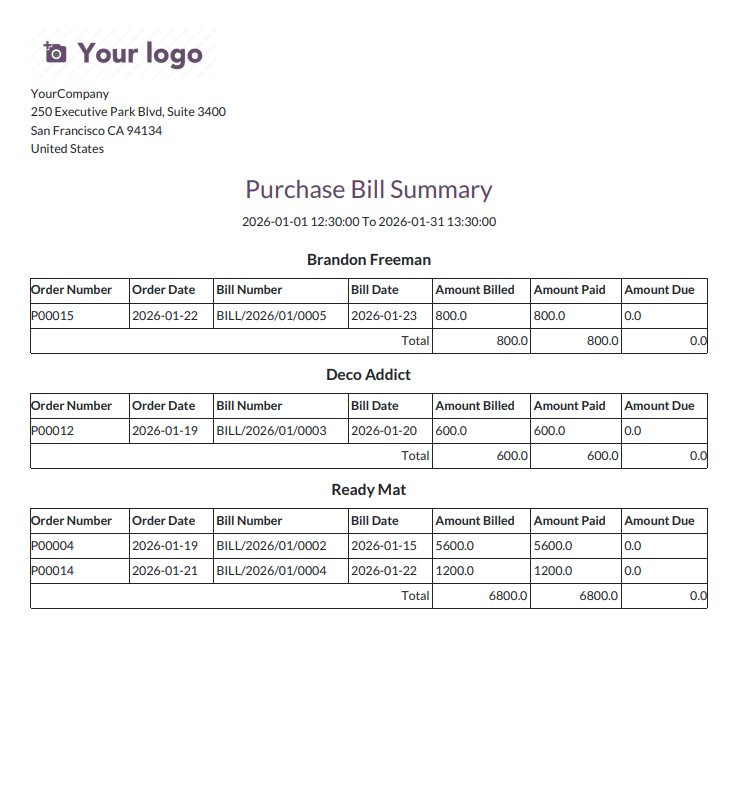
Purchase Bill Summary PDF report grouped by vendor.
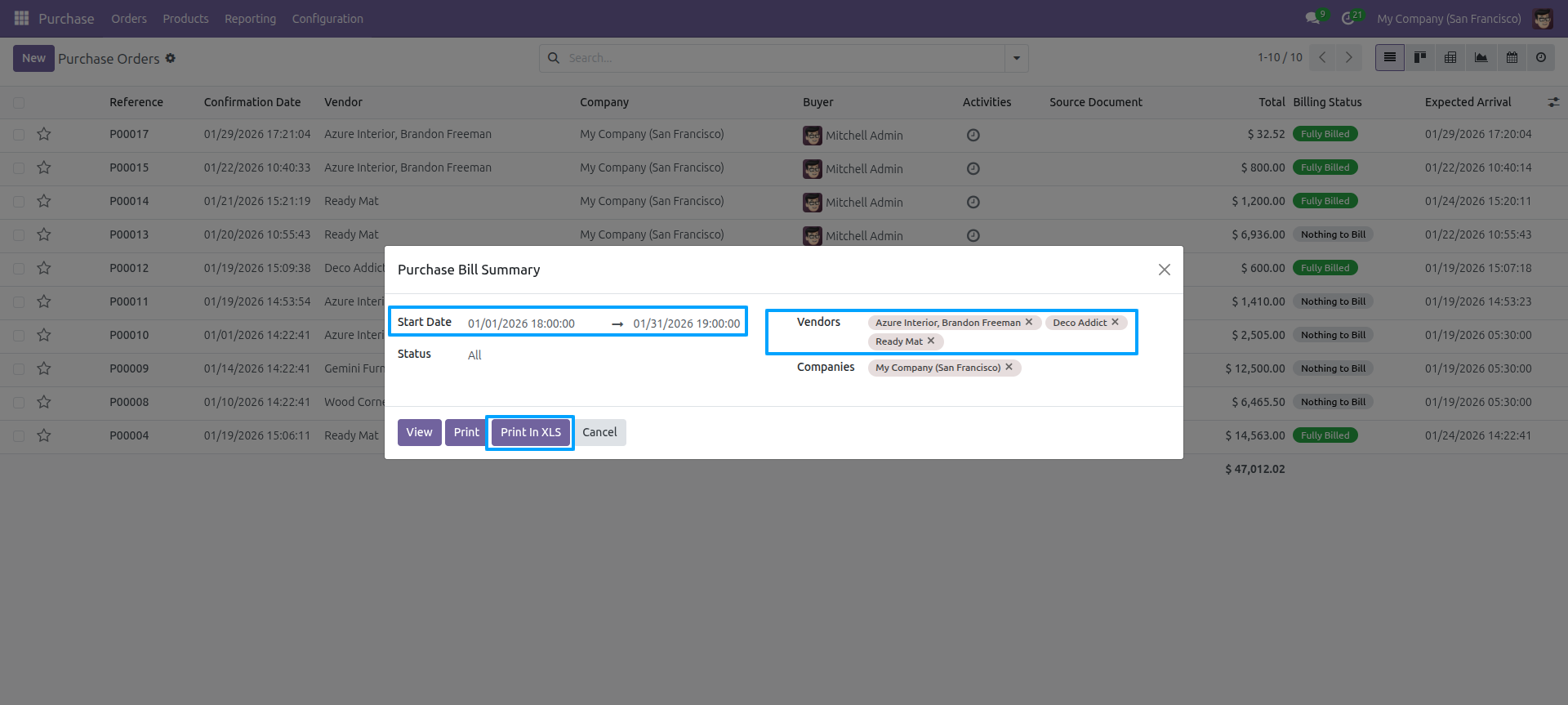
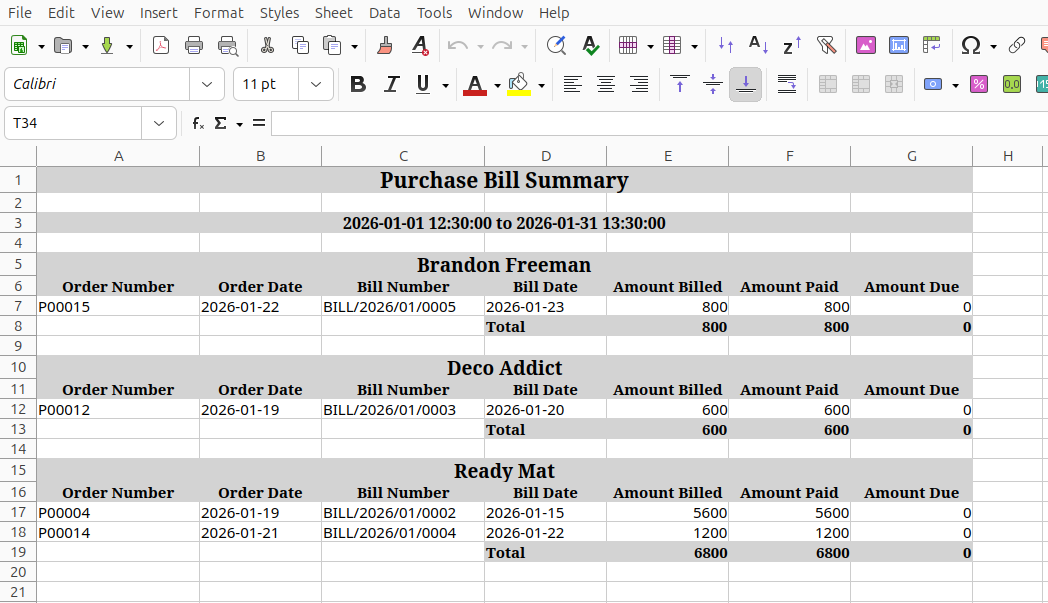
Set date range, Status, select Vendors and Companies, then 'Print in xls'.
Purchase Bill Summary xls report.
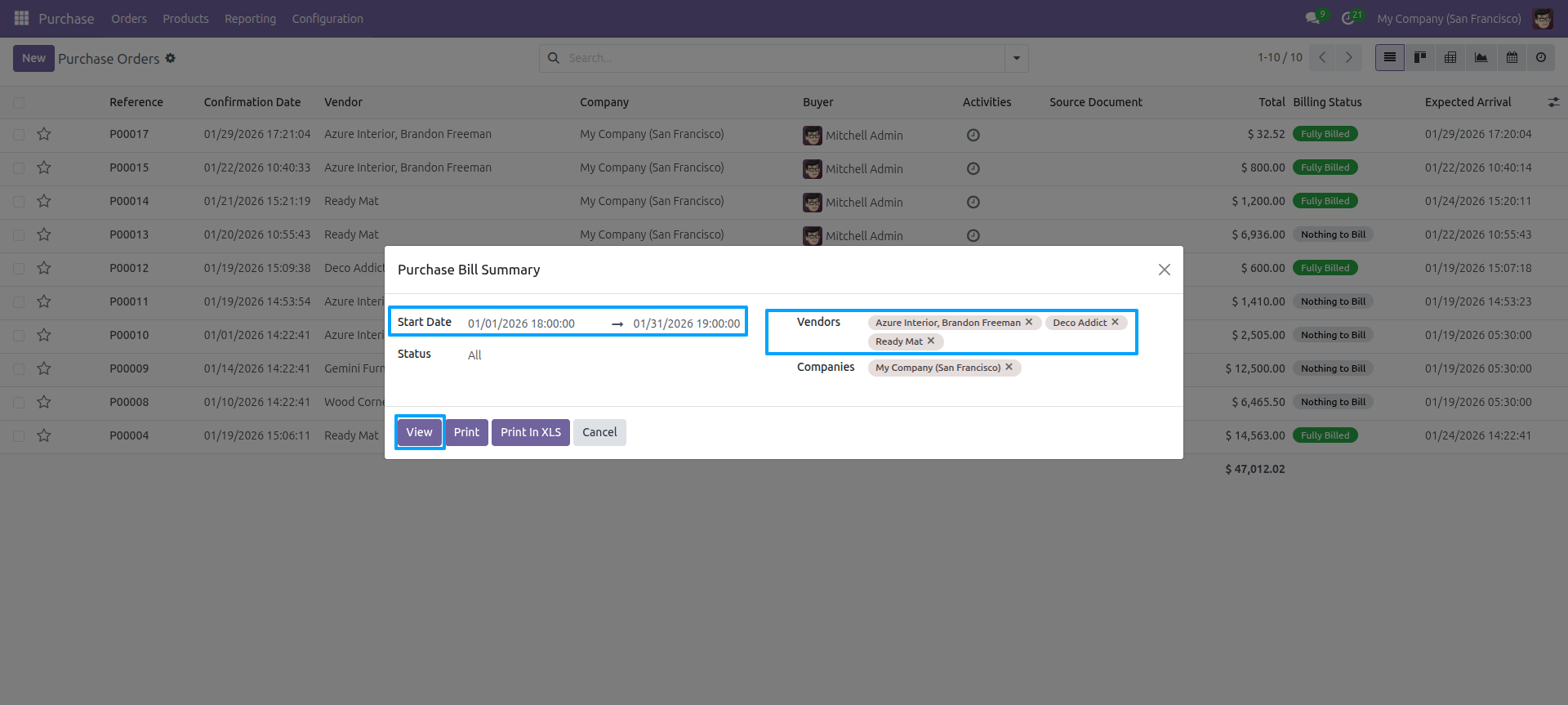
Set date range, Status, select Vendors and Companies, then 'view'.
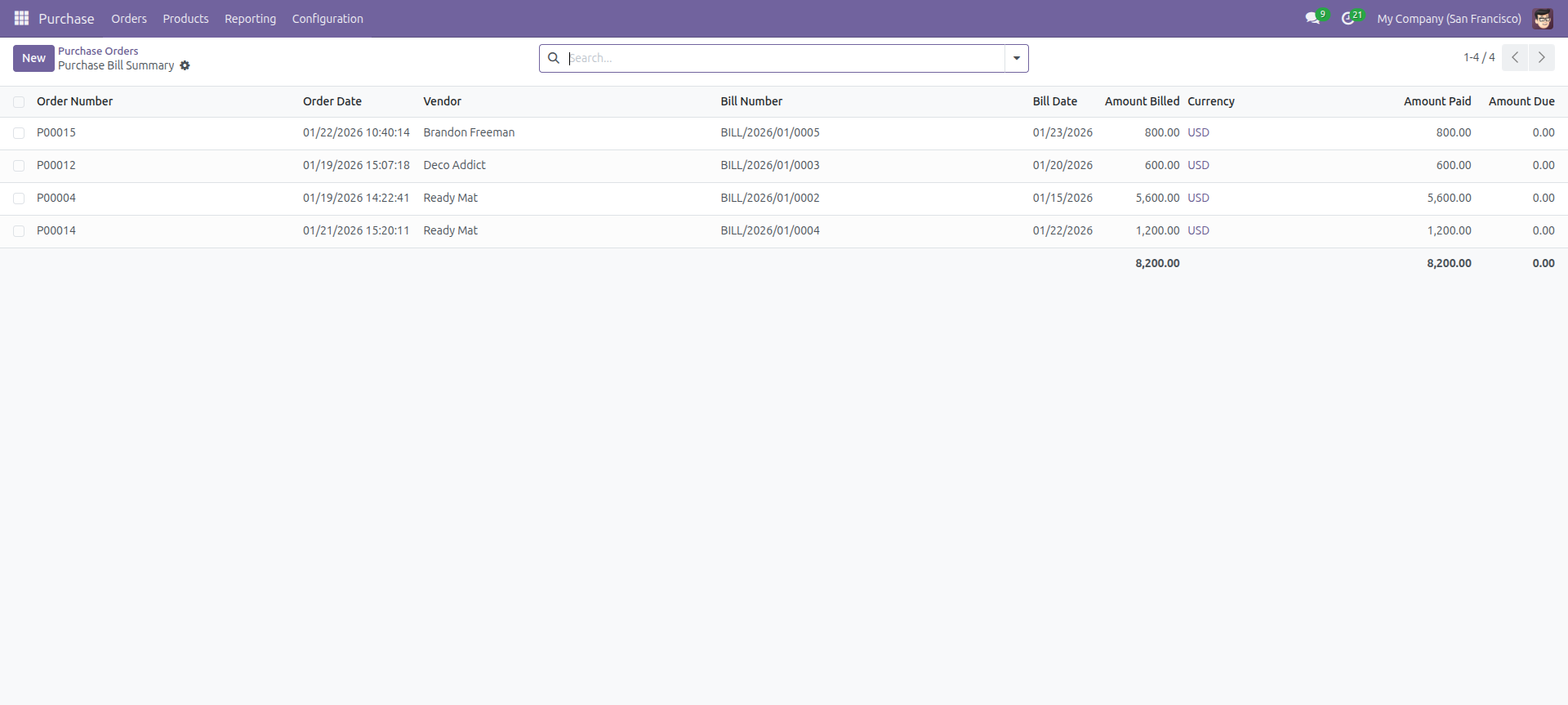
Purchase Bill Summary report view.
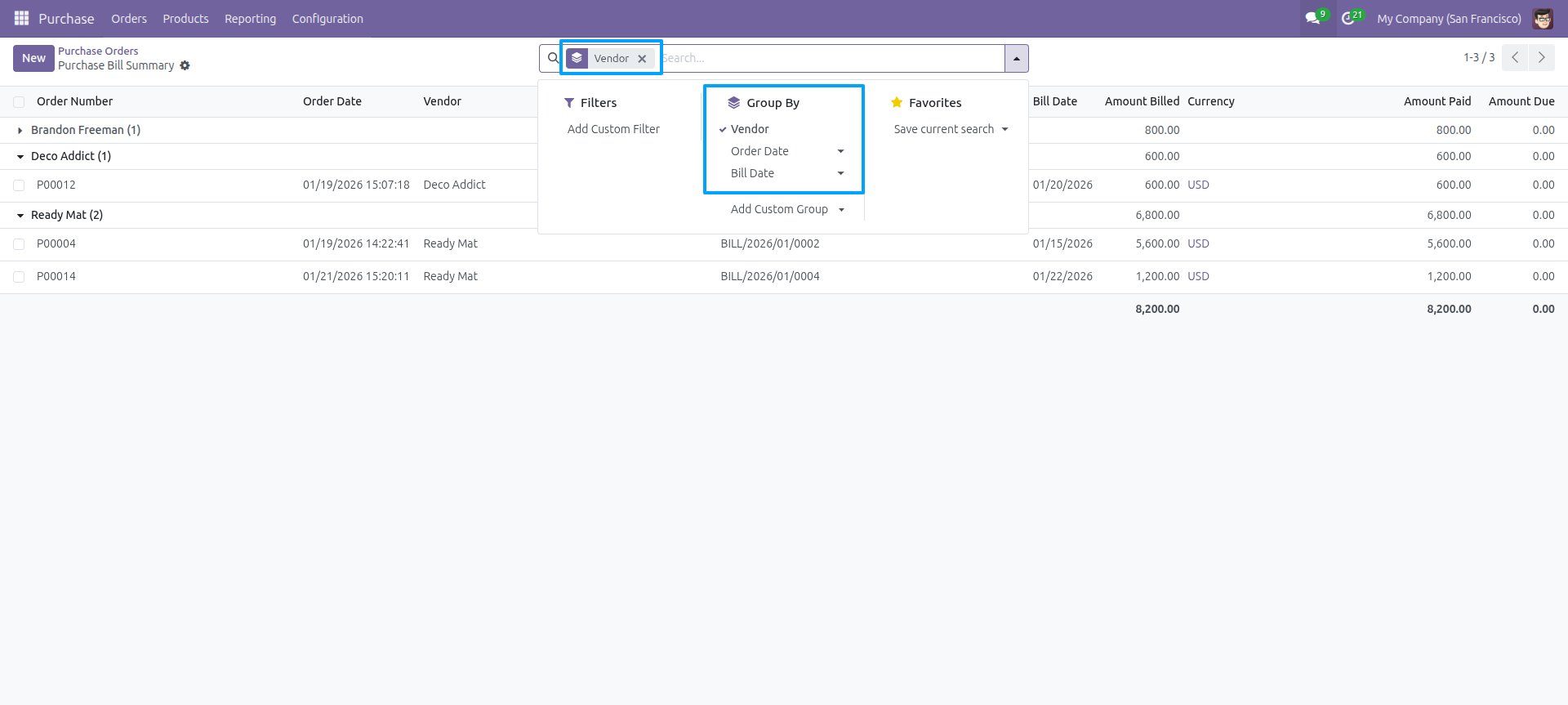
Purchase Bill Summary report view grouped by vendor.
Go to 'Sectors' menu under Reporting.
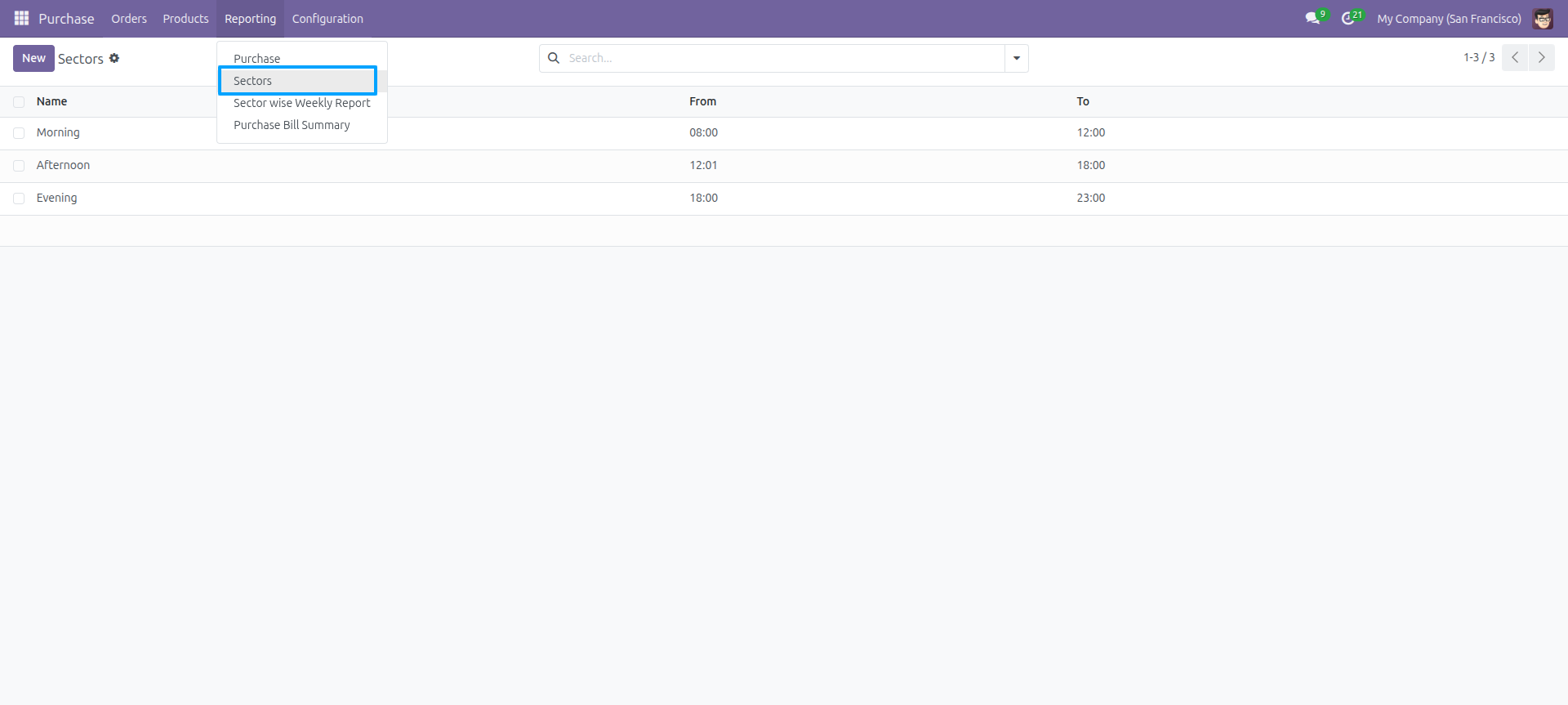
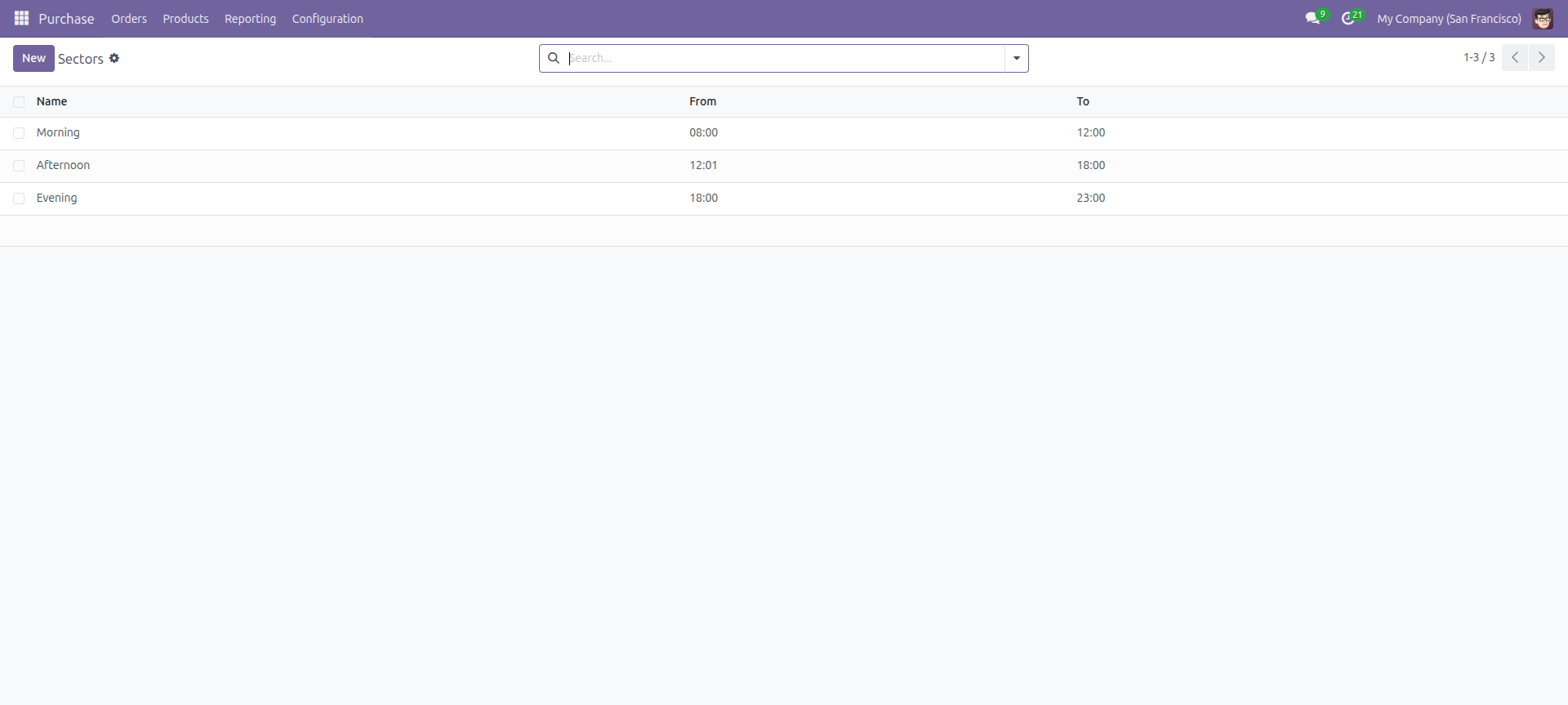
Sector Form View

Sector list View
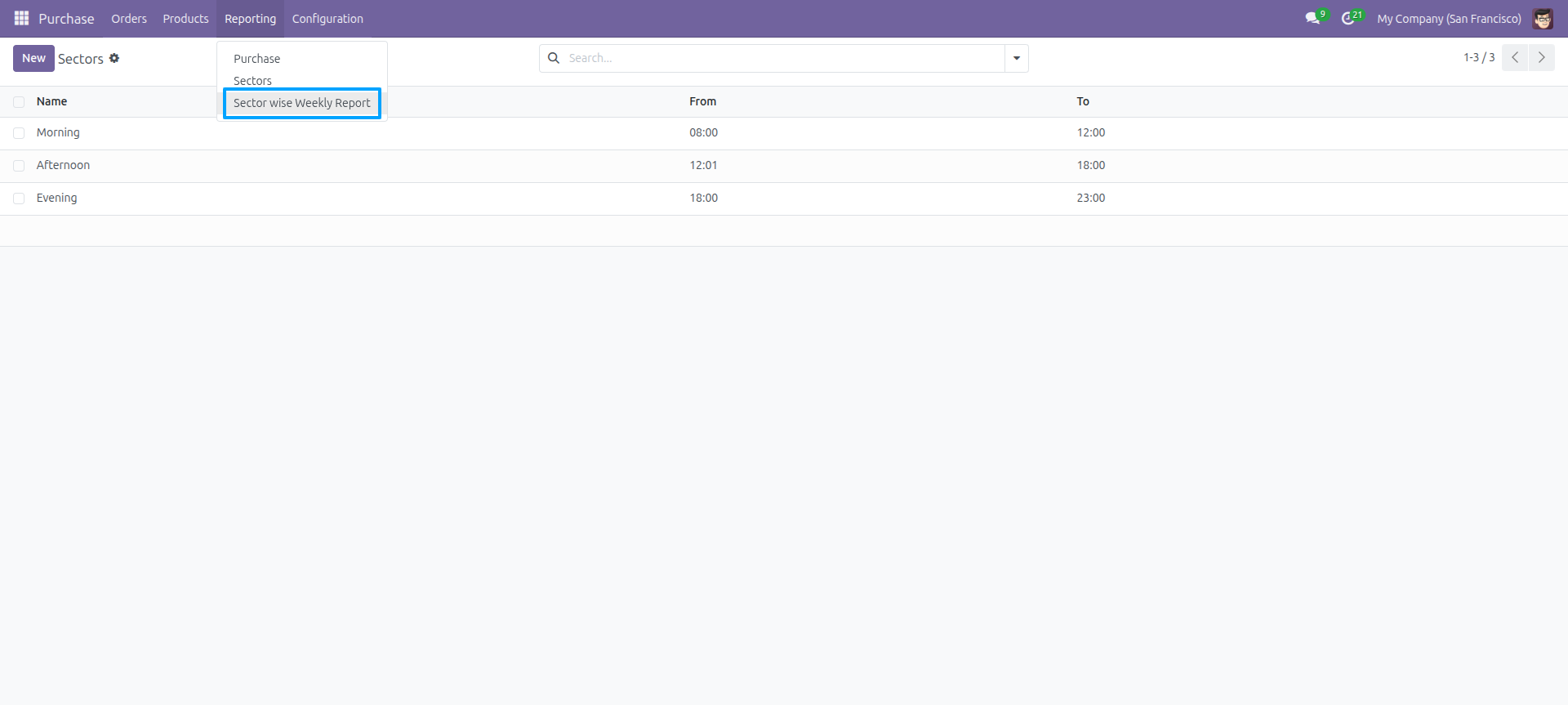
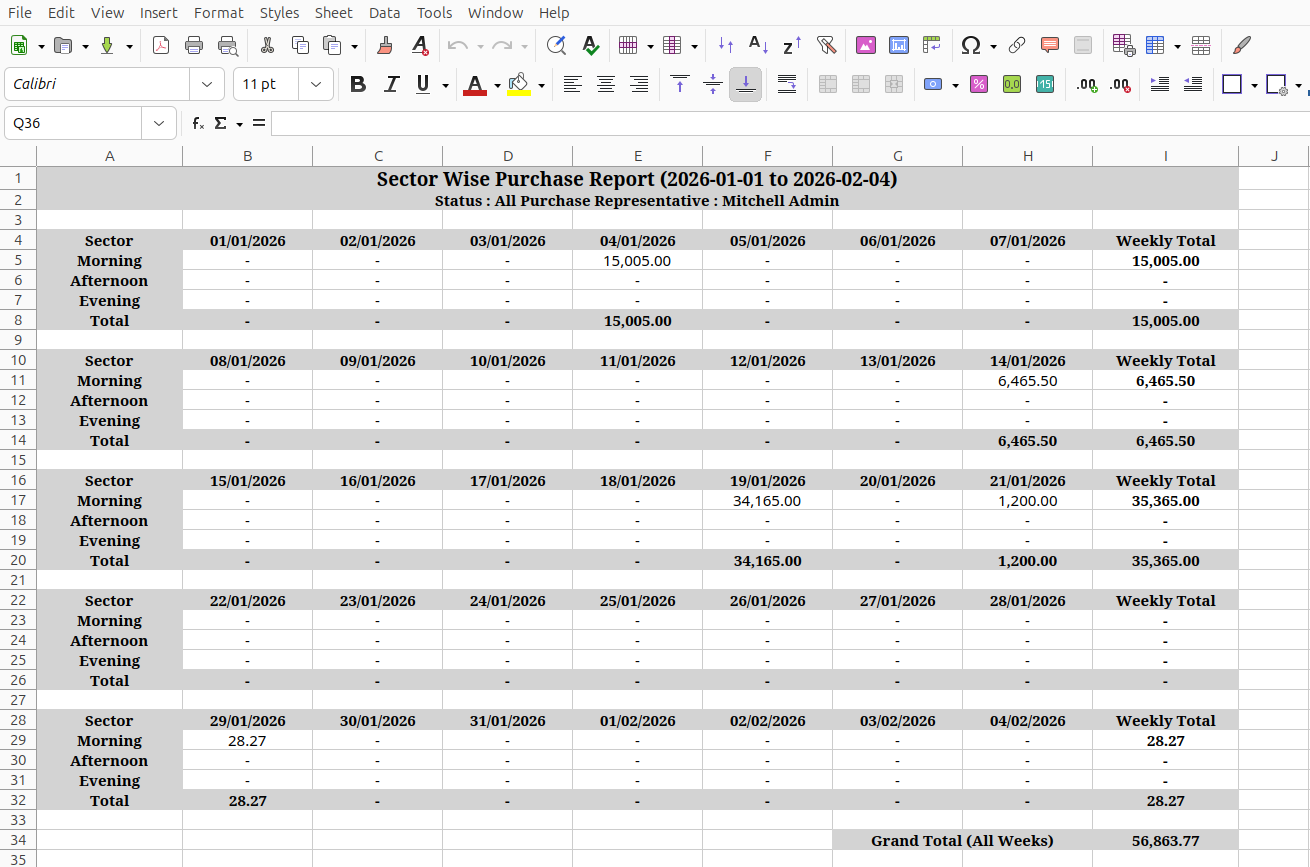
Go to 'Sector wise Weekly Report' menu.
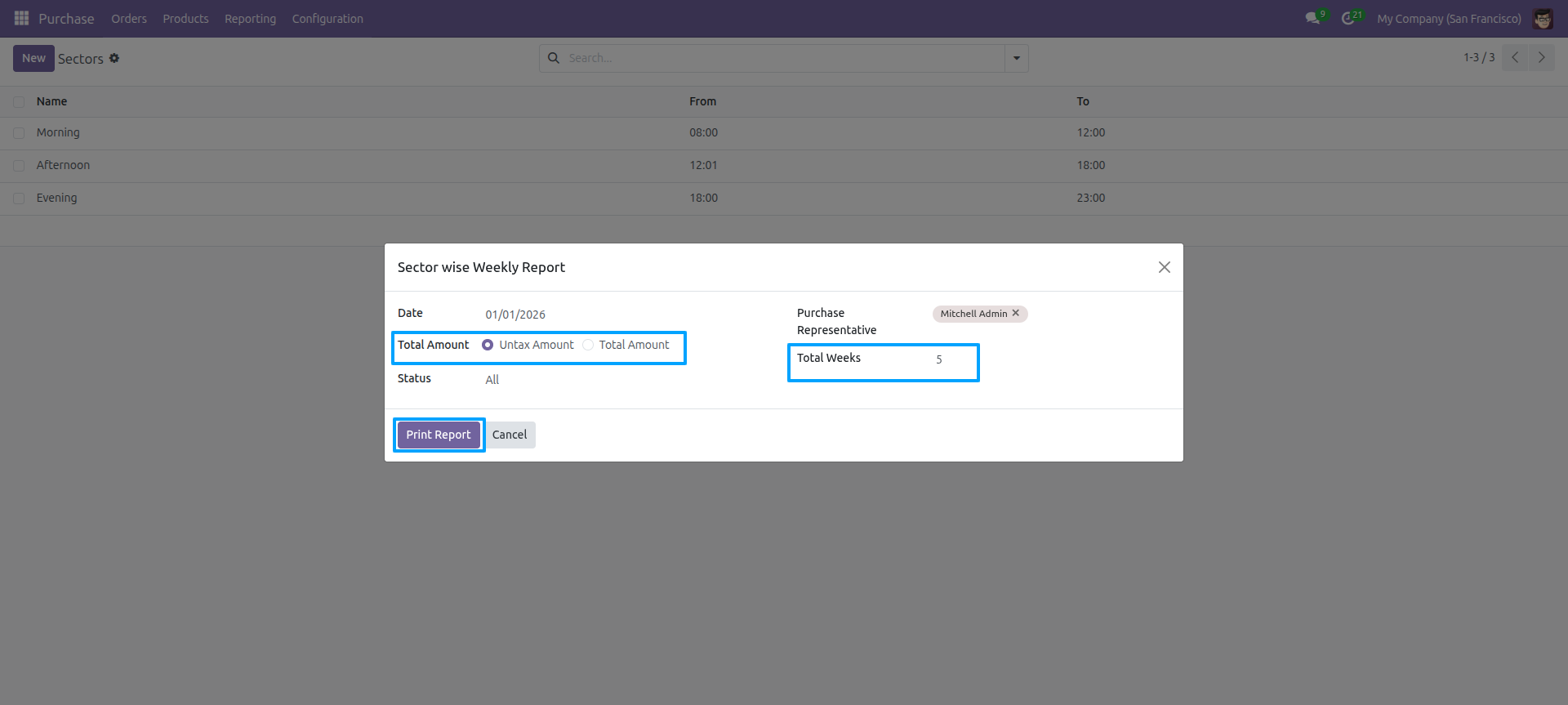
Set Date, Amount Type, Status, Purchase Representative, Total Weeks, then Print Report.
Sector Wise Purchase Report Excel by Morning, Afternoon, Evening with weekly and grand totals.
Technical Information
kx_purchase_reports
purchase
account
Supported Versions
19.0.1.0.0
FREE